

Dark Mode is one of the most popular display options in Windows 11/10, favored by users who prefer a sleek, low-light interface over bright, white screens. It’s especially helpful at night or in dimly lit environments, reducing glare and making it easier on your eyes. Once activated, all supported apps and system areas switch to a darker theme. However, a key limitation is that Windows 11 and Windows 10 cannot automatically switch between light and dark modes based on the time of day.
This GearUpWindows guide shows you exactly how to automate switching between dark and light modes on Windows 11/10 using a free, reliable third-party tool — Auto Dark Mode X. With it, you can schedule theme changes based on time, sunrise/sunset, or even your geographic location, so you get the best lighting mode automatically without lifting a finger.
Why Automatically Switch Between Dark and Light Modes?
Dark mode is fantastic for reducing eye strain at night, while light mode works better during the day in well-lit environments. Many users want the system to switch automatically so they don’t have to manually change it each time. For example:
- Daytime: Light mode offers better visibility in bright rooms or sunlight.
- Nighttime: Dark mode helps prevent eye fatigue and creates a comfortable, glare-free view.
- Seamless experience: Automatic switching adapts to your schedule without interruptions.
- Battery considerations: Dark mode can save power on OLED/AMOLED laptops at night, while light mode ensures clarity in daylight.
When Automatic Theme Switching is Most Useful
Automatic light/dark switching isn’t just about comfort — it’s about productivity and environmental awareness. Here are a few common scenarios:
- Working from home in a room that receives bright daylight but becomes dim in the evening.
- Frequent travelers whose work hours change with time zones.
- Developers, designers, or writers who spend long hours on-screen and want minimal glare at night.
- Gamers who want a light interface during the day but a darker atmosphere at night for immersion.
Features of Auto Dark Mode X
Before we get into setup, here’s why Auto Dark Mode X stands out:
- Time-based switching: Set exact hours for light/dark mode transitions.
- Sunrise/Sunset automation: Adjust themes based on natural daylight cycles.
- Geolocation-based scheduling: Switch themes according to your city’s sunrise and sunset times.
- Per-app theme settings: Decide which apps follow the system theme and which stay fixed.
- Theme and wallpaper pairing: Automatically change wallpapers along with the mode.
- Lightweight and resource-friendly: Runs quietly in the background without slowing your PC.
- Hotkey support: Instantly switch themes manually with a keyboard shortcut.
Auto Dark Mode X for Windows 11/10
Auto Dark Mode X is a free, lightweight application for Windows 11 and Windows 10 that switches between light and dark modes automatically. You can schedule it by time, sunrise/sunset, or based on your geographic coordinates. It works silently in the background and offers extra customization options for themes, wallpapers, and even app-specific modes.
You can download the latest release from its official GitHub page and install it like any other Windows program. Once installed, it launches automatically — although scheduling is disabled by default until you configure it.
How to Automatically Switch Between Light and Dark Modes in Windows 11/10
We’ll use Auto Dark Mode X to achieve automatic switching. Here’s how:
Step 1. Download the Auto Dark Mode X executable file from GitHub. Choose the latest stable release for your system.
Step 2. Double-click the downloaded file and install it like any standard Windows application. You can accept the default installation settings.
Step 3. Launch Auto Dark Mode X. It will also auto-start after installation, so you don’t need to open it manually each time.
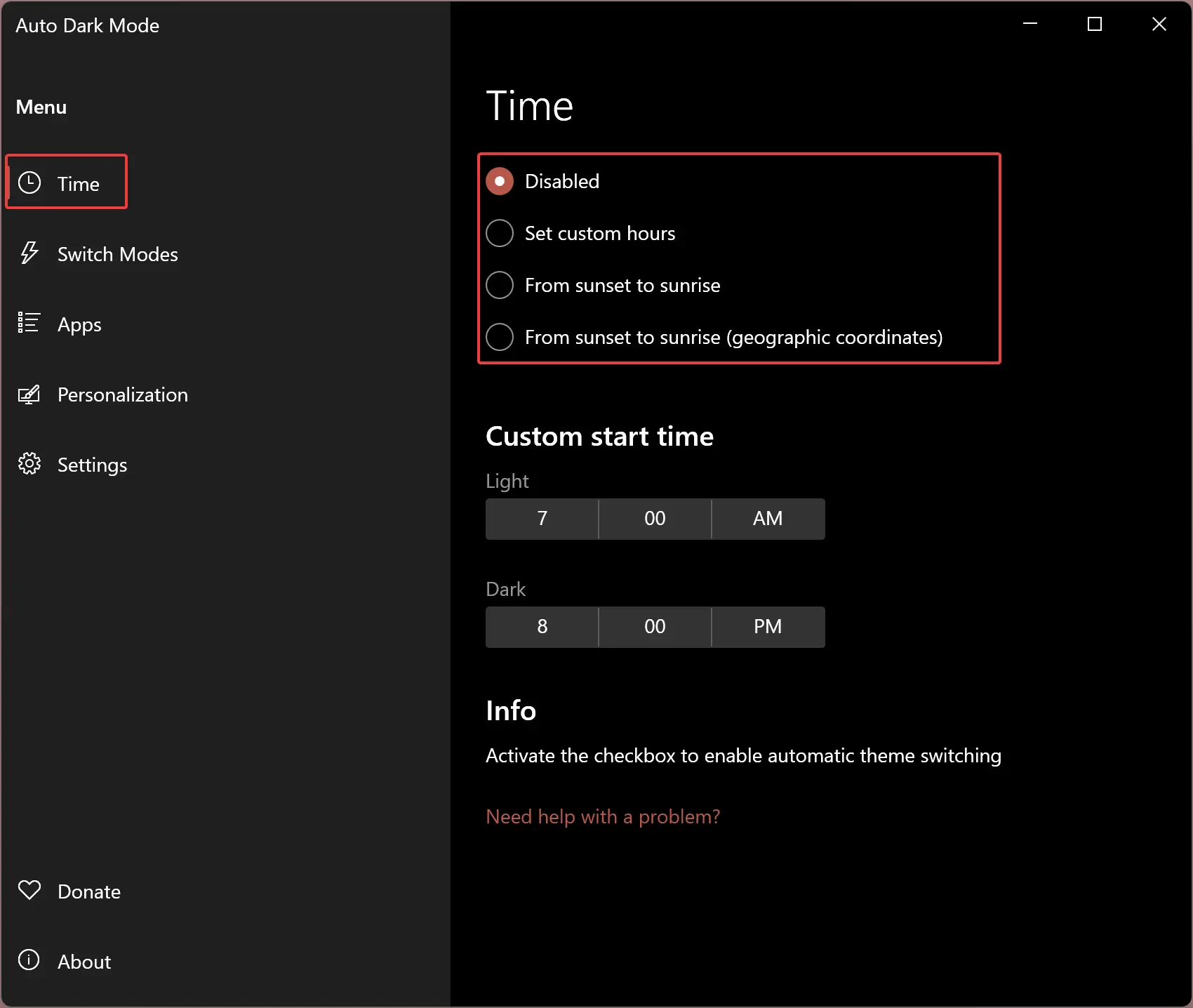
Step 4. In the left sidebar, select the Time section. You’ll see options to choose how and when the mode switches:
- Disabled
- Set custom hours
- From sunset to sunrise
- From sunset to sunrise (geographic coordinates)
Select your preferred mode — settings are saved automatically.
Switch Modes Options
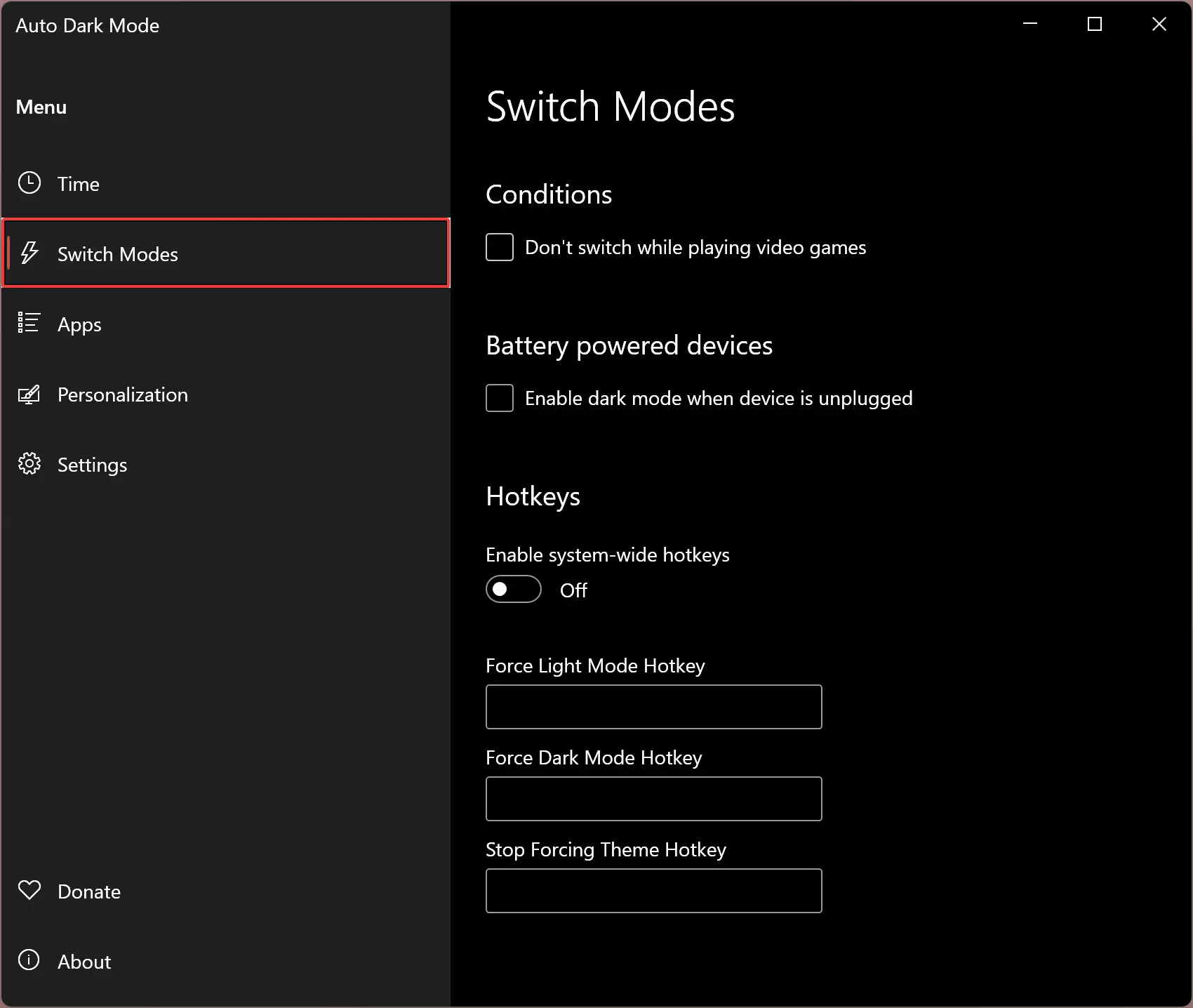
Under Switch Modes, you can refine how the app behaves:
- Don’t switch while playing video games
- Enable/disable dark mode when device is unplugged
- Assign a hotkey to switch themes manually
Apps
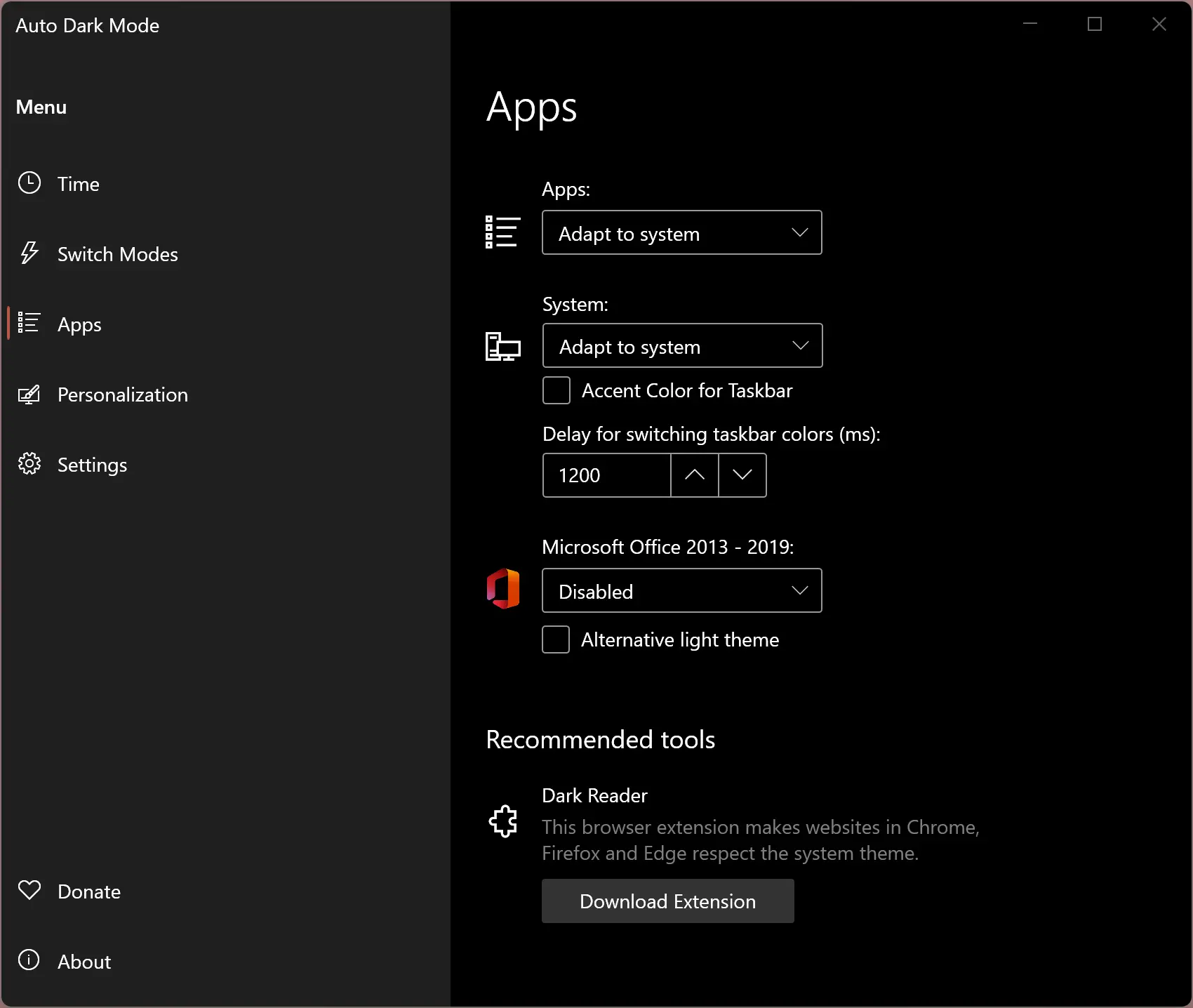
Decide whether individual apps use light, dark, or system mode. You can also pair it with the Dark Reader browser extension to apply your system theme to Chrome, Edge, and Firefox.
Personalization
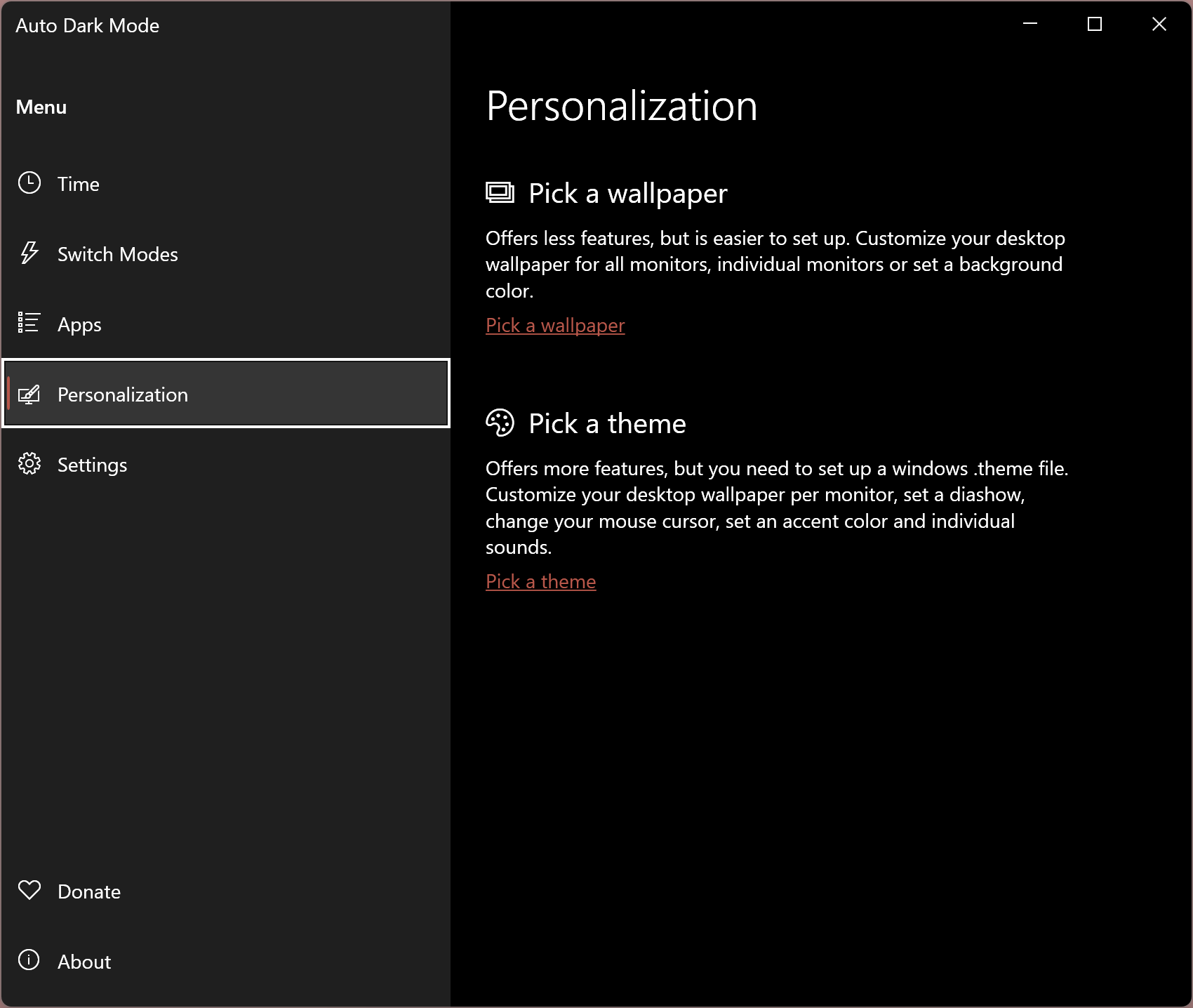
Theme lovers will appreciate this — you can set specific wallpapers or themes to go with light and dark modes. The switch happens automatically when modes change.
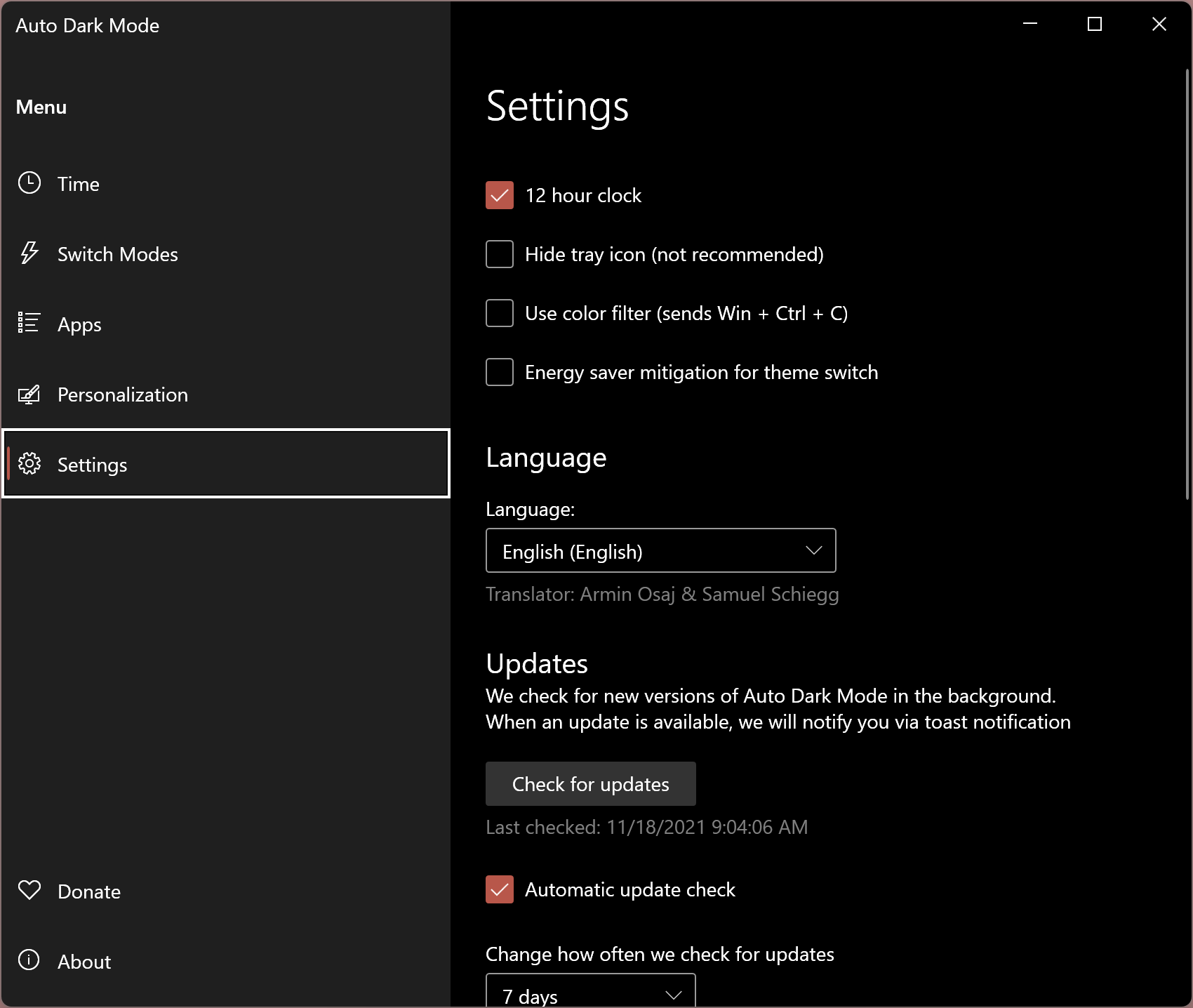
Settings
Fine-tune behavior with options such as:
- Use 12-hour clock
- Hide system tray icon
- Enable color filters
- Change interface language
- Start with Windows (or use logon task for faster switching)
Download Auto Dark Mode X
You can download the latest version of Auto Dark Mode X from its official GitHub page.
If you prefer a more manual but instant way to switch themes, try the free
Dark Mode Switcher. It lets you toggle between light and dark themes in Windows 11/10 with a single click, making it a great lightweight alternative for users who don’t need full automation.
Frequently Asked Questions
Can Windows 11/10 schedule dark mode without third-party apps?
No. Windows 11 and Windows 10 don’t provide a native scheduler for light/dark mode. To automate switching, use a free tool like Auto Dark Mode X.
Will my apps follow the automatic light/dark schedule?
Most apps that respect the Windows theme (File Explorer, Settings, Microsoft Office, Chrome, Edge, etc.) switch automatically. Apps with their own theme settings may need to be set to “Use system settings.”
What’s the difference between “sunset to sunrise” and “geographic coordinates” in Auto Dark Mode X?
“Sunset to sunrise” uses your system’s location services/time zone to estimate daylight. The “geographic coordinates” option lets you set precise latitude/longitude for more accurate switching times.
Does Auto Dark Mode X impact performance or battery life?
It’s lightweight and runs in the background with negligible impact. In fact, using dark mode at night may feel more comfortable and can save power on OLED/AMOLED displays.
Can I quickly toggle light/dark manually if I need to?
Yes. In Auto Dark Mode X, assign a hotkey in the Switch Modes section to flip themes instantly whenever you want.
How do I keep wallpapers or themes in sync with light/dark mode?
Use the Personalization section in Auto Dark Mode X to pair a wallpaper and theme with each mode so they change automatically when the schedule switches.
Chrome/Edge stays light even when Windows is dark. What should I check?
Ensure the browser is set to follow the system theme. In Chrome, use Customize Chrome → Device. In Edge, set Settings → Appearance → Overall appearance to System default.
Conclusion
Dark mode is a popular choice for Windows 11 and 10 users, but manually switching between light and dark modes can be tedious. Auto Dark Mode X solves this by automating the process based on time, location, or your own schedule. It’s free, lightweight, and offers plenty of customization so you can enjoy the perfect theme at any time of day. With features like app-specific themes, wallpaper pairing, and geolocation-based switching, it’s more than just a theme changer — it’s a complete personalization tool. Install it once, set your preferences, and let it work in the background — so your desktop always matches your environment and comfort level.
Also Read: How to Create a Keyboard Shortcut for Dark Mode in Windows 11 or 10