

If you need to pull structured data out of a PDF and into a spreadsheet, this lightweight PDF to Excel/CSV converter runs entirely in your browser. There’s no upload, no watermark, and no signup — everything is processed on your device for maximum privacy.
Open the PDF to Excel/CSV Converter and follow the quick guide below. It supports both XLSX and CSV export, page ranges, one-sheet-per-page or a single combined sheet, smart header detection, an optional reverse-order toggle, and currency cleanup for numeric columns.
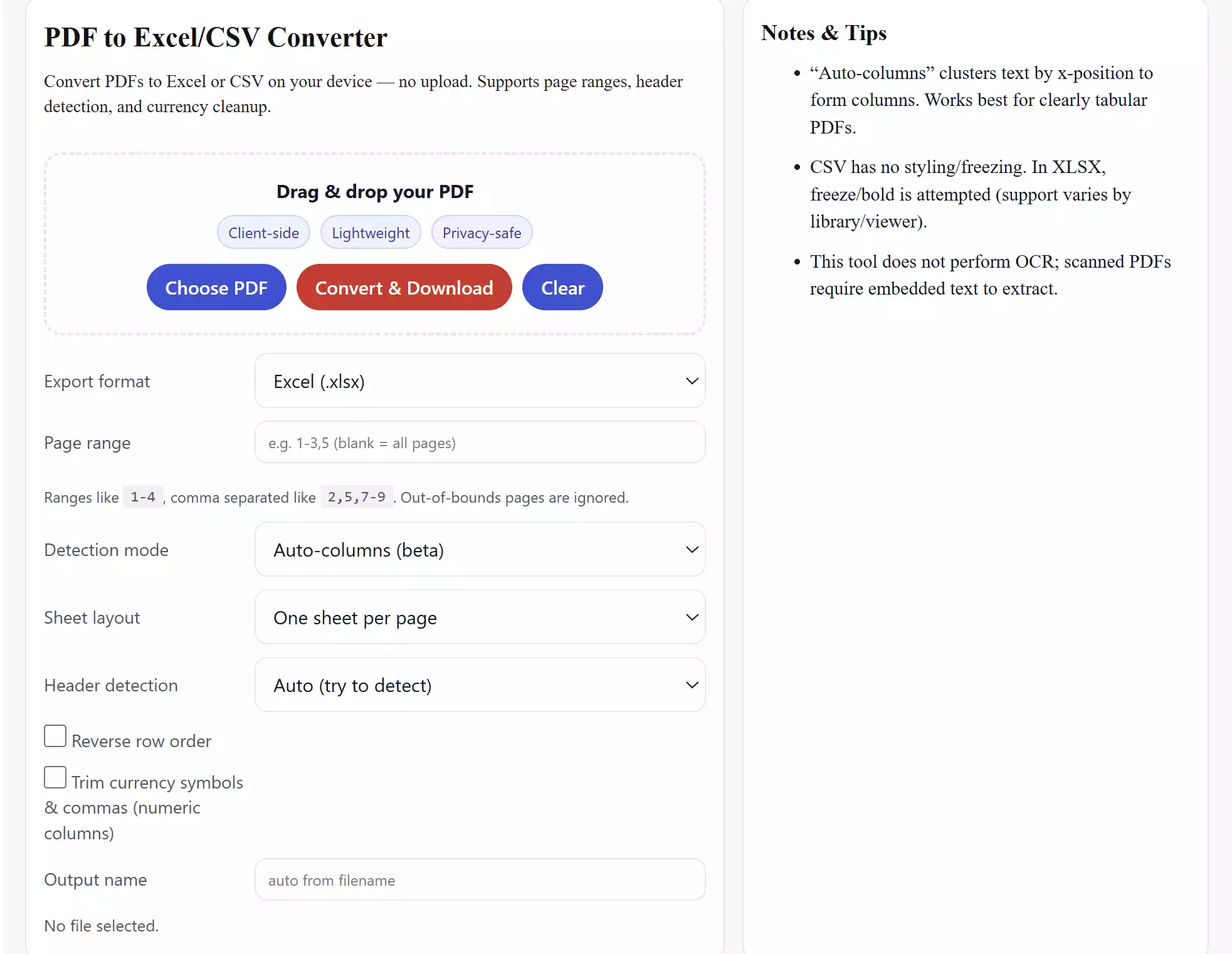
Main features
- 100% client-side: your PDFs never leave your device.
- XLSX & CSV export: choose the format that suits your workflow.
- Auto-columns (beta) and Plain rows modes for different layouts.
- Page ranges: convert all pages or only the ones you need.
- Per-page sheets or a single combined sheet for multi-page PDFs.
- Header detection (freeze + bold attempt in XLSX), Reverse row order toggle, and Trim currency & commas for numeric columns.
How to use the converter
Follow these simple steps (no installation needed):
Step 1. Open the PDF to Excel/CSV Converter on your Windows PC (works on other platforms too).
Step 2. Drag & drop your PDF, or click Choose PDF to select a file.
Step 3. Pick a Detection mode:
-
- Auto-columns (beta) — clusters text by x-position to build columns (best for clearly tabular PDFs).
- Plain rows — outputs one cell per row when layout is irregular.
Step 4. (Optional) Set a page range like 1-4 or 2,5,7-9. Choose One sheet per page or Single sheet.
Step 5. Choose Export format (XLSX or CSV). If your PDF reads bottom-to-top, tick Reverse row order. To make numbers ready for formulas, tick Trim currency & commas.
Step 6. Click Convert & Download. Your spreadsheet saves instantly.
Tips for best results
- Tables with clear columns: Use Auto-columns. If a column looks merged, try again with Plain rows.
- Header row: Leave Header detection on Auto. If the first line is data (not headers), switch it to No.
- Numbers & currency: Enable Trim currency & commas so Excel treats values as numbers, not text.
- Row order: If results look upside-down, use Reverse row order.
- Image-only PDFs: If your PDF has no selectable text (a scan), run OCR first, then convert.
When this tool can help
- Exporting invoices, receipts, or statements into Excel for analysis.
- Copying price lists, product catalogs, or inventory from PDF to CSV for import into another system.
- Turning reports into sortable, filterable spreadsheets.
Related free tools from Gear Up Windows
If you work with PDFs often, these client-side tools pair nicely with this converter:
- Free PDF to Word Converter (DOCX) — when you need fully editable documents instead of spreadsheets.
- PDF to Text Converter — quickly extract all text to a lightweight .txt file.
- PDF Splitter & Organizer — split by range, odd/even, or every N pages before converting.
- PDF Merger — combine multiple PDFs, then export to Excel/CSV in one go.
- PDF Encryptor (AES-256) — secure spreadsheets or source PDFs after processing.
Frequently asked questions
Does this upload my PDF to a server?
No. The converter runs entirely in your browser. Your files never leave your device.
Will the Excel file keep my table formatting?
Auto-columns tries to reconstruct columns; Plain rows keeps each line as a single cell. XLSX adds a best-effort freeze/bold on the first row when header detection is enabled.
What if the PDF is a scanned image?
Scans don’t contain selectable text. Use OCR first (see our PDF OCR tool on Gear Up Windows), then convert.
Can I convert only specific pages?
Yes. Enter a range, such as 2-5 or, a list like 1,3,7-9. The tool ignores out-of-bounds pages automatically.
What’s the difference between XLSX and CSV?
XLSX supports multiple sheets and basic styling; CSV is plain text (one sheet) and great for imports into apps and databases.
Does it work on Windows 11/10 only?
No. It’s built for modern browsers — works on Windows, macOS, and Linux. For large PDFs, desktop browsers are more comfortable.
Open the tool
Ready to try it? Open the PDF to Excel/CSV Converter and convert your first file in seconds.