

GUW PDF → Images Extractor lets you convert every page of a PDF into standalone images. Drop a file, preview page thumbnails, rotate if needed, pick your format (PNG or JPEG), choose quality and scale, then export individual pages or batch-download everything as a ZIP — all locally on your device. It’s fast, private, and built for everyday workflows.
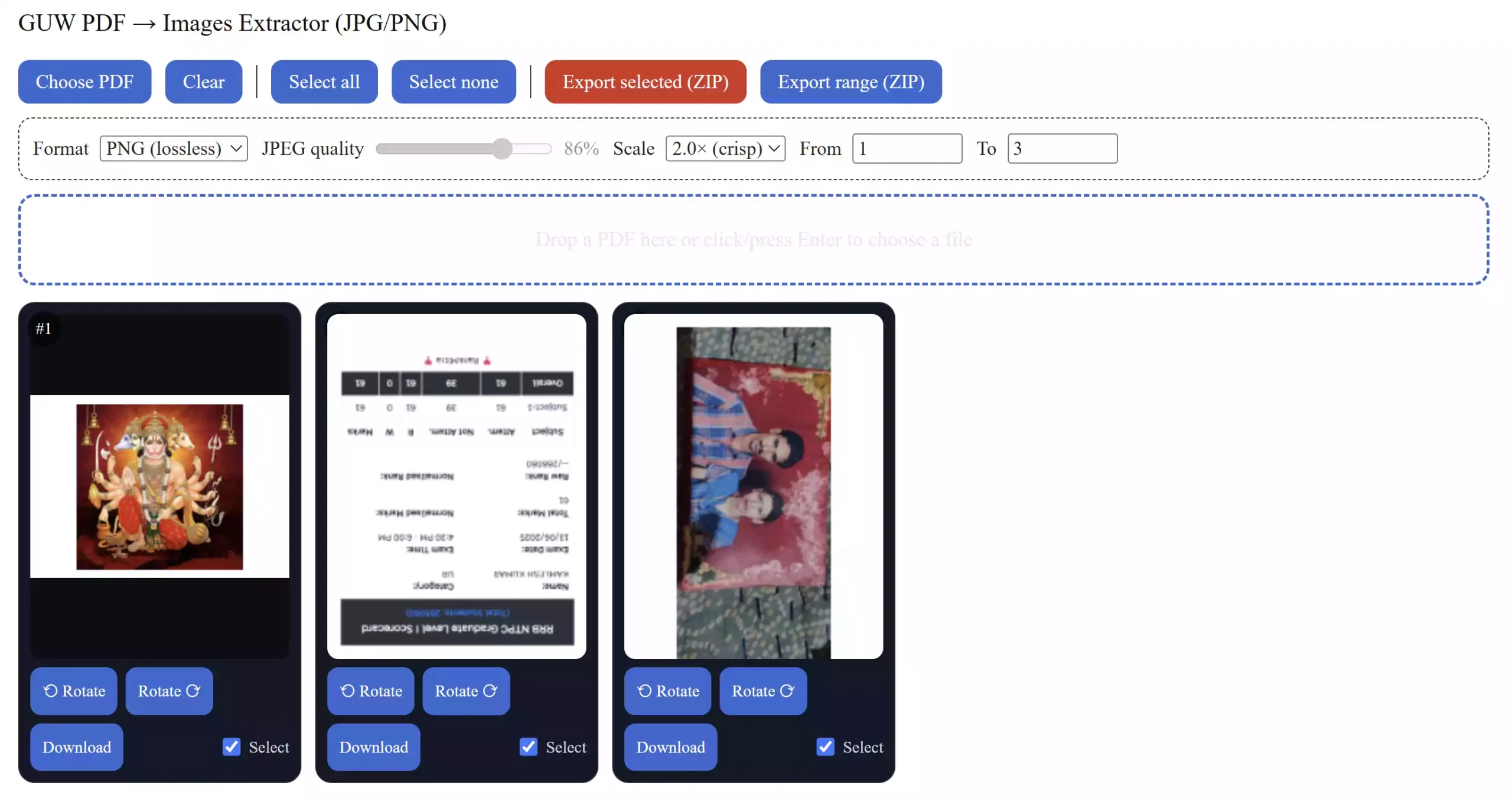
What this tool does
- Extracts pages as images: Export to PNG (lossless) or JPEG (smaller files).
- Preview & correct: Thumbnail grid with quick Rotate and Select per page.
- Flexible export: Download a single page instantly, Export selected as a ZIP, or Export range (e.g., 3–10).
- Quality control: Set JPEG quality and rendering scale (1.0×–3.0×) for crisper output when needed.
- Client-side only: Everything runs in your browser — your files never leave your PC.
How to extract images from a PDF
Step 1. Open GUW PDF → Images Extractor.
Step 2. Click Choose PDF or drop your file into the drop area.
Step 3. Use the thumbnail grid to Rotate any sideways pages and tick Select for the ones you need.
Step 4. Pick your Format (PNG or JPEG). If you choose JPEG, adjust the Quality slider as needed.
Step 5. Choose a Scale (2.0× is a good balance of clarity and speed).
Step 6. Export your images:
• Use Download on a single page for a quick save.
• Click Export selected (ZIP) to download all chosen pages at once.
• Or set From / To and hit Export range (ZIP) for a continuous span.
Practical tips
- Need ultra-sharp images? Bump scale to 3.0× for graphic-heavy PDFs. For text-heavy documents, 2.0× is usually enough.
- Keep file sizes small: Prefer JPEG with a slightly lower quality setting for photos and scans. Use PNG for diagrams or art with flat colors.
- Only a few pages? Use the per-page Download button instead of zipping the whole set.
Who is it for?
- Students & teachers: Pull figures or pages from study PDFs to include in notes or slides.
- Office & home users: Save receipts or statements as individual images for sharing and archiving.
- Designers & freelancers: Export page assets for mockups, moodboards, or quick reviews.
Related free tools you might like
After you extract images, you can keep everything tidy with these in-browser utilities:
- Free PDF Merger — combine multiple PDFs into one, right in your browser.
- Free PDF Encryptor — password-protect sensitive PDFs with AES-256.
- Online Free PDF OCR — make scanned PDFs searchable (no uploads).
Pros and considerations
- Pros: Private (no uploads), fast preview, per-page rotate & download, batch ZIP export, adjustable quality and scale.
- Considerations: Very large PDFs may render slowly on older devices; reduce scale or export in parts if your browser feels sluggish.
FAQ
Does the tool upload my PDF to a server?
No. All processing happens locally in your browser.
PNG or JPEG — which should I pick?
PNG is lossless (great for diagrams, UI, or text with crisp edges). JPEG is smaller (best for photos and scans). Adjust the quality slider to balance clarity and size.
How do I export only certain pages?
Tick Select on the pages you want and click Export selected (ZIP). For a continuous span, set From and To in the settings panel and use Export range (ZIP).
Why are my downloads opening in a new tab?
Some browsers (especially on iOS/Safari) open the image/ZIP in a new tab instead of auto-downloading. Just save from that tab — the file content is the same.
Try it now
Ready to extract images from your PDF? Launch the tool here: GUW PDF → Images Extractor