

If you like the ultra-simple feel of certain one-click recorders (e.g., TinyTask), Mini Mouse Macro gives you the same speed with a bit more control. It’s a free, portable macro recorder that captures your mouse moves and keystrokes and plays them back reliably on Windows 11/10. This guide explains what it does, why it’s useful, and exactly how to use it confidently.
What is Mini Mouse Macro?
Mini Mouse Macro is a small Windows utility that records your on-screen actions (mouse + keyboard) and replays them on demand. Because it’s portable, you simply run the EXE—no installation required. You can record a quick sequence, save it as a macro, assign a hotkey, loop it, and adjust playback speed. For simple repetitive tasks, it stays beginner-friendly while offering more visibility and tweaks.
Why Would a Beginner Use Mini Mouse Macro?
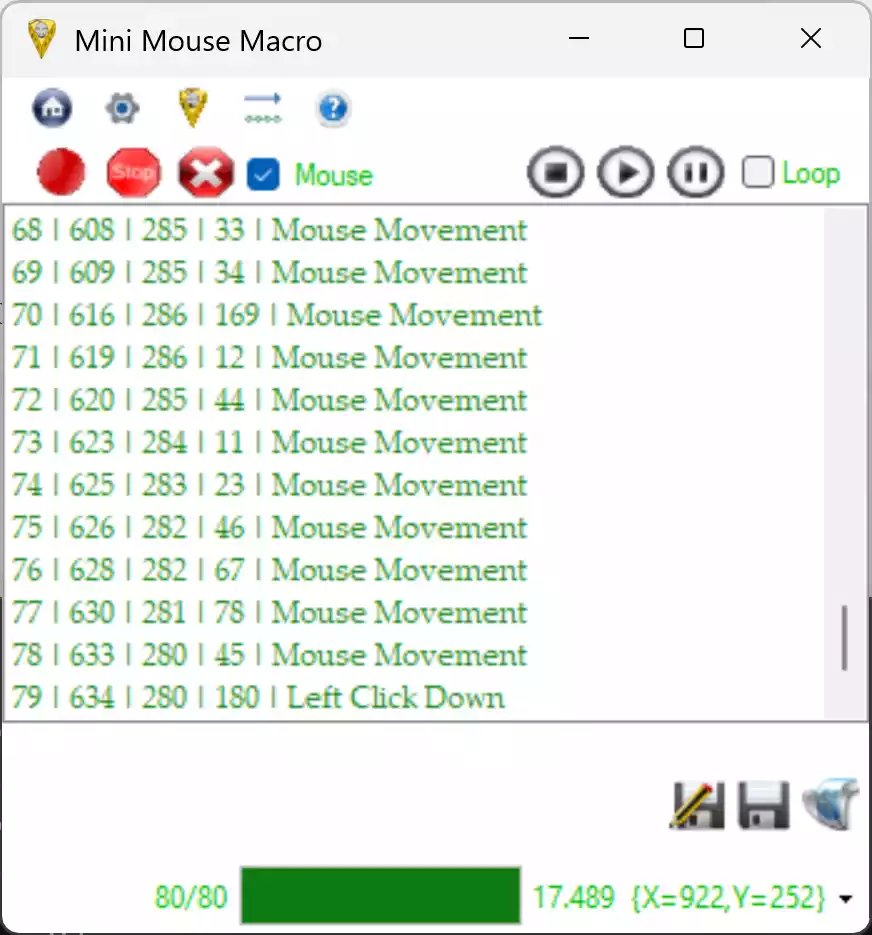
Beginners choose Mini Mouse Macro for its clean interface and no-nonsense workflow. You can see every recorded line, edit delays if needed, and keep multiple macros handy—without learning any scripting language. It’s perfect for repetitive clicks, form filling, data entry, and small file operations where manual repetition wastes time.
Main Features of Mini Mouse Macro
- Portable & lightweight: single EXE, no install.
- Mouse & keyboard recording: capture clicks, moves, typing, hotkeys.
- Line-by-line editor: view and adjust delays, order, or remove steps.
- Looping & repeat counts: run a macro X times or until stopped.
- Playback speed control: slow down for reliability or speed up for efficiency.
- Global hotkeys: start, stop, and play macros quickly.
- Profiles & saving: store macros as files for reuse or sharing.
How It Compares to Other Macro Recorders
Some tools focus on the absolute fastest “record → play” experience with almost no options (for example, TinyTask). Mini Mouse Macro stays simple, but adds a visible action list, editable delays, repeat counters, and hotkeys for better consistency while remaining beginner-friendly.
How to Use Mini Mouse Macro
Follow these beginner-friendly steps. You don’t need admin rights or installation.
Step 1. Download the latest Mini Mouse Macro portable EXE from the official website and place it in a convenient folder (e.g., Desktop or Tools).
Step 2. Double-click the EXE to open the program. Keep the window visible so you can see the action list as you record.
Step 3. Click Record (or press the assigned hotkey). Perform the exact actions you want to automate—clicks, typing, opening menus, etc.
Step 4. Click Stop. Your actions appear as a line-by-line list. Review the sequence to ensure it matches what you did.
Step 5. (Optional) Tweak reliability. If a step feels too fast, increase its delay. You can also delete unnecessary lines or reorder them.
Step 6. Set Repeat or Loop if you want the macro to run multiple times. Choose an exact number or continuous loop until stopped.
Step 7. Assign a Hotkey to start/stop playback so you can trigger the macro while working in another window.
Step 8. Click Save to store the macro as a file. Create a short, descriptive name (e.g., “rename-batch-photos.mmm”).
Step 9. Click Play to test. Watch the sequence run. If something misfires (a window loads slowly or a button moved), adjust delays or steps and test again.
Step 10. Keep your best macros in a dedicated folder. You can reload and reuse them whenever needed.
Safe Use Tips for Beginners
- Avoid sensitive fields: don’t record passwords or confidential data.
- Stabilize the UI: keep the same window size, DPI scale, and layout. UI changes can shift click targets.
- Use generous delays for apps or web pages that load slowly.
- Test on copies: for file operations, practice on a sample folder first.
- Respect app policies: some games or workplace apps may forbid automation.
- Back up macros: save your .mmm files in a safe folder or cloud drive.
When Mini Mouse Macro Can Help You
- Repetitive clicking on the same buttons in desktop apps or simple web tools.
- Bulk file actions like opening, dragging, or confirming dialogs repeatedly.
- Form filling where the same values must be typed many times.
- Menu navigation sequences that you run daily (e.g., export → confirm → close).
- Light data entry in apps that lack built-in automation.
Pros and Considerations
- Pros: free, portable, simple UI, editable action list, loops/hotkeys, quick learning curve.
- Considerations: coordinate-based clicks can break if windows move or DPI changes; complex workflows still benefit from script tools like AutoHotkey.
Download Mini Mouse Macro
Grab the latest Mini Mouse Macro portable build from the official website. Keep the EXE in a trusted folder and run it whenever you need quick automation.
Frequently Asked Questions About Mini Mouse Macro
Is Mini Mouse Macro free?
Yes, it’s free to download and use.
Does it work on Windows 11 and Windows 10?
Yes, Mini Mouse Macro works on both Windows 11/10.
Do I need to install anything?
No. It’s a portable EXE—just run it.
Can I loop a macro a specific number of times?
Yes. Set the repeat count (e.g., 5 times) or enable continuous looping until you stop it.
Can I edit the delays between actions?
Yes. You can adjust timing line by line to improve reliability.
How does it compare to ultra-minimal recorders?
Ultra-minimal tools focus on instant “record → play” with very few options (for example, TinyTask — link to be added). Mini Mouse Macro keeps things simple but adds a visible action list, delay editing, and repeat controls for better consistency.
Is it safe?
It’s as safe as how you use it. Download from the official site, avoid recording sensitive data, and test on sample files first.
Can I assign global hotkeys?
Yes. You can assign hotkeys for record, stop, and play to trigger macros quickly.
Conclusion
Mini Mouse Macro is a smart, portable choice for anyone who wants simple Windows automation with a little more control. Record, edit, loop, and replay your actions without installing anything—and save hours on repetitive work.