

Print Spooler Doctor is a portable CMD-based utility for Windows 11/10 that clears stuck print jobs, restarts the Print Spooler, lightly repairs the queue folder’s permissions, and provides quick shortcuts to print-related features. It’s designed to be simple, safe, and effective—no installation required.
Why Would a Beginner Use Print-Spooler-Doctor?
If your documents say “Printing” but nothing comes out, or you keep seeing random errors when you try to print, Print-Spooler-Doctor gives you a guided, one-click way to clear the print queue, restart the spooler, and repair common issues—without digging through Services or hidden folders. It’s ideal for home users, students, and small offices who just want printing to work again.
Main Features of Print-Spooler-Doctor
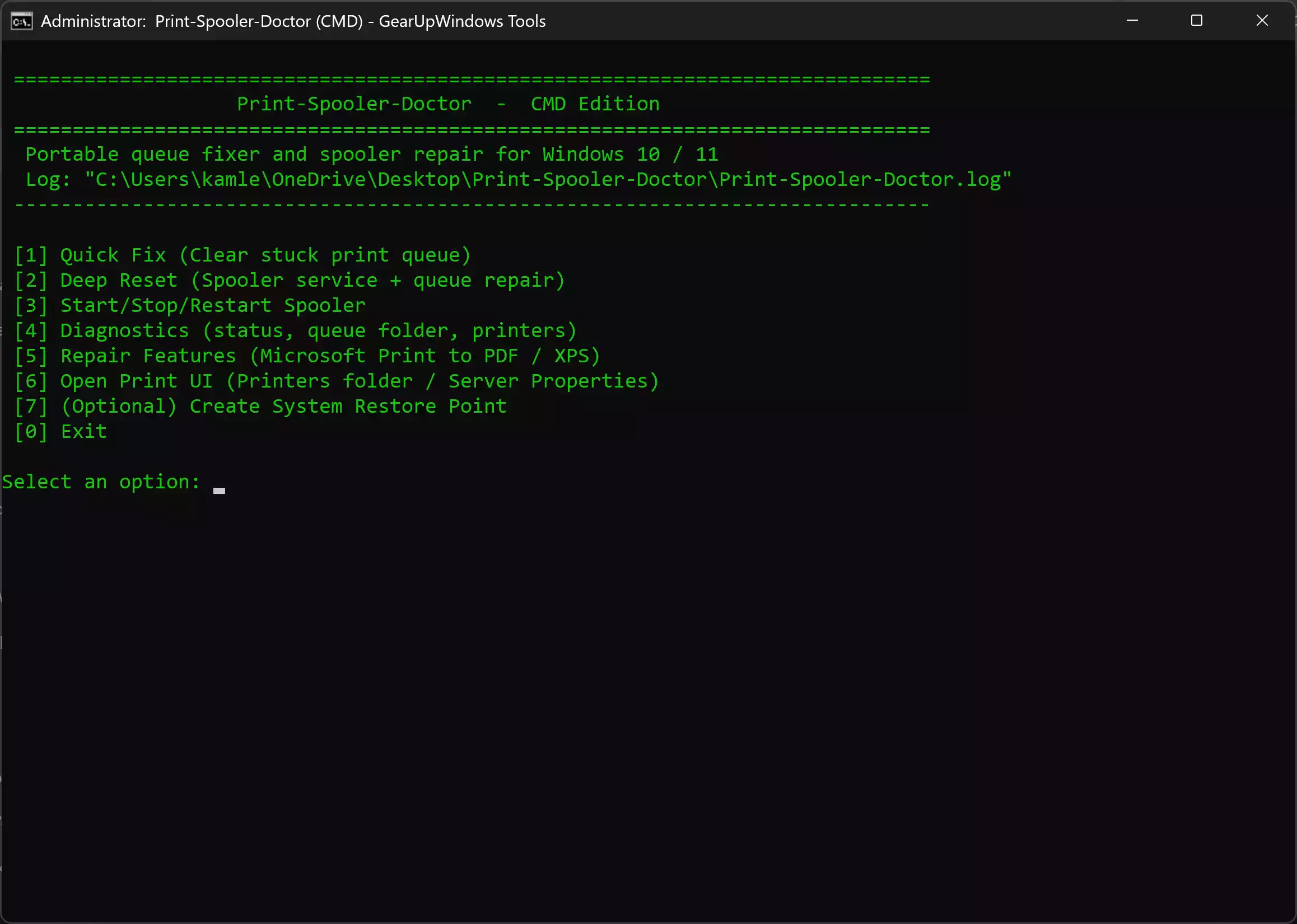
- Quick Fix: Safely stops the spooler, backs up queue files, purges stuck jobs, and restarts.
- Deep Reset: Quick Fix + sets Spooler startup to Automatic and repairs the PRINTERS folder permissions.
- Diagnostics: Shows current spooler state, queue folder status, and installed printers (where available).
- Feature Repair: Enable/Reinstall Microsoft Print to PDF and XPS via DISM.
- Print UI Shortcuts: Open Printers & Scanners (legacy) and Print Server Properties quickly.
- Portable & Logged: No install; actions are logged in a text file for review.
How to Use Print-Spooler-Doctor
Note: Run it as Administrator for best results. The tool auto-elevates, but if UAC is blocked, right-click the CMD and choose Run as administrator.
Step 1. Extract the ZIP to a folder (e.g., Desktop). Don’t run directly from inside the ZIP.
Step 2. Right-click Print-Spooler-Doctor.cmd and choose Run as administrator.
Step 3. Choose Quick Fix if prints are stuck or pending. This backs up and clears the queue, then restarts the Print Spooler.
Step 4. If printing still fails, choose Deep Reset to repair the queue folder permissions and ensure the service startup type is set to Automatic.
Step 5. If the built-in virtual printers are missing, open Feature Repair and reinstall Microsoft Print to PDF or Microsoft XPS Document Writer.
Step 6. Use Diagnostics to view current service status and check queue contents. If needed, open Print UI shortcuts for driver and device management.
Safe Use Tips for Beginners
- Backups happen automatically before clearing the queue, so you can roll back if ever needed.
- Close your apps that are actively printing to avoid new jobs entering the queue mid-repair.
- After a deep reset, try a small test print (like Notepad) to confirm the fix before sending a large job.
- If your issue is network-related (Wi-Fi profile, IP, or DNS), use companion tools from GearUpWindows:
- WiFi Profile Tool to export/import Wi-Fi profiles cleanly when you switch adapters or reinstall Windows.
- IP-Switcher-NETSH for quick IPv4/IPv6 DHCP renew or toggling static IP on Windows 11/10.
- DNS-Switcher-NETSH to test a faster public DNS and resolve name-lookup errors.
When Print-Spooler-Doctor Can Help You
- Jobs stuck in queue (won’t print, won’t cancel).
- “Printer not responding” or the spooler stops unexpectedly.
- Microsoft Print to PDF or XPS is missing or broken.
- Permission errors in the PRINTERS folder after a crash or a cleanup tool.
Download Print-Spooler-Doctor
This tool is portable and free. Download Print-Spooler-Doctor (ZIP) and then right-click the CMD to run it as administrator.
Pros and Considerations
- Pros: Portable, beginner-friendly, queue backup before purge, conservative permission repair, no reboot required.
- Considerations: Requires admin rights; some diagnostics need PowerShell/WMIC; very old third-party drivers may still require manual reinstall.
Frequently Asked Questions About Print-Spooler-Doctor
Does it work on both Windows 11 and Windows 10?
Yes. Print-Spooler-Doctor is tested on Windows 11/10 and uses built-in system tools.
Will it delete my printers or drivers?
No. It only clears the print queue and repairs the queue folder’s permissions. Your printers and drivers remain intact.
What if the queue returns immediately after clearing?
Check your printer’s connection and cables, then run Deep Reset. If the issue persists, try switching networks with IP-Switcher-NETSH or changing DNS with DNS-Switcher-NETSH.
Can I roll back changes?
Yes. The tool backs up queue files before purge. DISM feature changes are reversible from the menu.
Conclusion
If your printer refuses to cooperate, Print-Spooler-Doctor is a quick, safe way to reset the print spooler and clear stuck jobs on Windows 11/10. Keep it handy alongside WiFi Profile Tool, IP-Switcher-NETSH, and DNS-Switcher-NETSH for a complete quick-fix kit.