

PDFs are everywhere: invoices, contracts, manuals, school assignments, and e-books. If you regularly deal with PDFs, you need tools that let you edit text, add annotations, split or merge files, compress for sharing, and protect sensitive content — all without a steep learning curve. This guide explains how to use PDFgear for common PDF tasks, when it shines, and which free GearUpWindows tools you can use alongside it to build a complete, beginner-friendly PDF workflow.

What is PDFgear?
PDFgear is a modern PDF utility designed to make everyday PDF tasks simple for non-experts. It bundles editing, annotation, conversion, compression, and basic security controls in a straightforward interface. For many users, PDFgear is a practical alternative to heavy, subscription-based PDF software because it focuses on the most-used features and presents them in approachable workflows.
Key features of PDFgear
PDFgear targets everyday productivity, so its feature list prioritizes clarity and speed over deep, enterprise-grade functionality. The core features typically include:
- Edit PDF text and images — modify page text, correct typos, or swap images inside a PDF.
- Annotate and review — highlight, underline, add notes, and draw shapes to mark up documents.
- Convert between formats — export PDF to Word or images, and create PDFs from Office files or text.
- Merge, split, and reorder pages — combine multiple documents, extract pages, or rearrange them for printing.
- Compress and optimize — reduce file size for email or web upload without major quality loss.
- Basic security — add passwords and set permissions to restrict editing or printing.
- OCR — recognize text in scanned documents so they become searchable and selectable.
When PDFgear is a good choice
Choose PDFgear if your needs match one or more of the following:
- You want a simple, focused PDF editor without the complexity of professional suites.
- You regularly edit or annotate documents for school, work, or small-business tasks.
- You need occasional conversions (PDF → Word, PDF → images) without installing several apps.
- You want built-in compression and password protection in the same application.
When PDFgear might not be the best fit
If you require advanced redaction workflows, enterprise document tracking, complex PDF forms with JavaScript, or high-end prepress PDF tools, a specialized professional application may be more appropriate.
How to get PDFgear and install it
Most users can download PDFgear from the official website and follow a standard installer. After installation, open the app and familiarize yourself with the main workspace: toolbar (top), page thumbnails (left), and document canvas (center). The interface lays out common actions like Edit, Comment, Convert, and Protect as prominent buttons.
How to open a PDF and perform quick edits
Step 1. Open PDFgear and choose Open File or drag a PDF into the window.
Step 2. Click Edit to switch into text/image edit mode. Click any text block to edit. Click an image to replace or resize it.
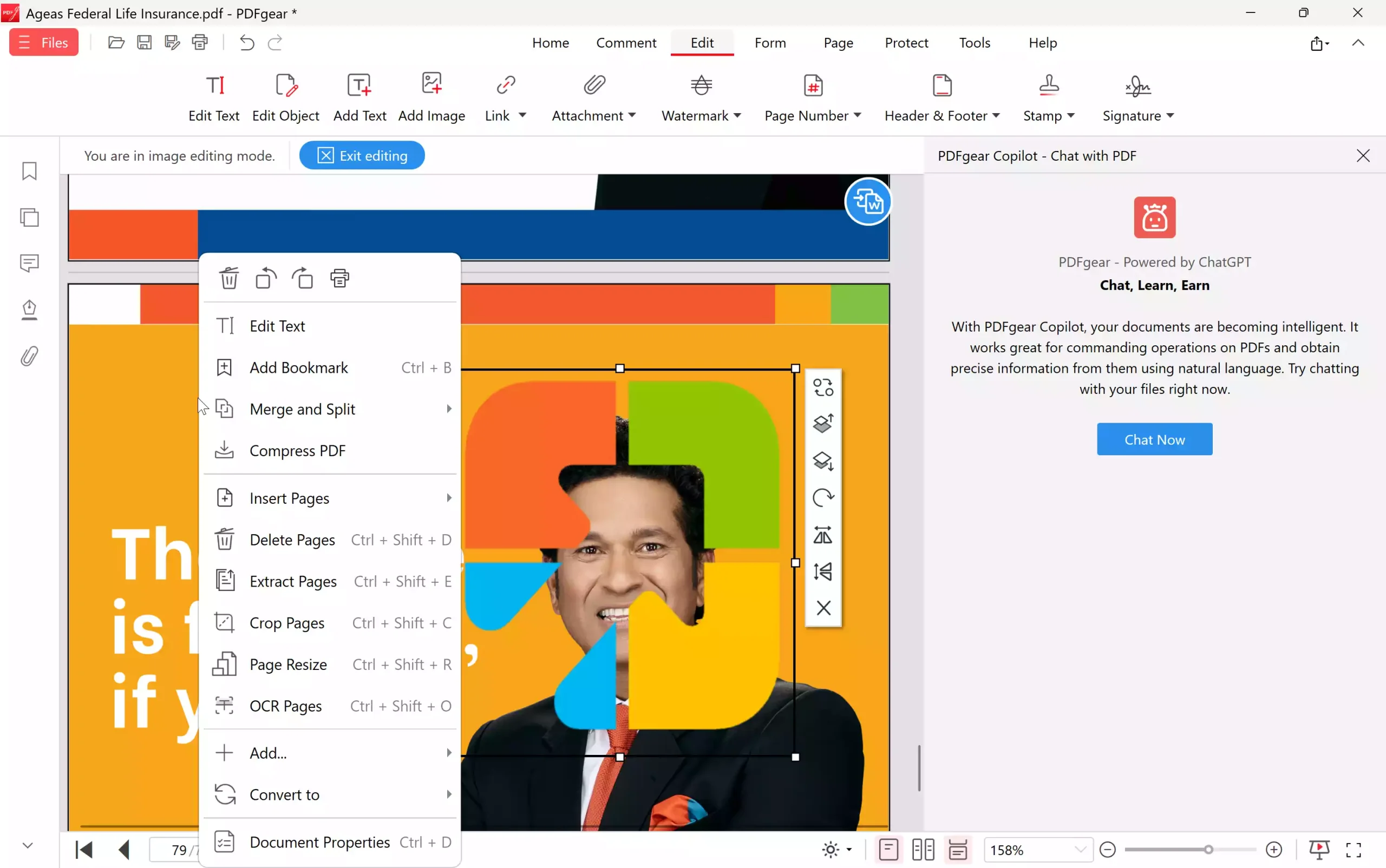
Step 3. When done, choose Files → Save or Save As to keep the original intact.
Annotating and reviewing documents
Adding comments and highlights is usually one of the easiest tasks and is essential for collaborative proofreading:
- Choose Comment (or similar icon) from the toolbar.
- Use Highlight, Underline, or Strikeout to mark text.
- Add sticky notes by clicking where you want reviewer comments to appear.
- Use drawing tools for markup on diagrams or screenshots.
Convert PDFs to Word, images, or text
Conversion is handy when you need to reuse content. In PDFgear, choose the Convert menu and pick the target format (WORD, JPEG, PNG, PPT, or TXT). For scanned pages, run OCR first to extract selectable text — then convert to Word for easier editing.

Merge, split, and reorder PDF pages
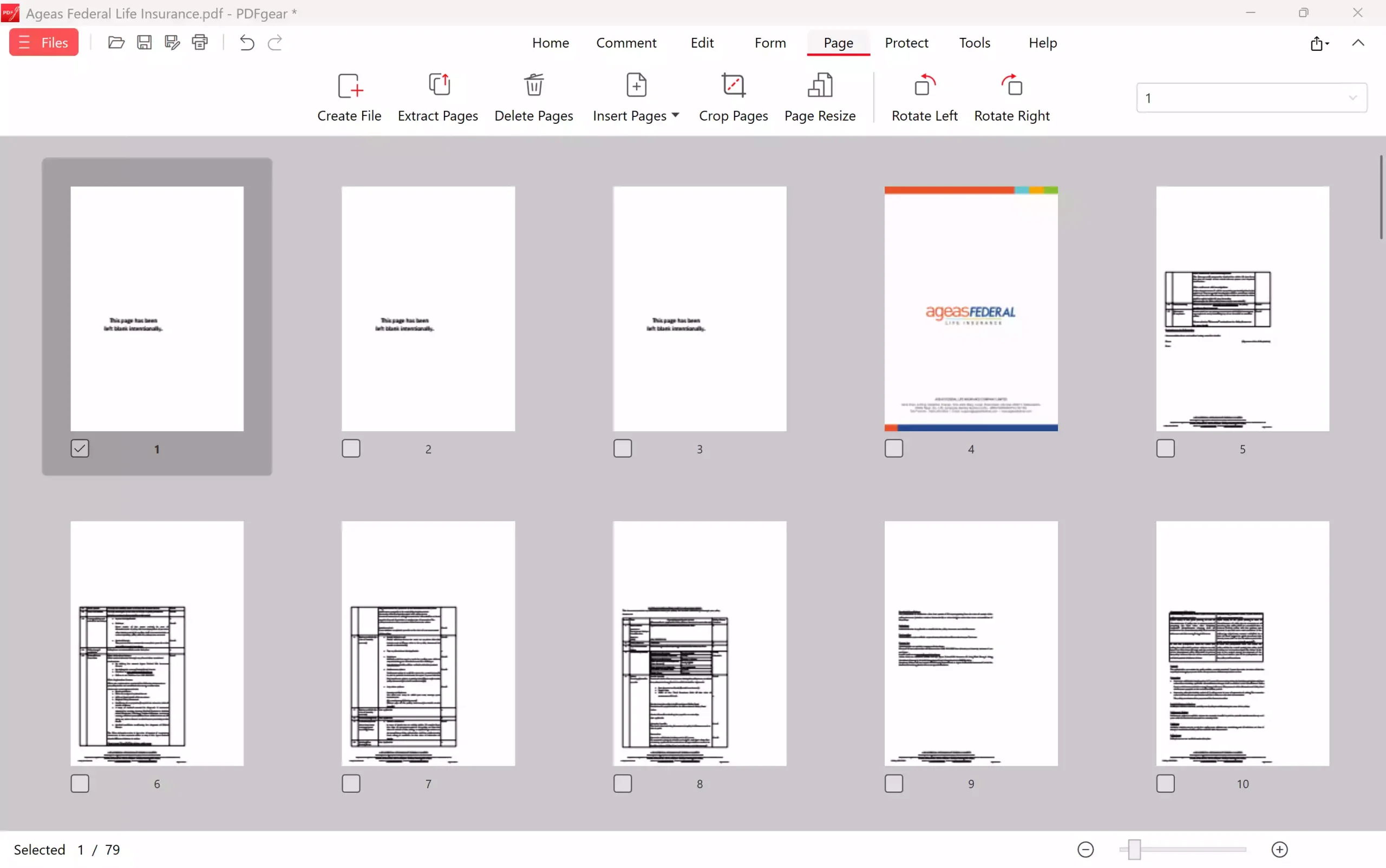
PDFgear provides a page manager screen where you can reorder, remove, or extract pages. Use Merge to combine multiple PDFs into one file. When you need a lightweight page manager instead, consider the GearUpWindows tools that complement PDFgear: use the free GUW PDF Splitter Organizer to separate or extract pages and GUW PDF Page Reorder to rearrange pages quickly.
Compress and optimize PDF files
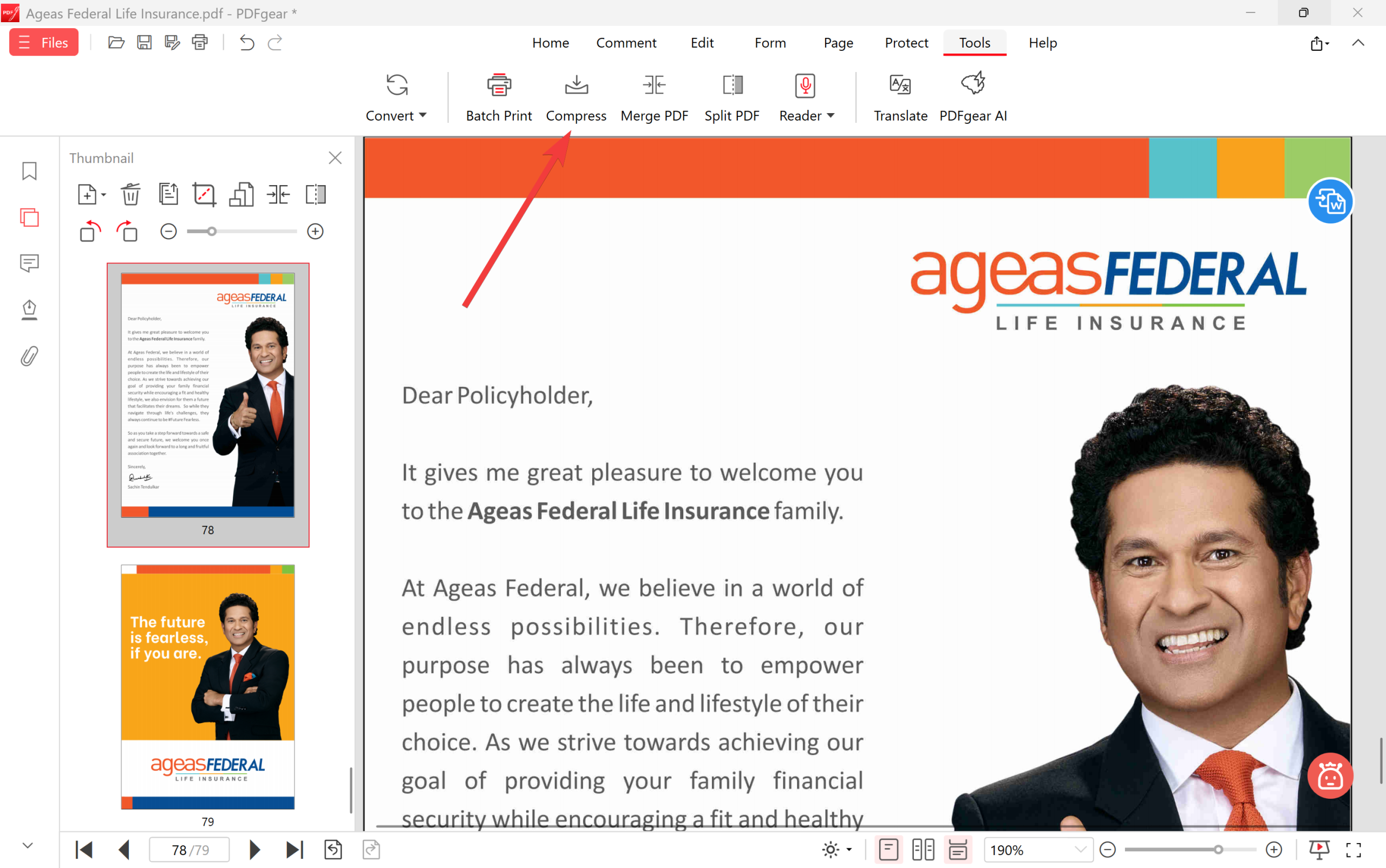
Large PDFs can be hard to share. Use the compression or optimization tool inside PDFgear to reduce images and remove unnecessary data. For a free, client-side option that keeps privacy intact, try the GearUpWindows Compress PDFs tool.
Password-protect and encrypt PDFs
PDFgear’s Protect or Security section lets you add passwords and set permissions. If you need a free alternative for one-off tasks, the GearUpWindows free PDF Encryptor provides AES-256 protection from the browser.

Remove passwords from PDFs
When you legally own and need access to a locked PDF but forgot the password, PDFgear may help if you can provide the password. For documents where passwords are removable by the owner, GearUpWindows offers a free browser-based password removal tool.
Make scanned PDFs searchable (OCR)
If your PDF is just scanned images, OCR converts those images into selectable text. In PDFgear, run OCR first; then you can search, copy, and convert the result. For a free in-browser OCR option, try the GUW PDF OCR tool.
Extract text from PDFs
Need to extract only the text? PDFgear’s export or copy tools will help. If you want a lightweight, privacy-first browser tool, the GearUpWindows PDF-to-Text converter extracts text without uploads.
Convert PDFs to other formats (Word, PowerPoint, Excel)
For repurposing documents, PDFgear exports to Word and images. If you need to convert PDFs into editable Word documents or PowerPoint slides and prefer a dedicated converter, check the GearUpWindows free PDF-to-Word and PDF-to-PPT tools.
Organizing PDFs and adding page numbers
When preparing documents for distribution, adding page numbers and consistent metadata helps. Use the page-numbering feature in PDFgear, or the GearUpWindows PDF page numberer if you prefer a swift client-side tool.
Workflow examples — real tasks and step-by-step
1) Prepare a contract for e-signing and distribution
Step 1. Open the contract in PDFgear and run a quick text pass to correct typos.
Step 2. Use Comment to add revision notes and invite collaborators to review.
Step 3. Add form fields if signers need to fill in information, and flatten fields after signing.
Step 4. Password-protect the final file and email using compressed output for easier sending.
2) Turn printed receipts into searchable records
Step 1. Scan receipts as PDFs.
Step 2. Open in PDFgear and run OCR to make the text selectable.
Step 3. Use the PDF-to-text or export-to-word feature to extract totals for bookkeeping.
3) Reduce file size for uploading to a website
Step 1. Open the file in PDFgear, choose Tools > Compress.
Step 2. Compare output quality; choose a balanced compression level.
Step 3. If needed, use the GearUpWindows compress tool for further size reduction while maintaining privacy.
Free alternatives and GearUpWindows tools worth pairing with PDFgear
PDFgear is convenient, but pairing it with lightweight free tools covers edge cases and preserves privacy. Below are recommended GearUpWindows tools that integrate well into PDF workflows:
- JoPDF — free, no-sign-up PDF editor for quick edits and annotations without installing software.
- PDF to Text converter for extracting plain text safely in the browser.
- Merge PDFs, Split PDFs, and Reorder PDF pages tools for page management.
- Compress PDFs to reduce size client-side.
- Free PDF OCR for scanned documents.
- Password removal and password protection for privacy-focused encryption tasks.
- PDF-to-Word and PDF-to-PPT converters for repurposing content.
Tips to keep PDF workflows fast and private
Work locally when possible. Desktop apps reduce upload risk. If you use online tools, choose ones that process client-side or explicitly state privacy measures. The GearUpWindows tools noted above prioritize client-side processing when possible.
Name files clearly with date and version number (example: invoice_2025-11-16_v1.pdf) to avoid confusion.
Archive originals before making sweeping edits — preserve the pre-edit copy for legal or auditing needs.
Supported formats and compatibility
PDFgear and similar editors typically support:
- PDF (all common versions)
- DOCX / DOC (export or import)
- Image formats (JPG, PNG, TIFF) — often for export or import
- Plain text (TXT) export
If you must convert to Excel or structured data, verify whether the editor preserves tables well — sometimes a dedicated PDF-to-Excel tool yields better results.
System requirements and performance notes
PDF editors vary in resource needs. A good rule of thumb: a mid-range modern PC (4+ CPU cores, 8GB+ RAM) runs most PDF editors comfortably. For very large files (hundreds of pages, heavy images), more RAM and CPU help. If PDFgear feels slow on large documents, break the document into chunks using a split tool, edit, then merge back.
Why a beginner would use PDFgear
Beginners appreciate PDFgear because:
- It exposes commonly used tools clearly.
- It eliminates the need to learn complex desktop suites for basic tasks.
- It speeds up everyday edits (typos, annotations, small image swaps).
- It offers integrated conversion and compression, reducing steps in a workflow.
Practical limitations to watch for
While PDFgear is user-friendly, watch for these limitations:
- Complex PDFs: Documents with forms, interactive scripts, or advanced redaction may not behave perfectly.
- Batch automation: If you need to repeatedly process thousands of files, a CLI or batch tool is more efficient.
- OCR accuracy: OCR depends on scan quality and language support. For critical workflows, verify the text after OCR.
- Privacy considerations: If a tool uploads files to cloud servers, ensure privacy policies meet your needs. Prefer client-side tools when handling sensitive content.
How PDFgear compares to free GearUpWindows alternatives
PDFgear provides an all-in-one experience. GearUpWindows tools are modular: each tool focuses on one task (split, merge, OCR, compress). For privacy-first workflows or occasional one-off tasks, the GearUpWindows tools are excellent because many run entirely client-side, avoiding cloud uploads. For a smoother single-app experience, use PDFgear plus selective GearUpWindows helpers when needed.
Pros
- Intuitive interface for common PDF tasks — low learning curve.
- Combines editing, annotation, conversion, compression, and security in one place.
- Saves time compared with juggling multiple single-purpose tools.
- Good balance for small businesses, students, and everyday users.
Considerations
- Not a replacement for enterprise-grade PDF suites if you rely on advanced features like programmed forms, extensive redaction, or digital signatures with certificate chains.
- OCR accuracy varies: always proofread important scanned text.
- Large PDFs may require more memory or a split-then-edit approach for smoother performance.
- When privacy is critical, confirm whether processing is local or cloud-based and prefer client-side GearUpWindows tools when needed.
FAQs
Can PDFgear edit text inside a PDF?
Yes — PDFgear supports editing text blocks in many PDFs. Results are best when the PDF was created from digital sources (not scanned images). For scanned documents, run OCR first to convert images to editable text.
Is it safe to upload confidential PDFs to PDFgear?
Safety depends on how PDFgear processes files. If the app processes files locally on your machine, privacy concerns are minimal. If it uses cloud processing, read the privacy policy to understand how files are handled and retained. For fully private client-side processing, the GearUpWindows tools, like the client-side compress, split, and OCR options, are good alternatives.
How do I reduce PDF size without losing quality?
Choose a moderate compression setting and reduce image resolution only as needed. Remove unnecessary embedded fonts or unused data. Test different quality settings and compare the visual result. If you prefer a strict client-side solution, try the GearUpWindows compress tool linked earlier.
Can PDFgear convert PDF to editable Word documents reliably?
PDFgear can convert to Word for many documents, especially those created digitally. Complex layouts and multi-column text can sometimes need manual cleanup after conversion. Use a dedicated PDF-to-Word converter when fidelity is critical.
How do I combine edits from multiple people?
Use annotations and comments for review, then consolidate changes. If people use different tools, export comments in a compatible format, or collect edited files and merge pages as needed. Maintain a master copy and use versioned filenames to avoid conflicts.
Where can I quickly edit a PDF without installing software?
Try JoPDF — a free PDF reader and editor that doesn’t require sign-up for quick edits and annotations. It is a handy, privacy-aware option for one-off tasks.
Conclusion
PDFgear is an excellent productivity-focused PDF editor for beginners and everyday users. It simplifies common tasks like editing, annotating, converting, compressing, and protecting documents. For privacy-first or single-purpose tasks, combine PDFgear with GearUpWindows’ free client-side tools (split, merge, OCR, compress, extract text) to build a robust PDF workflow. Whether you prefer an all-in-one app or a modular toolkit, the solutions in this guide cover most needs without forcing you to learn complex professional suites.