

Keeping your CPU temperature in check is crucial for maintaining optimal performance and extending the lifespan of your computer. Core Temp is a free, lightweight, and user-friendly software tool designed specifically for monitoring CPU temperature in real time.
In this gearupwindows guide, we’ll explore the features and benefits of Core Temp and how it can help you keep your processor cool for smooth operation and enhanced longevity.
Real-Time Temperature Monitoring
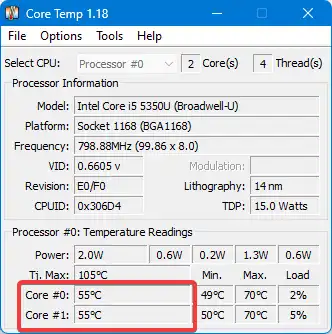
Core Temp provides real-time temperature readings for each individual CPU core. With a clean and intuitive interface, users can monitor thermal activity at a glance.
As shown above, the app displays detailed stats including core temperatures, power usage, minimum/maximum temperatures, and load percentage for each core.
Accurate and Detailed Readings
One of the key strengths of Core Temp is its use of the Digital Thermal Sensor (DTS) built into modern CPUs, ensuring precise temperature measurements. Whether you’re running a single-core or a multi-core processor like the Intel Core i7 1355U, it offers a core-by-core breakdown with high accuracy.
Customizable Alerts and Protection
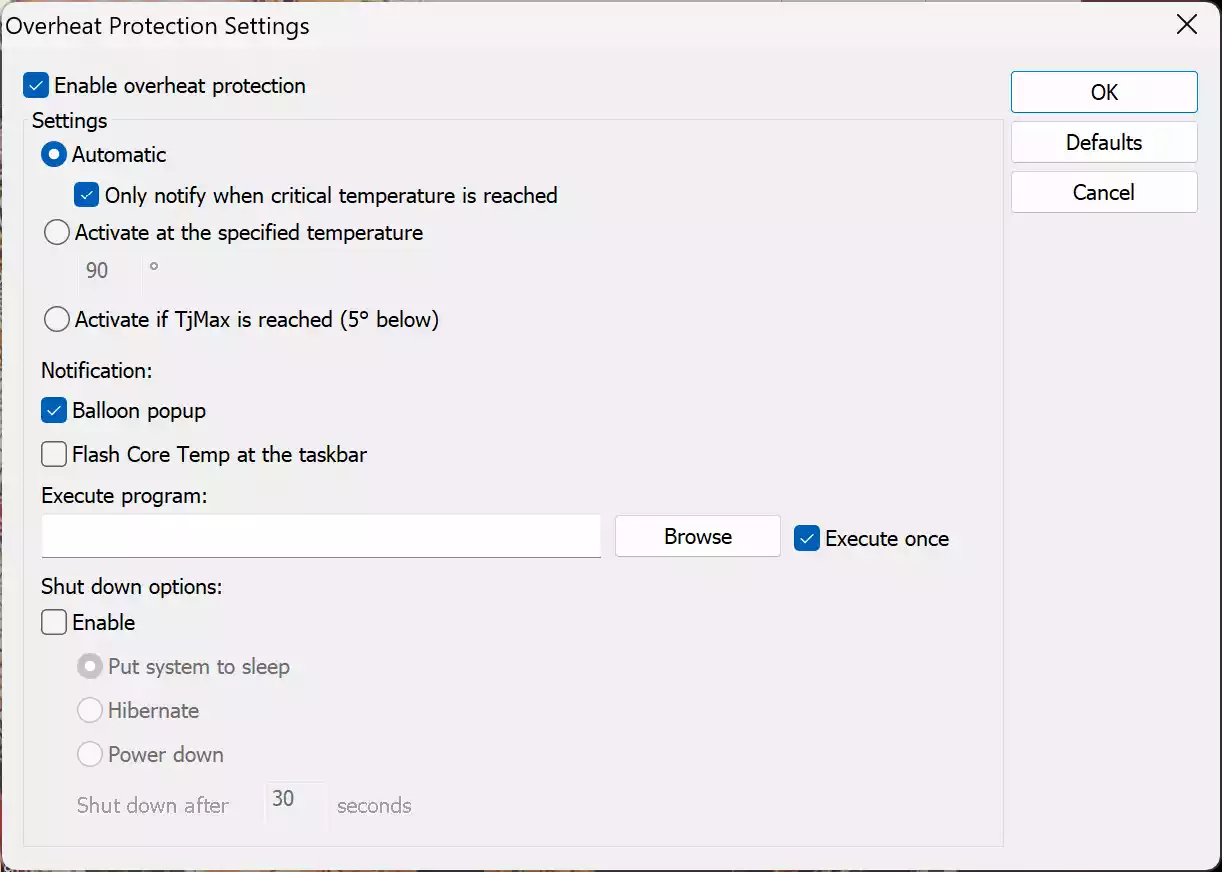
To prevent overheating, Core Temp includes a built-in overheat protection feature found under the Options menu. Users can configure it to alert or take action when the CPU reaches a critical temperature threshold.
Flexible Settings and Logging
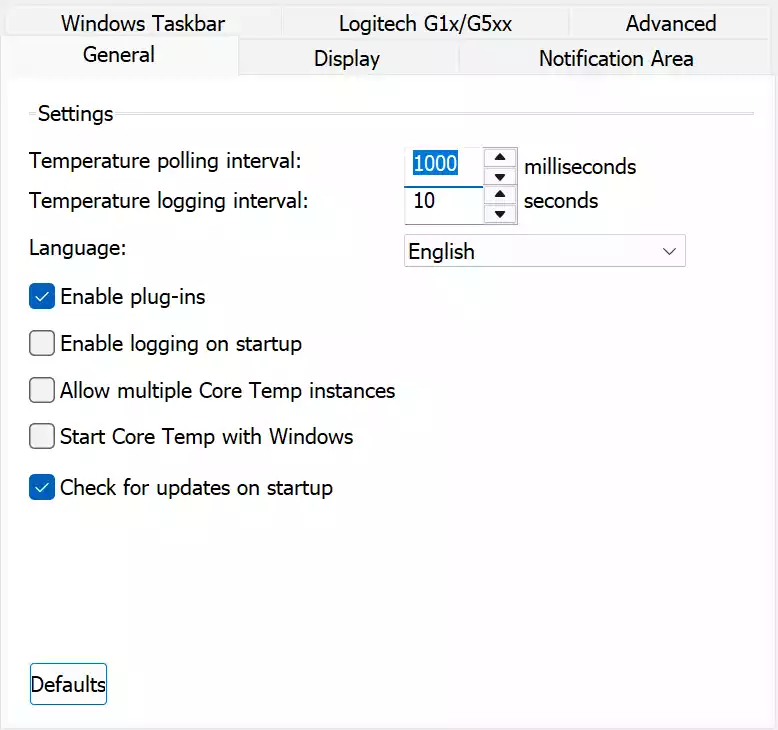
Core Temp lets users configure polling intervals, enable logging, and manage startup behavior from the Settings menu. This is particularly helpful for enthusiasts and professionals who want to keep long-term temperature logs for analysis.
Minimal System Resource Usage
Unlike some monitoring tools that consume system resources, Core Temp is lightweight and runs silently in the background. It doesn’t interfere with system performance, making it ideal for continuous monitoring during gaming, video editing, or other high-load tasks.
Custom Display and Notification Options
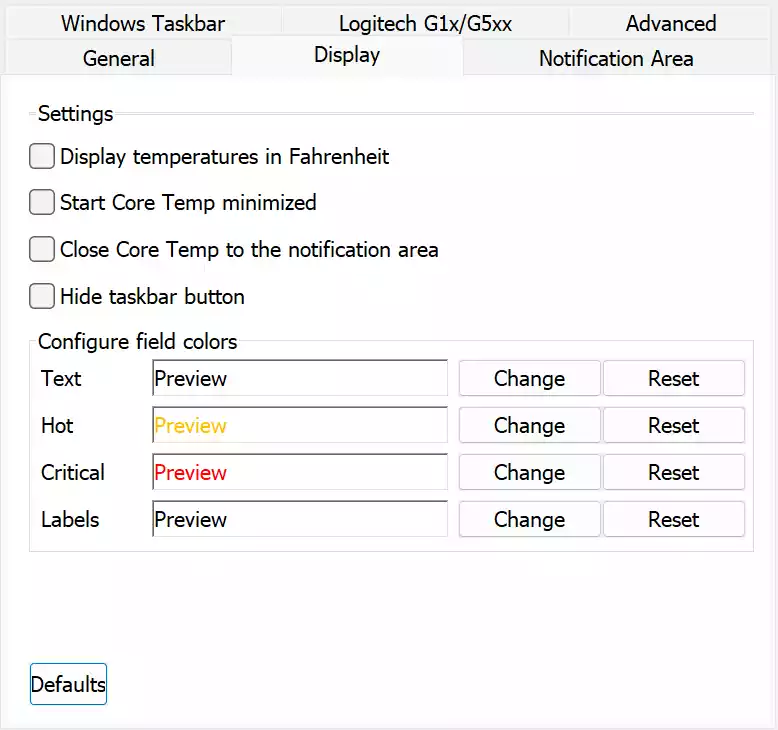
From the Display tab, users can tweak temperature unit preferences (Celsius/Fahrenheit), enable system tray icons, and adjust color-coded alerts for hot or critical temps. This visual customization enhances usability.
Taskbar & Notification Area Integration
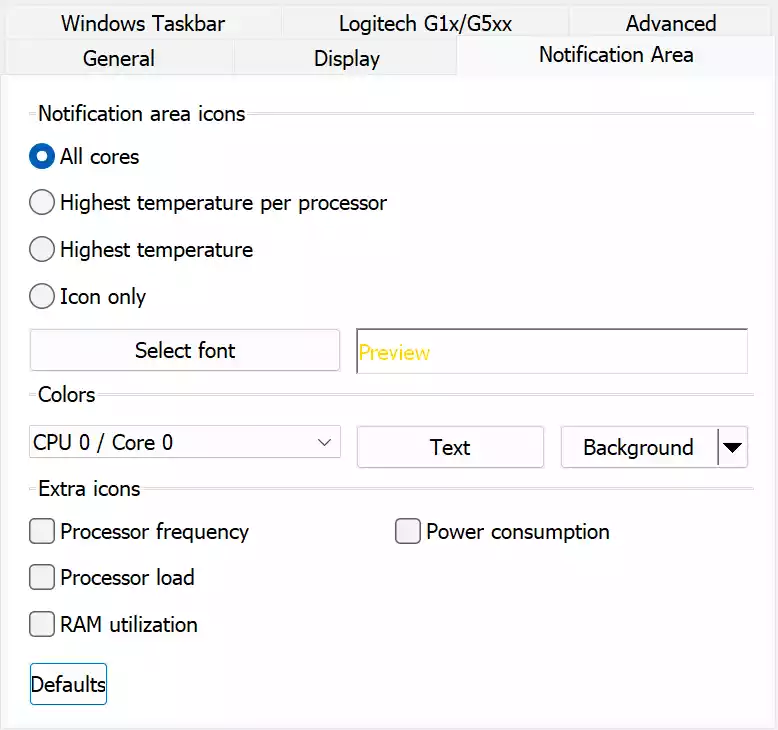
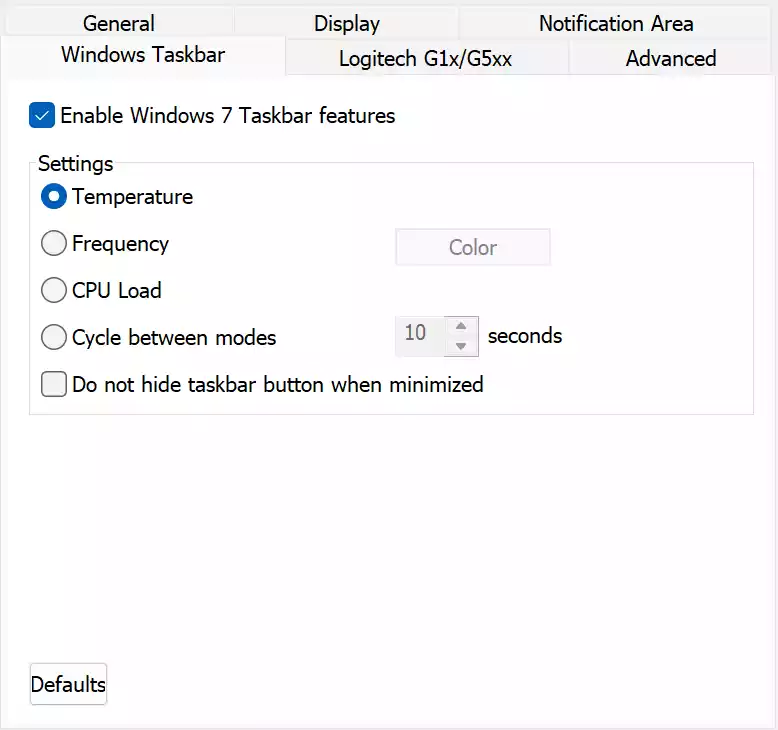
Core Temp offers excellent taskbar integration, especially with Windows 7-style features. Users can show temperature, frequency, or CPU load directly in the Windows taskbar and notification area. It can display all cores or just the highest temperature, depending on your preference.
Compatibility
Core Temp supports a wide range of processors including Intel, AMD, and VIA chips. It’s compatible with Windows 11, 10, 8.1, 8, and 7. There’s even a remote monitoring tool, Core Temp Monitor, available for Android devices.
If you’re experiencing issues like high CPU usage or fan noise, Core Temp works well alongside tools like Camomile to help diagnose and manage thermal behavior efficiently.
Download Core Temp
You can download the latest version of Core Temp from its official website.
Conclusion
Core Temp is a powerful and efficient utility that gives users deep insights into CPU temperature data. With accurate readings, minimal system impact, and a customizable interface, it’s an excellent choice for anyone looking to monitor their system’s thermal health. By using Core Temp, you can keep your processor within safe limits, boosting both performance and longevity.