

HWMonitor is a hardware monitoring program that reads your PC’s main health sensors, including voltages, temperatures, and fan speeds. This freeware tool is available for download from the official CPUID website.
In this gearupwindows guide, we’ll explore HWMonitor and how it can help you monitor system performance and temperature on your Windows PC. You can also compare its features with tools like Core Temp for a more alert-focused approach.
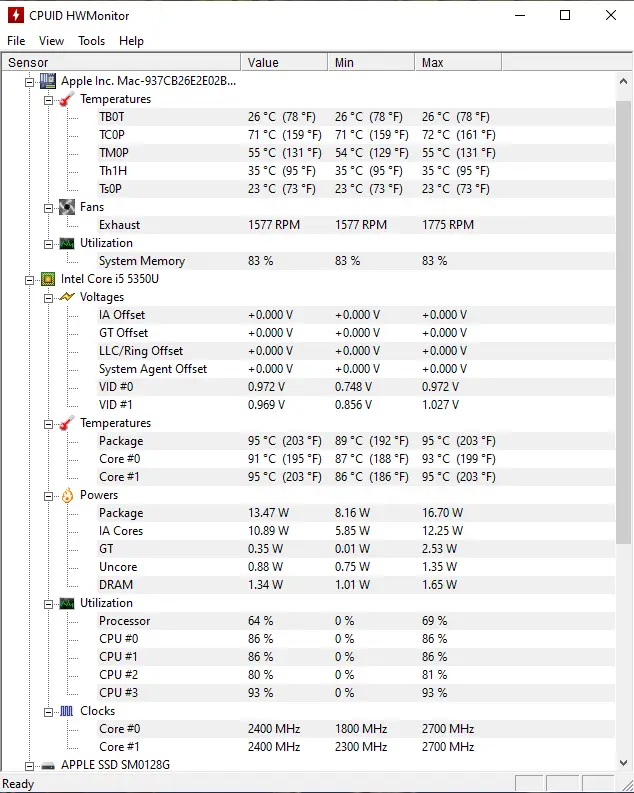
HWMonitor – Hardware Monitoring Software
HWMonitor is a lightweight program that displays real-time information about your system’s health, including voltages, temperatures, and fan speeds. It supports both 32-bit and 64-bit versions of Windows and works with all modern editions of the operating system.
The user interface is straightforward and easy to navigate. When you launch the program, you’ll see a tree-style list showing sensor data from various components, such as the motherboard, CPU, GPU, and hard drives. Each category expands to reveal current, minimum, and maximum values.
The CPU section lists core temperatures, voltages, and power consumption. The fan section shows RPMs of connected fans, while hard drive temperatures and usage stats are also included.
Key Features of HWMonitor
HWMonitor provides users with real-time insights into their computer’s hardware performance, including:
- CPU: Displays temperature, clock speed, voltage, and utilization data.
- GPU: Monitors GPU temperature, clock speed, and usage.
- Motherboard: Shows temperature, voltage, and fan speed values.
- Hard drive: Reveals temperature, health status, and usage levels.
- System health: Offers an overall view of key health indicators like temperature, voltage, and fan speeds.
Key Benefits
HWMonitor is a must-have tool for hardware enthusiasts, gamers, and IT professionals who need to track PC performance. Some of its benefits include:
- Real-time monitoring: Keep tabs on CPU, GPU, and hard drive temperatures and usage at all times.
- Troubleshooting: Identify hardware issues or compatibility problems using detailed component data.
- Overclocking insights: Get the vital stats needed to safely overclock your system.
- Interface customization: Tailor the display to show only the metrics you need.
How to Use HWMonitor?
Download the HWMonitor setup file from the official CPUID website and install it on your PC. If you prefer not to install software, you can use the portable version.
After launching HWMonitor, you’ll see a list of all detected sensors on your machine. These include categories like CPU, GPU, motherboard, and storage drives.
Expand each section to view detailed data such as:
- Current Temperature: Live readings for CPU cores, GPU, and drives.
- Voltage: Monitors CPU core and system voltage levels.
- Fan Speed: Displays RPM values for connected fans.
- Min/Max Values: Tracks the lowest and highest readings during the session.
To assess the readings, look for abnormal spikes. For instance, CPU temperatures consistently above 85°C may indicate poor cooling or dust buildup.
Overheat Protection
HWMonitor does not control fan speed or trigger alerts, but it helps you monitor conditions that require action. Based on its readings, you can adjust BIOS settings or use other tools to define fan profiles or thermal thresholds.
If you need a utility with built-in overheating alerts and shutdown options, try Core Temp. It includes a setting under the Options menu (in the General tab) to enable temperature warnings.
For automatic cooling and fan management, consider using CAMOMILE, a free app that intelligently reduces CPU heat, fan noise, and energy use.
Conclusion
HWMonitor is a powerful yet easy-to-use utility that helps you monitor your PC’s vital stats. By keeping track of temperatures, voltages, and fan speeds, you can spot overheating or hardware failure early. Whether you’re a gamer, content creator, or regular user, HWMonitor delivers essential insights into your system’s performance and stability.