

Protect your photos and graphics in seconds. The GUW Image Watermark (Text/Logo) tool lets you add a clean text or PNG logo watermark to multiple images at once. You control opacity, position, margin, tiling (repeat pattern), and even rotation — and you can preview every change before downloading the results individually or as a ZIP archive. Everything runs completely in your browser for privacy.
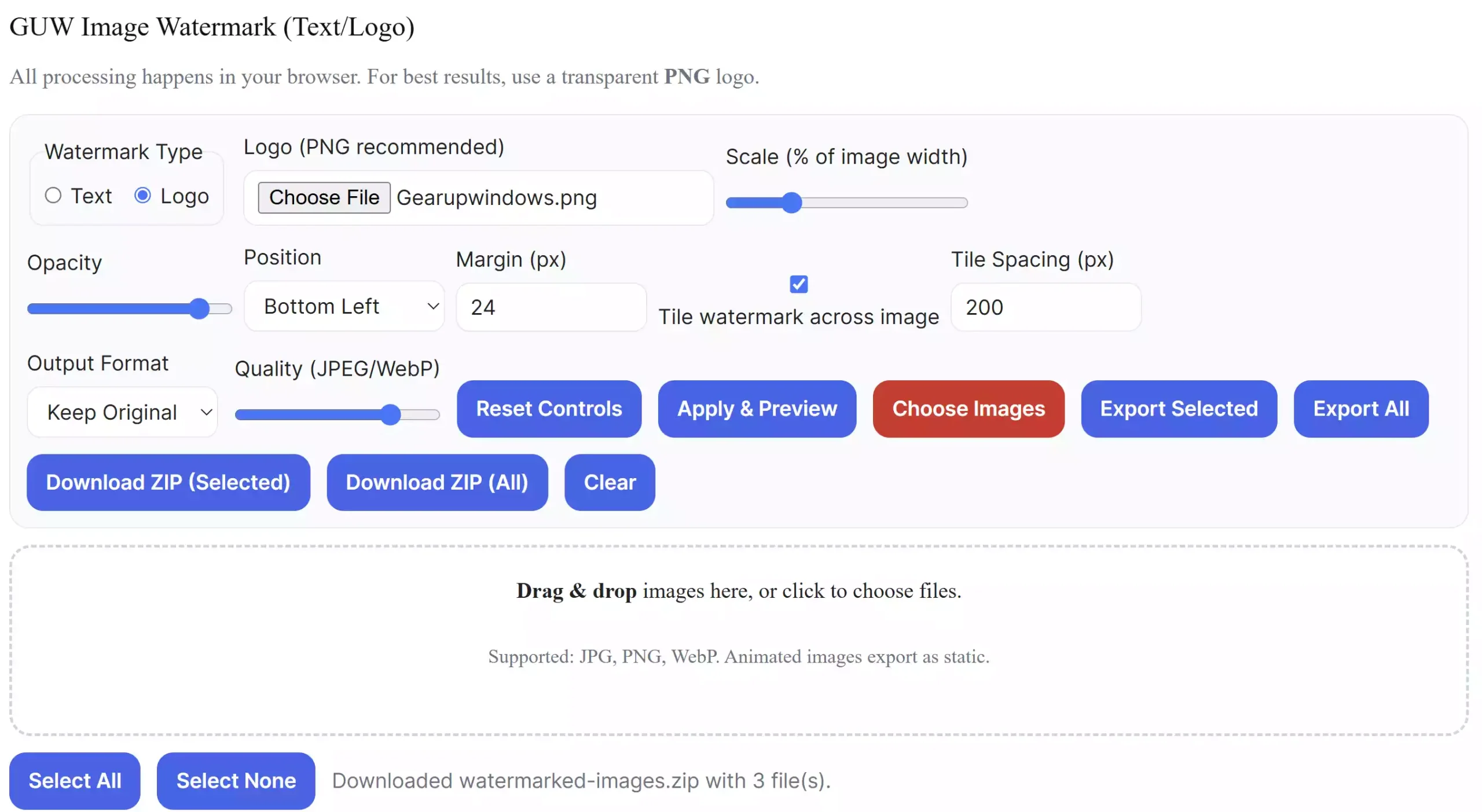
Why use this watermark tool?
- Private by design: No uploads. Processing happens locally in your browser.
- Fast batch workflow: Drag & drop many images, tweak once, export all.
- Flexible look: Text or logo, nine positions, custom margin, angle, and optional tiling.
- Preview first: Open the lightbox and navigate with Prev/Next or ←/→ to review each image.
- Easy export: Download individual files or a single ZIP. Keep original format or choose JPG/PNG/WebP with a quality slider.
Main features
- Text watermark: Font family, size, weight, color, and rotation.
- Logo watermark: Upload a PNG/JPG/WebP logo and scale it relative to image width.
- Placement: Top/Bottom/Center + Left/Right/Middle with adjustable margins.
- Tiling (optional): Repeat your text or logo across the whole image with custom spacing.
- Formats: Input JPG/PNG/WebP. Output as original, or convert to JPG/PNG/WebP.
- Batch export: Export selected images or all images; also download everything as a ZIP.
- Accessibility: Keyboard-friendly controls, visible focus, ESC to close preview.
How to use (step-by-step)
- Open the tool → GUW Image Watermark (Text/Logo).
- Choose Text or Logo watermark.
- Drag & drop your images into the drop zone (or click Choose Images).
- If you selected Text, type your watermark and adjust font, size, weight, color, and angle. If you selected Logo, upload a transparent PNG (recommended) and adjust scale.
- Pick a Position, set Opacity and Margin. Enable Tile watermark across image if you want a repeated pattern; set spacing if needed.
- Click Apply & Preview. Use Prev/Next or the ←/→ keys to review every image in the lightbox.
- Select output Format (Original/JPEG/PNG/WebP) and adjust Quality if using JPEG/WebP.
- Export your results:
- Export Selected / Export All — save images one by one, or
- Download ZIP (Selected/All) — grab everything in a single ZIP file.
Tips for better results
- Use a transparent PNG logo for crisp edges.
- Diagonal watermarks: set angle (e.g., 30–45°) and enable Tile for strong protection.
- Subtle branding: lower opacity (15–30%) and increase margin to avoid covering subjects.
- Batch consistency: adjust once, then preview a few images to confirm placement before exporting the full set.
Related tools
Before sharing images publicly, you might also want to remove private metadata and optimize size:
- EXIF Cleaner — Remove Image Metadata (Client-Side)
- Image → PDF (Multi-image to single PDF)
- PDF Watermark (Text & Image)
Pros & Considerations
Pros
- 100% client-side (private, fast).
- Batch workflow with preview navigation and ZIP download.
- Fine control over opacity, position, margin, angle, and tiling.
Considerations
- Animated formats export as static images.
- Only JPG/PNG/WebP are supported for input; convert other formats before use.
Frequently asked questions
Do my images get uploaded to your server?
No. The tool runs completely in your browser. Images never leave your device.
Which image formats can I use?
Upload JPG, PNG, or WebP. You can export in the original format or convert to JPG/PNG/WebP. For other formats (like HEIC), convert first using any converter you trust, then watermark.
Can I watermark many images at once?
Yes. Drag & drop a batch, adjust your settings once, preview with Prev/Next (or ←/→), then export selected or all images — or download everything as a ZIP.
What’s the best way to watermark diagonally?
Set an angle (e.g., 30–45°) and enable Tile watermark across image. Reduce opacity if the overlay feels too strong.
Will the watermark affect image quality?
The watermark draws on a high-resolution canvas. If you export as JPEG/WebP, you can control quality with a slider; choose PNG for lossless output.
Can I choose exactly where the watermark appears?
Yes. Use the nine preset positions (corners/edges/center) plus a margin control. For a repeated pattern, enable tiling and set spacing.
How do I remove sensitive metadata before posting online?
Use our free EXIF Cleaner to strip location and camera data, then watermark here and export.
Wrap-up
The GUW Image Watermark (Text/Logo) tool is a simple, private way to protect your images at scale. Load, tweak, preview, and export — no sign-ups, no watermarks on the output, and no uploads. Try it on a few images now and, once you’re happy with the look, batch-export the rest in one ZIP.