

Keeping track of your battery life is important, especially when you’re working on the go. While Windows 11 shows a battery icon by default in the taskbar, it doesn’t always display the battery percentage. If you want to see the exact battery level without hovering over the icon, here’s a simple guide to help you enable the battery percentage on your Windows 11 taskbar. And the best part is that you don’t need third-party software, as Microsoft has enabled an option in the Settings.
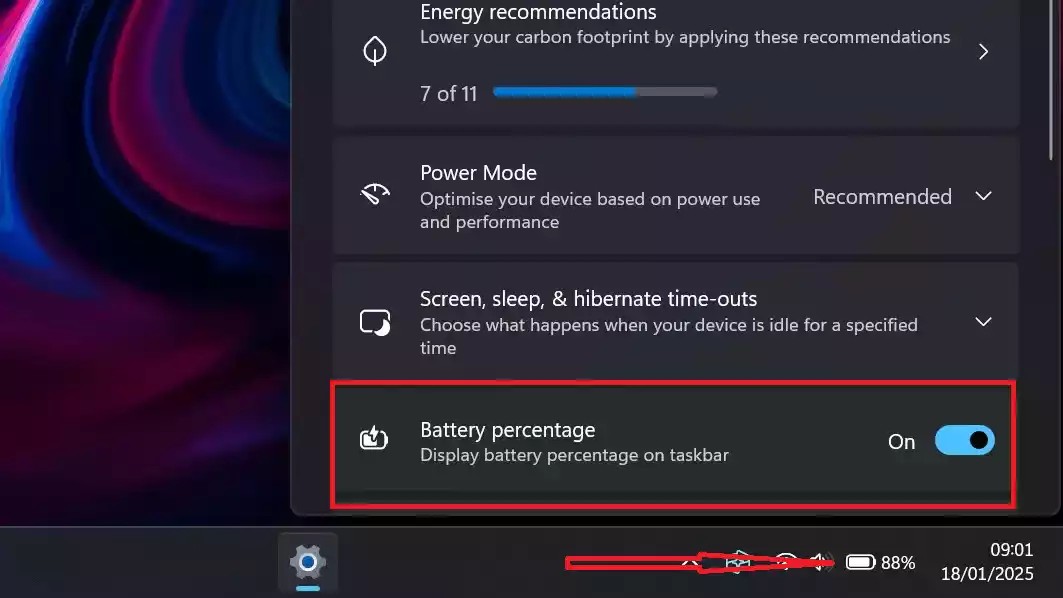
How to Show Battery Percentage on Windows 11 Taskbar?
To make battery percentage appear on the Windows 11 taskbar, use these steps:-
Step 1. Click on the Start button or press the Windows key.
Step 2. Select Settings from the menu.
Step 3. In the Settings window, go to System from the left-hand menu.
Step 4. Click on Power & battery from the right-side options.
Step 5. Scroll down to see the Battery percentage toggle and turn it on.
If the setting still doesn’t appear, consider updating Windows to the latest version, as this feature was introduced in later builds of Windows 11 26120.3000 (Dev) and build 27802.1000 (Canary).
Conclusion
Displaying the battery percentage on your Windows 11 taskbar is a small but useful feature that gives you better control over your device’s power usage. By following the steps above, you can easily enable it and keep an eye on your battery without having to click or hover.
Also Read: How to enable remaining battery time estimation in Windows 11?