

Icon/Thumbnail Cache Rebuilder is a small, portable utility for Windows 11/10 that fixes broken desktop icons and missing folder thumbnails in a single click. If your File Explorer shows wrong icons, blank previews, or outdated thumbnails, this free tool clears the user’s icon and thumbnail cache safely, restarts Explorer, and logs everything for easy troubleshooting.
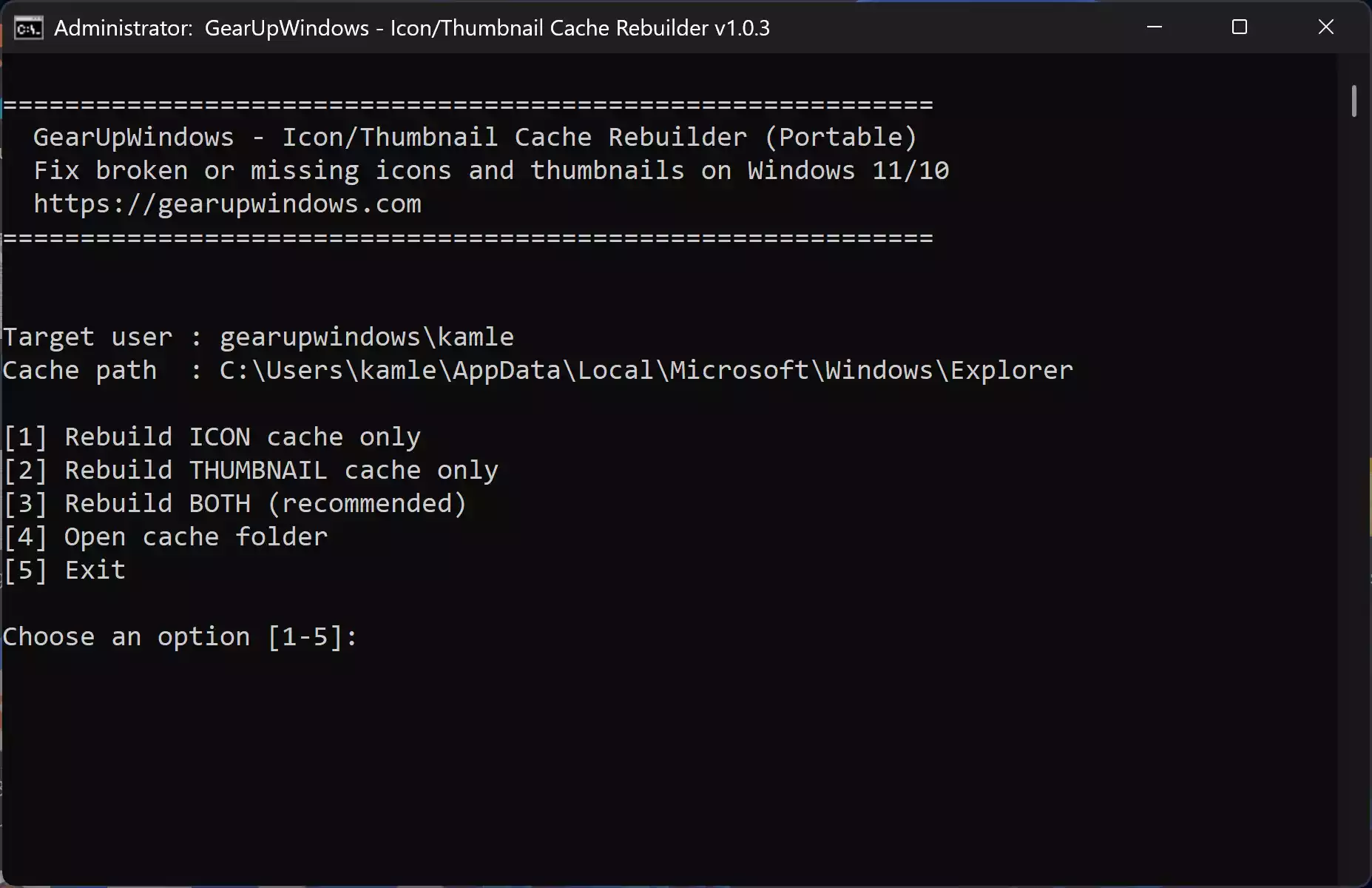
What is Icon/Thumbnail Cache Rebuilder?
This is a lightweight, no-install tool that removes the per-user icon cache and thumbnail cache databases stored under your profile, then restarts Windows Explorer so the system rebuilds them cleanly. It’s designed to be portable, works without setup, and includes permission repair and a delete-on-reboot fallback for stubborn files.
Why Would a Beginner Use Icon/Thumbnail Cache Rebuilder?
Windows normally manages these caches automatically, but after large updates, graphics driver changes, or heavy icon customization, the cache can get corrupted. Beginners often see blank icons, wrong app icons, or folders that won’t show picture previews. This tool gives you a guided, one-click repair with clear on-screen prompts and a log saved to the Desktop.
Main Features of Icon/Thumbnail Cache Rebuilder
- Portable & No Install — just run the CMD file (Admin prompt included).
- Clear Icons, Thumbnails, or Both — pick exactly what you need from a simple menu.
- Automatic Explorer Restart — safely stops and restarts Explorer to unlock and rebuild caches.
- Permission Repair — fixes access issues automatically when the cache folder is locked.
- Delete-on-Reboot Fallback — schedules removal of any files that stay locked; finish by rebooting.
- Desktop Log — a timestamped log file (GUW_CacheRebuilder_*.log) is saved to your Desktop.
- Windows 11/10 support — designed for modern systems and user profiles.
How to Use Icon/Thumbnail Cache Rebuilder
Follow these beginner-friendly steps. The tool will guide you and ask for Admin permission automatically.
Step 1. Extract the ZIP to any folder (Desktop is fine).
Step 2. Right-click Icon-Thumbnail-Cache-Rebuilder.cmd and choose Run as administrator.
Step 3. In the menu, pick 1 for Icons, 2 for Thumbnails, or 3 for Both (recommended).
Step 4. The tool will stop Explorer briefly, clear the selected caches, then restart Explorer.
Step 5. Check the on-screen Log path shown by the tool. If needed, press [5] Open log folder to open it instantly.
Step 6. If the tool reports that some files were locked, accept the prompt to schedule a delete-on-reboot, then restart your PC once.
Where is the log saved?
The tool now displays the exact Log path in its menu. If your Desktop is redirected to OneDrive, the log is saved under your OneDrive Desktop automatically. If the Desktop isn’t available or writable, the tool falls back to %TEMP%. You can also press [5] Open log folder to jump straight to the log location.
Safe Use Tips for Beginners
- Running as Administrator is required; this is normal for cache maintenance.
- Your desktop and taskbar will temporarily disappear while Explorer restarts — don’t worry, they come back automatically.
- After clearing the thumbnail cache, Windows rebuilds previews on demand. Give File Explorer a moment to regenerate them, especially in large picture folders.
- Keep the log file if you plan to ask for help — it lists exactly what was cleared.
When Icon/Thumbnail Cache Rebuilder Can Help You
- App icons look blank or wrong after updates or driver changes.
- Folders don’t show image thumbnails even with preview enabled.
- Icons stop refreshing after theme/icon pack experiments.
- Explorer shows outdated icons or duplicate overlays that won’t go away.
If you’re customizing folder looks, you can also quickly generate fresh folder icons with our browser tools like Folder Icon Maker, convert images to ICO with Image to ICO, or preview ICO files online using ICO Preview. Pairing these with a clean cache rebuild often solves persistent icon display issues.
Download Icon/Thumbnail Cache Rebuilder
Download the latest portable build from the link below. Extract the ZIP and run the CMD file as Administrator.
Download — Icon/Thumbnail Cache Rebuilder (Windows 11/10, Portable)
Frequently Asked Questions About Icon/Thumbnail Cache Rebuilder
Do I need PowerShell, or is the CMD file enough?
The CMD file is enough for all normal repairs and is recommended for beginners. A PowerShell script may be included as an optional alternative for advanced/automated use, but it’s not required.
Will this tool change my system files or registry?
No. It clears per-user cache databases for icons and thumbnails and restarts Explorer. It does not modify system files. If files are locked, it can schedule a delete-on-reboot using Windows’ standard mechanism.
Why do thumbnails rebuild slowly after clearing?
Windows creates thumbnails on demand. The first time you open large photo folders after a clear, you might notice a delay while previews regenerate.
Is it safe to run this more than once?
Yes. Rebuilding caches is safe and can be repeated whenever icon or thumbnail glitches return, such as after major updates.
Will this also fix custom folder icons?
It can resolve most cache-related issues with custom icons. If you’re creating new folder icons, try tools like Folder Icon Maker and Image to ICO, then rebuild the cache for a clean refresh.
Conclusion
The Icon/Thumbnail Cache Rebuilder is a fast and portable solution for fixing corrupted icon and thumbnail caches on Windows 11/10. With one click, it clears the right files, restarts Explorer, repairs permissions when needed, and logs everything so you can confirm the repair. If icons or previews misbehave, keep this handy tool in your troubleshooting kit.