

If you’ve ever needed to create a Windows icon from an image, you know how tricky it can be without special software. Our free Image to ICO Converter makes the process effortless. You can upload a PNG, JPG, GIF, or WebP file and instantly convert it into a multi-size ICO file that works perfectly on Windows.
What is Image to ICO Converter?
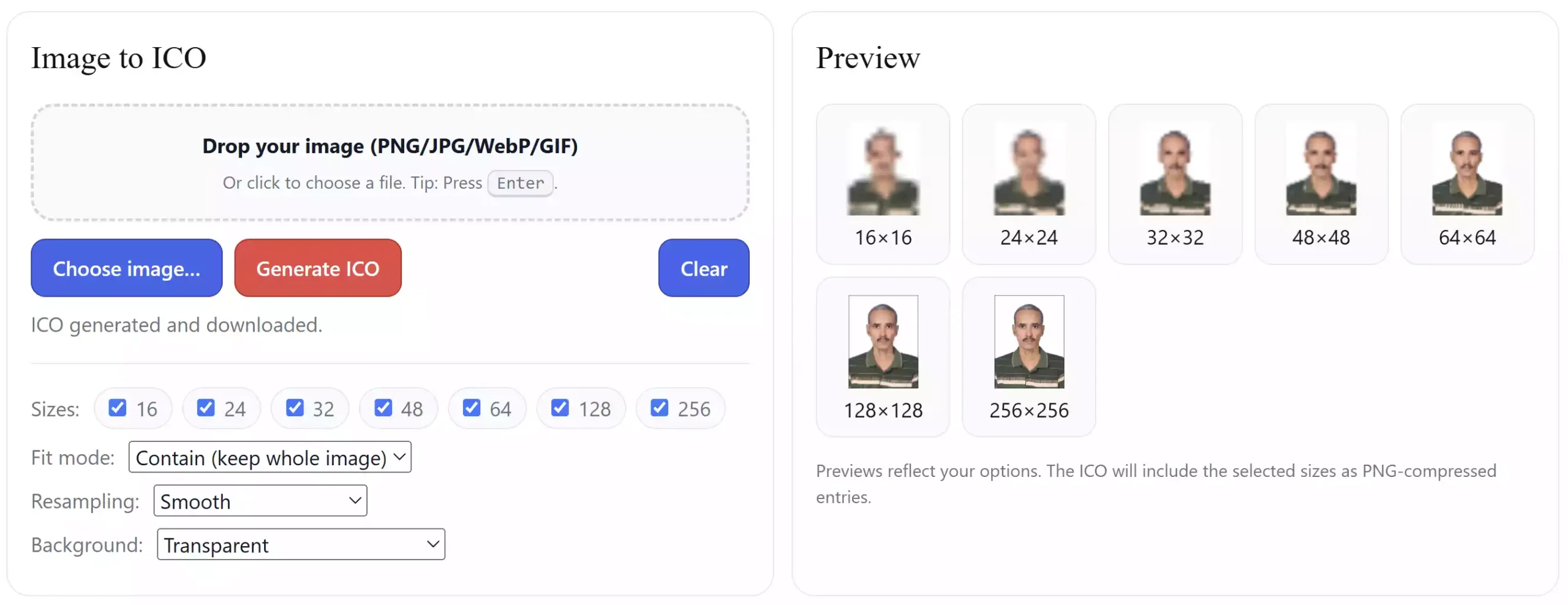
Image to ICO Converter is a browser-based tool that transforms common image formats into Windows-compatible .ico files. ICO files are special because they often contain multiple icon sizes in one file (16×16, 32×32, 48×48, 256×256, etc.). This tool automatically generates the sizes you need and bundles them into a single ICO file.
Why Would You Use Image to ICO Converter?
Windows icons are used everywhere – desktop shortcuts, app launchers, folders, and even software branding. Instead of installing complicated design tools, you can simply drop your image here and get a ready-to-use ICO file in seconds. It’s quick, free, and beginner-friendly.
Main Features of Image to ICO Converter
- Multi-size ICO support – Generate icons at 16, 24, 32, 48, 64, 128, and 256 pixels.
- Drag & drop or file chooser – Add images easily from your computer.
- Preview thumbnails – See each generated size before downloading.
- Background options – Transparent, white, black, or checkerboard preview.
- Fit mode – Choose between Contain (no crop) or Cover (fills square).
- Smooth or pixel-sharp resizing – Control how your icon is scaled.
- Original filename preserved – The downloaded ICO uses your image’s name automatically.
- Completely browser-based – No uploads, no installations, no risk.
How to Use Image to ICO Converter
Step 1. Visit the Image to ICO Converter page on GearUpWindows.
Step 2. Drag and drop your PNG, JPG, GIF, or WebP file into the upload area or click the Choose image button.
Step 3. Select which icon sizes you want to generate (default is all standard sizes).
Step 4. Adjust options like background color, fit mode, and smoothing if needed.
Step 5. Preview the generated icons in multiple sizes right in your browser.
Step 6. Click Generate ICO and your file will download automatically using the original image name.
Safe Use Tips for Beginners
This tool runs entirely in your browser, which means your images are never uploaded to any server. You can safely use it for personal, professional, or business icons without worrying about privacy.
When Image to ICO Converter Can Help You
- Creating a desktop shortcut icon from a personal photo or logo.
- Designing app or folder icons with multiple sizes bundled into one ICO file.
- Converting existing logos into Windows-compatible icon files.
- Quickly generating ICOs for software development or website favicons.
Try Image to ICO Converter
Start converting images into professional ICO files right away with our Image to ICO Converter. It’s free, instant, and works directly in your browser.
Frequently Asked Questions About Image to ICO Converter
Which image formats are supported?
You can upload PNG, JPG, GIF, or WebP files.
Can I make transparent ICO files?
Yes. If your original image has transparency, choose the Transparent background option to keep it in your ICO file.
Do I need to install software?
No installation is needed. The tool runs entirely in your browser.
Will the ICO use my original filename?
Yes. The tool automatically downloads the ICO file using your image’s base name.
Conclusion
The Image to ICO Converter is the simplest way to turn PNG, JPG, GIF, or WebP images into proper multi-size Windows icons. With previews, customization options, and filename preservation, it’s the fastest way to generate high-quality ICO files online. Try it today on GearUpWindows and simplify your icon creation workflow.