

KeyTweak is a free utility for Windows that allows you to remap your keyboard keys without needing any coding or advanced technical knowledge. It works by modifying the Windows registry in the background, giving you an easy way to change how specific keys behave. For example, you can turn your Caps Lock into an extra Shift key or disable a rarely used key completely.
Why Would a Beginner Use KeyTweak?
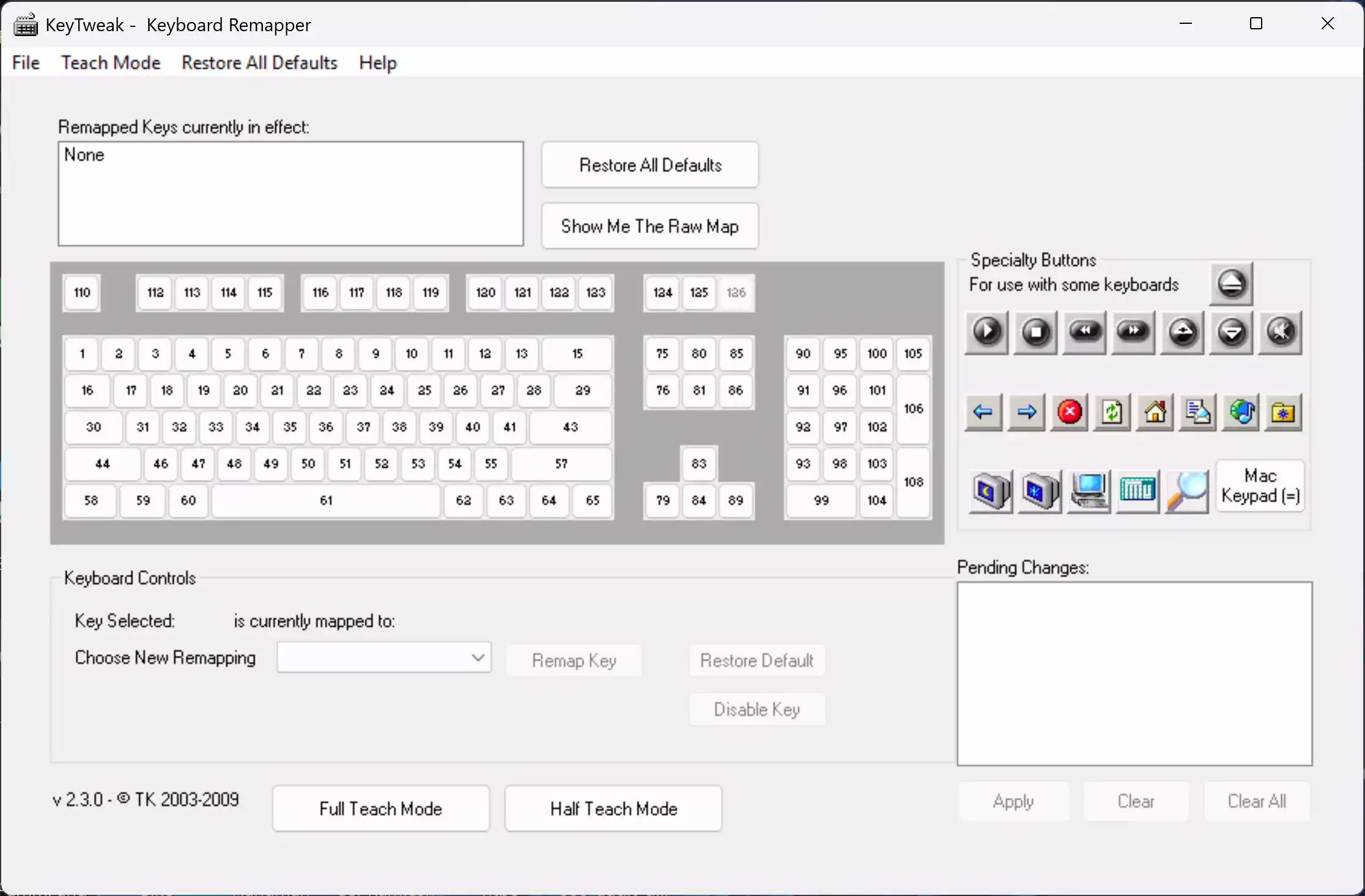
Not everyone enjoys the default keyboard layout. Some keys are rarely used, and others might get in the way. Beginners often face accidental presses of keys like Caps Lock or Insert. With KeyTweak, you don’t need to be a power user to fix these annoyances — the software provides a simple graphical interface with a virtual keyboard, so you can just click and remap.
Main Features of KeyTweak
- Remap any keyboard key with a few clicks.
- Disable keys that you don’t want to use.
- Simple interface with a virtual keyboard view.
- Undo and reset functions in case you change your mind.
- Free and lightweight — works even on older Windows versions.
How to Use KeyTweak
Step 1. Download and install KeyTweak on your Windows computer (Link in Download section below).
Step 2. Launch the program. You’ll see a virtual keyboard layout on the screen.
Step 3. Click the key you want to remap and choose the new function from the “Choose New Remapping” drop-down list.
Step 4. Press “Remap Key” to save changes. A system restart is usually required for the new mapping to take effect.
Step 5. If you want to restore defaults, simply use the “Restore All Defaults” button.
Safe Use Tips for Beginners
While KeyTweak is safe, keep these tips in mind:
- Note down your changes before applying them.
- Avoid remapping critical keys like Enter or Ctrl unless you’re confident.
- If something goes wrong, use the “Restore Defaults” option.
When KeyTweak Can Help You
KeyTweak can be very useful in scenarios like:
- Disabling the Caps Lock key to prevent accidental presses.
- Remapping the Insert key if it interrupts your typing.
- Turning unused keys into shortcuts for frequently used functions.
- Customizing your keyboard for gaming setups.
Frequently Asked Questions About KeyTweak
Is KeyTweak safe to use?
Yes, KeyTweak is safe. It only edits registry entries to change keyboard mappings and offers a reset option if you want to undo changes.
Can I remap my entire keyboard with KeyTweak?
Yes, most keys can be remapped, but a few special system keys are not available for reassignment.
Does KeyTweak work on Windows 11?
KeyTweak was originally made for earlier versions of Windows, but it can still function on Windows 11/10 for most users. For advanced users, Microsoft PowerToys is another alternative.
What if I lose my keyboard access?
If you accidentally disable critical keys, simply boot into Safe Mode and use KeyTweak’s reset option to restore defaults.
Are there alternatives to KeyTweak?
Yes. SharpKeys is another freeware option, and Microsoft PowerToys includes a modern Keyboard Manager for advanced setups.
Download KeyTweak
You can download KeyTweak for free from several trusted software sites. Since it is a portable freeware tool, it doesn’t come bundled with ads or extra bloat.
For related productivity tools, you may also check our Text Cleaner & Formatter utility, which makes working with text easier on Windows.
Conclusion
KeyTweak is a reliable and simple way to take control of your keyboard. Whether you want to disable unused keys, swap around functions, or set up a more comfortable typing environment, KeyTweak makes it possible for beginners without hassle. It’s free, lightweight, and effective — a must-have for anyone who wants more flexibility from their keyboard.