

If you need a quick, private, and reliable way to record your PC screen without installing anything, this online screen recorder is perfect. It runs completely in your browser, so your video never leaves your device. When you’re ready, launch the Screen Recorder and start capturing in seconds.
What is the GearUpWindows Online Screen Recorder?
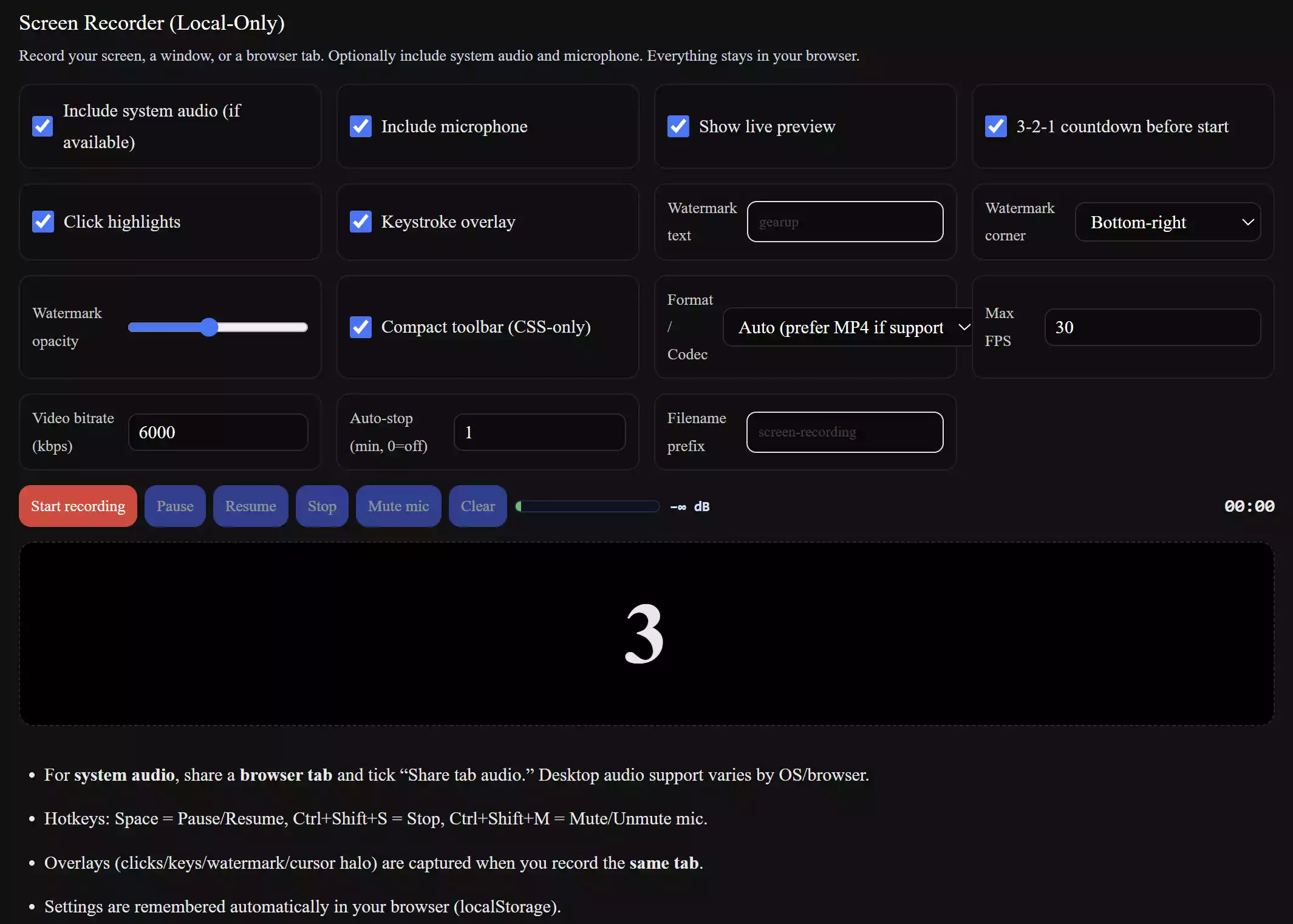
The GearUpWindows Screen Recorder is a browser-based tool that lets you record a desktop, a specific window, or a browser tab. You can include system audio (tab/desktop audio, where supported) and a microphone. It also offers a live preview, a countdown, hotkeys, a watermark option, click highlights, a keystroke overlay, and an audio level meter—while keeping everything local on your machine.
Why Would a Beginner Use This Tool?
Because it’s simple, private, and fast. There’s nothing to install, no account to create, and no files get uploaded elsewhere. Whether you’re recording a tutorial, a quick bug report, or a meeting demo, you can save the result as MP4/WebM and share it instantly.
Main Features
- No install & private: Everything runs in your browser; recordings stay on your device.
- System audio + mic: Capture tab/desktop sound (where supported) and your microphone.
- MP4/WebM export: Pick a format/codec that plays nicely on Windows.
- Watermark & overlays: Add a watermark, show click highlights, keystrokes, and a cursor halo for tutorials.
- Hotkeys & countdown: Space to pause/resume, Ctrl+Shift+S to stop, optional 3-2-1 countdown.
- Live audio meter: See input levels with a clipping warning before you hit stop.
- Local preferences: Tool remembers your settings (FPS, bitrate, watermark, etc.).
How to Use the Online Screen Recorder
Follow these quick steps to start recording:
Step 1. Open the tool and choose what to capture: desktop, a window, or a browser tab. Tick “Include system audio” if you need tab/desktop sound (share a tab and enable its audio for best results).
Step 2. Turn on the microphone if you want voice narration. Watch the live audio meter to avoid clipping.
Step 3. Pick your format (MP4/WebM), set FPS and bitrate, and add an optional watermark or keystroke overlay.
Step 4. Click Start recording. Use Space to pause/resume, and Ctrl+Shift+S to stop. The timer helps you track duration.
Step 5. Click the generated download link to save your video. That’s it—your file is already on your PC, with no uploads.
Safe Use Tips for Beginners
- When recording a browser tab, enable “Share tab audio” to capture system sound from that tab.
- Close sensitive windows or mute notifications before recording to protect your privacy.
- Use a moderate bitrate (e.g., 6000 kbps) and 30 FPS for clear results without huge files.
- If audio clips (turns red), lower mic gain or speak slightly farther from the mic.
- On Safari/iOS, downloads may open in a new tab—save the file from there.
When This Tool Can Help You
- How-to tutorials: Teach someone a workflow with clicks and keystrokes visible.
- Bug reports: Show exactly what’s going wrong to get faster support.
- Training & demos: Record a quick feature walkthrough for your team or clients.
- Lecture snippets: Capture parts of online classes for later review (respect content policies).
Pros and Considerations
Pros
- Fully private and no-install.
- Includes system audio (where supported) and mic.
- Helpful overlays for tutorials (clicks, keys, watermark).
- Simple hotkeys and visual audio meter.
Considerations
- Desktop audio capture varies by browser/OS; tab audio is most reliable.
- Long, high-bitrate recordings create large files—balance quality vs. size.
- Safari/iOS may not “download” the same way as desktop Chrome/Edge/Firefox.
Frequently Asked Questions
Does the video get uploaded anywhere?
No. Recording and processing happen locally in your browser. You download the file directly to your computer.
Can I record system audio?
Yes, where supported. For the most reliable result, record a browser tab and enable “Share tab audio.” Desktop audio varies by OS/browser.
Which format should I choose—MP4 or WebM?
MP4 (H.264) is widely compatible with Windows players. WebM is efficient and great for the web. Pick what fits your workflow.
Why does the download open in a new tab on my device?
Some browsers (especially on mobile/iOS) open generated files in a new tab. From there you can save the video to your device.
Can I add a watermark or show keystrokes?
Yes. You can add a watermark (choose corner/opacity) and enable keystroke and click overlays for tutorial videos.
Is there a desktop app alternative?
If you prefer installed software, check our roundup of best free screen recorders for Windows for offline options.
Use the Screen Recorder
Ready to capture? Open the online Screen Recorder now. You can also explore more handy tools on our Online Free Web Tools page.
Conclusion
This free online screen recorder gives you fast, private, and flexible recording with system audio, mic, and MP4/WebM export—ideal for tutorials, demos, and quick captures. Because nothing uploads, it’s both convenient and secure for everyday use.