

In this gearupwindows guide, we’ll show you how to use PDFTK Builder, a free and simple tool to add page numbers, split and merge PDFs, and apply document protection on Windows 11/10.
PDFTK Builder is another useful free software that helps you manage your PDF files. It comes with multiple features such as merging and splitting PDF documents, rotating pages, adding watermarks or backgrounds, and inserting page numbers. It’s lightweight, offline, and easy to use.
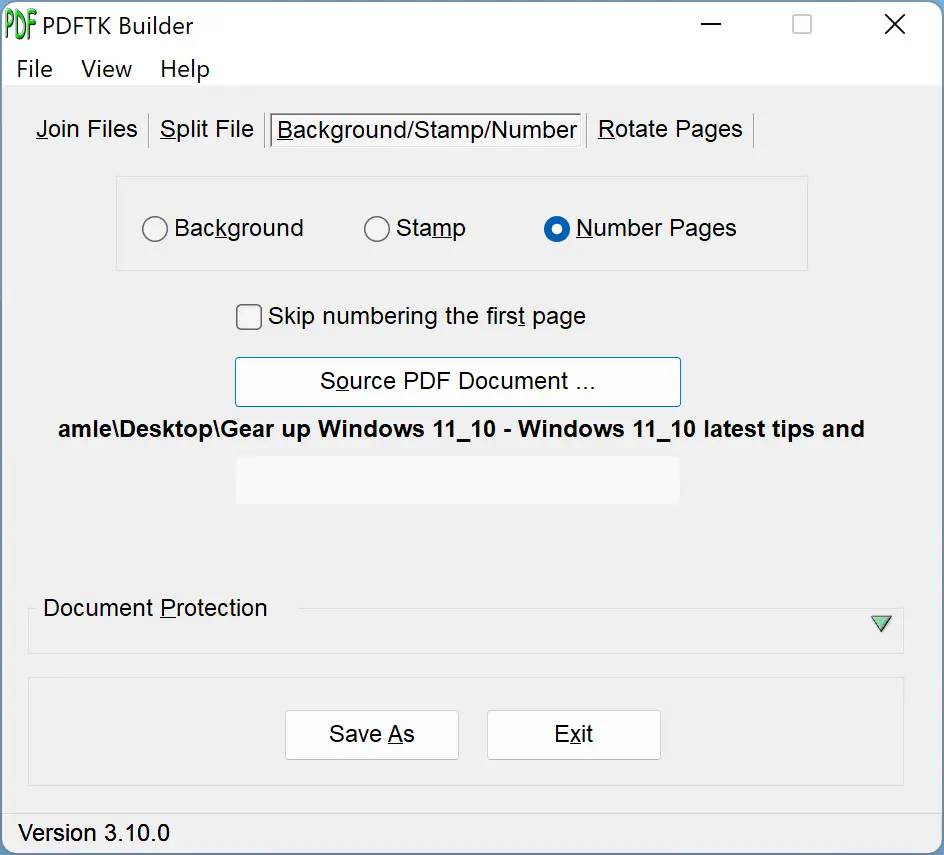
Key Features of PDFTK Builder
- Merge PDFs: Combine multiple PDF files into a single document.
- Split PDFs: Extract individual pages or page ranges from PDFs.
- Rotate Pages: Rotate selected pages in your PDF file.
- Add Page Numbers: Insert automatic page numbers at the bottom right of every page.
- Add Backgrounds or Stamps: Overlay another PDF as a watermark or background.
- Document Protection: Set user and owner passwords, and control printing, copying, or modifying permissions.

Limitations of Page Numbering
While PDFTK Builder allows adding page numbers, it only supports one PDF at a time and places numbers at the bottom right corner by default. Unfortunately, you cannot change the font, color, or position of the page numbers. However, the software allows skipping page numbering on the first page if needed.
How to Add Page Numbers Using PDFTK Builder?
Follow these steps to add page numbers using PDFTK Builder on Windows 11 or 10:
Step 1. Download and install PDFTK Builder from the official site.
Step 2. Launch the app using its desktop shortcut.
Step 3. Click on the Background/Stamp/Number tab.
Step 4. Select the Number Pages option.
Step 5. Click the Source PDF Document button to choose your PDF file.
Step 6. (Optional) Tick the option to skip page numbering on the first page.
Step 7. Click Save As to export your PDF file with page numbers to a desired folder.
In addition to adding page numbers, you can apply document protection while saving. This includes adding an owner or user password and enabling or disabling permissions such as printing and copying content.
Download PDFTK Builder
You can download PDFTK Builder here.
Frequently Asked Questions about PDFTK Builder
Is PDFTK Builder free to use?
Yes, PDFTK Builder is free software for Windows and works fully offline.
Can I change the position or style of page numbers?
No. The numbering is fixed to the bottom right, and you can’t change font, color, or position. You can, however, choose to skip numbering on the first page.
Does it support batch numbering of multiple PDFs at once?
Not directly. PDFTK Builder processes one PDF at a time. If you need to number several files, repeat the process for each PDF.
Will adding page numbers affect my existing content?
No. Page numbers are overlaid; your original text and images remain intact.
Can I protect the PDF at the same time?
Yes. When saving, you can set user/owner passwords and control permissions like printing and copying.
How do I merge or split PDFs?
Use the Merge and Split sections inside the app. For an alternative approach to combining PDFs, see our guide to PDF24 Creator.
Conclusion
PDFTK Builder is a reliable, lightweight choice for essential PDF tasks on Windows 11/10. If you need a quick way to add page numbers, merge or split PDFs, rotate pages, or apply document protection without going online, it delivers a simple, consistent workflow. Despite the fixed page-number style, its ease of use and offline nature make PDFTK Builder an excellent everyday utility for managing PDFs on Windows.