

Applying for government jobs, competitive exams, or online forms often comes with strict requirements: your photo or signature must be within a fixed pixel size and below a specific KB limit. Many users struggle with this step and end up with rejected uploads. The Photo & Signature Resizer solves that problem by letting you set the required size and compress the file without losing clarity.
What this tool does
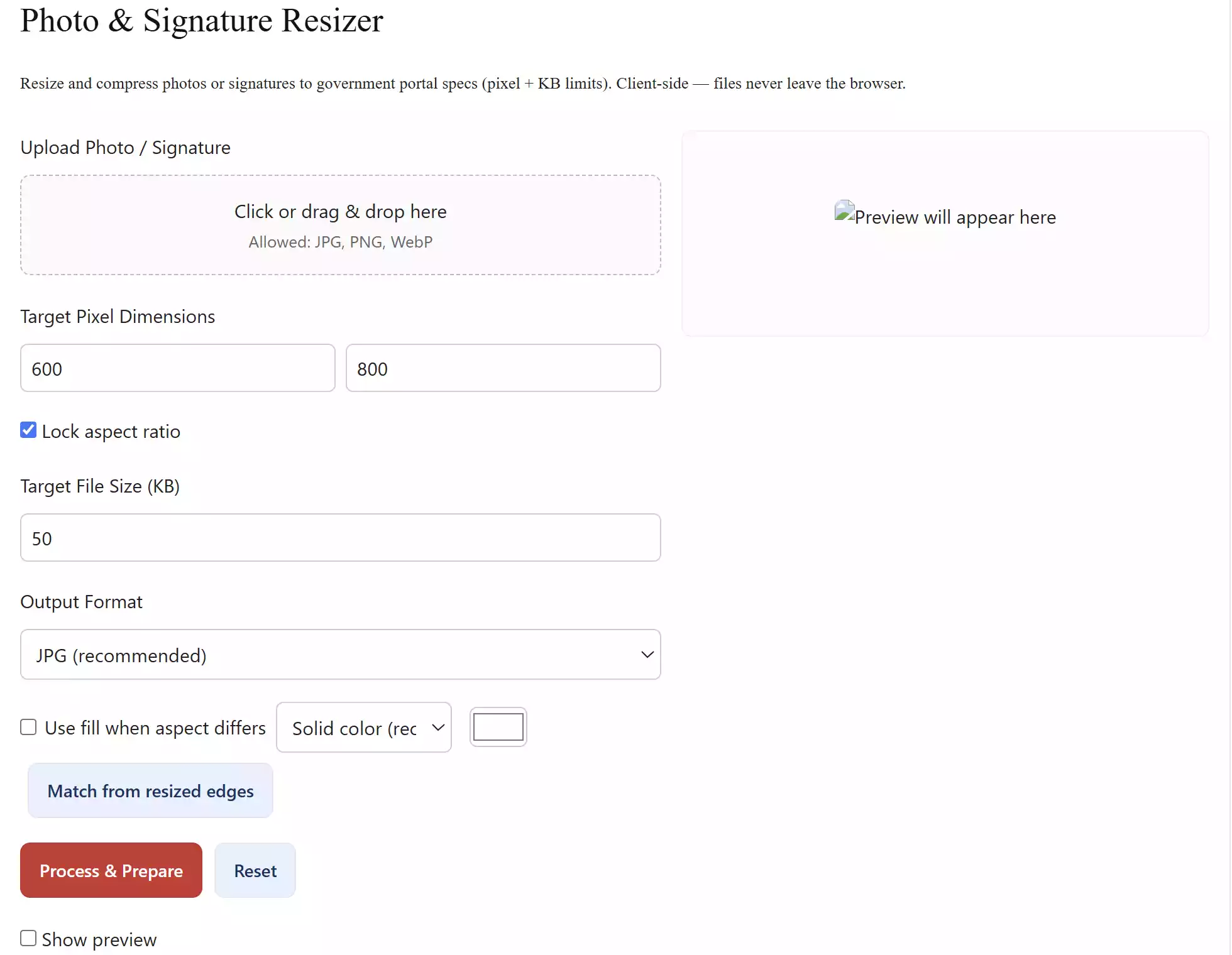
The tool takes any JPG, PNG, or WebP image and lets you:
- Set target pixel dimensions (width × height).
- Set a file size limit in KB.
- Choose how to handle mismatched aspect ratios (solid color fill, blurred background, or edge extend).
- Preview the result before downloading to ensure the output looks natural.
- Download instantly in JPG, PNG, or WebP formats.
How to use Photo & Signature Resizer
Step 1. Open the Photo & Signature Resizer tool.
Step 2. Upload your photo or signature by clicking or dragging it into the box.
Step 3. Enter the required Target Pixel Dimensions (e.g., 319 × 409).
Step 4. Set the Target File Size in KB (such as 50 KB) as required by the portal.
Step 5. If the image aspect ratio does not match, enable “Use fill when aspect differs” and select a fill type. Use the color picker or the Match from resized edges button for a natural background.
Step 7. Toggle the Show Preview option to confirm the final look before downloading.
Step 7. Press Process & Prepare, and then download the ready-to-use file.
Why is this tool useful?
Unlike desktop software, this resizer runs entirely in your browser. It respects privacy because files are never uploaded to a server. Beginners don’t need image editing knowledge — just enter the numbers and download the result. For multiple images or batch jobs, you can also try our Image Resizer & Converter, which handles broader resizing and conversions.
Pros
- Simple, browser-based, no installation needed.
- Meets strict government portal specs (pixels + KB).
- Accurate fill strategies to avoid odd stretched backgrounds.
- Preview option shows the final result before saving.
- Supports JPG, PNG, and WebP formats.
Considerations
- Extremely low KB limits may reduce image clarity.
- For exact background requirements, you may need to manually pick the correct color in the color picker.
Frequently Asked Questions
Q: Does this tool upload my image to a server?
A: No. All processing happens in your browser — files never leave your device.
Q: What if the file doesn’t meet the KB limit?
A: Try changing the output format to WebP or slightly increasing the KB limit. The tool uses a smart compression loop to get as close as possible to your target.
Q: Can I make the background white for my signature?
A: Yes. Select the Solid color fill option and set the color picker to white (#ffffff). Then process the image and preview it.
Q: Can I create a digital signature online?
A: Yes. If you need to draw or save a digital signature directly, use our GUW Signature Pad. It lets you create a clean signature image, and then you can resize it here to meet portal requirements.
Q: What if I only need to crop an image before resizing?
A: In that case, try our GUW Image Cropper. You can crop out unwanted areas, adjust the frame, and then bring the cropped image into this resizer to finalize the exact pixel and KB size needed.
Conclusion
The Photo & Signature Resizer is designed to remove the most frustrating step of applying online — getting your images into the exact dimensions and KB limits demanded by government and job portals. With simple controls, smart background filling, and instant previews, it ensures your photos and signatures are always accepted without hassle. Whether you are preparing documents for SSC, UPSC, banking, or admission portals, this tool saves time and reduces errors so you can focus on your application instead of fighting with image editors.
The Photo & Signature Resizer is now live. Open the tool, upload your image, set your required specs, and download a portal-ready file in seconds.