

If you often find yourself repeating the same mouse clicks and keyboard presses over and over again, a lightweight automation tool can save you time and effort. That’s where TinyTask comes in. It’s a free, portable, and very small utility designed to record your actions and play them back automatically. Whether you want to automate form filling, routine software launches, or other repetitive work, TinyTask is one of the simplest solutions for Windows users.
What is TinyTask?
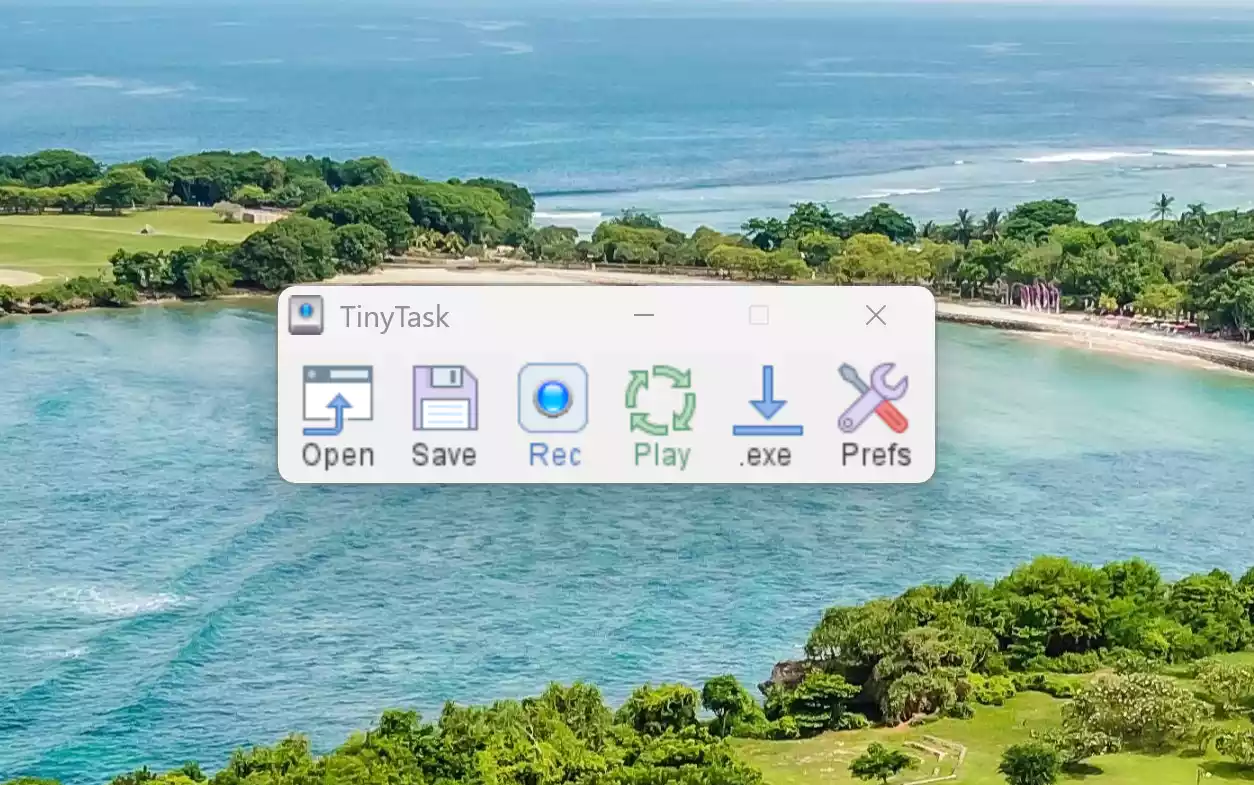
TinyTask is a minimalist Windows program that records your screen actions, including mouse movements and keyboard inputs, and lets you replay them with a single click. Unlike complex automation suites, TinyTask focuses on simplicity. Its executable file is only a few kilobytes in size, requires no installation, and can run from a USB stick. For beginners who need quick automation without scripting knowledge, TinyTask is a perfect fit.
Why Would a Beginner Use TinyTask?
Beginners appreciate TinyTask because it requires no coding skills or setup. You simply press a button to record, perform your repetitive actions once, and then play them back as many times as needed. For example, students can automate data entry tasks, office users can replay routine report formatting, and gamers can repeat in-game actions. If you’ve ever used a tool like a typing tester to measure your speed, you’ll find TinyTask similarly easy to use for automation.
Main Features of TinyTask
TinyTask may look simple, but it offers handy features for anyone who values time:
- Records both keyboard and mouse activity.
- One-click playback of recorded actions.
- Ability to save and load macros as .rec files.
- Option to compile recordings into standalone .exe files.
- Hotkeys for quick start/stop recording and playback.
- Extremely lightweight (less than 100 KB) and portable.
How to Use TinyTask
Using TinyTask is straightforward. After downloading, run the program without installation. Click the Record button and perform the actions you want to automate, such as opening apps, typing text, or navigating menus. Once done, click Stop. You can now click Play to see your actions repeated exactly. If you need to repeat a sequence often, save it as a file or even compile it into an executable for easy reuse. For those managing multiple routine files, combining TinyTask with a free archiver tool can make workflows even smoother.
Safe Use Tips for Beginners
Since TinyTask records all keystrokes and clicks, it’s important to use it safely. Avoid recording sensitive data like passwords or banking actions. Always check playback before running it unattended. Because the program has no advanced filters, every recorded action will be repeated exactly, so make sure your screen layout doesn’t change. For extra caution, test macros in a safe environment before applying them to important files.
When TinyTask Can Help You
TinyTask shines in scenarios where repetitive actions waste valuable time. Examples include copying files across folders, repeatedly filling out forms, opening software with specific settings, or even creating simple gaming macros. If you combine TinyTask with tools such as a text cleaner, you can create automated workflows that prepare and format your documents with a single action.
Download TinyTask
You can download TinyTask for free from its official developer page and trusted freeware websites. It’s a portable executable, so you won’t need to install it. Just keep the file in a folder or USB stick and launch it whenever you want to automate tasks.
Frequently Asked Questions About TinyTask
Is TinyTask safe to use?
Yes, TinyTask is safe if downloaded from official or trusted sources. It does not contain malware and does not require installation.
Can I run TinyTask on Windows 11?
Yes, TinyTask works on modern versions of Windows, including Windows 11 and Windows 10, without compatibility issues.
Does TinyTask support advanced scripting?
No, TinyTask is designed for beginners and focuses only on recording and playback. For advanced automation, other scripting tools are more suitable.
Can TinyTask repeat an action indefinitely?
Yes, you can set TinyTask to loop your recorded macro as many times as needed, including infinite looping.
Conclusion
TinyTask is one of the simplest yet most effective automation tools for Windows. Its tiny size, portability, and ease of use make it a favorite for beginners who want to save time by automating repetitive tasks. If you’re tired of doing the same clicks and keystrokes daily, TinyTask is a must-have utility that can boost your productivity effortlessly.