

If you’re looking for a powerful yet lightweight tool to personalize, optimize, and lock down your Windows 11 system, Ultimate Windows Tweaker 5 (UWT 5) is one of the best free utilities available today. Created by The Windows Club, this tool offers over 200 tweaks in a portable package—allowing you to modify hidden system behaviors without touching the registry or Group Policy manually.
In this gearupwindows guide, we’ll show you why UWT 5 deserves a place in every Windows user’s toolkit.
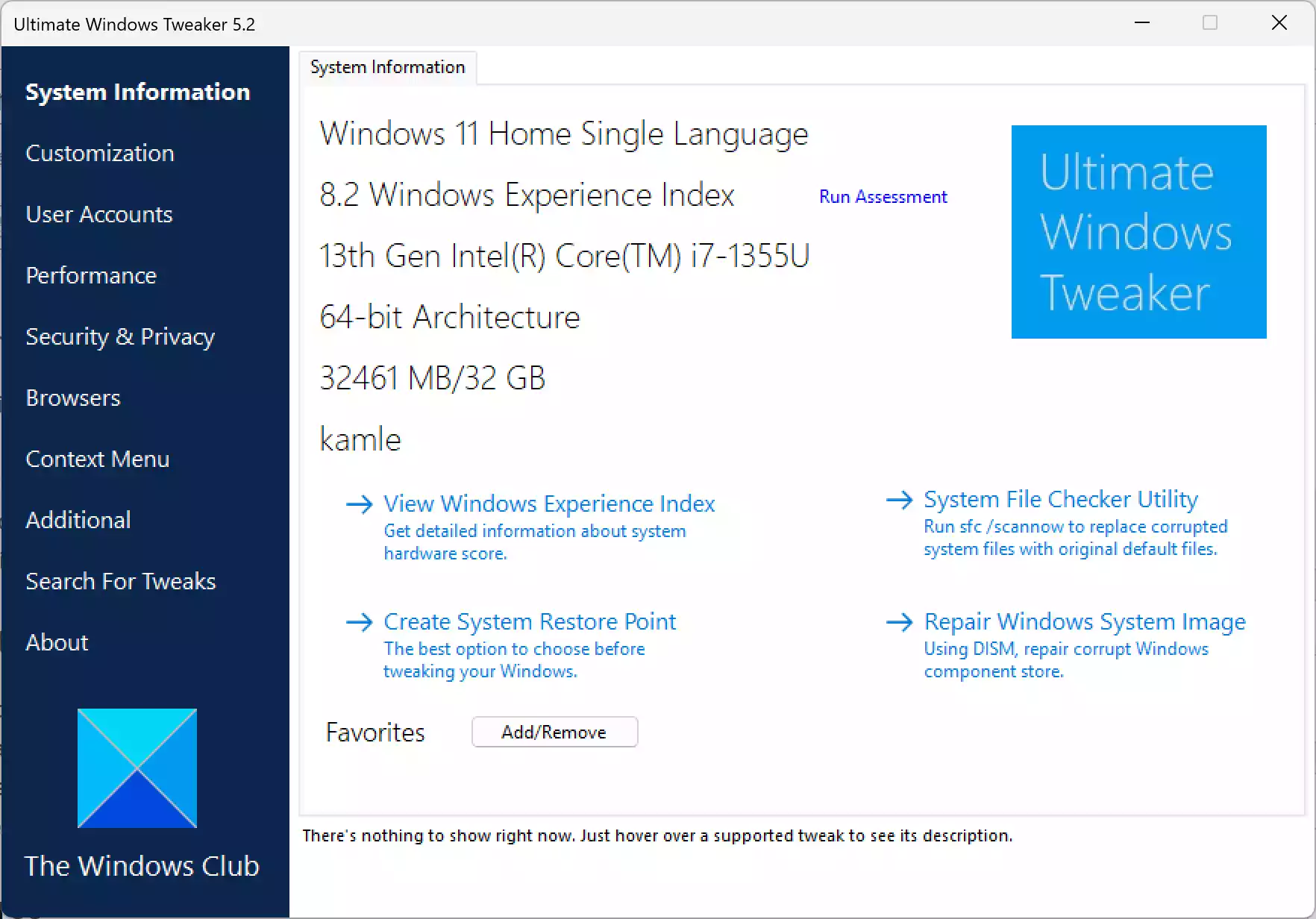
What is Ultimate Windows Tweaker 5?
Ultimate Windows Tweaker 5 is a free and portable application built for Windows 11. It enables users to apply a wide variety of customizations and optimizations through a simple tabbed interface. There’s no installation required—just unzip and run. With categories ranging from Customization to Security & Privacy and even Browser controls, the tool puts full control in the hands of beginners and power users alike.
Why Use Ultimate Windows Tweaker 5?
Rather than navigating through various settings menus or risking system instability by editing the registry, UWT 5 makes tweaking safe and accessible. It prompts you to create a System Restore Point before applying changes. And unlike many third-party utilities, it doesn’t run in the background or bloat your system.
Overview of Key Tabs and Features
1. Home Tab
- Displays vital system details like Windows version, build number, architecture, RAM, and processor info.
- Quick access buttons for System Properties, Power Options, Programs & Features, etc.
- Option to create a restore point, reset tweaks, or access documentation.
2. Customization Tab
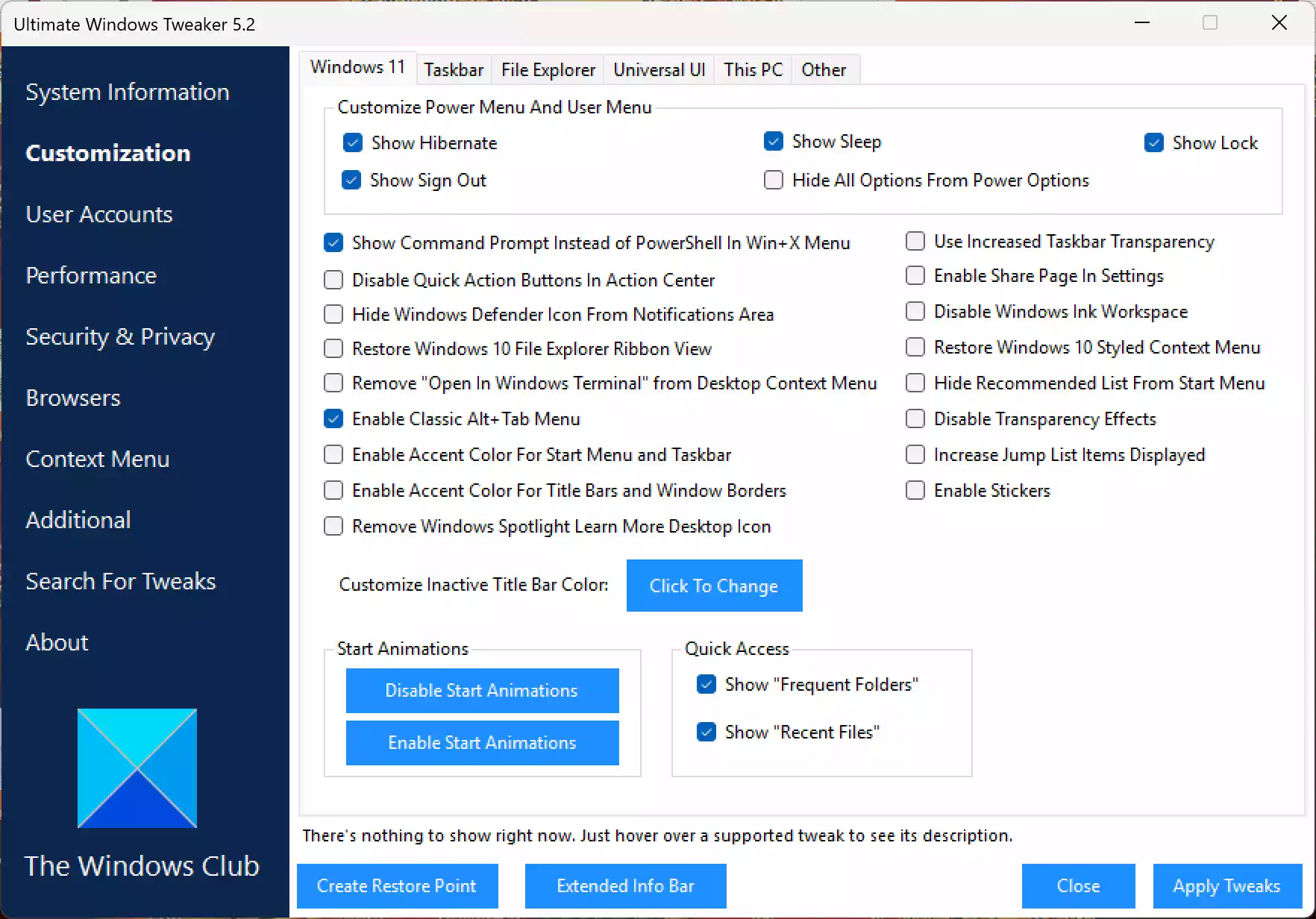
- Move the taskbar to top, left, or right of the screen—not just the default bottom.
- Disable or enable taskbar and Start menu transparency.
- Toggle Windows animations and effects for faster navigation.
- Show or hide items like Network, Recycle Bin, and Libraries in This PC.
- Add handy shortcuts like Copy to and Move to to the File Explorer context menu.
3. User Accounts Tab
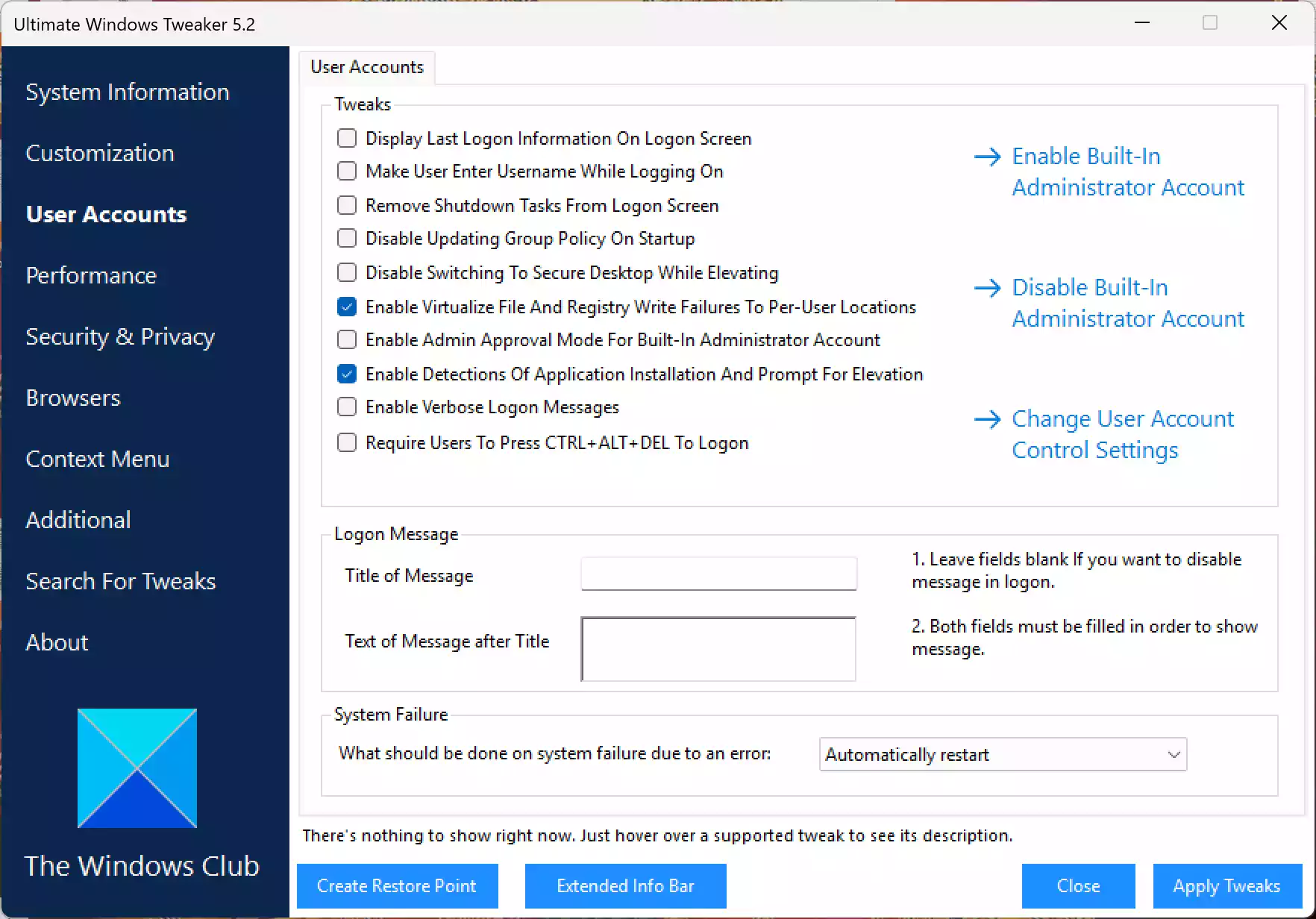
- Enable or disable the hidden Administrator account.
- Turn off the lock screen and Fast User Switching.
- Hide the last signed-in user on the login screen.
- Automatically log in to a selected account after boot.
4. Performance Tab
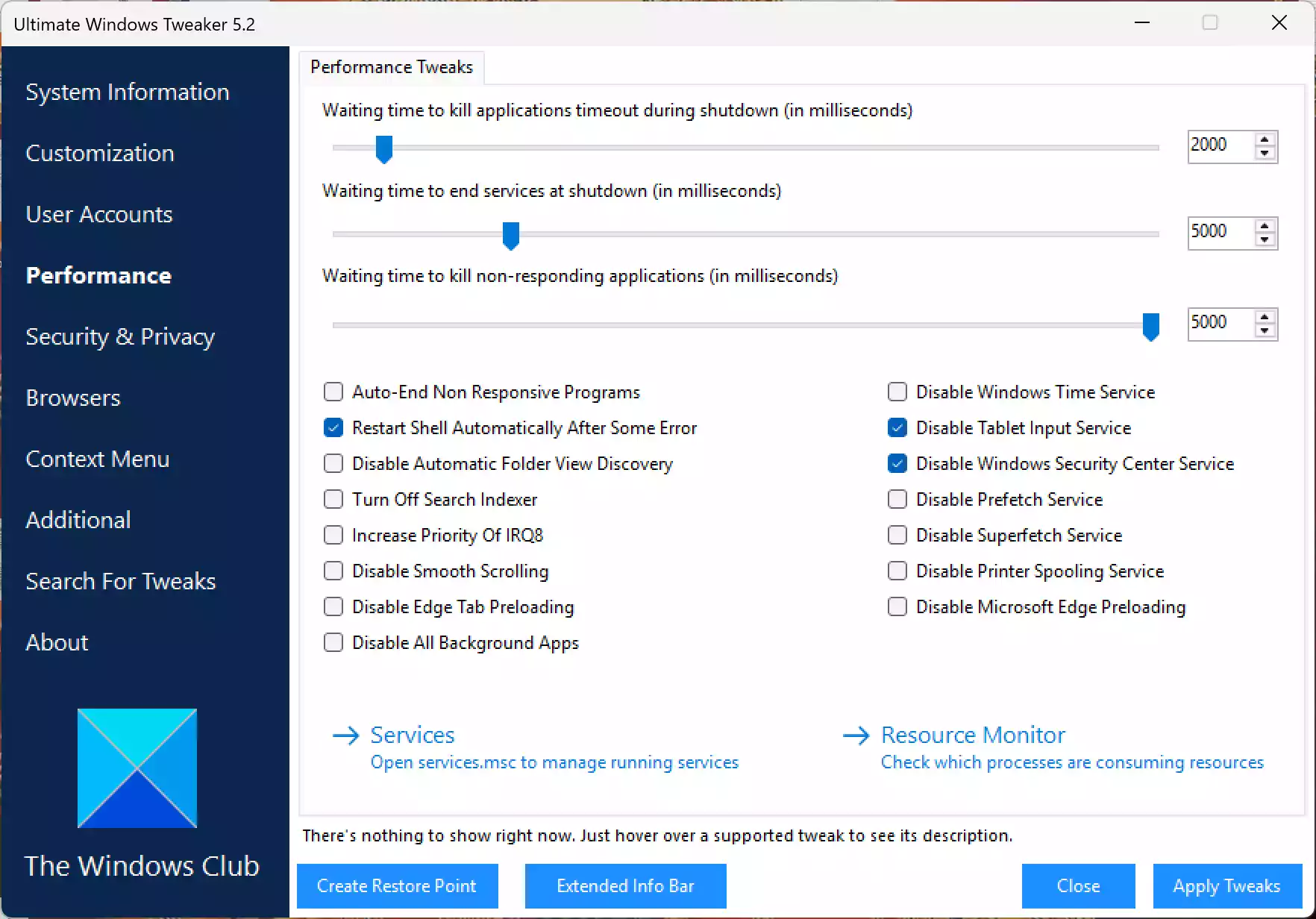
- Disable unnecessary Windows services such as Superfetch or Print Spooler.
- Reduce boot/shutdown time by disabling delays and background processes.
- Speed up window switching and menu rendering by turning off fade effects.
- Disable low battery notifications if you prefer a cleaner experience.
5. Security & Privacy Tab

- Turn off Windows telemetry and diagnostic data collection.
- Disable SmartScreen Filter and Error Reporting.
- Block access to camera, microphone, USB ports, or Control Panel.
- Customize UAC prompts to be more or less aggressive depending on your workflow.
- Restrict access to individual Settings pages (e.g., Accounts, Personalization).
6. Browsers Tab
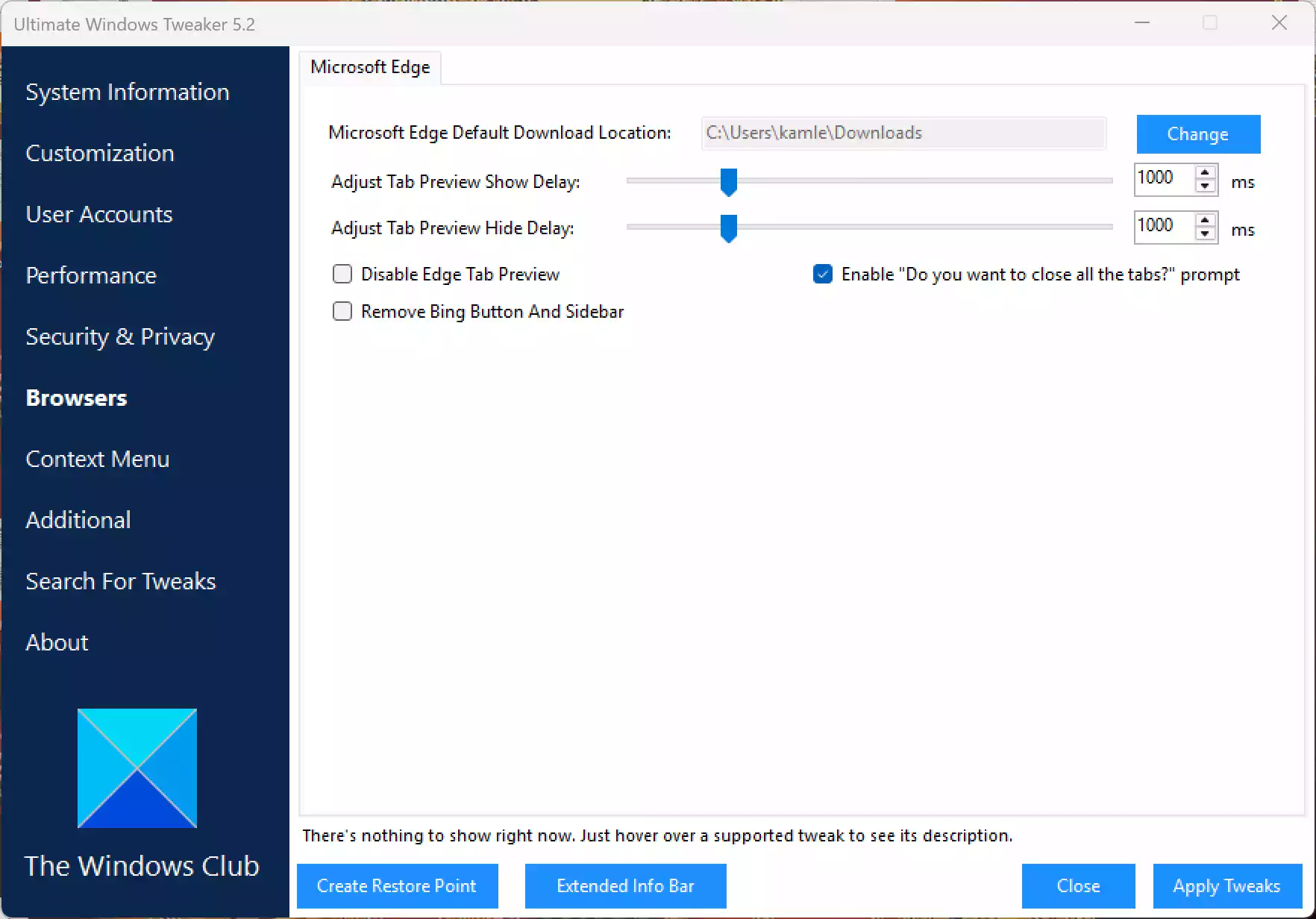
- Prevent links from opening automatically in Microsoft Edge.
- Disable feedback requests and autofill features in Edge.
- Block Edge from restarting background processes after you close it.
- Fix broken HTML file associations or set default web behavior.
7. Context Menu Tab
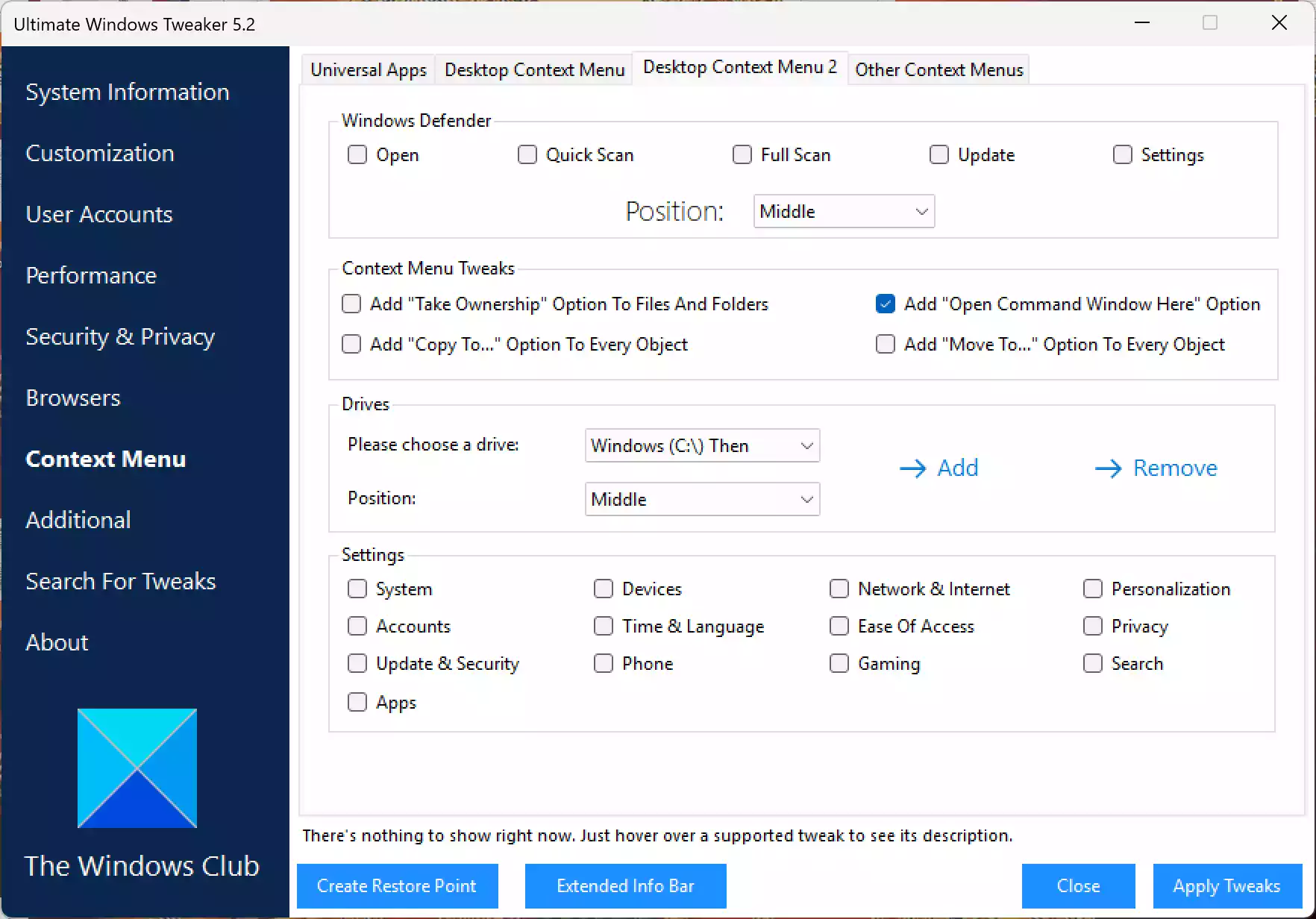
- Add entries like Defragment, Take Ownership, Clear Clipboard, and Encrypt.
- Switch between modern and classic right-click menu styles in Windows 11.
- Clean up clutter by removing unused entries that slow down the context menu.
8. Additional Tab
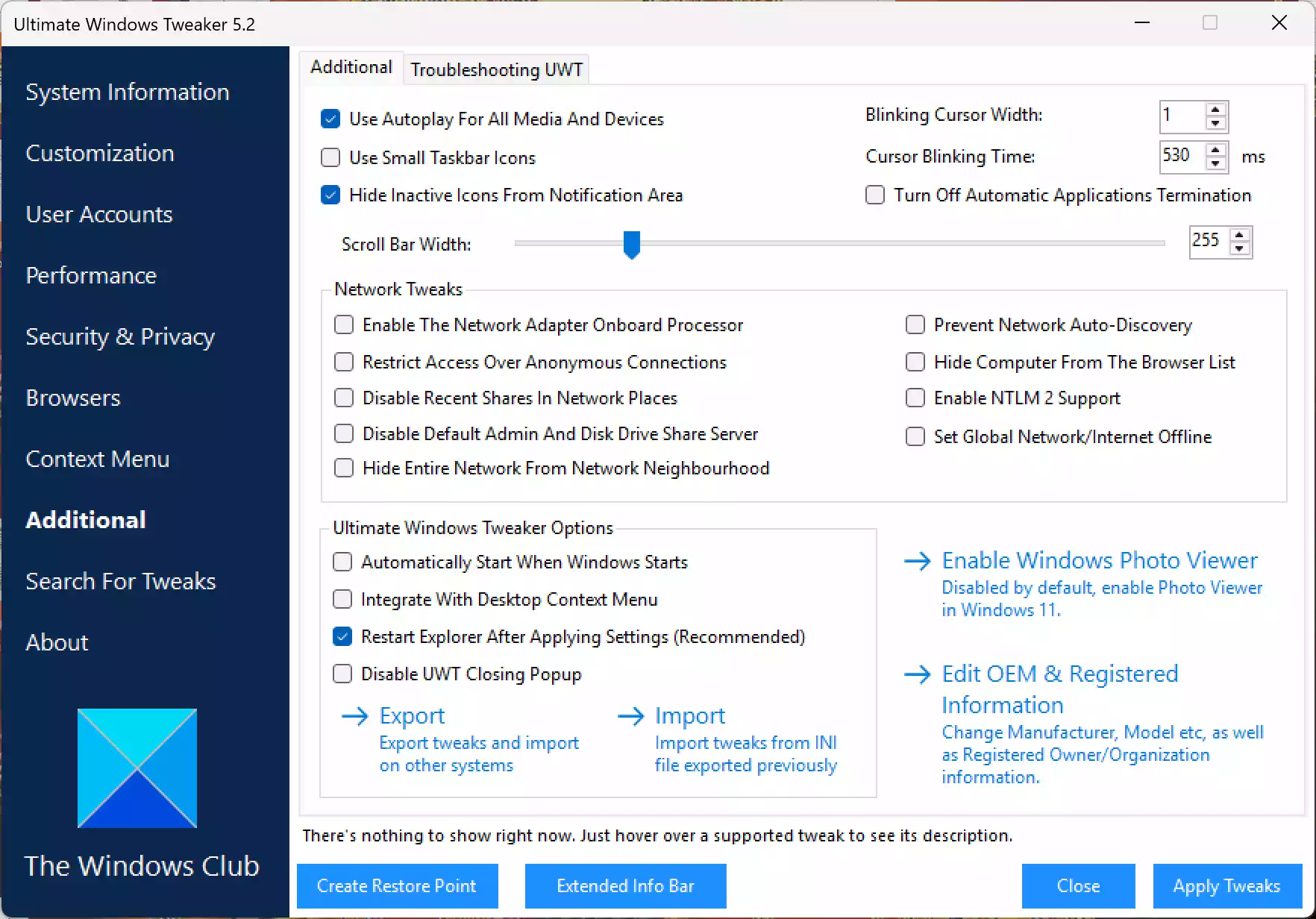
- Enable God Mode to unlock a Control Panel with over 200 options in one folder.
- Disable the restart prompt after Windows updates are installed.
- Always show file extensions and hidden files in File Explorer.
- Turn off app suggestions, background apps, and even uninstall preloaded Microsoft Store apps.
9. About Tab
- View software version and developer details.
- Access feedback options and documentation if needed.
Other Highlights
- 100% Portable: No need to install—just run the EXE file after extraction.
- No Background Processes: Doesn’t hog RAM or CPU resources.
- One-Click Reset: Easily undo tweaks and restore default Windows behavior.
How to Use UWT 5
Step 1. Download UWT 5 from the official website.
Step 2. Extract the ZIP archive and run UWT5.exe.
Step 3. Review system info on the Home tab and click Create Restore Point (recommended).
Step 4. Browse each tab and enable/disable settings as needed.
Step 5. Click Apply Tweaks and restart your PC if prompted.
Conclusion
Ultimate Windows Tweaker 5 is an essential utility for any Windows 11 user who wants full control over their system’s appearance, performance, and behavior. Whether you’re disabling telemetry, speeding up boot time, adjusting privacy settings, or simplifying the context menu, UWT 5 wraps all these capabilities into a lightweight, no-fuss package.
It’s safe, portable, and perfect for those who prefer results without risk. Whether you’re a beginner or a power user, UWT 5 offers a smarter way to tweak Windows 11 with confidence.