

What is VirtuaWin? VirtuaWin is a small open-source program for Windows that provides multiple virtual desktops. With it, you can switch between workspaces — for example, one for browsing, one for office work, one for coding, and another for entertainment. It runs from the system tray and uses very few system resources.

Why Would a Beginner Use VirtuaWin?
New users often become overwhelmed by the numerous windows scattered across the screen. VirtuaWin helps by letting you assign different desktops for different activities. Beginners like it because it’s easy to use, free, and doesn’t require a heavy setup. You can even run it from a USB stick.
Main Features of VirtuaWin
- Create up to 20 virtual desktops.
- Customizable hotkeys for quick switching.
- Modular system with add-ons for extra functionality.
- Portable — no installation required.
- Very light on system resources (uses less than 1 MB RAM).
How to Use VirtuaWin
Setting up VirtuaWin for the first time is easy. Just follow these steps:
- Download VirtuaWin from the official website.
- Extract the ZIP file to a folder of your choice. VirtuaWin is portable, so there is no installer.
- Run
VirtuaWin.exe. You will see a small blue square icon appear in your System Tray (bottom-right corner of your screen). - Right-click the tray icon and select Setup. This opens the configuration window.
- In the General tab, choose how many desktops you want (default is 4, but you can go up to 20).
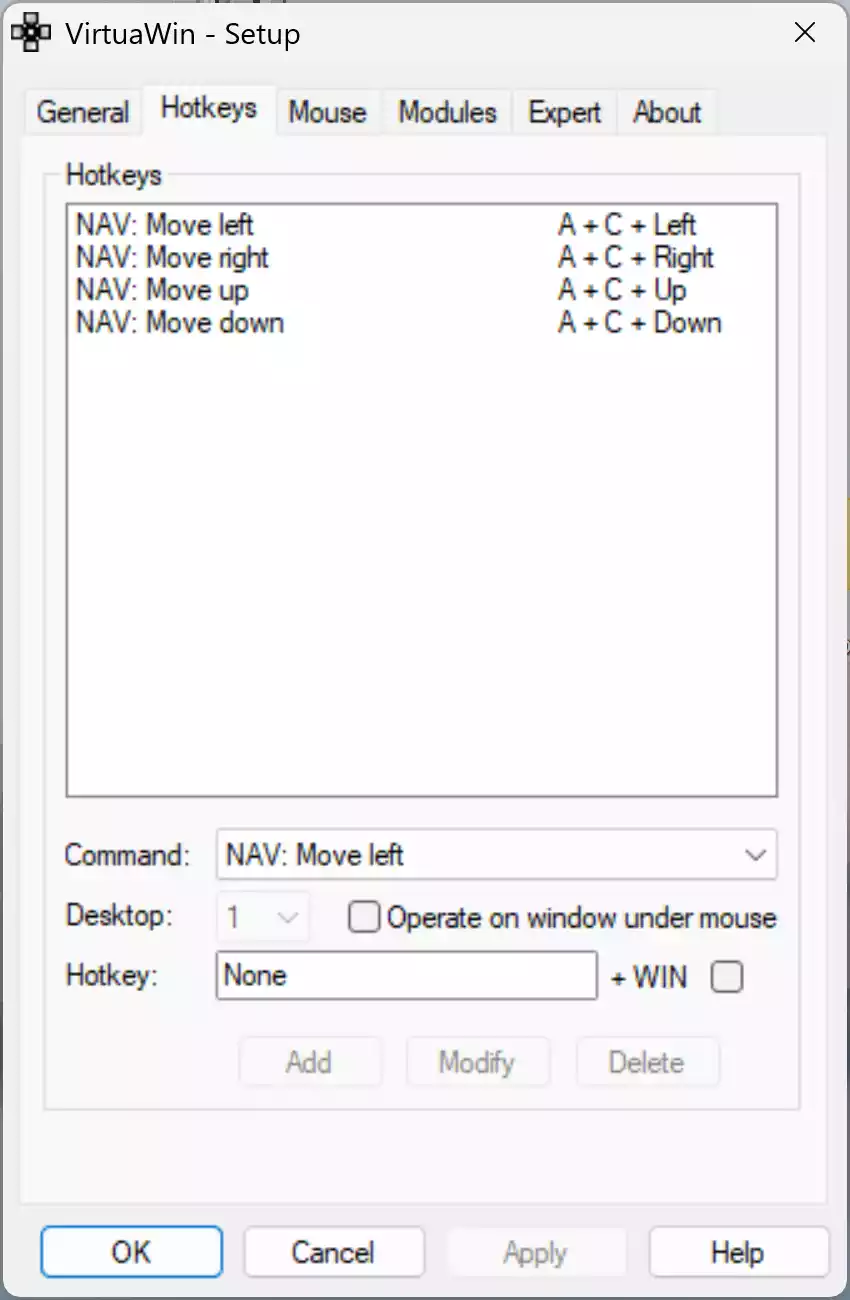
- Switch to the Hotkeys tab. Here you can set the keyboard shortcuts — by default, it’s
Ctrl + Alt + Arrow Keysto move between desktops. - Click OK to save your settings. VirtuaWin now runs in the background.
- To test it, press
Ctrl + Alt + Right Arrowand you’ll move to the next virtual desktop. Use theCtrl + Alt + Left Arrowto go back. - Optional: Pin specific apps to certain desktops using the Modules feature if you want more control.
Safe Use Tips for Beginners
Because VirtuaWin separates applications by desktop, always open your programs on the intended desktop. If you lose track, check the tray icon to see which workspace you’re on. Also, avoid using too many desktops at first — start with 2 or 3 to stay organized.
When VirtuaWin Can Help You
VirtuaWin is especially useful if you multitask. For example, keep one desktop for study notes and another for distraction-free browsing. If you often work with documents, you can combine it with our Free PDF Merger tool to organize your files on a dedicated workspace.
Download VirtuaWin
You can download VirtuaWin from the official VirtuaWin website or from trusted open-source repositories.
Frequently Asked Questions About VirtuaWin
How many desktops can I create with VirtuaWin?
You can create up to 20 desktops, though most users stick to 4–6 for convenience.
Is VirtuaWin safe?
Yes, it’s open-source and widely trusted. Just make sure to download from the official site.
Does VirtuaWin work on Windows 10 and 11?
Yes. VirtuaWin works on Windows 10 and Windows 11, even though those versions have built-in virtual desktops. VirtuaWin remains lighter and more customizable.
Conclusion
VirtuaWin is one of the best lightweight virtual desktop managers for Windows. If you need more flexibility than Windows’ built-in desktops or want something portable and free, this open-source tool is a great choice.