

Keeping a backup of important files and your system is essential for every Windows user. The list below is rebuilt using each vendor’s official product pages — features and license notes reflect the vendors’ own documentation at the time of checking. Always test rescue media and restores after creating backups.
1. AOMEI Backupper Standard
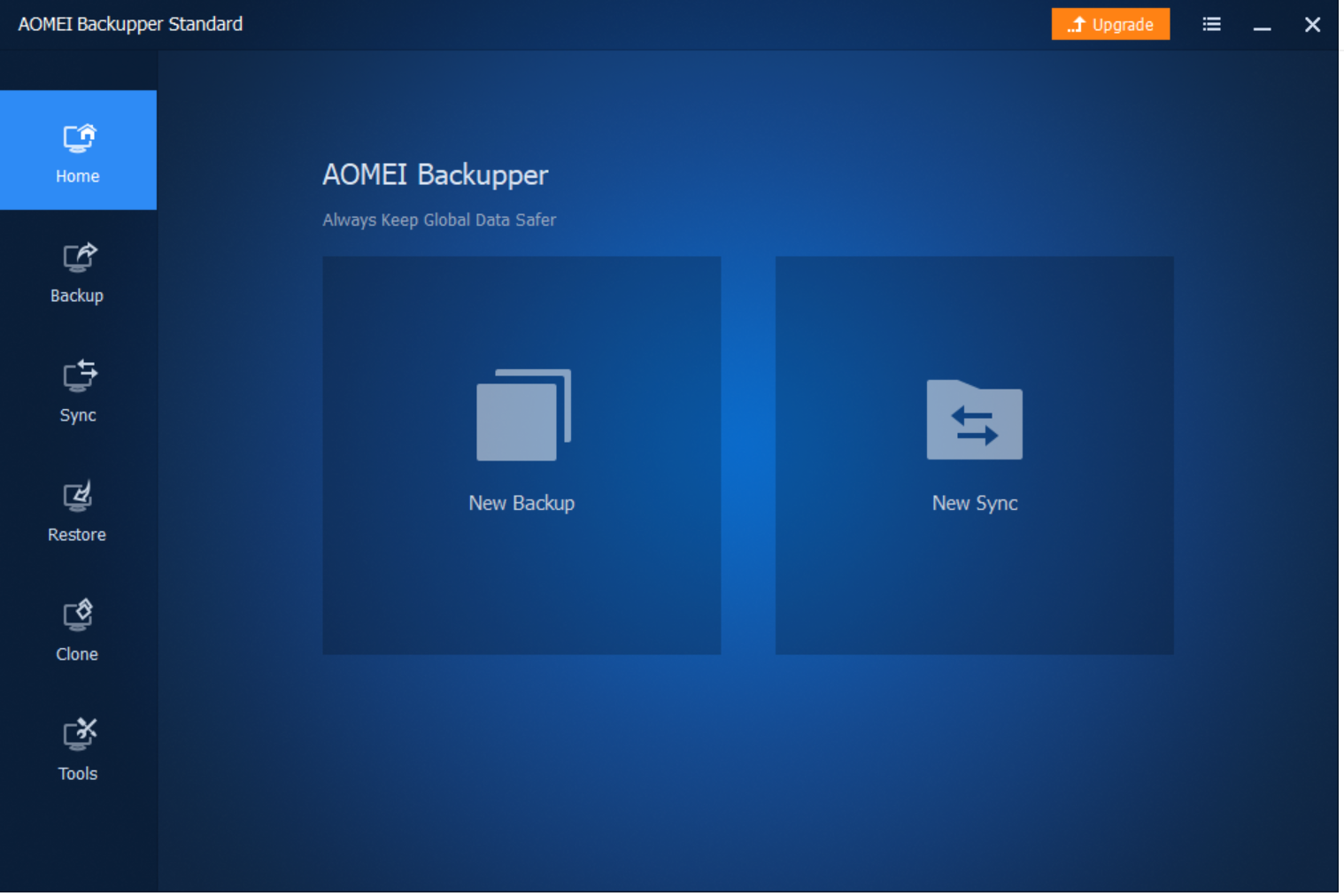
AOMEI Backupper Standard is the freeware edition for Windows PCs. According to AOMEI’s official product and edition-comparison pages, the Standard edition supports file/folder, system, disk, and partition backups, incremental backups, scheduled jobs, basic disk/partition cloning, and tools to create bootable recovery media. AOMEI documentation also references differential backups, but the edition comparison suggests this may be limited to paid editions — check AOMEI’s latest comparison before assuming differential backup is available in Standard. Advanced features such as Universal Restore, System Clone, and enterprise tools are part of AOMEI’s paid editions.
- Pros: Free for personal use; supports system and file-level backups, incremental backups, scheduled jobs, and disk/partition cloning.
- Considerations: Differential backup availability is unclear; Universal Restore and enterprise-level features require paid editions. Always test rescue media and restore flows on your hardware.
2. EaseUS Todo Backup Free
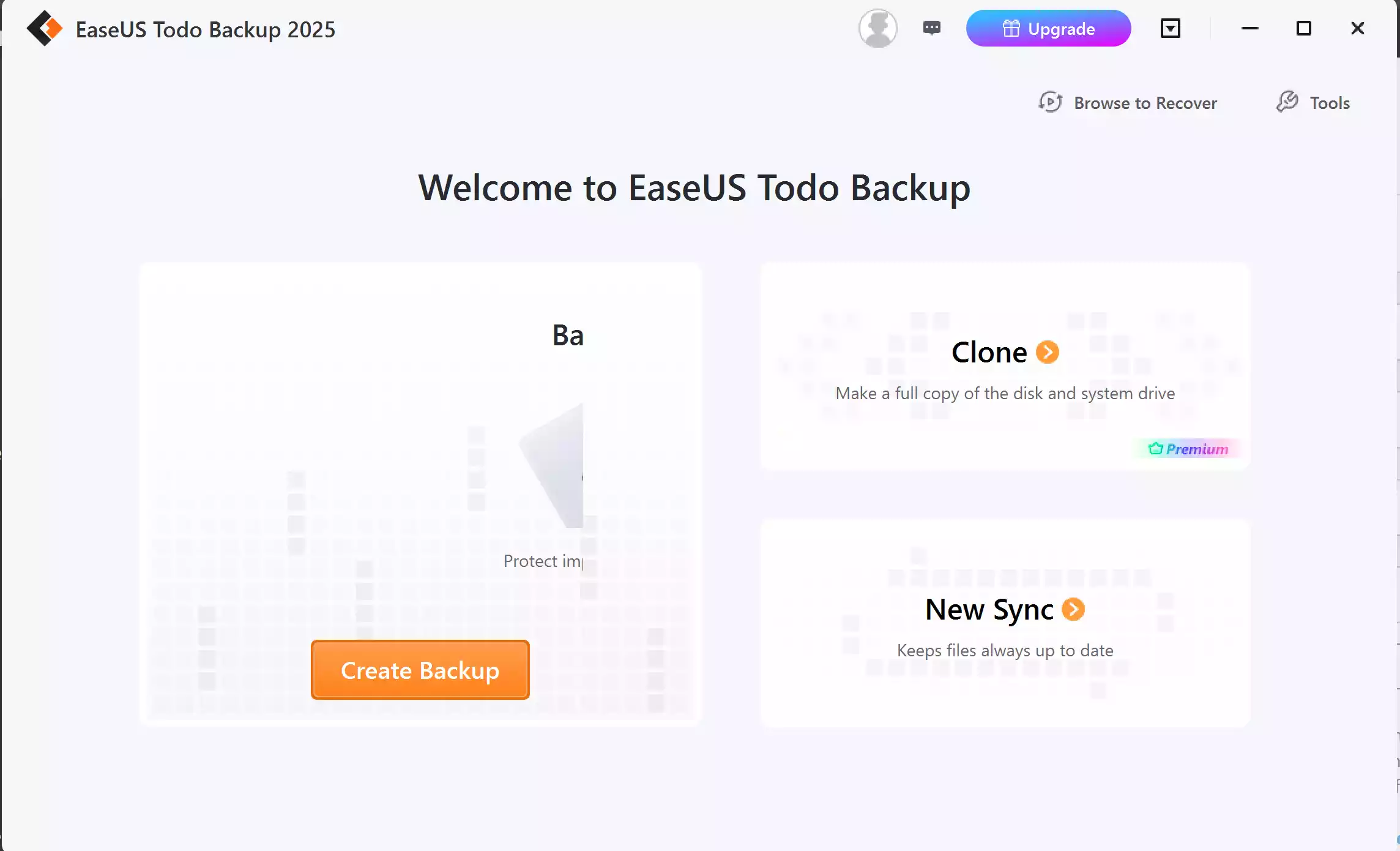
EaseUS Todo Backup Free supports file, partition, disk, and system image backups with full, incremental, and differential modes, along with scheduled tasks. Official EaseUS pages confirm WinPE-based rescue media creation. Cloud backup is offered only as a 30-day free trial of 250GB EaseUS Cloud; continued cloud use requires a paid subscription. Application-level backups, such as Outlook data, are advertised under paid editions, not Free.
- Pros: Wizard-driven interface, supports multiple backup modes, scheduling, and rescue-media creation.
- Considerations: Cloud storage is trial-only; app-data backup, universal restore, migration tools, and event-based backups are in paid editions.
3. Paragon Backup & Recovery — Community Edition
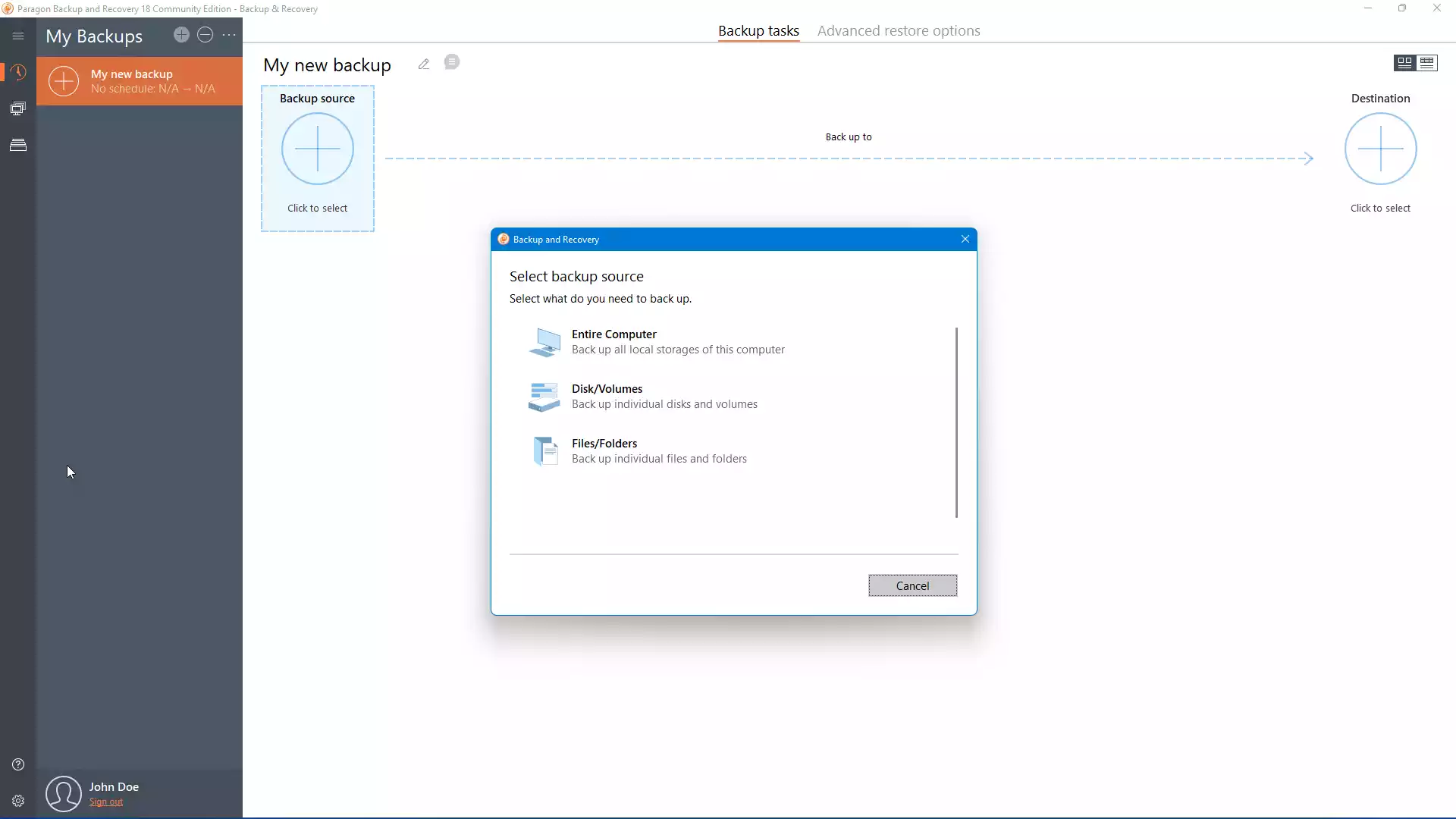
Paragon’s official product page for Backup & Recovery Community Edition confirms support for disk, partition, and system backups with scheduling and a recovery media builder. The Community Edition is free for non-commercial/personal use only; business users must license a commercial Paragon product.
- Pros: Reliable image-based backup and recovery, scheduling, rescue media builder, modern interface.
- Considerations: Free license restricted to personal/non-commercial use. Business use requires a paid license.
4. FBackup (Softland)
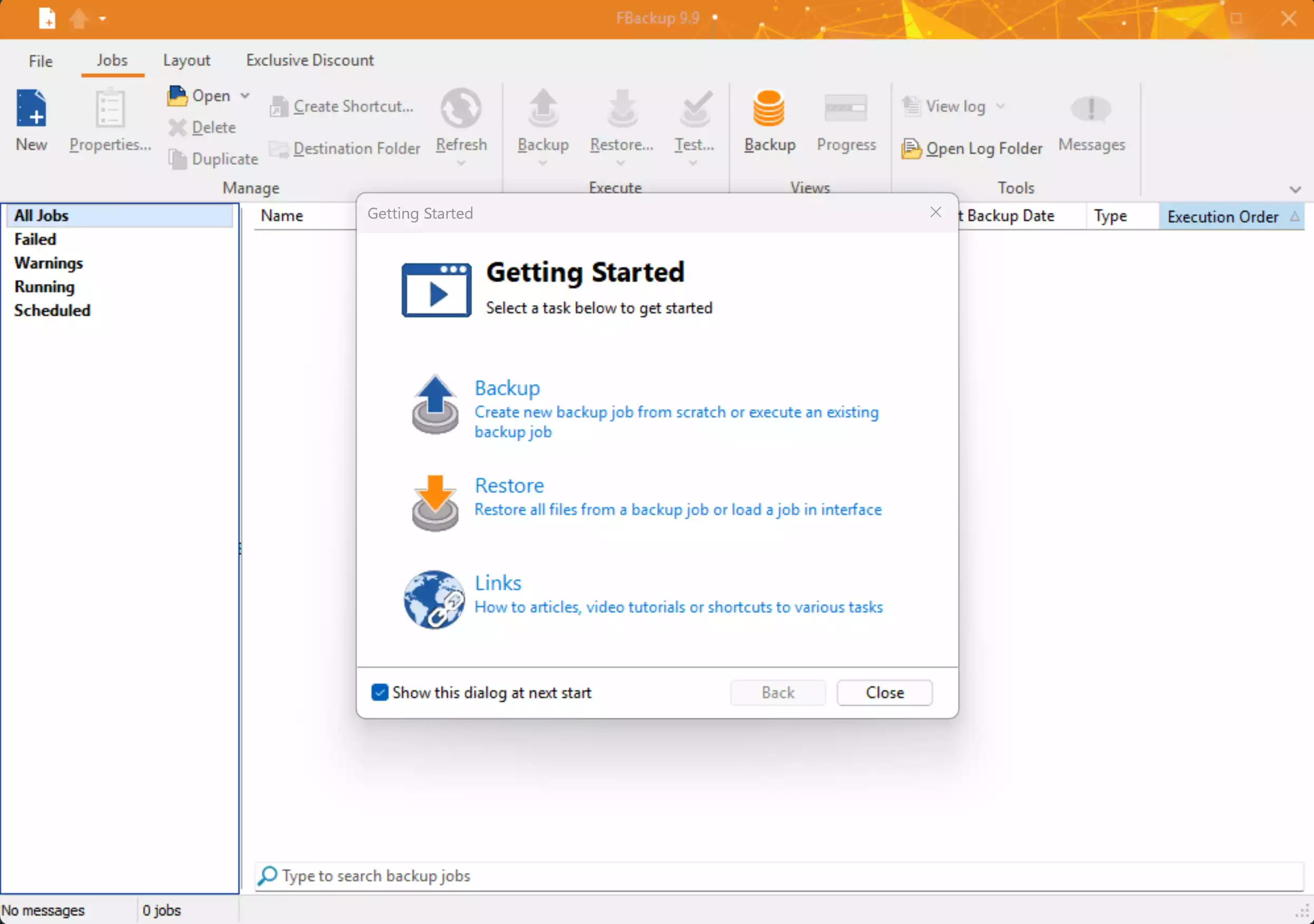
According to the vendor, FBackup is free for both personal and commercial use. It supports file/folder backups in ZIP or mirror format, scheduled backups, open-file backup through Windows VSS, and connectors for Google Drive and Dropbox. FBackup is strictly a file-level tool and does not provide full system or bare-metal recovery.
- Pros: Free for commercial and personal use, simple setup, scheduling, cloud connectors, and VSS support.
- Considerations: No disk imaging or bare-metal restore. It is a file-level backup utility only.
5. Ashampoo Backup FREE
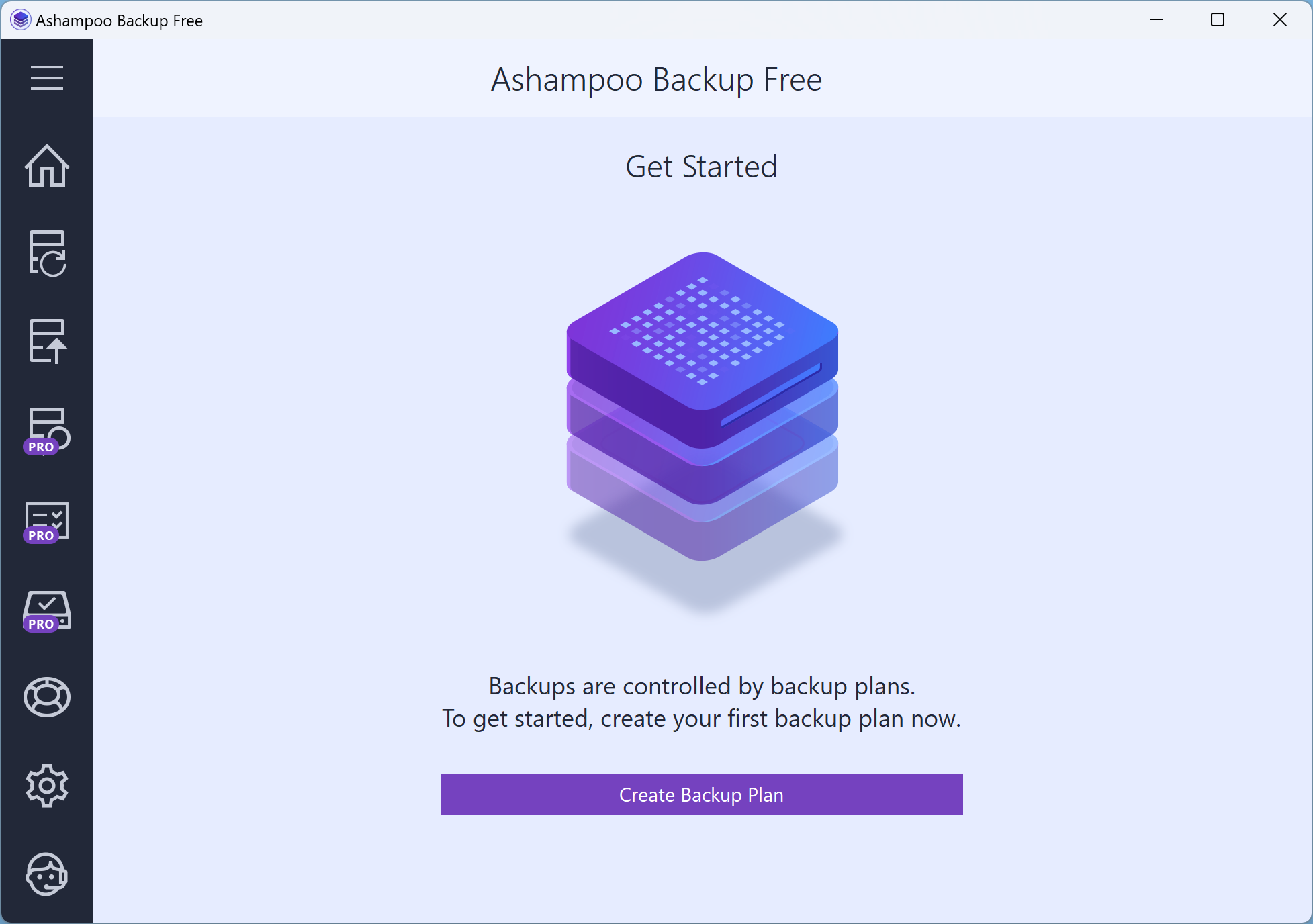
Ashampoo Backup FREE backs up entire partitions or drives and stores them on local, external, or network destinations. It also supports backing up application data such as Outlook and browser profiles. The free edition includes an incremental backup system and lets you create recovery media to restore Windows installations. Cloud support and broader advanced features are reserved for Ashampoo Backup Pro.
- Pros: Straightforward interface, partition/drive backups, Outlook/browser profile support, rescue media creation included.
- Considerations: No cloud integration in the free version; additional advanced features are part of Ashampoo’s Pro editions.
6. Windows built-in tools (File History & Backup and Restore)
Microsoft provides two built-in options: File History (continuous file and folder versioning to external or network drives) and Backup and Restore (Windows 7), a legacy utility still available in Windows 10 and 11 for creating system images and restoring files. Microsoft describes Backup and Restore as a legacy feature, meaning it is supported but no longer developed.
- Pros: Built into Windows, no extra installation, simple file versioning, and system image backup.
- Considerations: Limited compared with third-party software. Backup and restore is a legacy tool with fewer modern options and no cloud integration.
Pros & Considerations of Free Backup Software
- Pros:
- Free options for both personal and, in some cases, commercial use.
- Support for common backup modes like full, incremental, and differential (availability may vary by vendor).
- Scheduling and automation reduce manual effort.
- Considerations:
- Advanced features like universal restore, extended cloud storage, and enterprise management are paid-only.
- No single free tool covers every scenario; combining file-level and image-based tools provides broader coverage.
- Backups and rescue media should be tested regularly to ensure reliable recovery.
Comparison at a Glance
| Tool | Main strength | Good for | Limitations |
|---|---|---|---|
| AOMEI Backupper Standard | System & file image, incremental backups | Full system images, cloning disks/partitions | Differential backups may require a paid edition; Universal Restore and enterprise tools are only available in paid versions |
| EaseUS Todo Backup Free | Beginner-friendly, image & file backups | Home users needing simple backup and recovery | Cloud is a 30-day trial only; app-data backup and advanced restore are available in paid versions |
| Paragon Backup & Recovery CE | Reliable image-based recovery | Personal users needing strong restore options | Free license is personal/non-commercial only |
| FBackup | Simple scheduled file backup | File/folder backup, commercial-friendly free use | No system image or bare-metal recovery |
| Ashampoo Backup FREE | Partition/drive + Outlook/browser profile backups | Routine drive images and restoring Windows installations | No cloud support; advanced options are Pro-only |
| Windows built-in | File versioning + legacy system image | Basic file versioning, occasional system image | Backup and Restore is legacy; it lacks modern features |
FAQs
Which is the best free backup software for beginners?
AOMEI Backupper Standard and EaseUS Todo Backup Free are both beginner-friendly with guided wizards. Windows File History is also an easy built-in option for file versioning.
Do these tools support Windows 11?
Yes. All official vendor pages confirm support for Windows 11 and 10 (check vendor sites for exact build compatibility).
Can I schedule backups with these free tools?
Yes. Scheduling is supported by AOMEI, EaseUS, Paragon, FBackup, and Ashampoo Backup FREE. Options vary by edition.
Is Windows’ built-in backup enough?
For basic file backups, File History may be sufficient. For full system recovery, third-party tools provide more options and flexibility.
Conclusion
Free backup software gives Windows users reliable protection at no cost. Each vendor’s tool has strengths and limitations — some focus on system imaging, others on file-level or scheduled backups. For most home users, combining an image-based tool (AOMEI, EaseUS, or Ashampoo) with a file-level tool (FBackup or Windows File History) provides solid coverage. Always check the latest feature list on the vendor’s site and test backups and rescue media regularly to ensure they can be restored when needed.