

Are you searching for a reliable and easy-to-use tool to convert NTFS to FAT32 or vice versa on your Windows 11/10 PC? NTFS to FAT32 Wizard Free Edition offers a user-friendly solution that supports both file system conversions with just a few clicks.
Unlike Windows built-in formatting tools that erase all data during conversion, this third-party software allows lossless conversion from NTFS to FAT32 and from FAT32 to NTFS—preserving your data. However, the free edition of this tool has a size limit of 8GB per partition, which is suitable for USB drives and smaller volumes.
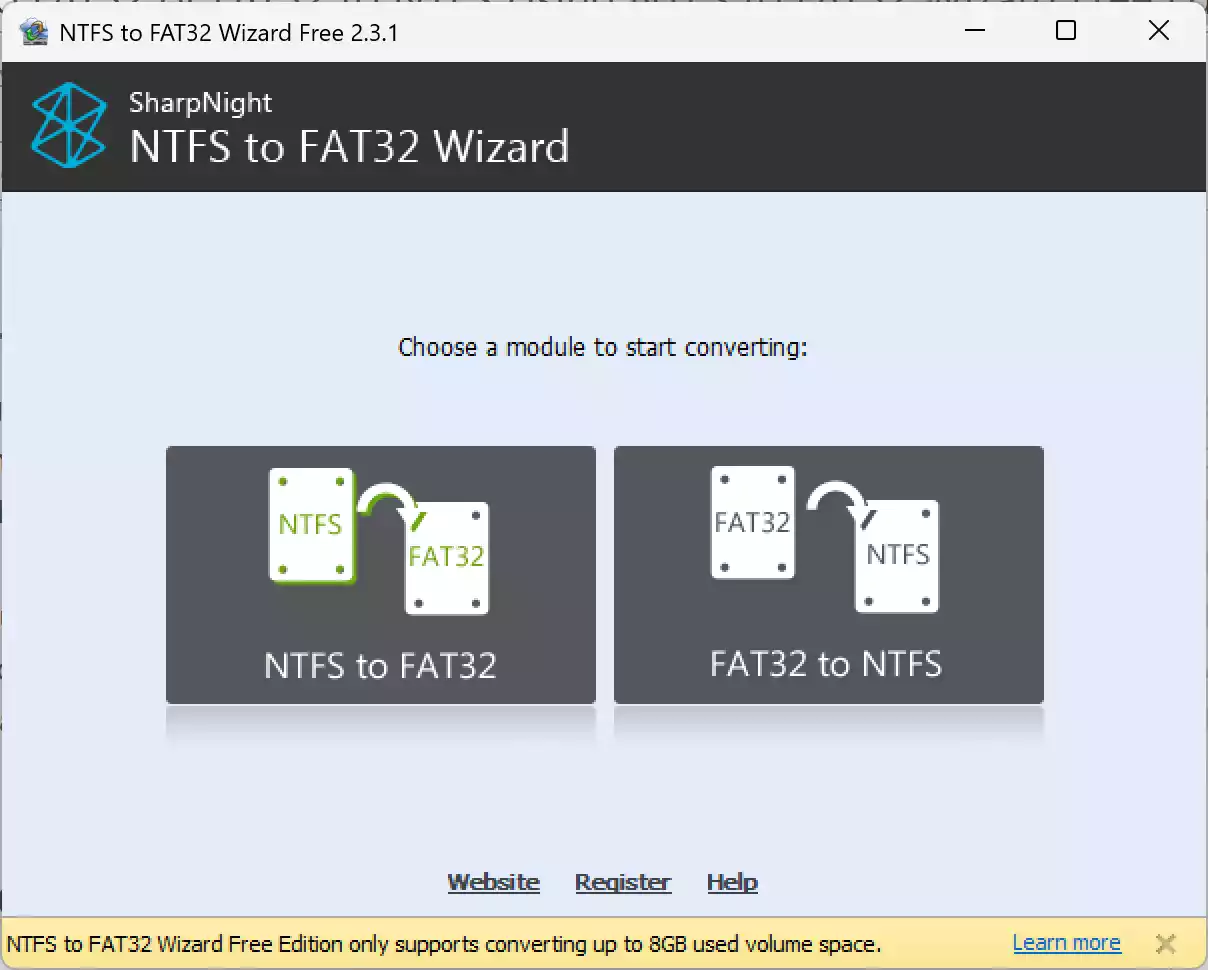
Key Features of NTFS to FAT32 Wizard Free Edition
- Convert NTFS to FAT32 without data loss
- Convert FAT32 to NTFS without formatting
- Supports Windows 11, 10, 8.1, 7 (32-bit and 64-bit)
- Simple and modern interface
- Free edition supports partition sizes up to 8GB
How to Convert NTFS to FAT32?
To convert a drive from NTFS to FAT32:
Step 1. Download NTFS to FAT32 Wizard Free Edition and install it on your Windows PC.
Step 2. Launch the application.
Step 3. Click on the “NTFS to FAT32” option. It will automatically detect all NTFS drives.
Step 4. Select the drive you want to convert, then click on the “Next” button.
Step 4. Click the “Convert” button and follow the on-screen instructions.
How to Convert FAT32 to NTFS?
Similarly, to convert FAT32 to NTFS:
Step 1. Open the application and choose the “FAT32 to NTFS” option.
Step 2. Select your target FAT32 drive from the list.
Step 3. Click the “Next” and then “Convert” button to begin the process.
Limitations of the Free Edition
While the NTFS to FAT32 Wizard Free Edition is fully functional for small drives (under 8GB), conversions of larger partitions require a paid license. For most users working with USB drives or small volumes, the free edition should suffice.
Alternative Tools Worth Exploring
If you’re looking for tools that support larger volumes or offer additional features, check out our guides on:
- Converting NTFS to FAT32 using AOMEI Partition Assistant
- Top 4 Free NTFS to FAT32 Converter Software for Windows 11
Conclusion
NTFS to FAT32 Wizard Free Edition is a solid choice for converting between NTFS and FAT32 file systems without data loss. Although limited to partitions up to 8GB, it’s a perfect solution for users needing quick conversions on USB flash drives or small storage devices. If you need to convert larger partitions, consider tools like AOMEI Partition Assistant or EaseUS Partition Master for more flexibility.