

Windows Update is essential for security and feature enhancements, but constant automatic updates can sometimes disrupt your workflow or even cause system instability. If you’re looking for an easy and reliable way to disable or enable Windows Updates with a single click, Windows Update Blocker is a powerful freeware solution worth considering.
We previously covered how to manually enable or disable updates in Windows 11/10. However, for users who want a simpler, safer, and more user-friendly approach, this tool offers a one-click solution — no need to deal with Group Policy or registry tweaks.
What is Windows Update Blocker?
Windows Update Blocker is a lightweight and portable tool developed by Sordum.org. It allows you to easily disable or re-enable the Windows Update service on Windows 11 or 10 systems. With just a single click, it prevents your system from downloading and installing updates automatically.
Key Features of Windows Update Blocker
- One-Click Operation: Instantly enable or disable Windows Updates with a single button press.
- Portable Tool: No installation required. Simply unzip and run the executable.
- Prevents Update Re-Enablement: Optionally protects the update service from being reactivated by Windows itself.
- Command-Line Support: Includes a command-line version for automation and scripting.
- Free and Lightweight: Consumes very few system resources and requires no setup.
How to Use Windows Update Blocker?
Follow these steps to disable or enable automatic updates using this tool in Windows 11/10:
Step 1. Download Windows Update Blocker.
Step 2. Extract the ZIP archive and run it as an administrator.
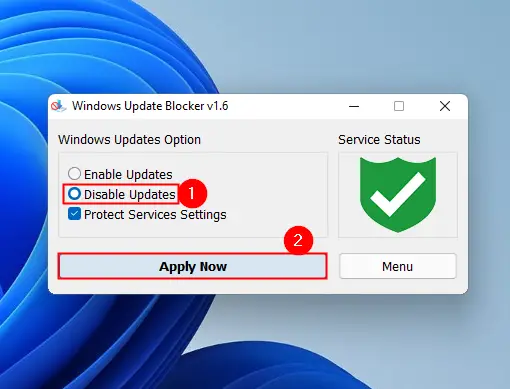
Step 3. To disable updates, select the option “Disable Updates” and click “Apply Now.”
Step 4. If you ever wish to re-enable Windows Updates, select “Enable Updates” and click “Apply Now.”
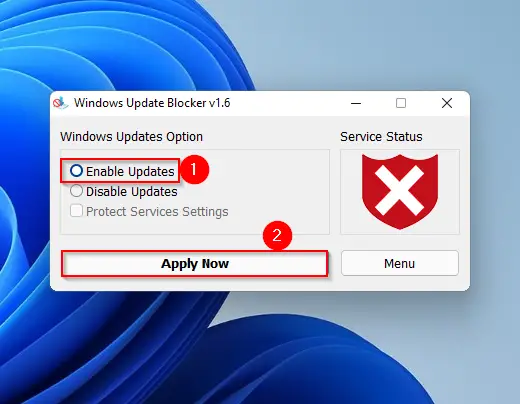
Optional: Tick the box labeled “Protect Service Settings” to prevent Windows from restarting the update service in the background.
Why Use This Tool Instead of Manual Methods?
While manual methods using Group Policy Editor or Registry Editor work well, they can be complex for average users and might be reversed by feature updates. Windows Update Blocker makes it effortless by wrapping everything into a graphical interface, while also offering command-line flexibility for power users.
Download Windows Update Blocker
You can download it from Sordum.org.
Conclusion
If you’re tired of forced restarts, bandwidth usage, or random update installations, Windows Update Blocker gives you complete control over when and how updates occur. It’s especially useful for gamers, professionals, or users on metered connections. Combined with our previous guide, this utility gives you both manual and automatic ways to manage updates in Windows 11 or 10 with confidence.