

If your Windows PC still acts suspiciously even after a normal antivirus scan, Emsisoft Emergency Kit (EEK) is a powerful, portable toolkit you can run from any folder or USB drive. It scans for and removes malware and potentially unwanted programs (PUPs) without installing background services, making it a perfect “second-opinion” cleaner.
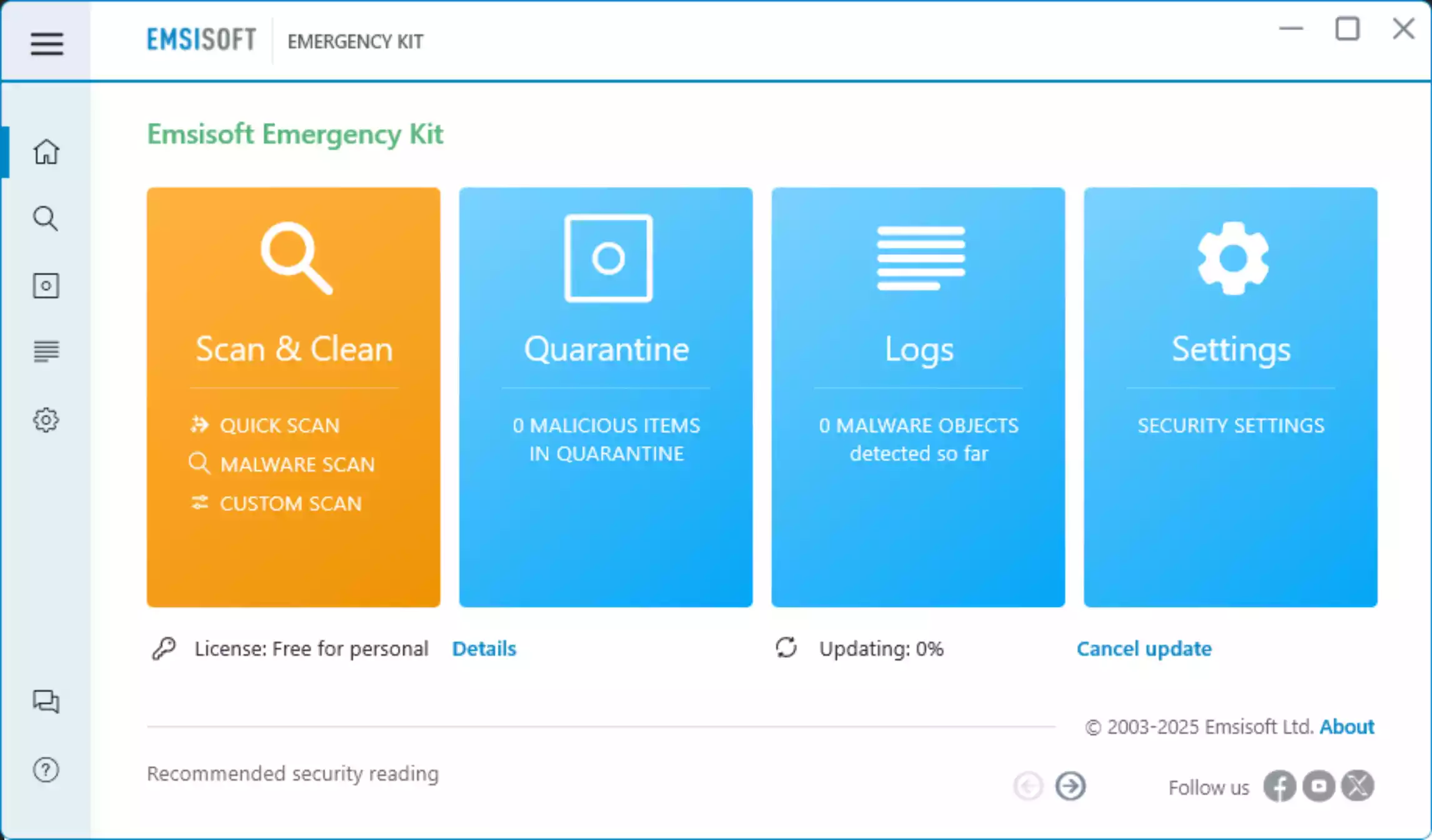
What Is Emsisoft Emergency Kit?
EEK is a no-install malware cleaning toolkit. You download it, let it unpack, and launch the included scanner to find and remove active threats. It’s 100% portable and free for private use, making it ideal to keep on a USB stick for troubleshooting.
When Should You Use It?
- Symptoms persist after a regular antivirus scan (pop-ups, redirects, CPU spikes, unknown processes).
- You want a deeper, on-demand scan without installing a full suite.
- You need a toolkit you can carry on a USB drive to help friends/family.
Key Features
- Portable and lightweight: runs without installation; good fit for USB drives.
- Multiple scan types: Quick Scan for active items, Malware Scan for typical infection areas, and Custom Scan when you need fine control.
- Command-line scanner: advanced users can automate scans and parse logs via the included CLI tool.
- Free for private use: Pro licensing available for commercial/helpdesk use.
System Compatibility
Latest builds support Windows 10 (64-bit) and Windows 11. Expect roughly ~200 MB RAM usage during scans.
Download Emsisoft Emergency Kit
Get the current version from the official page: Download Emsisoft Emergency Kit. The toolkit unpacks to a folder (by default C:\EEK) that you can copy to other PCs if needed.
How to Use Emsisoft Emergency Kit (Step-by-Step)
- Download and unpack: Run the downloaded package and choose a location (default is
C:\EEK). - Launch the scanner: Open the Emsisoft Emergency Kit folder and start the Emergency Kit Scanner executable.
- Update first: Once you launch it, it will start updating signatures, so you can scan with the latest definitions.
- Choose a scan type:
- Quick Scan – checks active programs and traces.
- Malware Scan – scans typical infection areas; recommended for most users.
- Custom Scan – target specific drives/folders.
- Review results: Expand detections for details, then quarantine or remove selected items.
- Reboot if prompted: Some cleanups require a restart to finish.
- Restore if needed: Use Quarantine to restore items you believe were flagged in error.
Command-Line Scanner (Optional)
EEK includes a Command-line Scanner for scripts and batch jobs, useful when you want automated scans or detailed log parsing. It provides the same detection capabilities without the GUI.
If Malware Blocks the Tool
- Boot to Safe Mode with Networking and run EEK again.
- Temporarily disconnect from suspicious networks and remove unknown startup items, then rescan.
- For more second-opinion tools, see our roundup: Best Free One-Time Malware Scanners.
Pros
- Portable, no-install toolkit you can carry on a USB drive.
- Multiple scan types for fast or deep checks.
- Includes a command-line scanner for automation and advanced workflows.
Considerations
- Requires Windows 10 (64-bit) or newer; older systems are not supported by current builds.
- Thorough scans on large drives can take time.
- As with any aggressive cleaning, review detections before removal to avoid false positives.
Frequently Asked Questions
Is Emsisoft Emergency Kit free?
Yes, it’s free for private use. For commercial/helpdesk environments, consider the Pro licensing options.
Do I need to install it?
No. EEK is fully portable—unpack and run. You can copy the folder to a USB drive for use on multiple PCs.
Which scan should I start with?
Use Malware Scan for most cases; it targets common infection areas efficiently. Run Quick Scan for a fast check or Custom Scan to target specific locations.
Where does it install?
It doesn’t “install.” By default, the package unpacks to C:\EEK, but you can choose another location.
Does it work on Windows 11?
Yes. Current versions support Windows 10 (64-bit) and newer (including Windows 11).
Is there a command-line version?
Yes, the Command-line Scanner is included and is useful for scripts and automated cleanup.
Conclusion
Emsisoft Emergency Kit is a reliable, portable way to scan and clean a suspicious Windows PC without installing anything. Update definitions, run a Malware Scan, review detections, and quarantine as needed. If symptoms remain, follow up with another one-time scanner like the Dr.Web CureIt! to ensure your system is completely clean.