

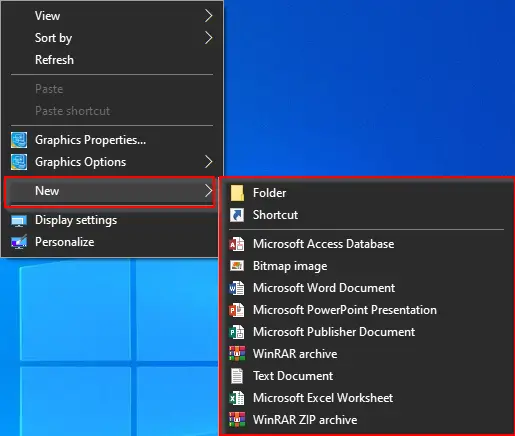
The right-click context menu is a valuable feature in all versions of the Windows operating system, including Windows 10. By right-clicking on free space on the desktop or inside a folder, you can perform various tasks—such as creating a shortcut, a blank bitmap image, a text document, or even a new folder.
If Microsoft Office is installed on your PC, you can also create new Word, Excel, Access, and other Office documents directly from the New option in the context menu. Regardless of the task, the absence of the New context menu can significantly limit your ability to perform certain actions efficiently or force you to complete them in more time-consuming ways.
As shown in the image below, when I right-clicked on the free space of my Windows 10 desktop, the “New” option was missing from the context menu. Without this option, we are unable to create shortcuts, folders, or other documents directly from the desktop.
The “New” option may disappear due to several reasons. It could be the result of third-party software modifying system settings or accidental changes made to the Windows Registry. Regardless of the cause, you can easily restore the missing “New” right-click menu by following the steps in this article. With just a few clicks, you’ll have the “New” option back and functioning properly.
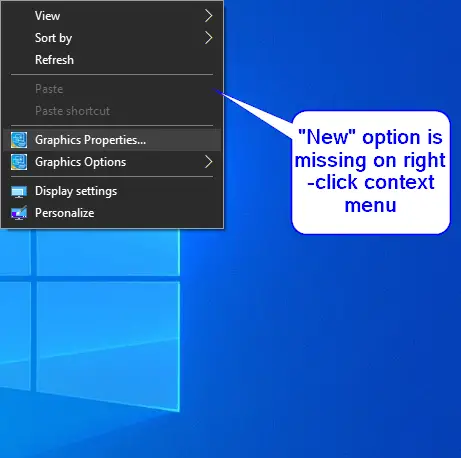
How to restore the missing “New” option in the right-click context menu on Windows 10?
Gentle Reminder: To restore the missing “New” option, we will take the help of the Registry Editor. Editing the registry may damage your Windows installation; hence, we recommend taking a full backup of the Windows Registry and creating a system restore point. In case something goes wrong, you can revert your PC to its previous working state.
To rebuild the missing “New” option in the right-click context menu on Windows 10, perform the following steps:-
Step 1. Press the Windows logo + R keyboard shortcut to open the Run dialog box.
Step 2. In the Run dialog box that opens, type the following command and press the OK button:-
regedit
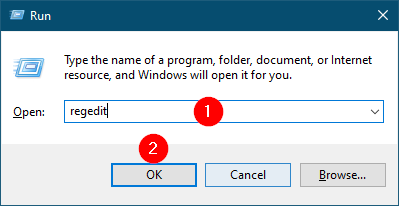
The above operation will open the Registry Editor window.
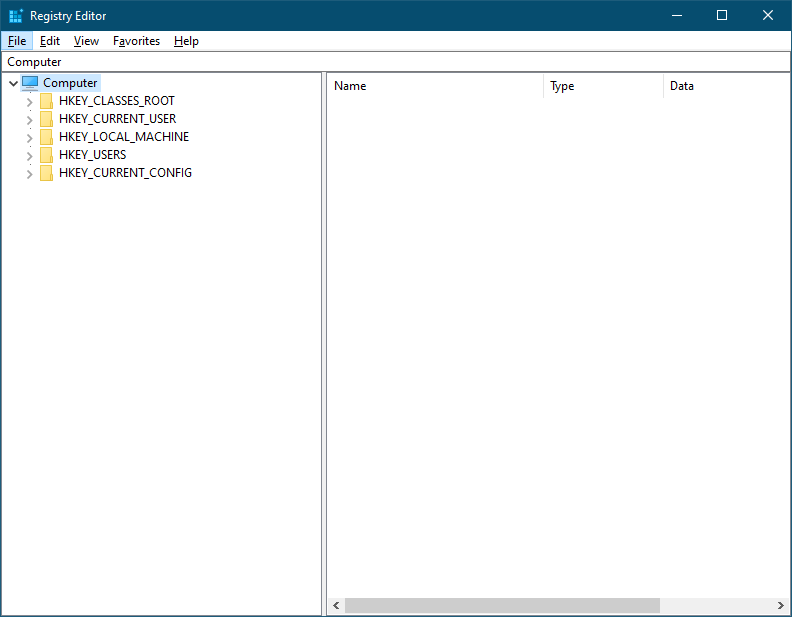
Step 3. In the Registry Editor window that opens, navigate or point to the following registry key:-
Computer\HKEY_CLASSES_ROOT\Directory\Background\shellex\ContextMenuHandlers\New
Bonus Tips: If you don’t want to browse the keys one by one, copy the path and paste it into the registry editor toolbar or address bar and hit Enter on the keyboard. Using this method, you can directly access the critical path of the Windows Registry.
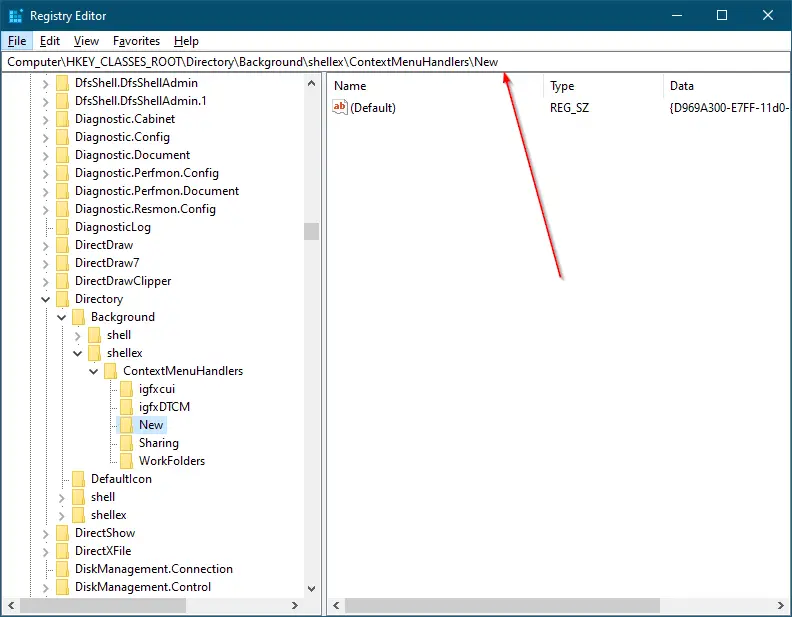
Step 4. On the right side pane of the “New” key, double-click on the (Default) string to change its Value data. Copy and paste the following in the Value Data field:-
{D969A300-E7FF-11d0-A93B-00A0C90F2719}
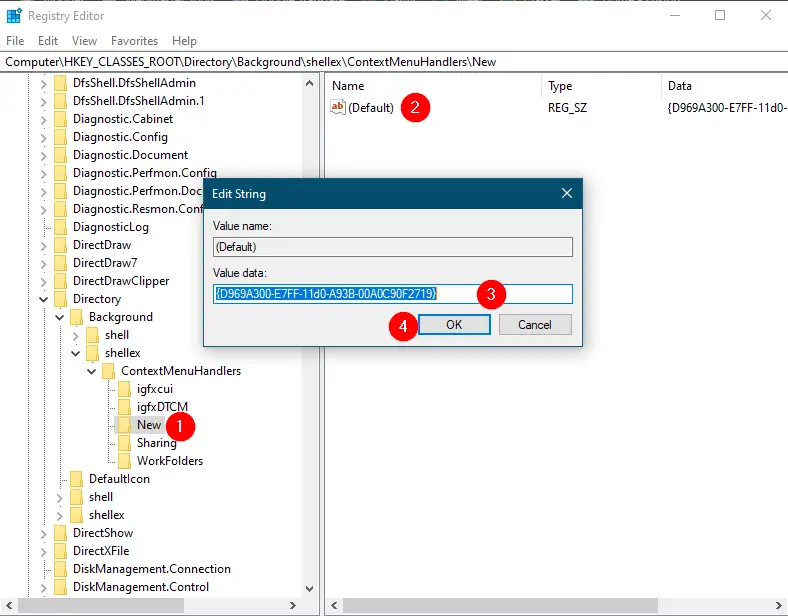
Step 5. Click the OK button.
Step 6. Close the Registry Editor window.
Once you complete the above steps, perform a right-click on the free space on Windows 10 Desktop, and you should see the “New” context menu. Even the “New” option will be available under the folder or drive that was earlier missing on your Windows 10 computer or laptop.
Conclusion
In conclusion, the right-click context menu with the “New” option is an essential feature for Windows 10 users to create new documents, folders, and shortcuts on their desktop or in a folder. However, if the “New” option is missing from the context menu, it can be a frustrating experience for users. But with the help of the Registry Editor, it is possible to restore the missing “New” option in just a few steps. As always, it is recommended to take a full backup of the Windows Registry and create a system restore point before editing the registry to avoid any unwanted damage to the system.
Thanks soooo much! Worked! Saved me a lot of hassle.
You are welcome!
Great!! Thanks.
You are welcome.
My Directory/ContextMenuHandlers folder doesn’t include a “New” folder. I can’t create a New folder or shortcut on my Windows 10 desktop.
Great! Any idea as to how this gets broken in the first place?
Dear Hrussd,
It may be due to several reasons, mostly due to third-party software, and next is an improper shutdown of PC.
Thank you very much. It worked!!
Thank you so much, you saved the day. After going through a few different suggestions, yours did the trick. Of course one thing I had to add to it was a New folder that wasn’t there. Created new string and renamed it New and then added the link and it worked. The missing new and create a folder was there and back in action.
I have tried a dozen methods, not one of which worded. I am pleased to say that this method has worked. Thank you.
You are welcome.