

Font Cache Rebuilder is a free, portable CMD utility from GearUpWindows that clears corrupt Windows font caches, restarts the right services, and (from v1.1.2) auto-enables the Windows Font Cache Service if it was set to Disabled. It’s designed to be brand-neutral in the filename for easy sharing, while showing the GearUpWindows banner in the console when you run it. No installs, no dependencies—just run as admin and fix font cache glitches fast.
What is Font Cache Rebuilder?
Font Cache Rebuilder is a small batch script (pure CMD + built-in PowerShell) that stops Windows font cache services, deletes safe cache files, and starts the services again so Windows rebuilds fresh caches. It writes a timestamped log file beside the tool for transparency.
Why Would a Beginner Use Font Cache Rebuilder?
If text looks fuzzy, some apps show the wrong fonts, or UI glyphs randomly break, the underlying font cache may be corrupted. This tool gives beginners a single, safe place to do what pros often do manually: stop the cache service, clear the cache, and kick Windows into rebuilding it—without hunting for paths or commands.
Main Features of Font Cache Rebuilder
- One-click cleanup — Stops the cache service, clears safe files, and restarts the service.
- Auto-fix (v1.1.2) — If the Windows Font Cache Service is Disabled, the tool automatically sets it to Automatic so rebuilding works reliably.
- Service control flags — Switch to Manual (Trigger Start) when you prefer, or explicitly force Automatic.
- Current-user only mode — Clean just your profile’s cache instead of all users.
- Dry-run — Preview everything the tool would do, without deleting any files.
- Portable & brand-neutral — Maximum compatibility on Windows 11/10; branding is shown at runtime only.
- Transparent logs — Every action is recorded to a dated log in a
logsfolder next to the tool.
How to Use Font Cache Rebuilder
These steps are written for beginners; advanced users can jump straight to the flags below.
Step 1. Extract the ZIP you downloaded into any folder where you have write access (for example, Desktop or Downloads).
Step 2. Right-click Font-Cache-Rebuilder.cmd and choose Run as administrator. If prompted by UAC, click Yes.
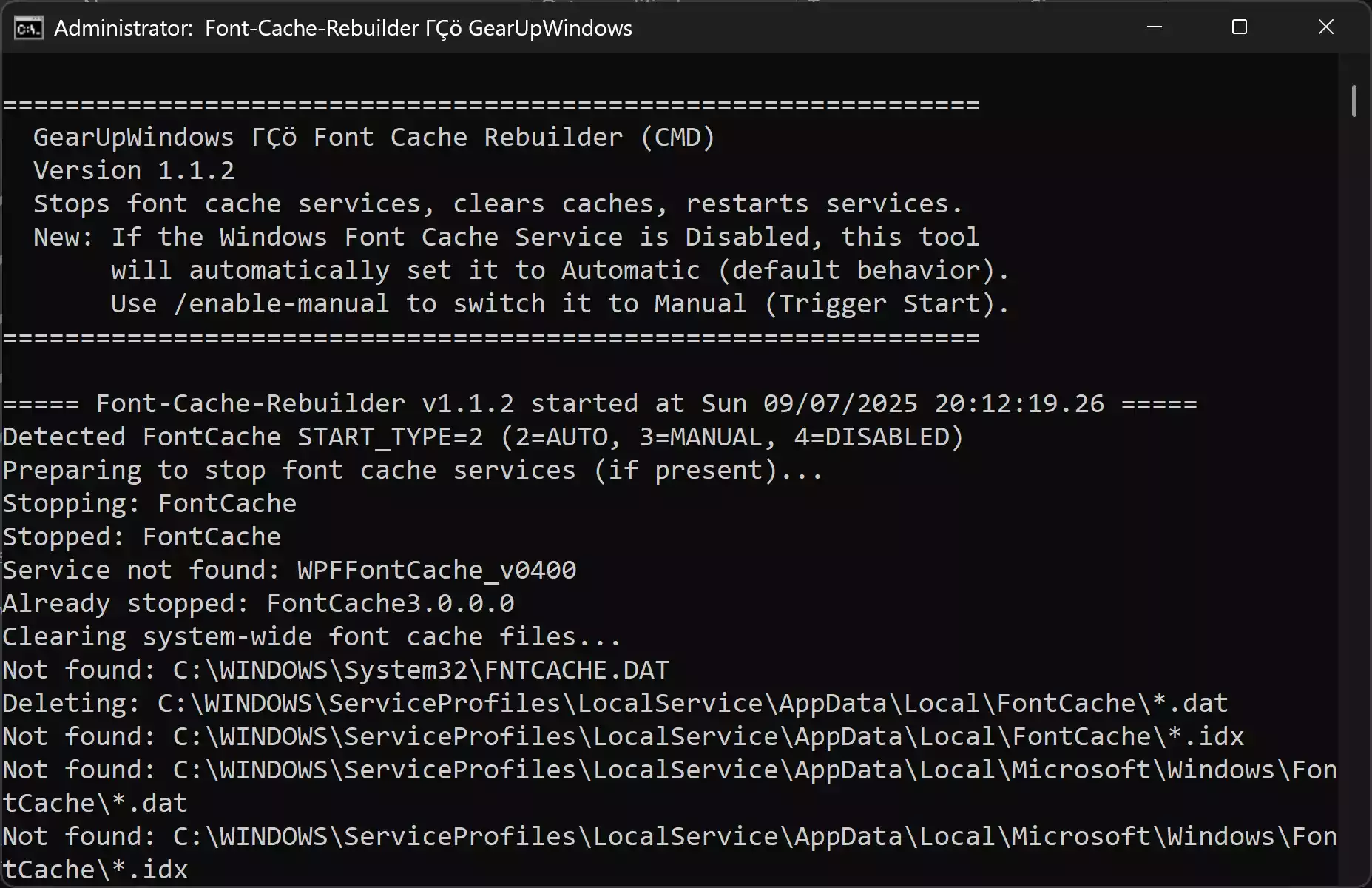
Step 3. Watch the console. The tool will stop the font cache services, delete known cache files, and start services again. If the service is Disabled, the tool auto-sets it to Automatic before cleanup.
Step 4. Open a few apps (Explorer, Notepad, browser) or visit Settings → Personalization → Fonts to nudge Windows to rebuild fresh caches. Signing out or rebooting can speed this up.
Optional Flags (advanced, but simple)
/currentuser— only clear the current user’s font cache paths./dry-run— preview actions without deleting anything./enable-manual— set startup type to Manual (Trigger Start) instead of Automatic./enable-auto— explicitly set startup type to Automatic (default auto-fix if service is Disabled)./start-service— try to start the service immediately after configuration.
Example: Prefer Manual (Trigger Start) but want it running now—run:
Font-Cache-Rebuilder.cmd /enable-manual /start-service
Safe Use Tips for Beginners
- Run as admin: service control and system cache files require elevation.
- Close open apps that are actively changing fonts; it’s not mandatory, just cleaner.
- Don’t delete other files: the tool already targets safe cache locations only.
- Check the log if something looks odd; you’ll see what was stopped, deleted, and started.
- Sign out or reboot if fonts still look off—this ensures all components reload fresh.
When Font Cache Rebuilder Can Help You
- Fonts render incorrectly after installing or uninstalling typefaces.
- UI symbols or icons look wrong following a big system update.
- App-specific text issues that don’t improve after restarting the app.
- After icon/thumbnail resets when you want a fully fresh visual cache environment.
Related fixes you might also find helpful on GearUpWindows: cleaning the thumbnail cache on Windows 11, rebuilding the icon cache on Windows 10, or keeping a portable toolkit with Windows Update Doctor, Print Spooler Doctor, Network Doctor (NETSH), and the GearUpWindows Checksum Verifier.
Download Font Cache Rebuilder
Use the button below to download the latest portable ZIP. The file name is neutral for easy sharing—branding appears only in the console while running.
Download Font Cache Rebuilder (ZIP)
Pros and Considerations
- Pros: portable and free; logs every action; safe targets only; auto-fix if service is Disabled; works on Windows 11/10.
- Considerations: a sign-out or reboot may be needed for stubborn cases; enterprise policies can block changing service startup type; caches are recreated on demand (it’s normal if files don’t appear immediately).
Frequently Asked Questions About Font Cache Rebuilder
Is it safe to clear the font cache?
Yes. The tool only removes cache files that Windows recreates automatically. It does not delete your installed fonts or modify the registry.
Should the Windows Font Cache Service be Automatic or Manual?
Both are acceptable. Automatic ensures it’s always available; Manual (Trigger Start) is also fine because apps start it when required. The tool auto-sets to Automatic if it finds the service Disabled, and you can switch to Manual with a simple flag.
Why don’t I see FNTCACHE.DAT right away?
Windows recreates caches on demand. Open a few apps, visit Fonts settings, or sign out and back in—the file will return with a fresh timestamp once the system needs it.
Does this work on Windows 10 as well as Windows 11?
Yes. It’s pure CMD with built-in PowerShell and targets the same safe paths on Windows 10 and Windows 11.
Where can I find the log?
Inside a logs folder next to the script. The filename includes the date and time for easy reference.
Conclusion
Font Cache Rebuilder gives you a fast, safe way to fix font cache glitches on Windows 11/10. With portable design, transparent logs, and an auto-fix for a Disabled service, it’s the simplest path to a clean, rebuilt font cache—no third-party installers or guesswork required.