

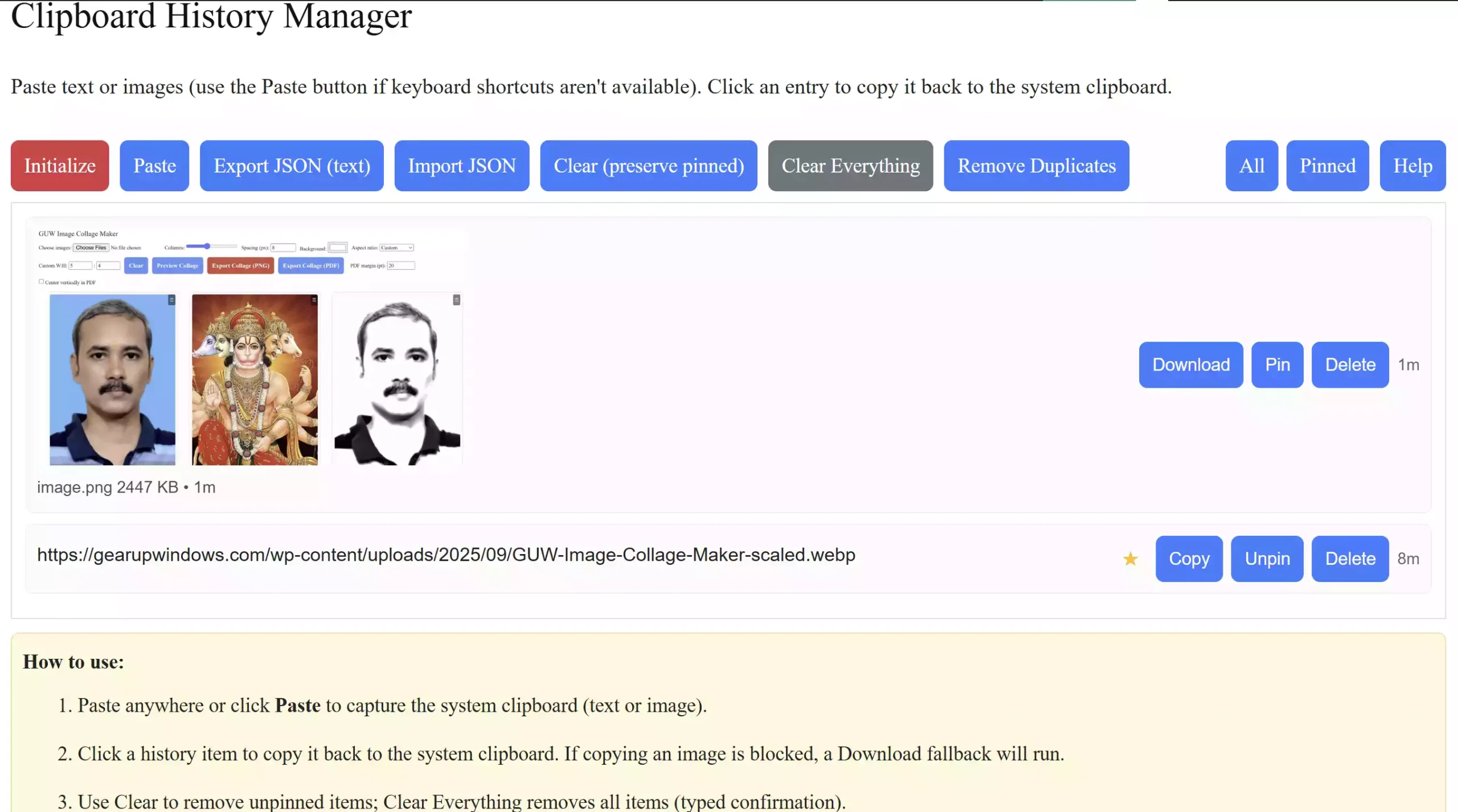
Every Windows user relies on copy and paste. But the built-in clipboard only remembers your last item — once you copy something new, the old one is gone forever. That’s where a clipboard manager makes life easier. With the Clipboard History Manager, you can save multiple text and image items, pin important ones, and restore them whenever you need.
Why the Default Clipboard Isn’t Enough
If you often work with text, code snippets, or images, you know the frustration of copying over something you needed just seconds ago. Microsoft’s built-in clipboard history is limited, and doesn’t always handle images or filenames well. Our tool fixes that by:
- Keeping a full history of copied text and images.
- Preserving original image format, size, and name when you download.
- Allowing you to pin important items so they never get deleted by accident.
- Providing a one-click Paste button for those who don’t want to rely on keyboard shortcuts.
Features at a Glance
- Save multiple items: Every copied text or image is stored in history.
- Pin favorites: Keep essential notes, code, or images safe when clearing history.
- Paste instantly: Use the dedicated Paste button if Ctrl+V isn’t available.
- Export and import: Back up your text clips to JSON and restore later.
- Image-friendly: Downloads retain the original file name and format (PNG, JPG, WebP, etc.).
- Clear options: Remove only unpinned items, or wipe everything with typed confirmation.
Pros and Considerations
Pros:
- Runs fully in your browser — no installation needed.
- Privacy-first: all data is stored locally in your IndexedDB.
- Handles both text and images smoothly.
- Free and lightweight, with no ads or tracking.
Considerations:
- Image copying support depends on your browser — some block direct paste-to-clipboard for images.
- Export/import only works with text; images must be saved manually via Download.
How to Use the Clipboard History Manager
Getting started is simple:
- Visit the tool page: Clipboard History Manager.
- Paste text or images using Ctrl+V or the Paste button.
- Pin, copy, download, or delete entries as needed.
- Export text history to JSON for safe backup.
FAQs
1. Is the Clipboard History Manager safe?
Yes. All data is stored locally in your browser’s IndexedDB. Nothing is uploaded to servers.
2. Can it save images?
Yes. You can paste images directly, and when downloading, the tool keeps the original file size, format, and name whenever possible.
3. What happens if I clear my history?
Unpinned items will be removed, but pinned items remain. There’s also an option to clear everything, including pinned, with typed confirmation.
4. Does it work on all browsers?
It works best on Chromium-based browsers (Chrome, Edge, Brave). Firefox supports most features, but Safari may handle downloads differently.
Conclusion
If you’re tired of losing copied content, the Clipboard History Manager is the free, private, and feature-packed solution you’ve been waiting for. Try it today and take control of your clipboard history.
If you’d like to explore more options, check out our guide on the best free clipboard managers for Windows. It lists additional tools you can try alongside the Clipboard History Manager.