

As technology continues to evolve, so do the methods used by hackers. In this data-driven world, every computer user must take proactive steps to safeguard their personal information. From banking credentials to sensitive documents, we often store private data on our PCs and neglect its security—making it vulnerable to cyber threats. One of the best habits you can adopt is using a reliable antivirus and consistently deleting unnecessary data.
While many privacy-conscious individuals make it a point to delete sensitive files, not everyone is as cautious. If you’re serious about maintaining your privacy on Windows 11 or 10, we recommend a powerful tool called O&O ShutUp10++.
What is O&O ShutUp10++?
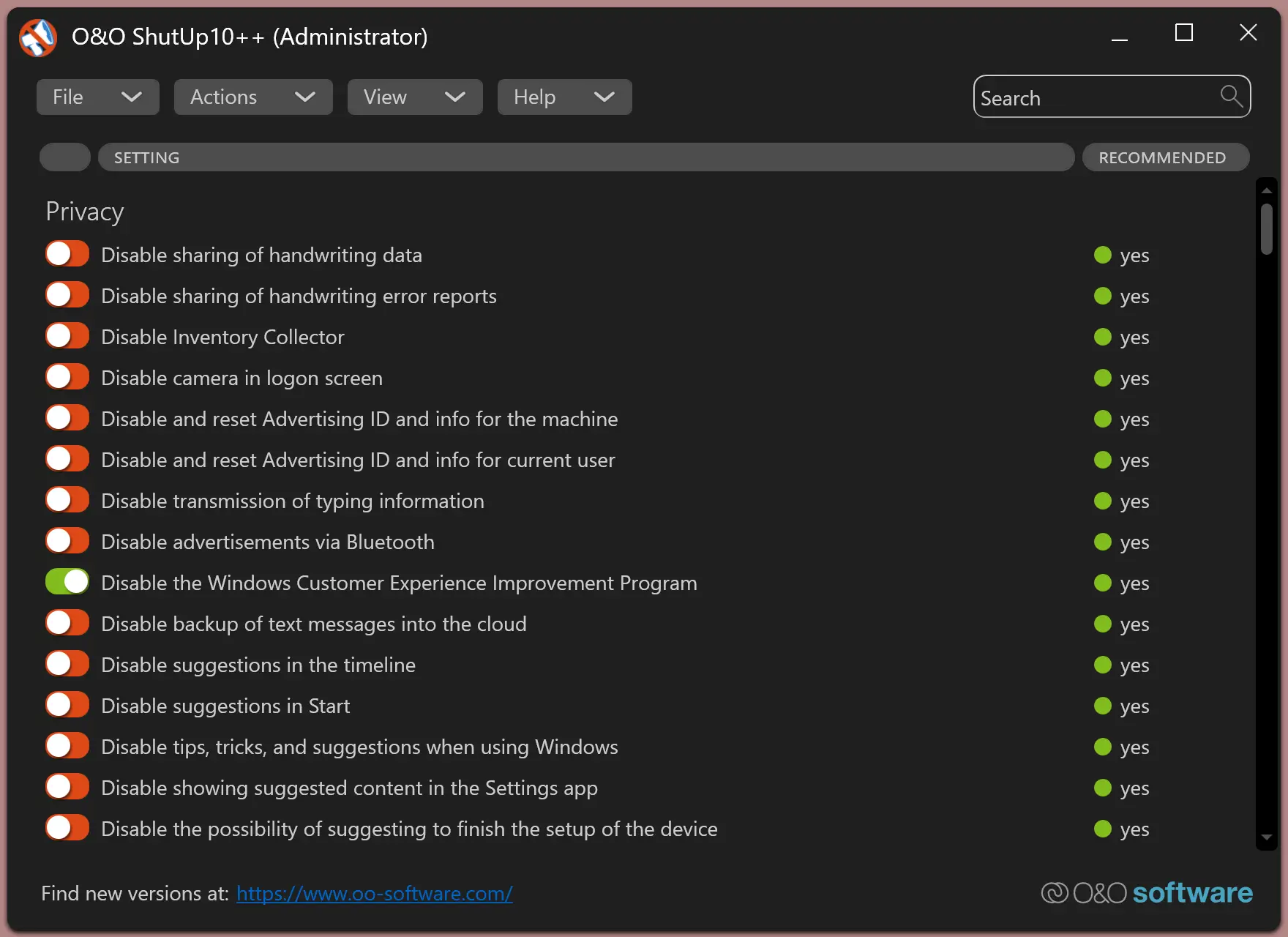
O&O ShutUp10++ is a free, portable privacy-focused utility designed for Windows 10 and Windows 11 users. Unlike typical cleaner apps, it doesn’t delete your files—instead, it helps you regain control over your operating system by turning off invasive features and unnecessary tracking.
Windows often collects data in the background, sending personal information to Microsoft servers. With O&O ShutUp10++, you decide which features to keep and what data you don’t want to share. Its clean and intuitive interface allows you to make changes easily—no complex configurations or technical expertise needed.
For example, while Microsoft offers convenience features like travel reminders by accessing your emails and location, this also means giving up a considerable amount of your privacy. Even things like typing habits, voice activation, and calendar data can be logged.
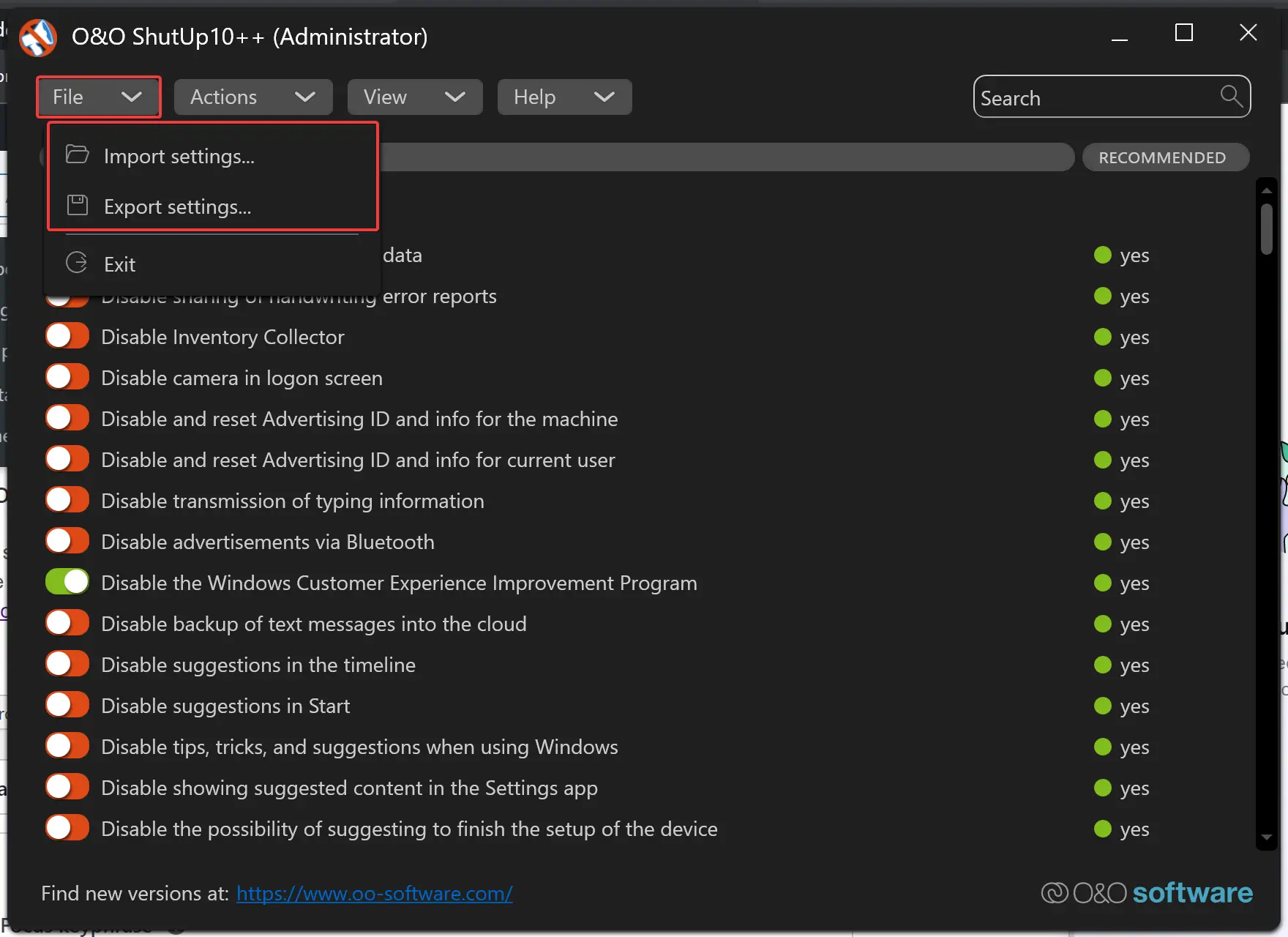
Fortunately, O&O ShutUp10++ offers a central place to adjust these privacy settings without diving into numerous Windows menus. No installation is necessary—just download, launch, and start configuring. You also have the option to export your settings and apply them to other computers, saving valuable time.
How O&O ShutUp10++ Helps Secure Windows 11/10
With this tool, you can manage a wide range of privacy and security settings. Below are the categories of controls you can toggle:
Privacy
- Sharing of handwriting data
- Camera in the login screen
- Windows Customer Experience Improvement Program
- Disable Advertising ID and reset info
- Transmission of typing info
- Bluetooth advertising
- Windows Error Reporting
- Tips, tricks, and suggestions
- Suggested content in Settings
Activity History and Clipboard
- Recording user activity
- Storing and submitting activity history
- Clipboard history and cloud sharing
App Privacy
- Control app access to location, camera, microphone, calendar, messages, contacts, and other personal data
- Restrict voice activation and notifications
- Prevent apps from running in the background
Security
- Disable password reveal button
- Turn off telemetry and user steps recorder
Microsoft Edge (Chromium & Legacy)
- Block tracking and smart suggestions
- Disable autofill and saved card data
- Turn off SmartScreen Filter
Sync Settings
- Disable synchronization of passwords, browser, and design settings
Cortana
- Completely disable Cortana
- Stop online speech recognition and web searches
Location Services
- Turn off all location and geolocation-related services
User Behavior
- Disable application telemetry
- Prevent usage data collection
Windows Update
- Stop peer-to-peer updates
- Disable automatic downloads of apps and drivers
Windows Explorer
- Block suggested apps in Start menu
- Disable ads in Explorer/OneDrive
Windows Defender
- Opt out of Microsoft SpyNet
- Stop submitting data samples and malware reports
Lock Screen
- Remove fun facts and tips
- Block notifications
Miscellaneous
- Disable feedback reminders
- Block Bing integration in search
- Remove “Meet Now” and news from the taskbar
To manage these features, simply run the application and toggle the settings you want to enable or disable. If you have multiple systems, you can export your configuration and import it to another PC to replicate the settings.
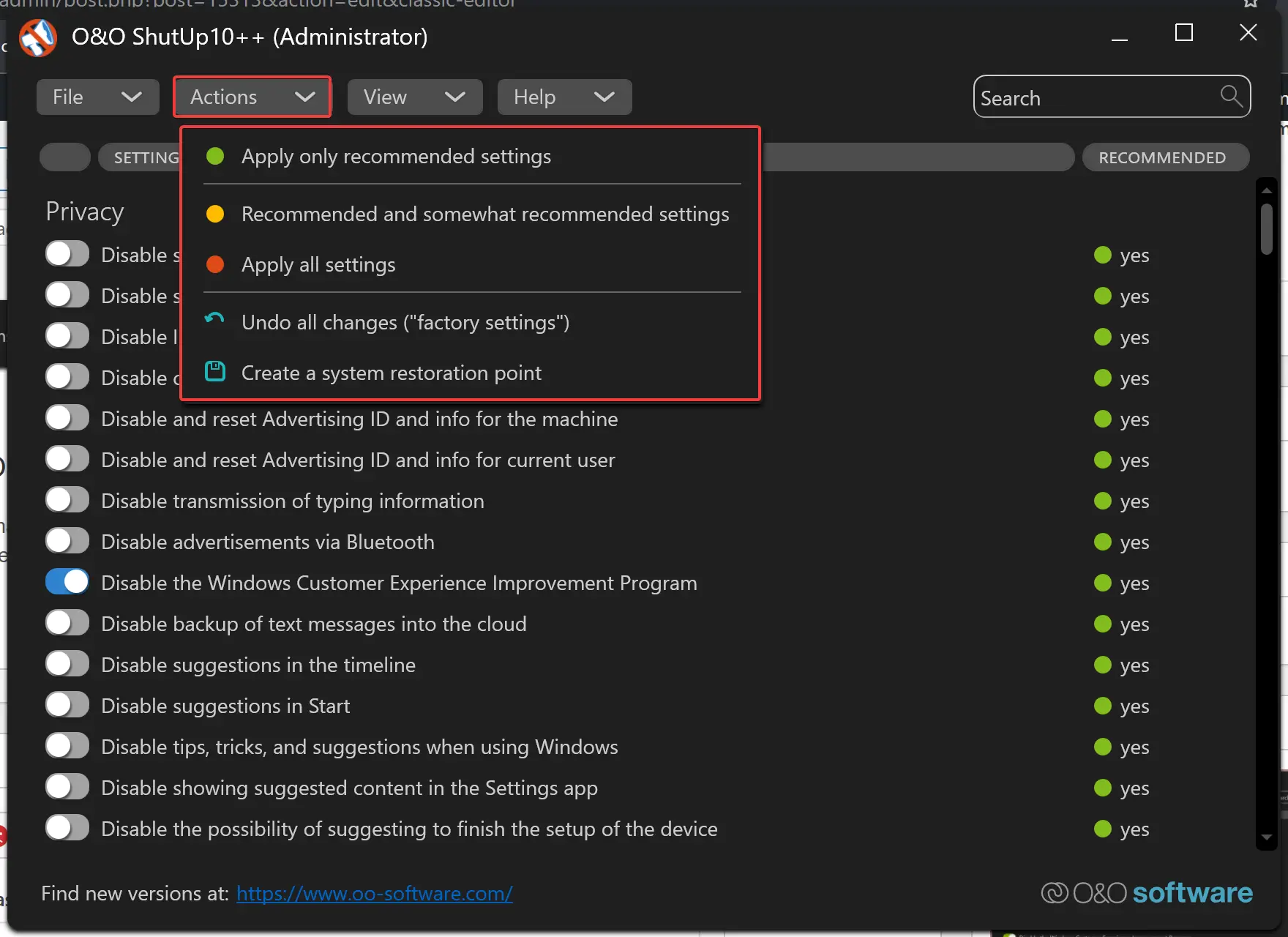
You can also apply recommended settings quickly by clicking on the **Actions** menu and selecting the desired option. Before making major changes, it’s wise to create a **System Restore Point**. Just go to the Actions menu and select “Create a system restoration point” to ensure you can revert if needed.
Download O&O ShutUp10++
O&O ShutUp10++ offers one of the most extensive lists of privacy options for Windows 11 and 10. If you want to strengthen your privacy effortlessly, download the tool from its official website. It’s free, portable, and doesn’t require installation.
Conclusion
In an era where data privacy is more crucial than ever, taking control of your digital footprint should be a top priority. O&O ShutUp10++ empowers Windows 11 and 10 users to do just that—without requiring deep technical knowledge or complicated steps. With its wide range of privacy and security settings, this free tool allows you to fine-tune your system according to your comfort level. Whether you want to stop telemetry, disable unwanted tracking, or prevent an app from accessing personal data, everything is just a few clicks away.
Don’t wait for a security breach to rethink your privacy. Take charge today with O&O ShutUp10++ and make your Windows PC work for you—not against you.