

In this gearupwindows guide, we introduce GSmartControl — a lightweight, open-source GUI frontend for Smartmontools that lets Windows 11/10 users inspect SMART data and run detailed diagnostics on HDDs and SSDs.
Why Choose GSmartControl?
GSmartControl wraps the command-line smartctl utility in a user-friendly graphical interface. It automatically detects connected drives (including SATA, PATA, NVMe, USB‑attached, and RAID arrays) and shows detailed SMART attributes like temperature, error rates, and more. You can spot possible failures early with clear health status indicators and thresholds. It’s free, open‑source, and cross-platform.
Key Features
- Drive Health Summary: Displays SMART attributes alongside threshold, worst, and raw values to help you interpret drive condition.
- SMART Self‑Tests: Choose from short (≈2 min), extended (~70 min), or conveyance (~5 min) tests to check for bad sectors and physical errors.
- Custom Device Support: Add drives behind certain RAID or USB bridges manually, if not auto-detected.
- Error Logs & Test Reports: View past SMART errors and self-test logs to analyze disk history.
- Portable or Installer Version: Use GSmartControl as a standalone app or install it normally. Perfect for flash drive kits.
- Cross‑Platform Compatibility: Supports Windows, macOS, Linux, and BSD.
How to Use GSmartControl?
Step 1. Download GSmartControl from its official website.
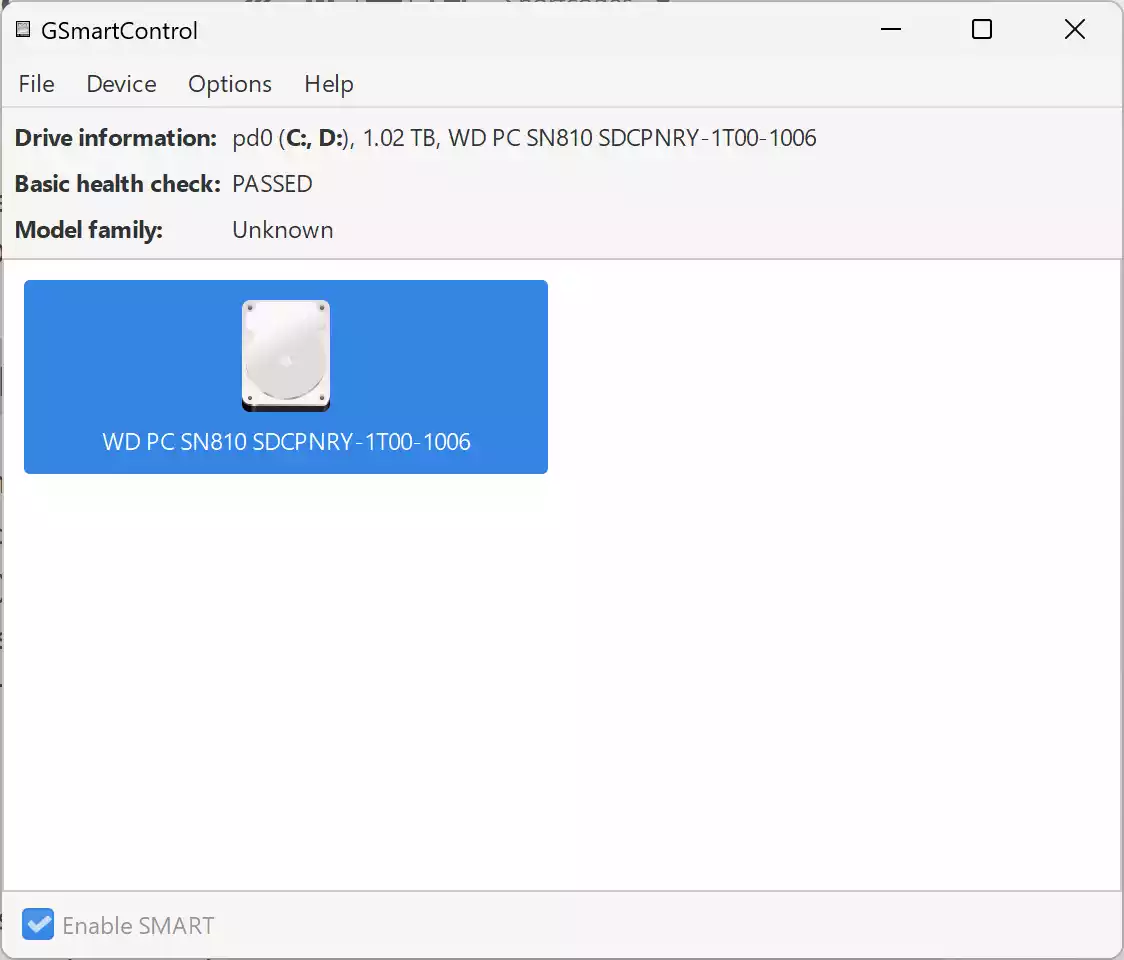
Step 2. Launch the app — it lists all detected drives and shows their health status using color-coded indicators.
Step 3. Select a drive and click Device > Perform Tests to run a Short Self‑Test, Extended Self‑Test, or Conveyance Test.
Step 4. Review SMART attributes — the UI highlights critical values (e.g., reallocated sectors, pending sectors, etc.). Tooltips explain attributes when hovered.
Step 5. Export reports or save SMART logs for later review.
Who Should Use It?
GSmartControl is ideal for tech-savvy users, system admins, and power users who want to monitor drive health proactively. While advanced, its intuitive interface and built-in tooltips make it accessible even for beginners.
System Compatibility
- Windows 11, 10, 8.1, 8, 7 (32- and 64-bit)
- macOS, Linux, Unix variants (via GTK UI)
- Supports SATA, NVMe, PATA, USB‑attached storage, and supported RAID controllers
- Released under GPLv3 – completely free and open source
Conclusion
GSmartControl is a valuable tool in any PC maintenance toolkit. It offers deep insight into disk health and lets you manually trigger or schedule tests—without needing complex command-line work. Use it alongside disk cleanup tools like Wise Disk Cleaner or defragmenters like WinContig to ensure peak system reliability.