

GUW Image → PDF is our privacy-first web tool that stitches multiple images into a single PDF. Drag & drop photos, screenshots, or scans, reorder pages, rotate as needed, set page size (A4/Letter) and margins, then export — all locally on your device. It supports JPG, PNG, WEBP, and optional HEIC intake (converted safely in the browser).
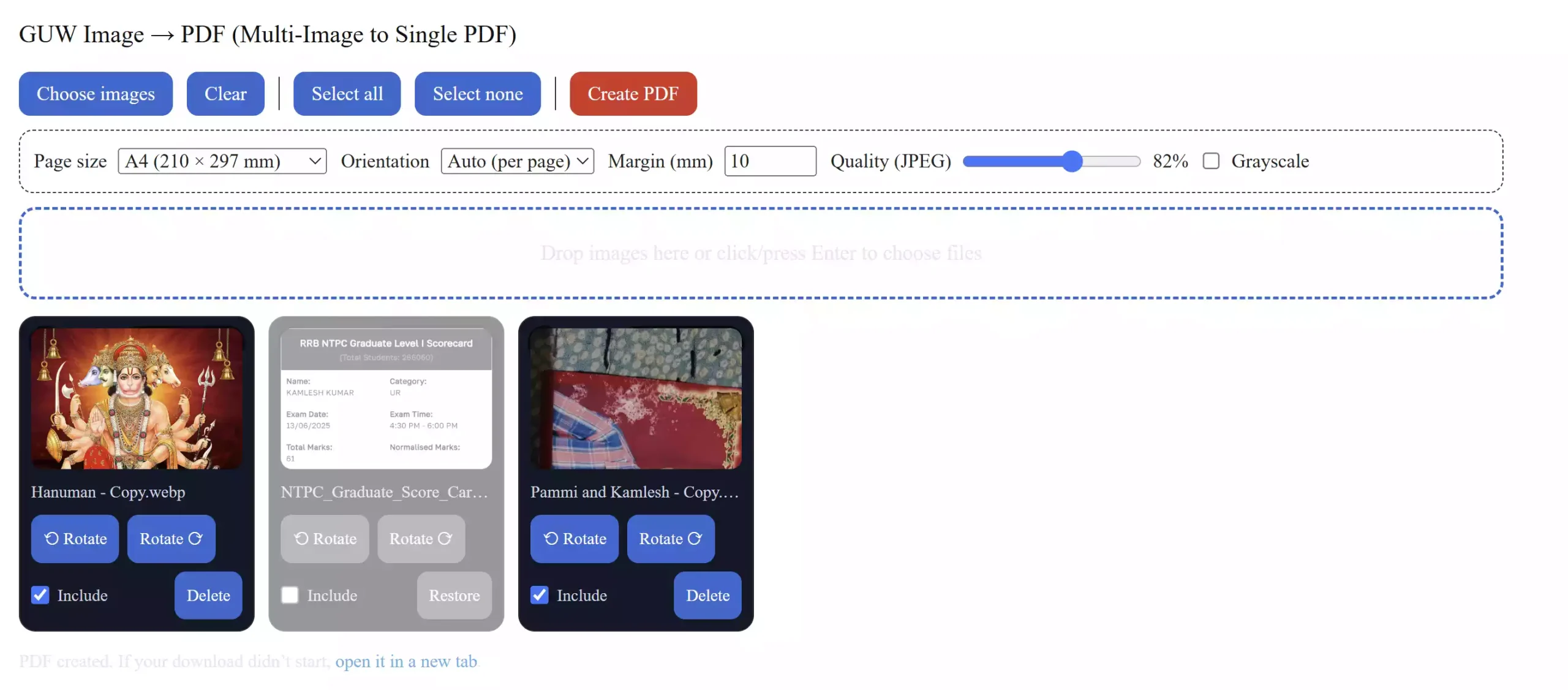
Open the tool: GUW Image → PDF (Multi-Image to Single PDF)
Why use this tool?
- 100% private: No uploads. Everything runs in your browser.
- Fast & simple: Drag & drop intake, thumbnail grid, quick reorder & rotate.
- Print-ready: Choose A4/Letter, margins, and automatic orientation per page.
- Quality control: Adjustable JPEG quality; optional grayscale for smaller files.
- Mobile-friendly: iOS/Safari opens the final PDF in a new tab if the browser blocks auto-download.
Main features at a glance
- Supports JPG, PNG, WEBP, and optional HEIC intake (converted locally to JPEG).
- Thumbnail grid with drag-to-reorder, rotate, include/exclude, and delete/restore.
- Page size presets (A4/Letter), auto/portrait/landscape orientation per page.
- Margins (mm), JPEG quality slider with live preview, and optional grayscale.
- Keyboard and accessibility friendly: visible focus ring; Enter/Space activate actions.
How to convert images to a single PDF
Step 1. Open GUW Image → PDF.
Step 2. Click Choose images or drag & drop your files into the drop area.
Step 3. Reorder pages by dragging thumbnails; use Rotate if a scan is sideways.
Step 4. (Optional) Deselect pages you don’t want or delete/restore temporarily.
Step 5. Pick Page size (A4/Letter), Orientation (Auto is best), and set Margins.
Step 6. Adjust Quality (higher = larger PDF, lower = smaller PDF). Toggle Grayscale if you prefer.
Step 7. Click Create PDF to export. If your browser blocks auto-download, use the status link to open the PDF in a new tab.
Practical tips
- Auto orientation: Leave orientation on Auto so landscape photos fit best without cropping.
- Thin margins: Use 5–10 mm margins for clean printouts.
- File size: For smaller PDFs, lower the JPEG quality a bit or enable grayscale for documents.
- HEIC photos: If you add iPhone photos (HEIC), the tool converts them locally before merging.
Who is it for?
- Students & teachers: Combine scans, handwritten notes, and photos into one shareable PDF.
- Office & home users: Bundle receipts, IDs, and forms quickly with zero uploads.
- Freelancers: Create neat deliverables from sketches and screenshots.
Related free tools (all client-side)
If you’re working with PDFs and images, these tools pair perfectly:
- Free PDF Encryptor (AES-256) — password-protect PDFs
- Free PDF OCR — make scanned PDFs searchable (no uploads)
- Image Compressor & Resizer — shrink JPG/PNG/WEBP before merging
- PDF Page Numberer — add page numbers after you merge
- Universal Disk Image Tool — for ISO/IMG tasks (power users)
Pros and considerations
- Pros: Private, fast, no sign-ups, polished UI, works offline once loaded, handles typical image formats + HEIC intake.
- Considerations: Very large batches can be memory-intensive in older browsers; reduce batch size or quality if needed.
FAQ
Does this upload my pictures anywhere?
No. All processing happens locally in your browser; your files never leave your device.
How do I reduce the final PDF size?
Lower the JPEG quality slightly, enable grayscale for documents, and avoid very large source images if you don’t need them.
My PDF didn’t auto-download. What now?
Some browsers block auto-downloads. Use the link shown in the status area to open the PDF in a new tab and save it.
Are HEIC photos supported?
Yes. HEIC images (from iPhones) are converted locally to JPEG during intake, then merged like any other image.