

Turning off and turning on your computer can be just a couple of the simplest things you can do with Windows 10. Starting with Windows 8, Microsoft has included a new interactive way to de-energize your device with the “Slide to Shutdown” feature. This feature is available on Windows 10 itself, but is typically only enabled on Windows 10 tablets and mobile devices when you press and hold the power button.
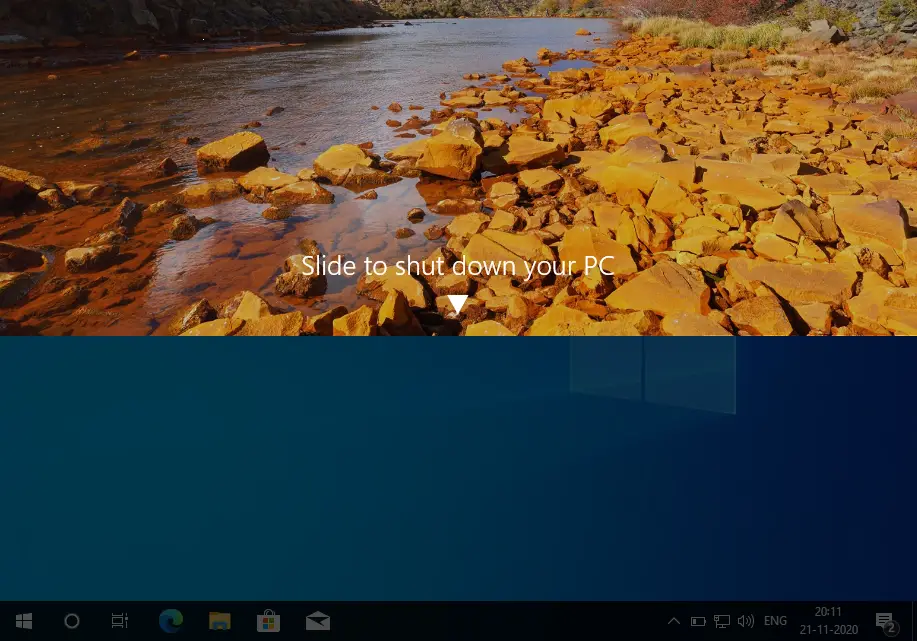
If you want to get the same shutdown experience on your laptop or desktop, you can quickly create a shortcut with the appropriate control to enable “Slide to Shutdown” on Windows 10, even on devices without a touchscreen.
The slide-to-shut-down feature will let you shut down your PC by simply sliding the screen down. Currently, you can only use the “Slide to Shutdown” by executing the SlideToShutDown.exe file.
How to add a “Slide to shut down” feature on a Windows 10 PC?
Follow these steps to add a “Slide to shut down” feature on Windows 10 PC:-
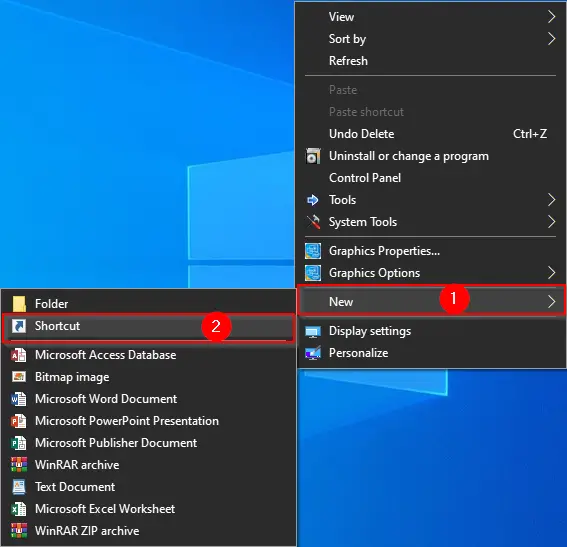
Step 1. Right-click an empty field on your desktop, then click New, and then click Shortcut.
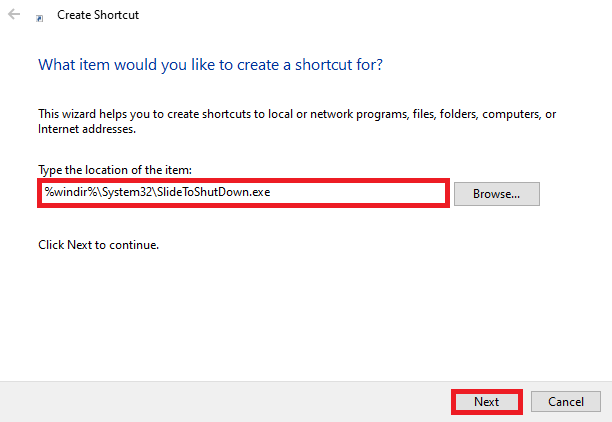
Step 2. Copy and paste the following text into the location box and select the Next button:-
%windir%\System32\SlideToShutDown.exe
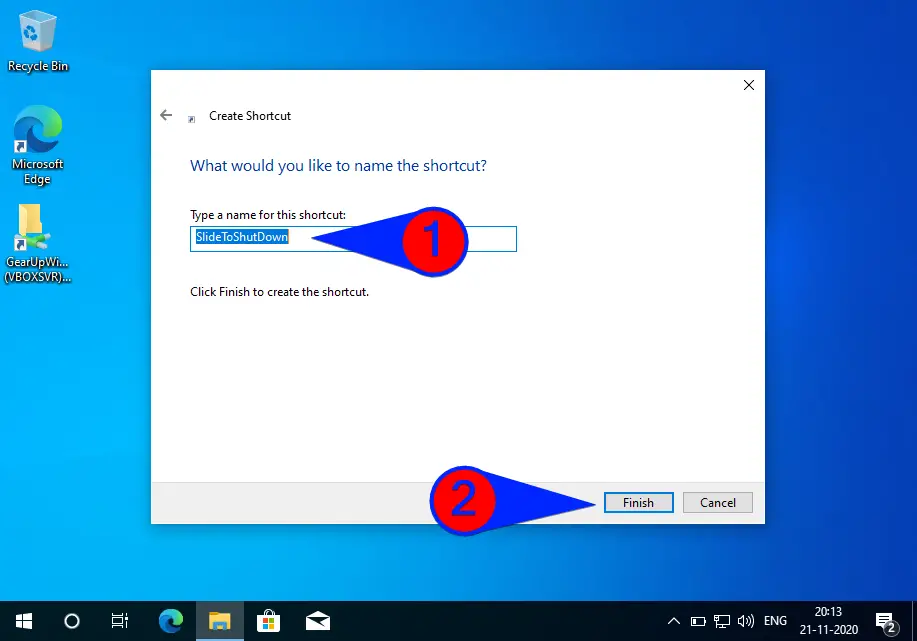
Step 3. Enter a descriptive name or leave it as the default and click the Finish button.
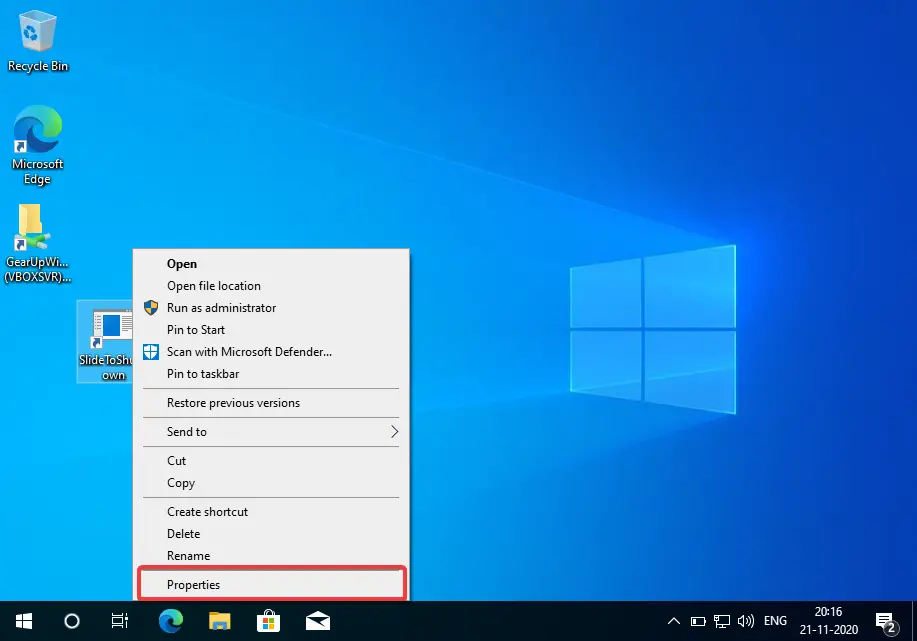
 Step 4. To obtain an appealing icon, right-click on this shortcut and select Properties.
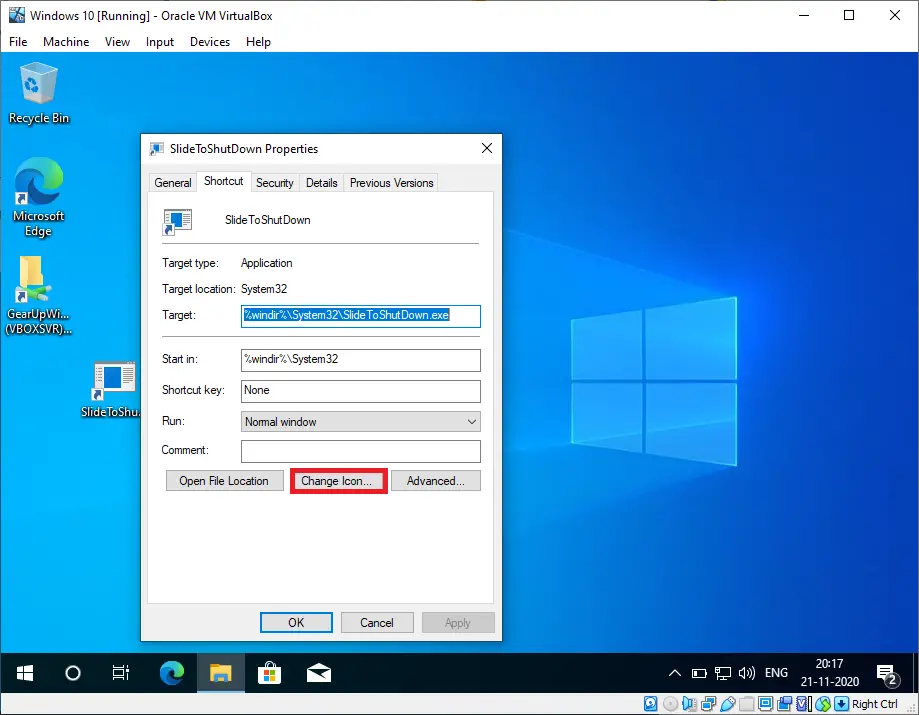
 Step 5. Select the Change Icon button.
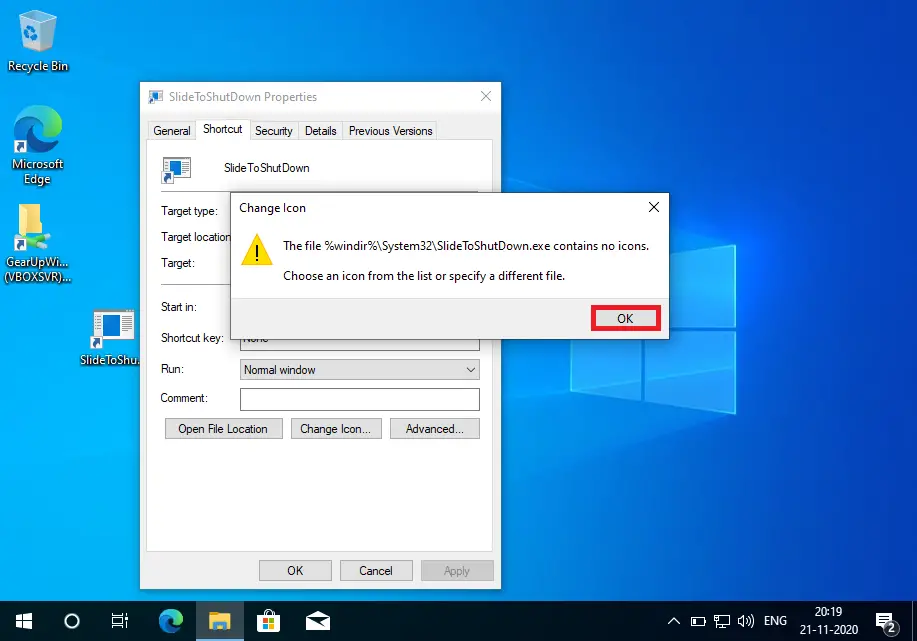
 Step 6. Click OK when the next window is displayed:-
 Step 7. Copy and paste the following under “Look for icons in this file“:-
%SystemRoot%\system32\shell32.dll
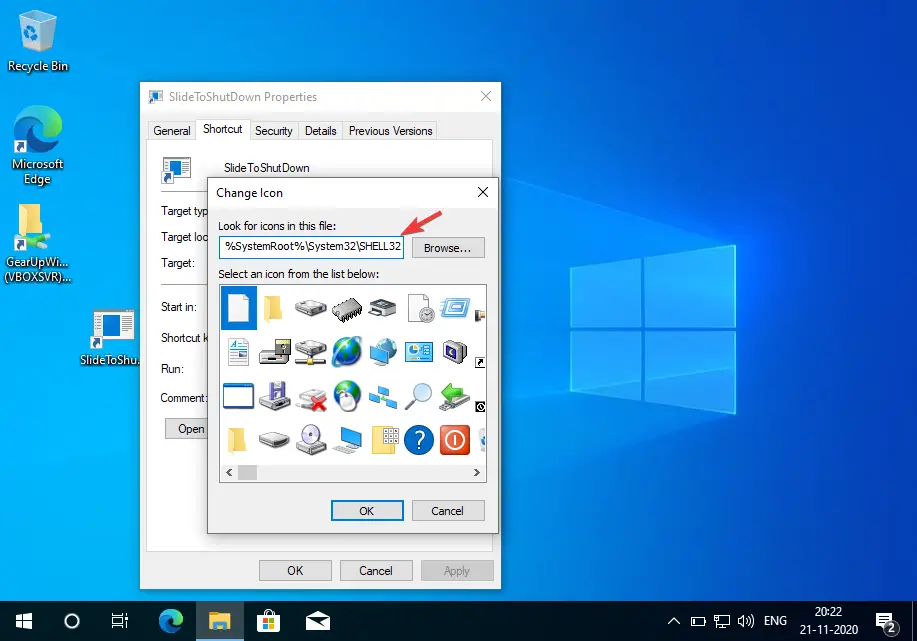 Step 8. Select the power icon and press the OK button.
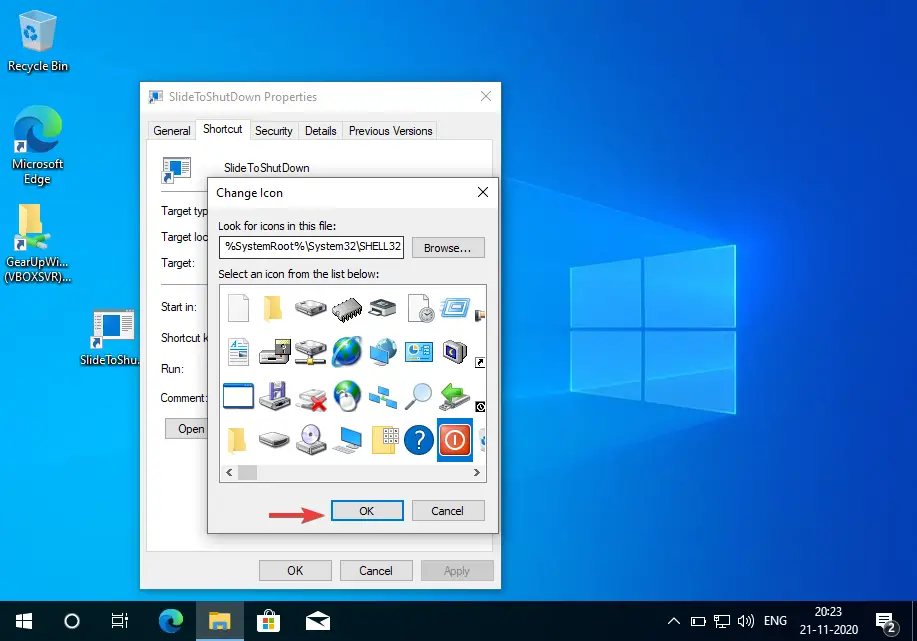 Step 9. Click OK again to change the icon of the newly created “Shortcut of Slide to Shutdown.”
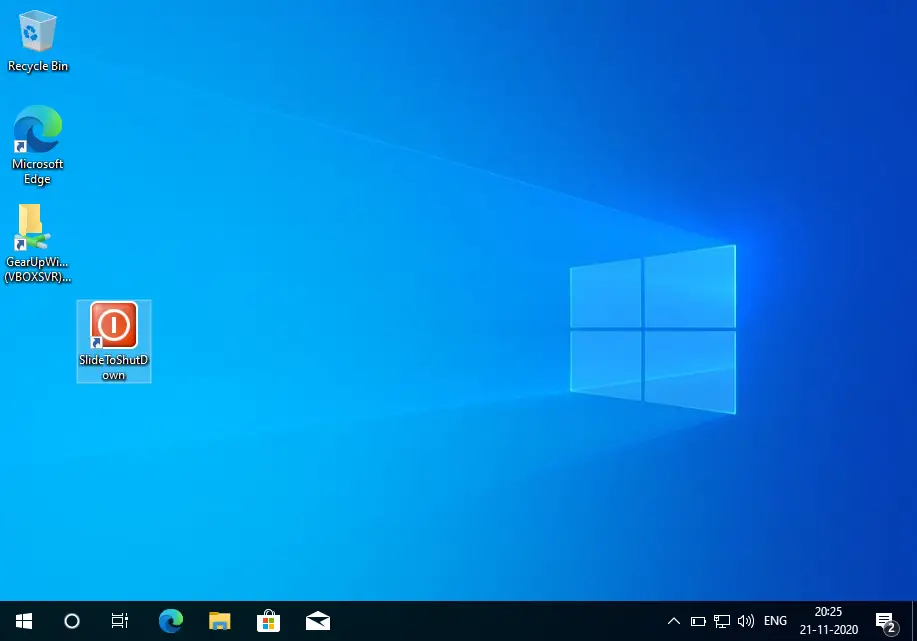 Now you can drag and drop this shortcut to the taskbar to quickly access the “Slide to Shutdown.” When you click on “Slide to Shutdown,” half of the screen will fade. Slide the screen up to the bottom to shut down your PC.
FAQs
What is the Slide to Shutdown feature in Windows 10?
It is an interactive shutdown method designed primarily for touch-enabled devices, allowing users to slide the screen down to power off the PC.
Can I use Slide to Shutdown on a non-touchscreen PC?
Yes. Even without touch support, you can trigger the feature using a desktop shortcut and slide down using the mouse.
Where is the Slide to Shutdown tool located?
The executable file is located at %windir%\System32\SlideToShutDown.exe.
Can I pin Slide to Shutdown to the taskbar?
Yes. After creating the shortcut, you can drag it to the taskbar for quick access.
Does Slide to Shutdown perform a full shutdown?
Yes. Once you slide the screen down, Windows performs a normal shutdown of the operating system.
Conclusion
In conclusion, adding the “Slide to shut down” feature to your Windows 10 PC is a quick and easy way to shut down your device with an interactive touch. The process involves creating a shortcut with the appropriate control and adding an appealing icon. Once the shortcut is created, you can easily access the “Slide to Shutdown” feature by clicking on the shortcut and sliding the screen down to shut down your PC. This feature is not only available on Windows 10 tablets and mobile devices but can also be enabled on laptops and desktops without a touchscreen. By following the simple steps outlined in this guide, you can add this feature to your PC and enjoy a more interactive way of shutting down your device.