

JioSphere (formerly JioPages) comes with a built-in ad blocker, which helps users browse the web without intrusive ads. While blocking ads on regular websites is straightforward, YouTube ads are more challenging since they are often embedded within the video itself. However, you can still improve your experience by following these steps.
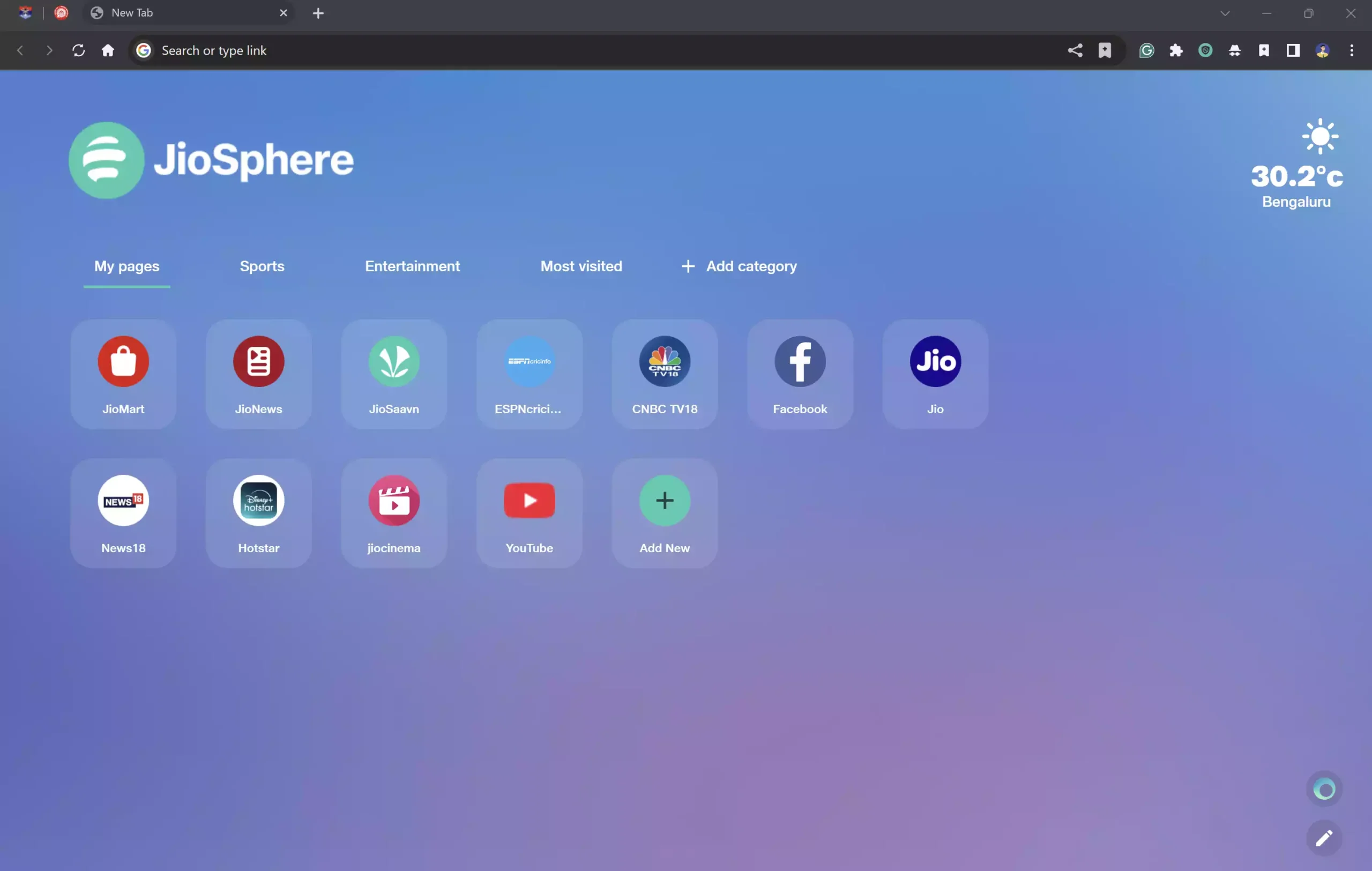
How to Enable Ad Blocking in JioSphere for YouTube?
1. Enable the Built-in Ad Blocker
By default, JioSphere blocks most ads, but you should ensure that the feature is turned on:-
Step 1. Open JioSphere Browser.
Step 2. Tap the three-dot menu (Customize and control JioSphere) icon in the top-right corner.
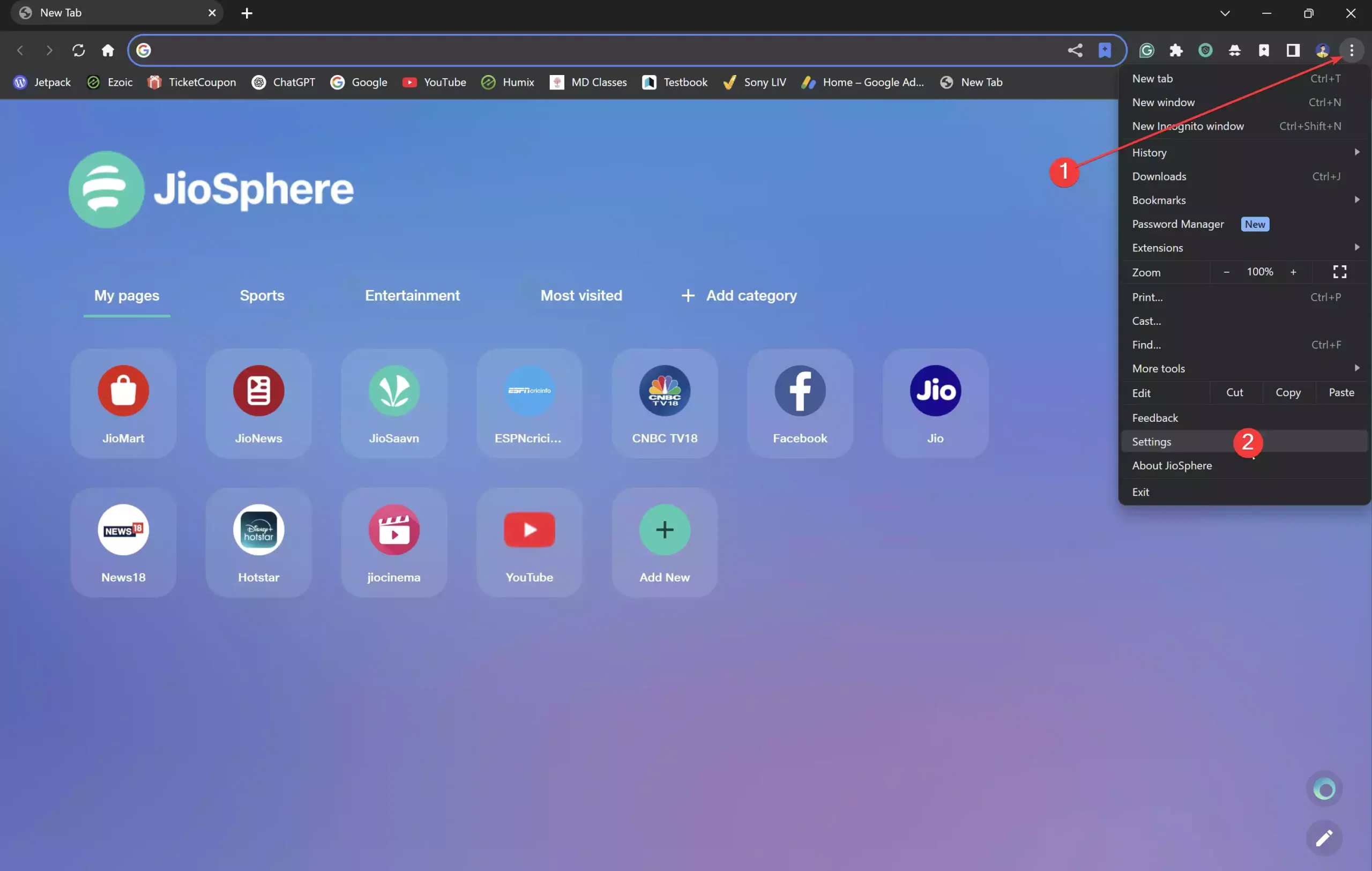
Step 3. Select Settings.
Step 4. Navigate to Privacy & security.
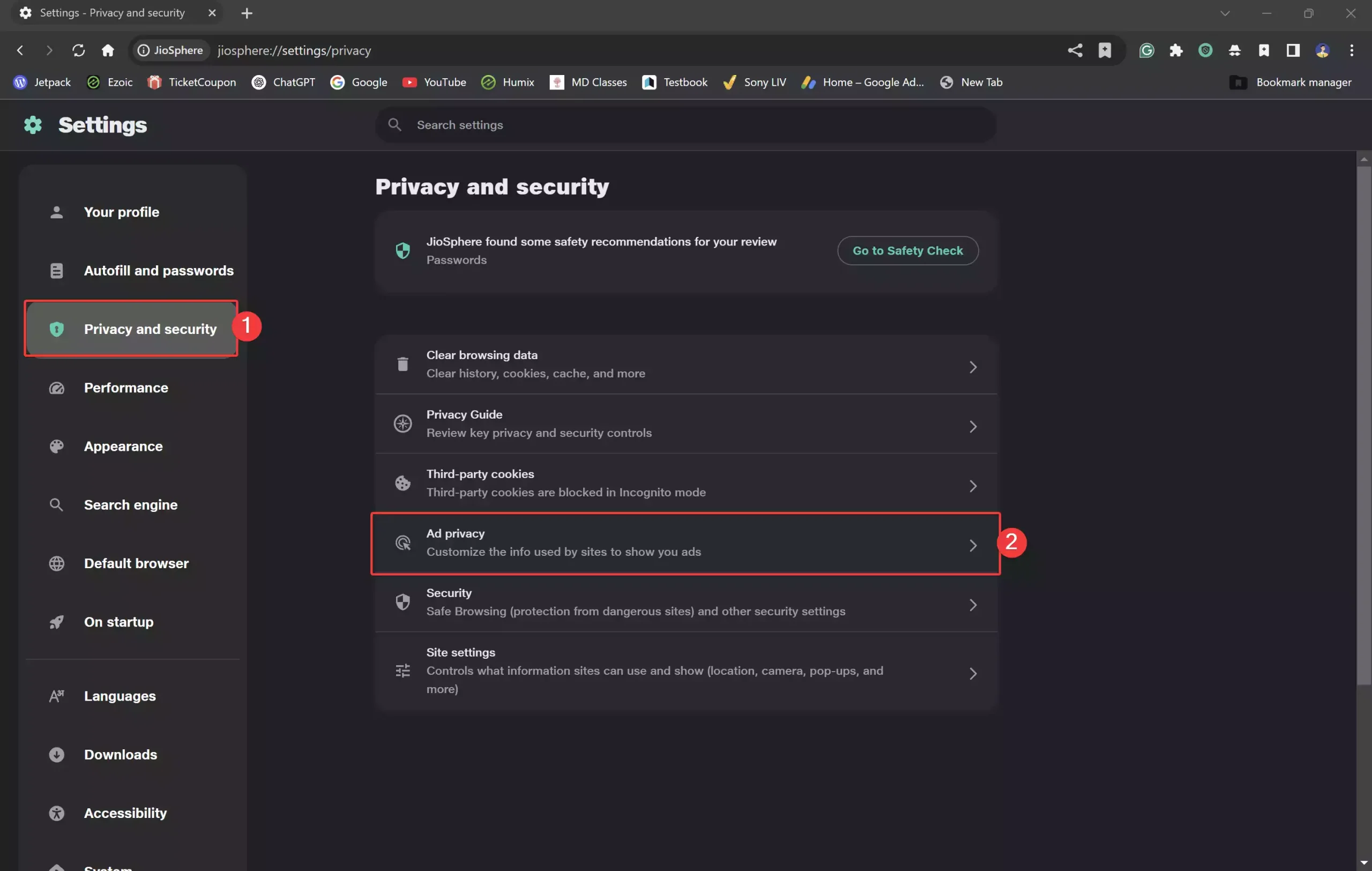
Step 5. Click the “Ad privacy” on the right sidebar.
Step 6. Look for Ad Blocker and toggle it ON.
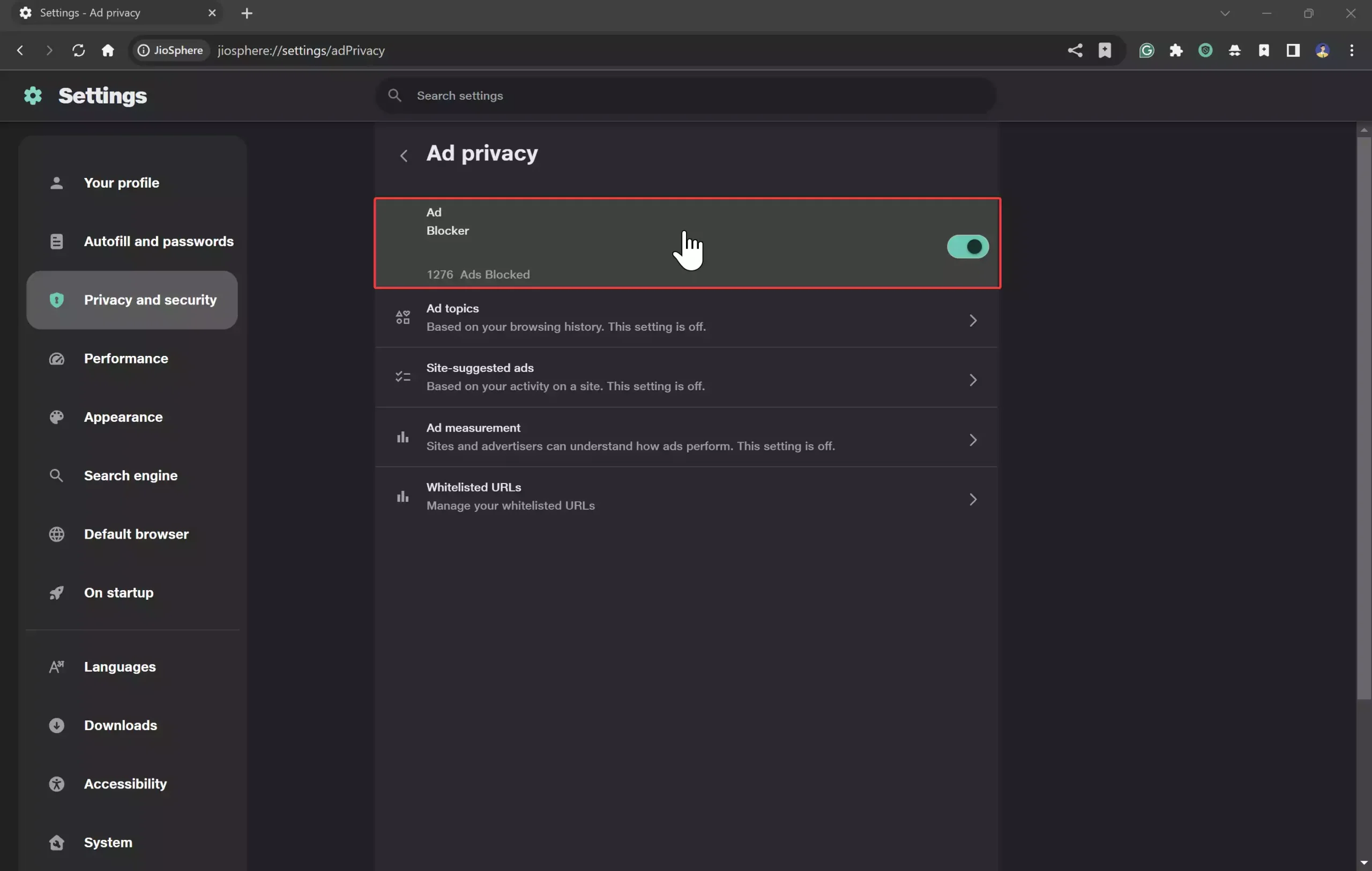
2. Quickly Enable or Disable the Ad Blocker
On PC, JioSphere makes it easy to manage the ad blocker:-
Step 1. Look for the Adblock Plus icon on the right side of the address bar.
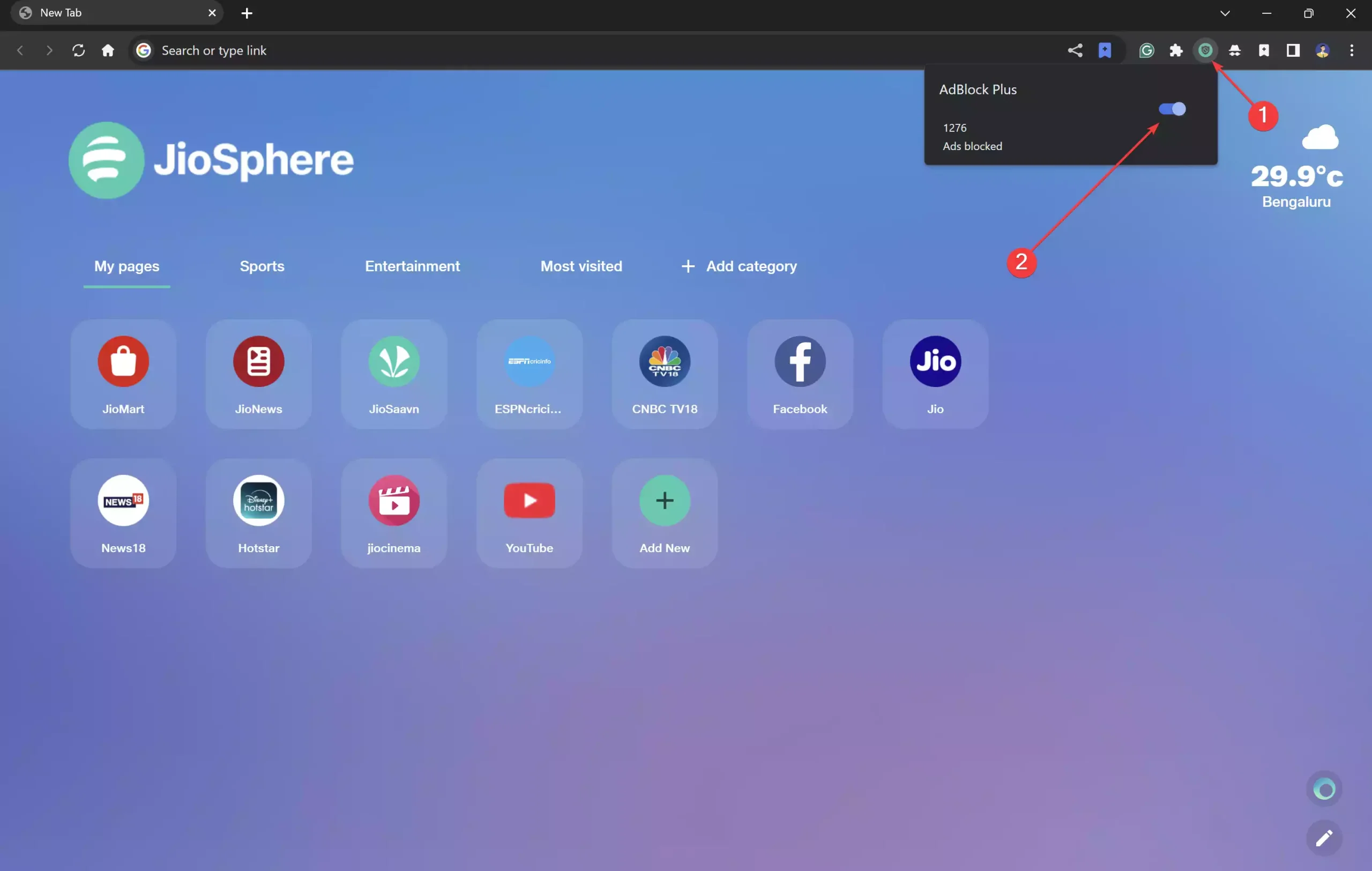
Step 2. Click the toggle switch to enable or disable ad blocking instantly.
Final Thoughts
In summary, while JioSphere’s built-in ad-blocker enhances general web browsing by removing many intrusive ads, it may not effectively block ads within YouTube videos. Users desiring an ad-free YouTube experience might consider subscribing to YouTube Premium or exploring other browsers (Such as Vivaldi) that support extensions capable of blocking YouTube ads.
Would you like help with anything else?