

Do you know where Windows temporarily downloads the Windows Update files? For your information, by default, Windows Updates are downloaded to the “C:\Windows\SoftwareDistribution” folder. If you have installed Windows 11 on a drive other than the “C” drive, then Windows updates will be downloaded to that drive in a similar folder, such as “D:\Windows\SoftwareDistribution.”
Now, suppose you have installed Windows 11 on the “C” drive, and it is running low on storage space. In this condition, you have two options: either increase the “C” drive size or change the Windows updates folder location to another drive where sufficient free space is available. By doing this, your Windows updates will not be hampered, and your computer will remain secure.
A computer expert will always suggest keeping your Windows PC updated because updates may equip your system with new features and several bug fixes. If you keep your PC updated, it will also help secure your account while browsing online.
If your primary drive is running out of storage and you want to change or move the Windows updates folder to a new partition, this gearupwindows article will guide you.
How to Change or Move Windows Updates SoftwareDistribution Folder in Windows 11?
If Windows updates are hampered due to low storage, you may consider moving or changing the SoftwareDistribution folder location to a new drive/partition. To do that, use the following steps:-
Step 1. First, examine the partition where you want to move the SoftwareDistribution folder. Once decided, create a new folder under that drive and name it SoftwareDistribution. Suppose the “E” drive has sufficient free space and you want to use it for downloading Windows updates, then create the SoftwareDistribution folder under the “E” drive. So, in this case, the new folder location will be “E:\SoftwareDistribution.”
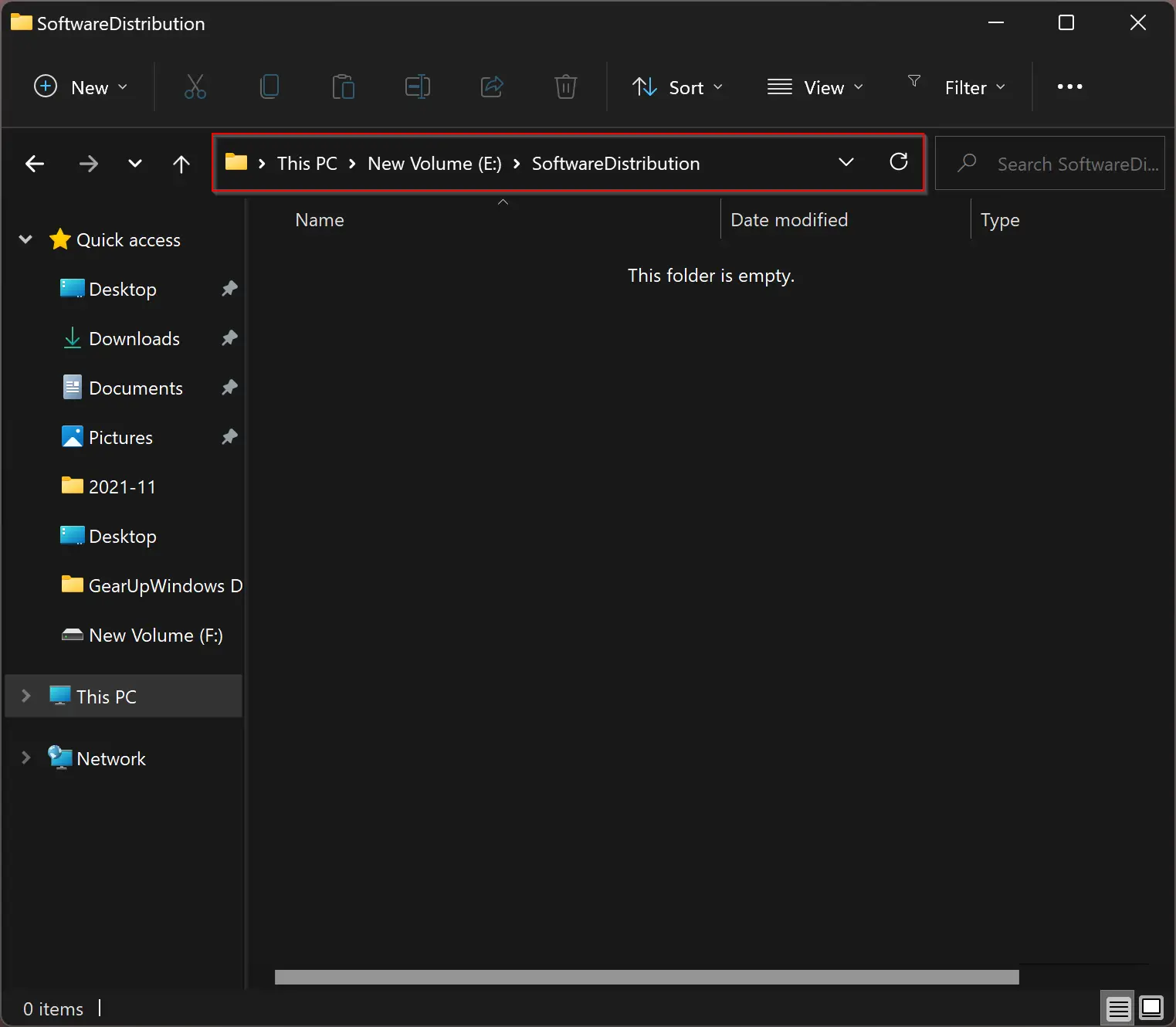
Step 2. Now that you have created a folder for Windows Updates on a new drive, you need to stop the Windows Update service.
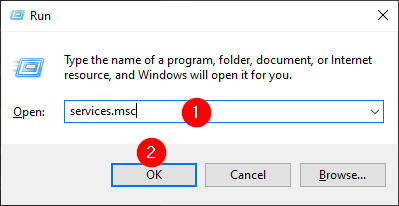
Press the Windows + R keys simultaneously to open the Run command box. Then, in the Run box, type the following and hit Enter on the keyboard to open the Services window:-
services.msc
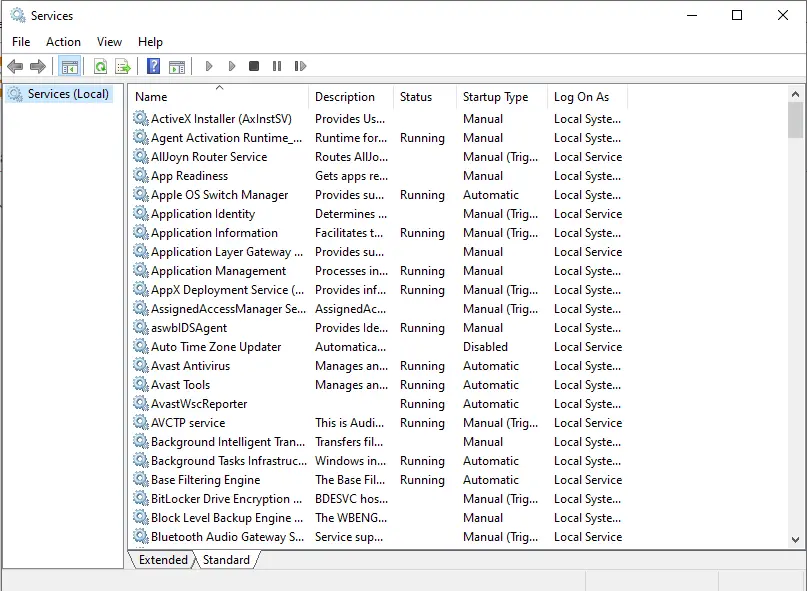
Step 3. Scroll down the services list and locate the Windows Update service. Next, right-click on the “Windows Update” service and select the Stop option.
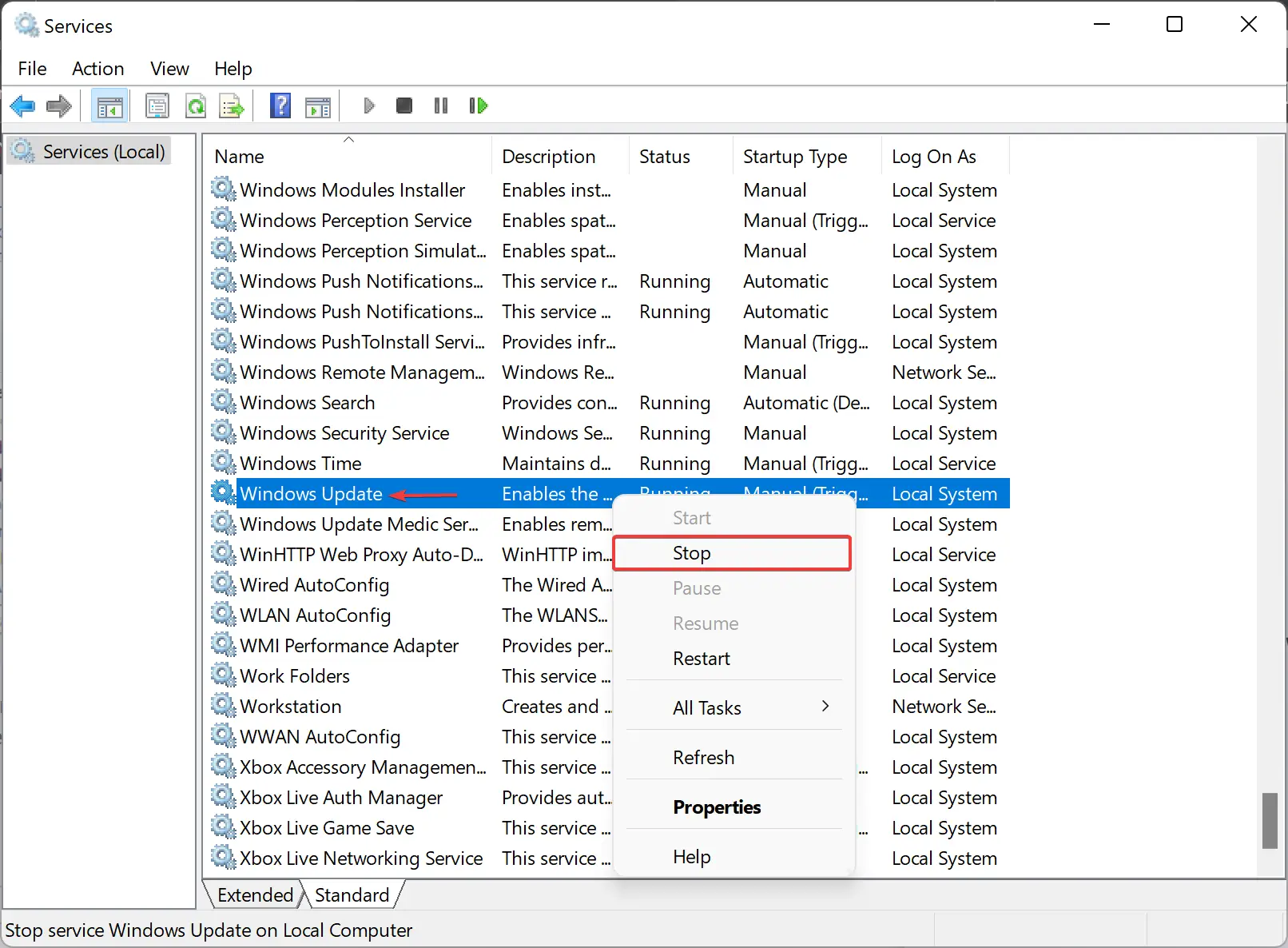
Step 4. Once the Windows Update service stops, rename the SoftwareDistribution folder to SoftwareDistribution.old under the “C:\Windows” directory.
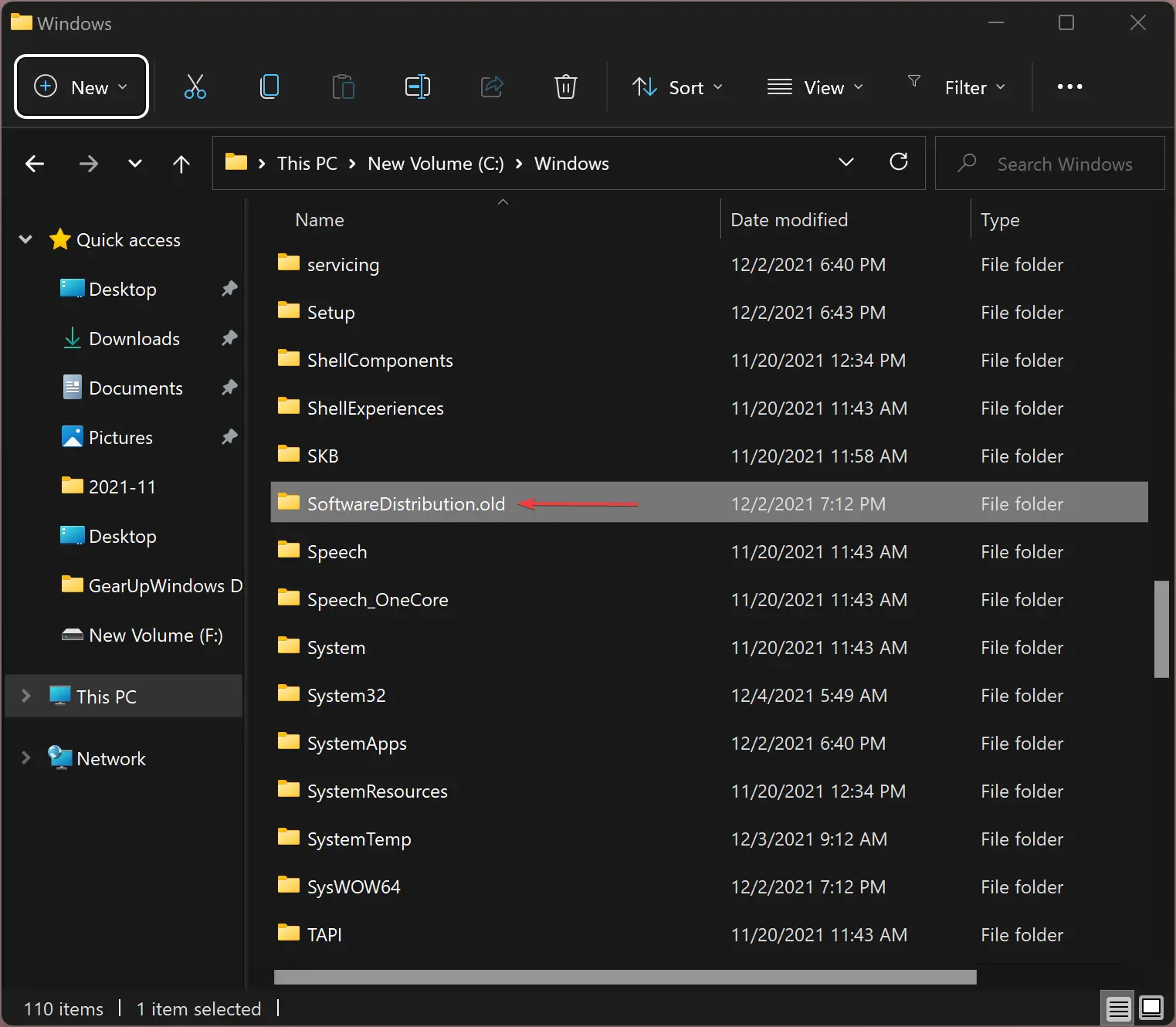
If prompted by the UAC dialog box, click the Yes button to confirm.
Step 5. Now, open a Command Prompt window with administrative privileges.
To do this, press the Windows + R keys to open the Run dialog box. Then type cmd and press Ctrl + Shift + Enter to run Command Prompt as an administrator.
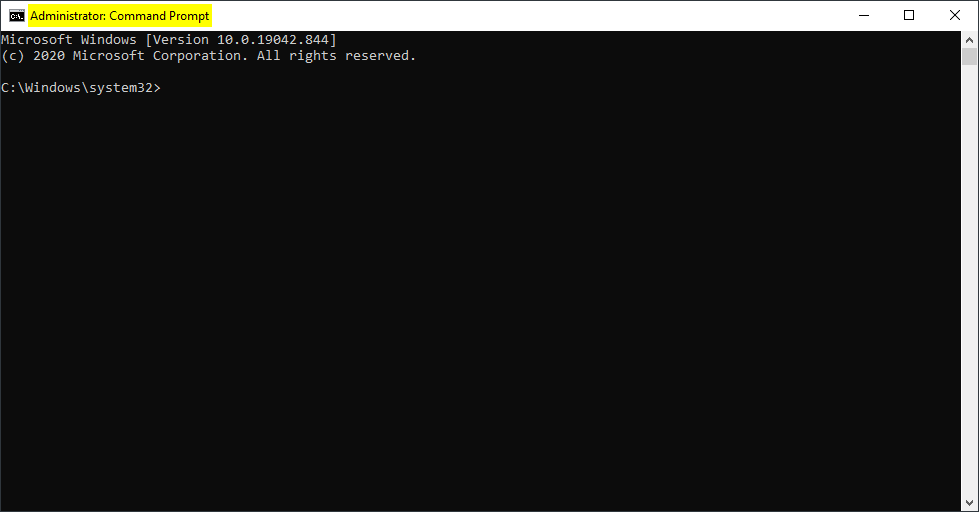
Step 6. In the Command Prompt console, type the following command and hit Enter on the keyboard:-
mklink /j C:\Windows\SoftwareDistribution E:\SoftwareDistribution
Please replace “C:\Windows\SoftwareDistribution” and “E:\SoftwareDistribution” with your actual paths if different.
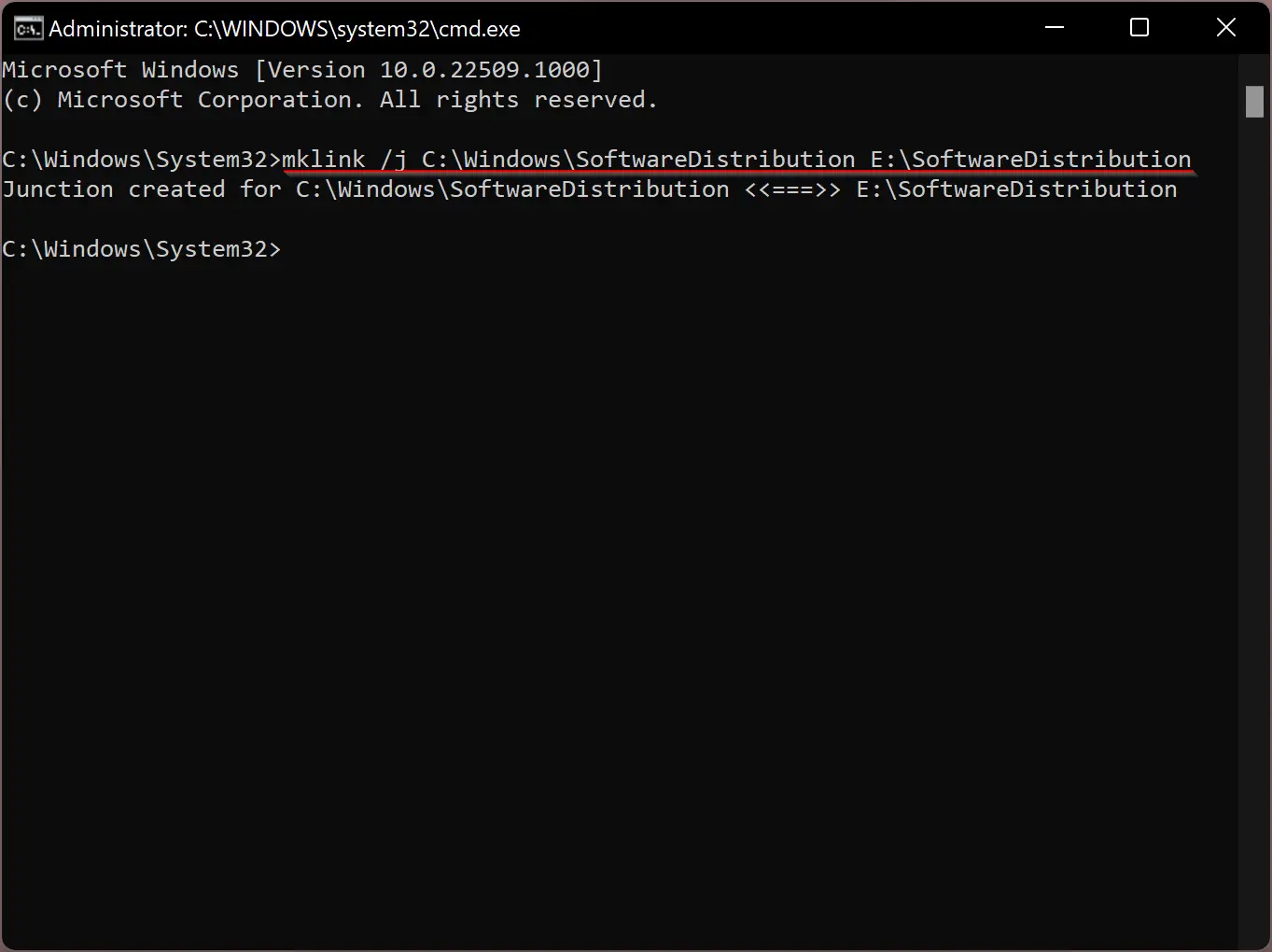
Once the command executes, you should see a message like:
Junction created for C:\Windows\SoftwareDistribution <<===>> E:\SoftwareDistribution
If successful, a new “SoftwareDistribution” folder with a shortcut icon will appear in the “C:\Windows” directory, indicating the symlink has been created.
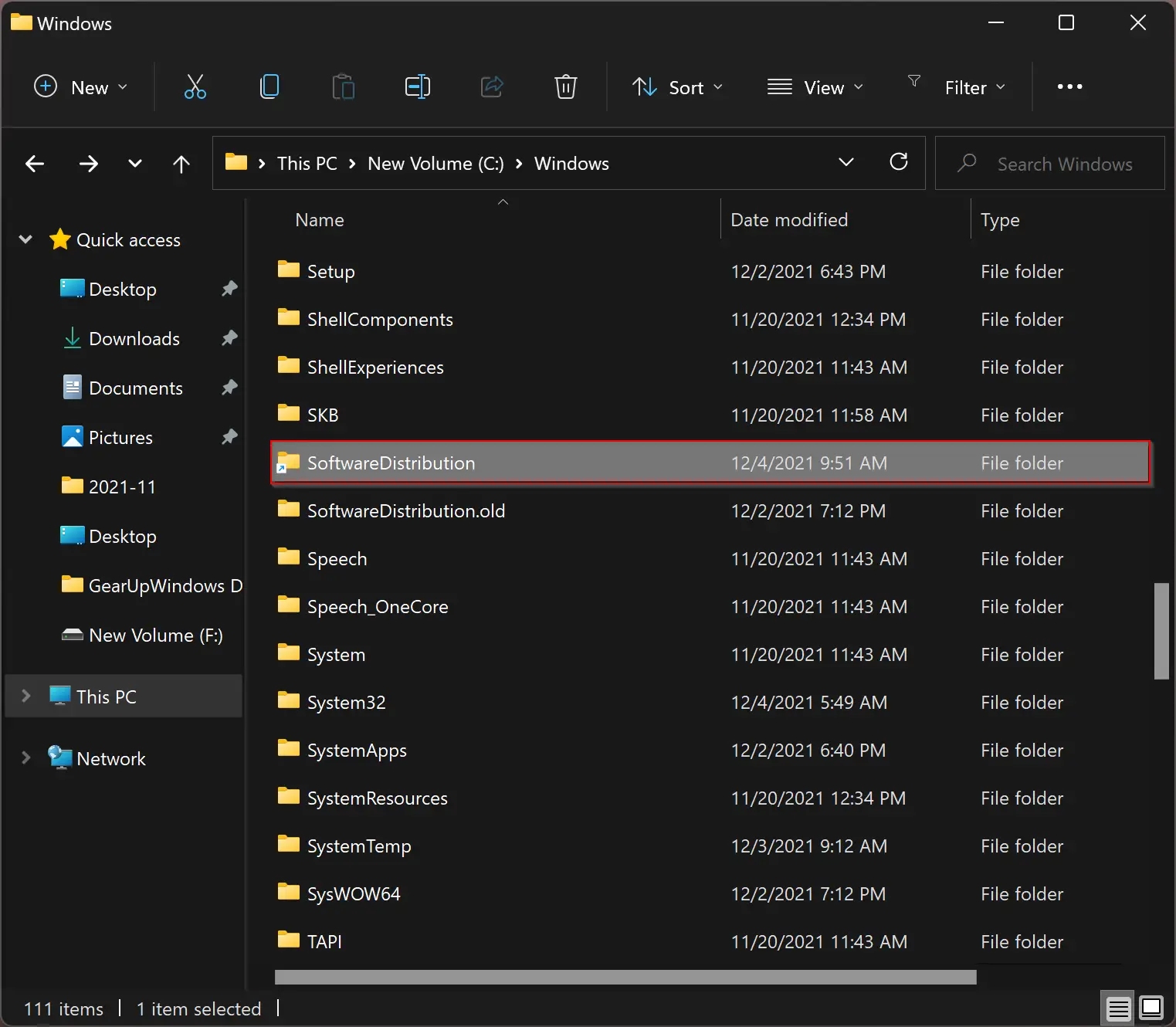
Step 7. If you don’t want Windows to re-download all updates again, you can copy the content from the “C:\Windows\SoftwareDistribution.old” folder into the newly created SoftwareDistribution folder.
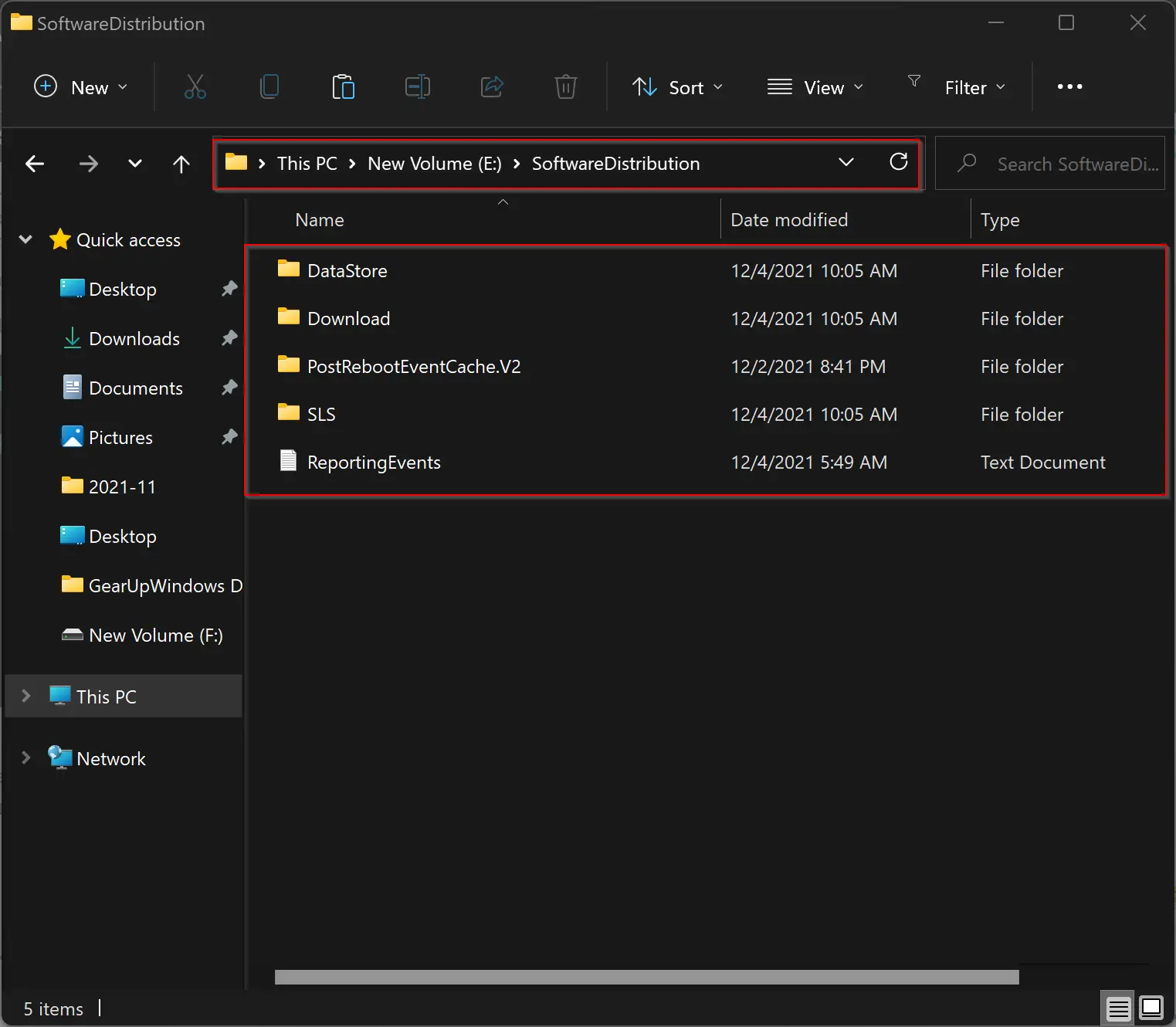
Step 8. Now everything is ready. Start the Windows Update service that was stopped earlier.
Press the Windows + R keys to open the Run command box. In the Run box, type the following and hit Enter:-
services.msc
Step 9. In the services list, locate the Windows Update service. Right-click on it and select the Start option.
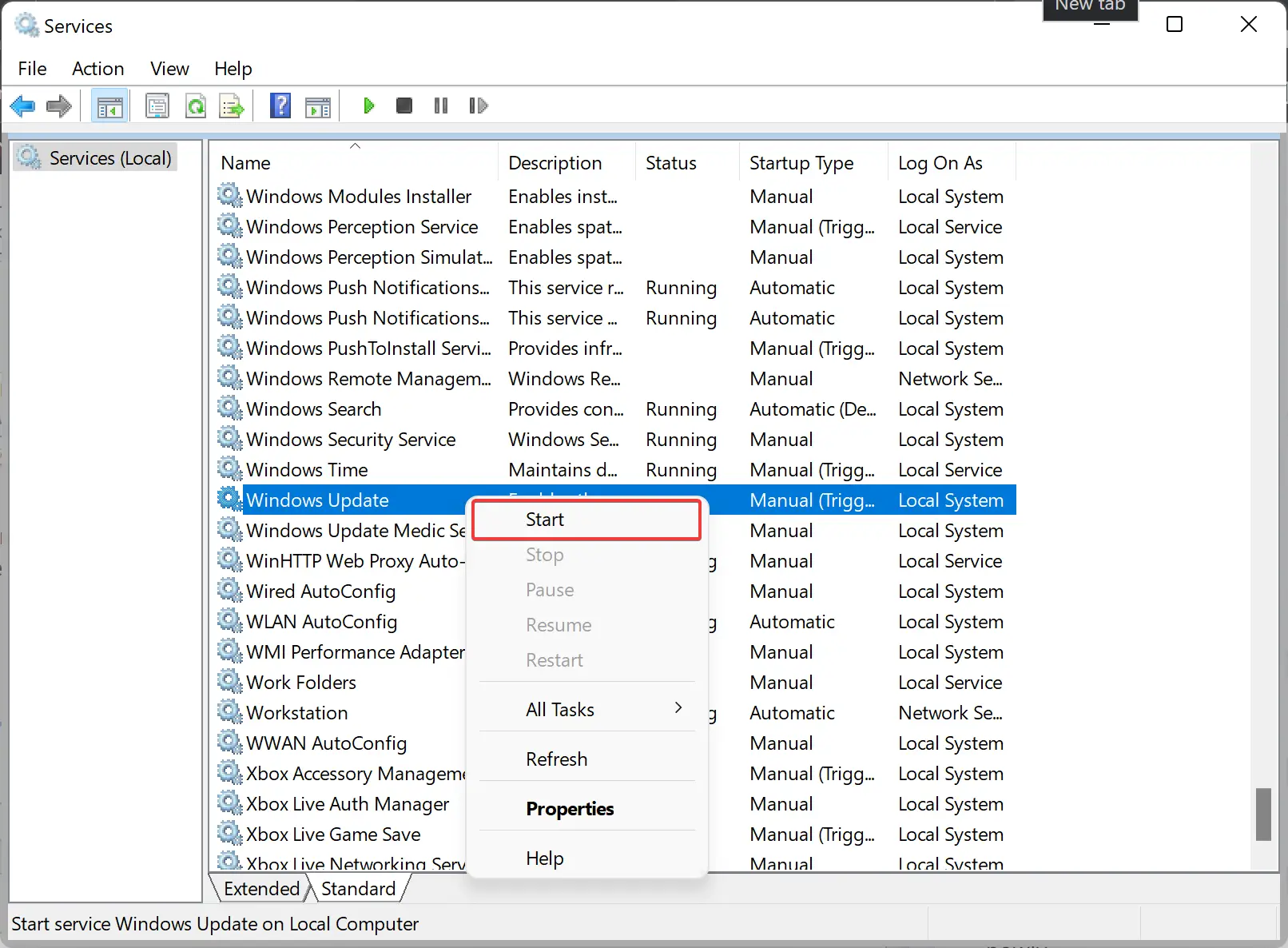
Step 10. Once the Windows Update service starts, if an update is available, you will notice that new Windows Update files and folders are being downloaded to your specified folder.
Conclusion
In conclusion, it is crucial to keep your Windows PC updated to benefit from new features, bug fixes, and enhanced security. However, if you face low storage issues on your primary drive, you can change or move the Windows Updates SoftwareDistribution folder to another partition. This guide has outlined the steps to accomplish that—creating a new SoftwareDistribution folder, stopping the update service, renaming the original folder, creating a junction link, copying contents, and restarting the service. By following these steps, your updates will continue smoothly without worrying about storage limitations.
Doesn’t work error 0x800700a1 failed download… and can’t install manualy some updates