

Want to combine multiple pictures into one beautiful collage? Whether it’s for a family album, a school project, or your social media post, creating an image collage can be quick and fun — especially when you don’t have to install any software. With the Free GUW Image Collage Maker, you can create stunning photo collages right inside your browser — completely free, private, and beginner-friendly.
What is GUW Image Collage Maker?
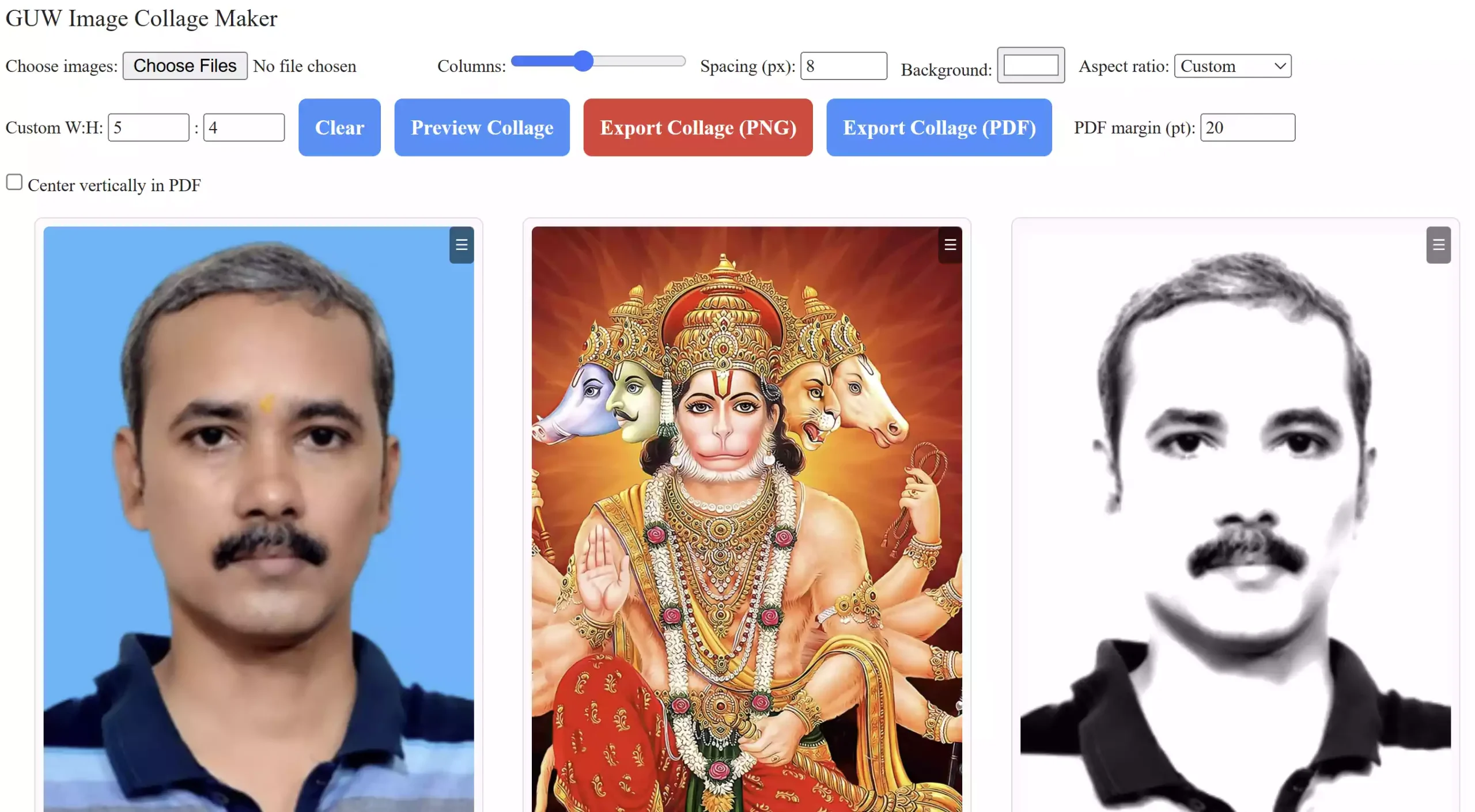
GUW Image Collage Maker is a free online photo collage creator designed to merge multiple images into a single canvas. You can choose your layout, resize or rotate pictures, adjust spacing, and even change background colors — all from your browser. No installation or account required, and all processing happens locally, keeping your pictures private.
This tool is perfect for anyone who wants to make quick image grids, birthday collages, travel memories, or side-by-side comparisons — without using heavy apps like Photoshop or Canva.
Key Features
- Combine Multiple Photos: Merge any number of images into one collage.
- Custom Layouts: Choose from grid or free-form layouts for creative control.
- Privacy First: Everything runs in your browser — no uploads or data sharing.
- Drag-and-Drop Editor: Reorder, resize, or rotate photos instantly.
- Background Options: Add colors, gradients, or borders to match your theme.
- Download Instantly: Export your collage as PNG or PDF in one click.
How to Combine Multiple Images into One Collage Online
Follow these simple steps to create your image collage:
Step 1. Visit GUW Image Collage Maker in your browser.
Step 2. Click “Choose Files” and select multiple photos you want to include.
Step 3. Your selected images will appear instantly on the collage board. You can drag, resize, or reposition them easily.
Step 4. Adjust spacing between images, change the canvas size, or pick a background color for a better look.
Step 5. Want to crop or tweak individual photos? You can use the GUW Image Cropper before uploading to get the perfect fit.
Step 6. Once you’re happy with your design, click “Export Collage (PNG)” or “Export Collage (PDF)” and download it as a PNG or PDF file.
Why Create an Image Collage?
Combining multiple photos into one is useful in more ways than you might think. Here are a few everyday scenarios:
- Creating before-and-after comparisons (e.g., renovations or makeovers).
- Designing personalized photo gifts like cards or posters.
- Making educational or presentation visuals quickly.
- Compiling reference images or mood boards.
- Creating social media posts with multiple memories in one frame.
Example: Create a Family Collage in Minutes
Suppose you have six family pictures from a recent trip. Open the GUW Image Collage Maker, upload all the images, arrange them in a 3×2 grid, and choose a soft beige background. Add a short caption like “Summer 2025 Memories,” and you’ve got a share-ready collage in less than two minutes!
When GUW Collage Maker Can Help You
- Students making school project visuals.
- Designers combining product mockups quickly.
- Bloggers merging screenshots for tutorials.
- Families compiling photo albums or greetings.
- Businesses creating promotional image sets for social media.
Combine It With Other GUW Tools
The GUW ecosystem offers several other image utilities that enhance your workflow before or after creating a collage:
- Annotate your images to highlight or label parts of your collage.
- Resize and convert images before creating the collage.
- Add your logo or watermark to protect your work.
- Turn photos into sketches and blend them for artistic collages.
- Crop photos precisely before merging.
Advantages of Browser-Based Collage Makers
Unlike bulky photo editors, browser-based collage makers like GUW’s tool work instantly without installing anything. Here’s why it’s smarter:
| Feature | GUW Image Collage Maker | Desktop Software |
|---|---|---|
| Installation Needed | No | Yes |
| Privacy | 100% Local (No Uploads) | Varies by Software |
| Speed | Instant Preview | Slower |
| Ease of Use | Drag-and-Drop | Requires Learning Curve |
| Cost | Completely Free | Usually Paid |
Tips for a Perfect Collage
- Keep consistent aspect ratios for a balanced layout.
- Use matching or complementary color backgrounds.
- Add a small border gap for better separation between images.
- Combine text and stickers for a creative touch.
- Keep the collage size around 1080×1080 pixels for social media sharing.
FAQs
Q1. Is GUW Image Collage Maker free to use?
Yes, it’s 100% free with no sign-ups or subscriptions required.
Q2. Will my photos be uploaded to any server?
No, everything happens locally in your browser — your images never leave your device.
Q3. Can I make vertical or horizontal collages?
Yes, you can customize the layout orientation, spacing, and canvas size.
Q4. Can I edit or add text to my collage?
Yes, you can type directly or use GUW Image Annotator to add styled text and arrows.
Q5. What image formats are supported?
All popular formats like JPG, PNG, and WebP are supported.
Q6. Can I add my logo to the collage?
Yes, just use the GUW Image Watermark Tool to overlay your logo before exporting.
Conclusion
Creating a photo collage doesn’t need fancy software or long downloads. With the GUW Image Collage Maker, you can combine, arrange, and export beautiful multi-image layouts right from your browser — privately and for free. Whether you’re preparing social media posts, documenting family events, or making digital scrapbooks, this tool makes it quick and effortless.
Try it once, and you’ll never go back to installing heavy collage apps again. Just open, combine, and download — your creativity, your control, your collage!