

The internet offers content for every age group, including games, educational videos, and more for younger users. However, along with useful content, there is also a lot of harmful material that is not suitable for children.
Google, being the most popular search engine, allows users to search for anything. While some search results are helpful, others may include inappropriate or unsafe content. To protect younger users, Google provides a feature called SafeSearch, which helps filter search results.
SafeSearch ensures that explicit and unsafe content is automatically filtered out of search results. This feature is especially useful for ensuring that children are only exposed to age-appropriate and safe content online.
What is SafeSearch?
SafeSearch is a feature of Google’s search engine that automatically filters unsafe, offensive, and inappropriate results (images, videos, websites, etc.) from appearing in search results. This ensures kids aren’t exposed to explicit or inappropriate content on Google.
To make the internet a safer place for kids, parents or teachers can configure Google SafeSearch. By enabling SafeSearch, you can prevent your children from being exposed to explicit content such as pornography, gore, violence, and other adult-only topics in the Google search results. This way, you can give kids internet independence within controlled, prescribed limits.
How to Turn On SafeSearch in Google Search?
To enable SafeSearch in Google Search on Windows 11 or 10, use these steps:-
Step 1. Browse Google.com on your browser in which you want to enable SafeSearch.
Step 2. Then, click on Settings at the bottom-right corner.
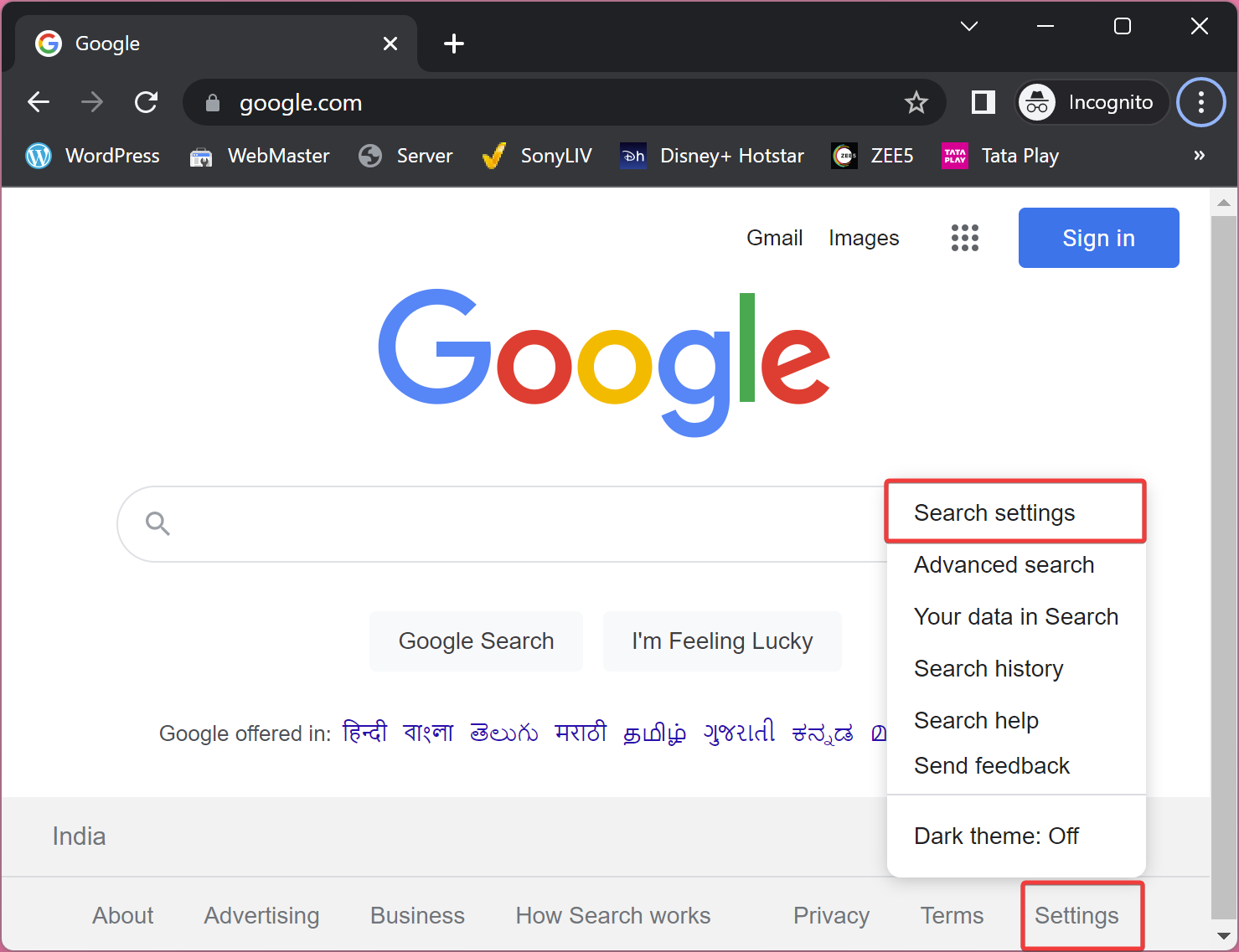
Step 3. Next, click on the Search settings in the pop-up menu.
Step 4. On the “Search Settings” page, select Search results in the left sidebar.
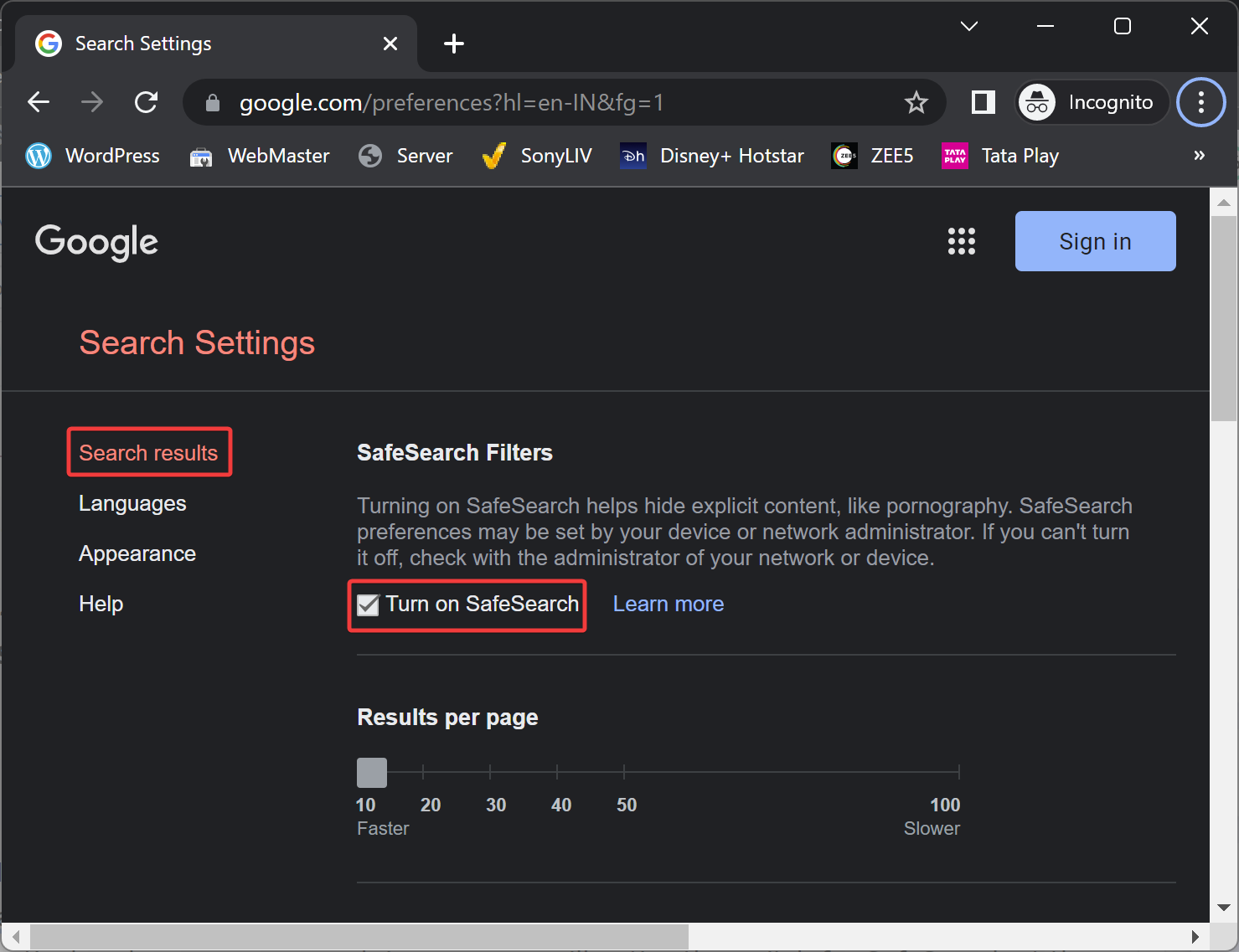
Step 4. On the right sidebar, under the “SafeSearch Filters” section, check the checkbox Turn on SafeSearch.
Step 5. Now, scroll down to the bottom and click on the Save button to save the changes.
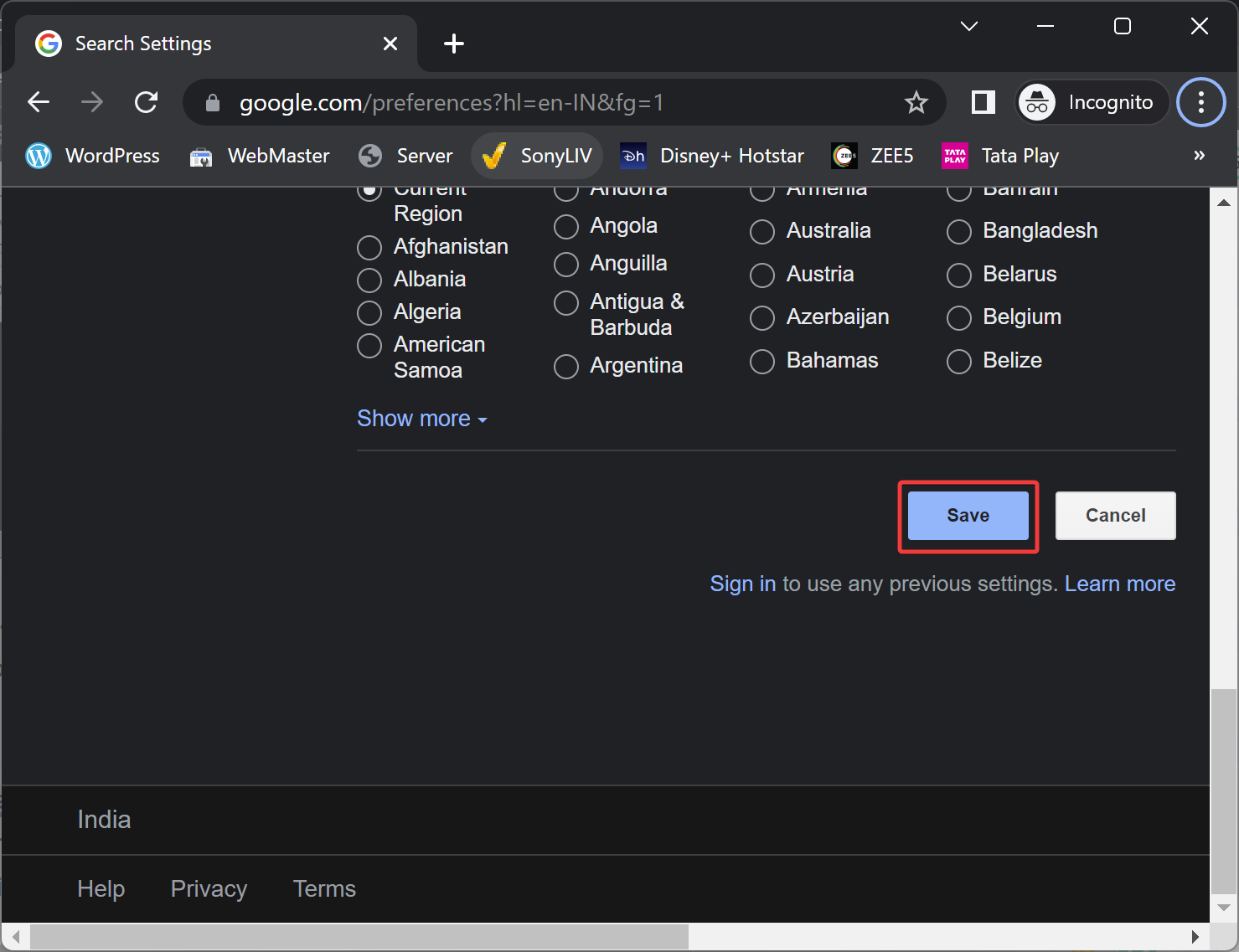
Once you execute the above steps, SafeSearch in Google Search will be enabled, and when you search for anything, it will be filtered before appearing in the search results.
Please note that SafeSearch is designed to filter out explicit results. However, its filter is not 100% accurate. If explicit results still appear even if SafeSearch is on, you can report it to Google.
Alternative Way to Block Adult Content: Use DNS Angel
While Google SafeSearch helps filter explicit content in search results, it doesn’t block access to adult websites directly. To add an extra layer of protection, you can use a free tool called DNS Angel.
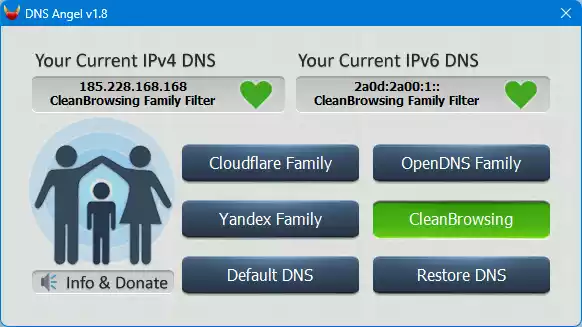
DNS Angel automatically sets your DNS servers to family-friendly providers like CleanBrowsing or Yandex Family, which block adult content across all browsers and apps on your PC.
This method is useful if you want to restrict access to inappropriate websites, even outside of Google Search.
How to Use DNS Angel?
Step 1. Download DNS Angel from the official Sordum website.
Step 2. Extract the ZIP file and run DNSAngel.exe (no installation required).
Step 3. Click on any of the listed DNS providers, such as CleanBrowsing Family or Yandex Family. Your system DNS will update instantly to block adult content.
Step 4. To restore the default settings, click the Default DNS or Restore DNS button.
Note: DNS Angel changes DNS settings only for the current user account. For full control, combine it with Google SafeSearch for better filtering.
Conclusion
In conclusion, the internet is a vast resource with both useful and harmful content. Google, being the most popular search engine, has provided SafeSearch to filter out explicit and unsafe results from appearing in search results. SafeSearch is a great feature for parents and teachers to ensure kids are only accessing appropriate content online. Enabling SafeSearch is a quick and easy process, and parents can have peace of mind knowing their children are browsing the internet safely. However, it is important to note that SafeSearch is not 100% accurate, and if explicit results still appear, they can be reported to Google. Additionally, it is also important to enable Restricted Mode on YouTube for additional safety measures.