

In this gearupwindows guide, we’ll show you how to extract files—such as drivers or utilities—from a .msi installer without installing the entire application. This method is helpful when you only need specific components or want to avoid unnecessary software installations.
What is an MSI File?
An .msi file is a Windows Installer package that contains all the resources needed to install a program, including drivers, executables, configuration files, and more. When you double-click it, Windows typically begins installing the software.
However, if you’re only interested in using a specific tool or driver inside that package, you can extract its contents without going through the full installation.
Why Extract Files from an MSI?
- Install drivers manually without installing unnecessary software.
- Access portable utilities packaged inside the MSI.
- Check files for safety or compatibility before running the full installer.
- Save storage space by using only the parts you need.
How to Extract MSI Files Using Command Prompt?
You don’t need any third-party tools. Windows includes a built-in utility called msiexec that makes this process easy. Follow these steps:
Step 1. Press Windows + X and select Terminal (Admin) or Command Prompt (Admin).
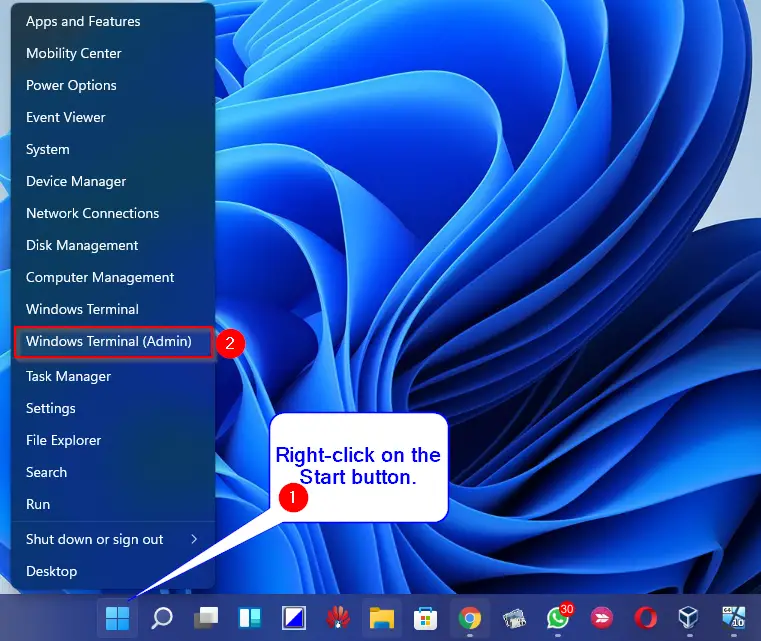
Step 2. Type the following command and press Enter (update the paths as needed):
msiexec /a "C:\Path\To\YourFile.msi" /qb TARGETDIR="C:\ExtractedFolder"
Explanation of switches:
- /a – Performs an administrative installation, extracting the contents.
- /qb – Displays a basic interface with a progress bar.
- TARGETDIR – Defines the folder where extracted files will be saved.

Step 3. Once the process is complete, open File Explorer and go to C:\ExtractedFolder. You’ll find all the contents of the MSI file extracted there.
Silent Extraction (No Window Pop-Up)
If you want to extract files silently without any visible interface, use this command with the /quiet switch:
msiexec /a "C:\Path\To\YourFile.msi" /quiet TARGETDIR="C:\ExtractedFolder"
This method runs the extraction in the background, making it ideal for scripting and automation.
What You Can Do with Extracted MSI Files
- Manually install drivers using Device Manager by pointing it to extracted .INF or .SYS files.
- Run standalone tools found inside the MSI without installing the full application.
- Backup installation files for future deployment on other systems.
Bonus Tips
If you’re working with other compressed or packaged file types, the following guides may help:
- You can easily mount ISO files in Windows 11 without using third-party tools.
- Ashampoo ZIP Free lets you compress and extract various formats, including ZIP, CAB, and MSI.
Conclusion
Extracting files from an .msi installer is a useful trick that saves time and avoids unnecessary installations. It also gives you more control over which components are added to your system. Using a simple msiexec command, you can access the internal contents of any MSI file on Windows 11, 10, 8, or 7 without installing the entire application.