

VirtualBox is a powerful and free virtualization software that enables users to test or install an operating system without affecting their host operating system. It allows the guest operating system to run simultaneously with the host OS, and any software installed on the guest OS will not impact the host. This makes VirtualBox a safe and secure option for testing new operating systems or applications.
VirtualBox supports a wide range of host operating systems, including Windows, Linux, Macintosh, and Solaris, along with various guest operating systems such as Windows (NT 4.0, 2000, XP, Server 2003, Vista, Windows 7, Windows 8, Windows 10), DOS/Windows 3.x, Linux (2.4, 2.6, 3.x, and 4.x), Solaris and OpenSolaris, OS/2, and OpenBSD.
In this article, we will guide you on how to install Windows 10 on a virtual machine using VirtualBox. The host operating system used in this tutorial is Windows 10. By following this step-by-step guide, you can easily install Windows 10 on a virtual machine using VirtualBox.
How to install Windows 10 on Oracle VM VirtualBox?
Follow these steps to install Windows 10 on Oracle VM VirtualBox:-
Step 1. To install Windows 10 or any other operating system on VirtualBox, first install VirtualBox on the host machine. You can download and install VirtualBox freeware from here.
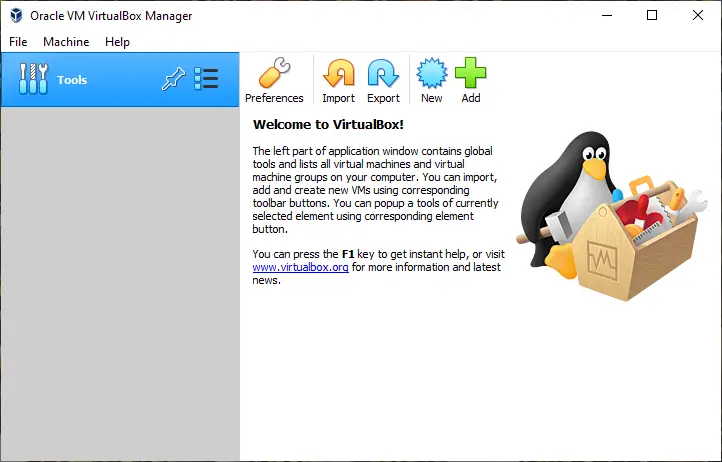
Step 2. Run VirtualBox from the Desktop shortcut.
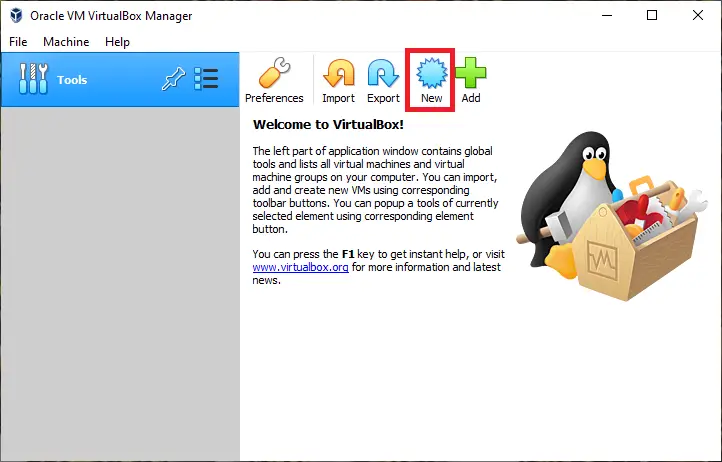
Step 3. Click on the New button to create a new virtual machine.
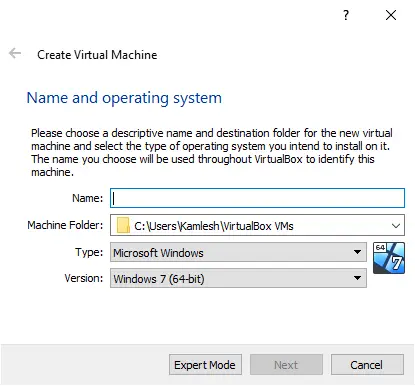
Step 4. Under the “Create Virtual Machine” window, provide a name for your virtual machine, select the location to store it, and choose the operating system type and version.
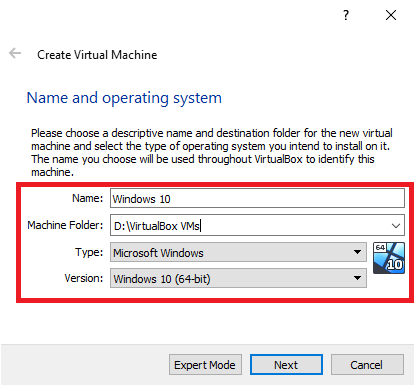
Step 5. Once the virtual machine details are filled in, click the Next button.
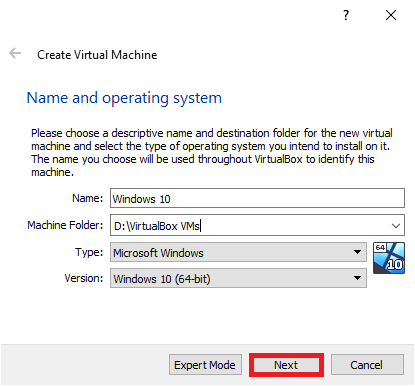
Step 6. On the next window, specify the RAM size for the virtual machine. Use the slider to adjust the memory allocation.
Note: 2 GB RAM is recommended for a 64-bit OS, and at least 1 GB RAM for a 32-bit OS. Adjust according to your PC’s capacity.
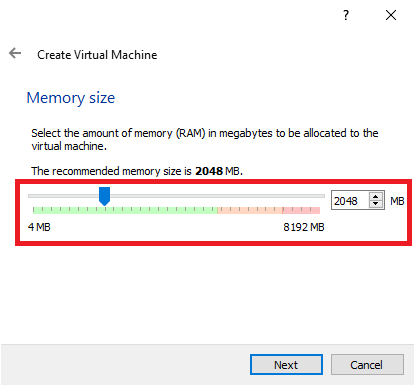
Step 7. After setting the RAM size, click Next.
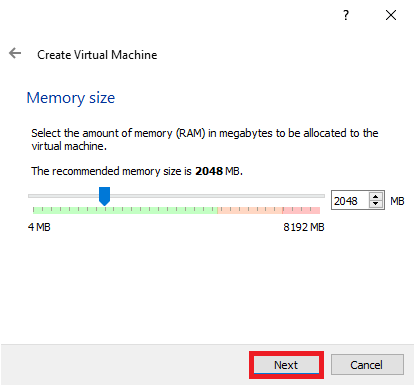
Step 8. Select “Create a virtual hard disk now” and proceed.
Step 9. Keep the default option VDI (VirtualBox Disk Image) as the hard disk type.
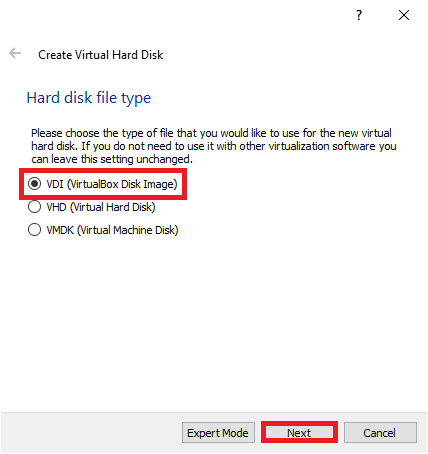
Step 10. Click Next.
Step 11. Choose either Dynamically allocated or Fixed size under “Storage on physical hard disk.” Dynamically allocated allows automatic disk size adjustment but may affect performance. Fixed size sets a defined storage size.
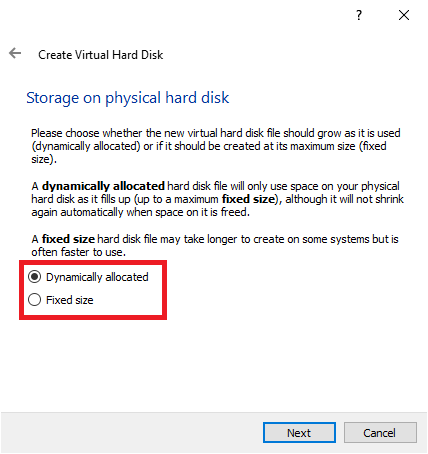
Step 12. After selecting your preferred option, click Next.
Note: We selected Dynamically allocated.
Step 13. Use the slider to specify the maximum size of your virtual hard disk. VirtualBox will not exceed this limit.
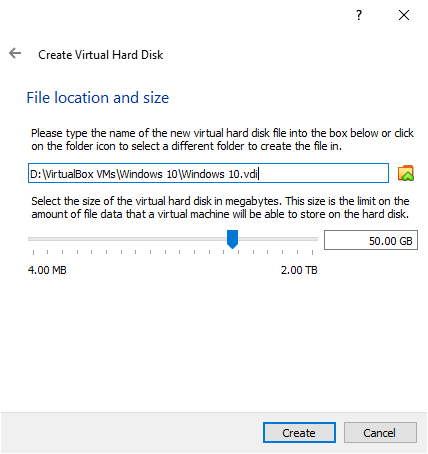
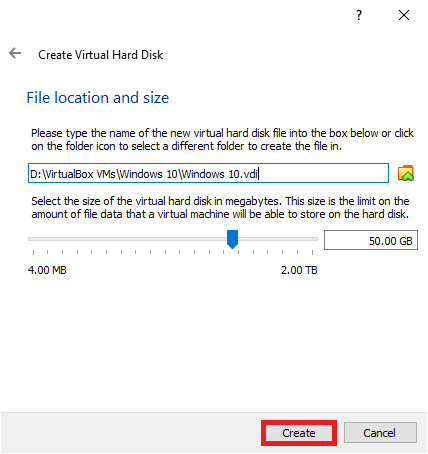
Step 14. Click Create to finalize the virtual hard disk.
Step 15. Your virtual machine is now created and will display its details.
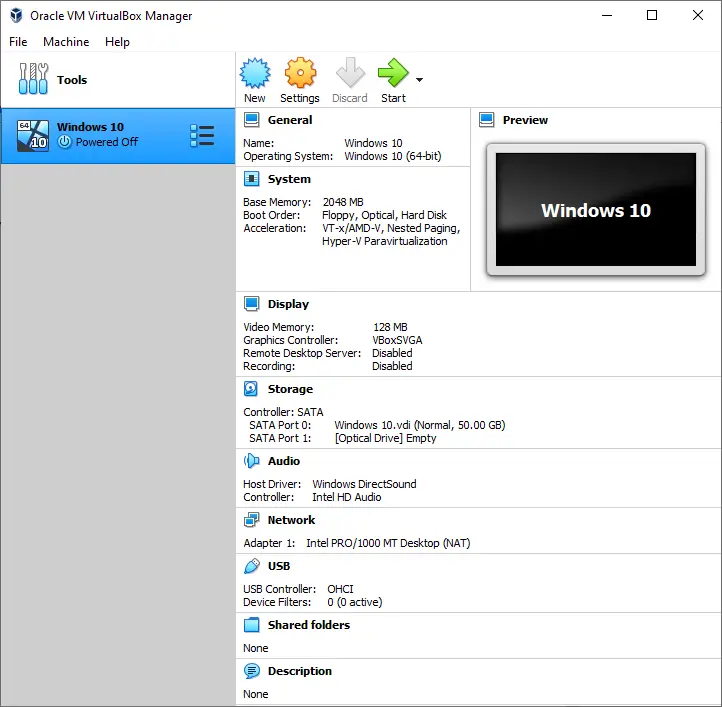
Step 16. Now that the virtual machine is ready, proceed to install Windows 10. You’ll need a bootable Windows 10 USB, DVD, or ISO. We recommend using a bootable ISO file. If you don’t have one, you can download it from here.
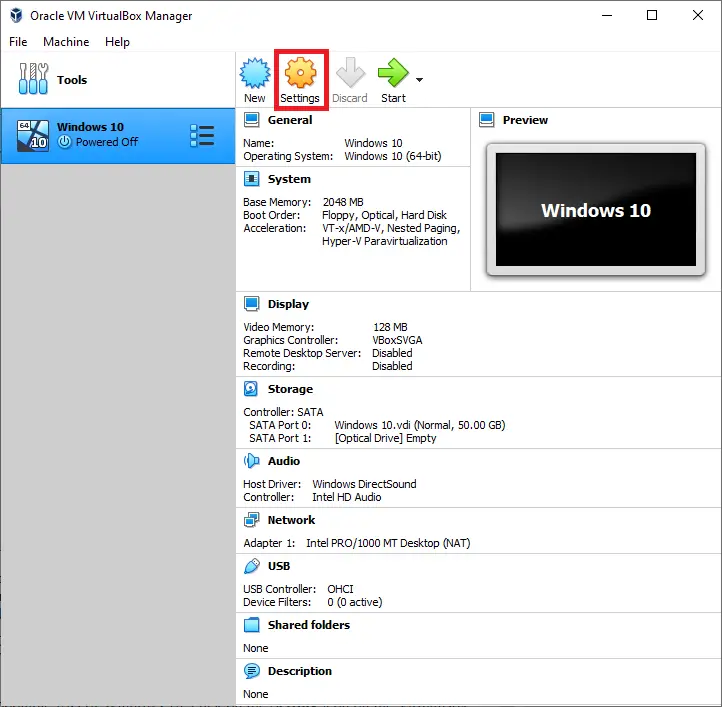
Once ready, click the VirtualBox Settings icon.
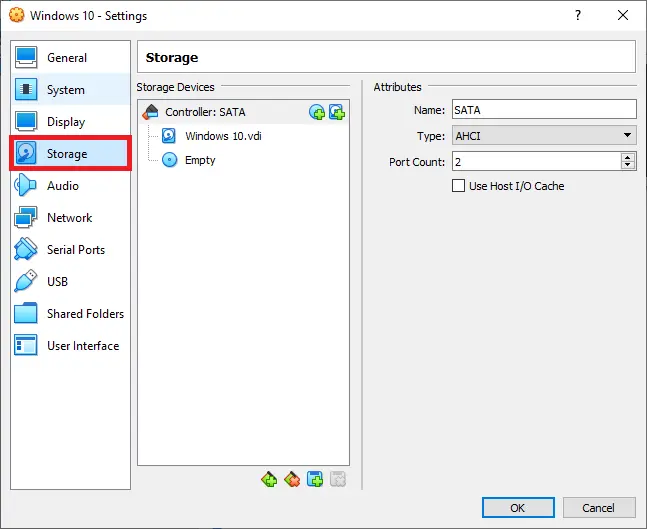
Step 17. In the Settings window, click Storage from the left panel.
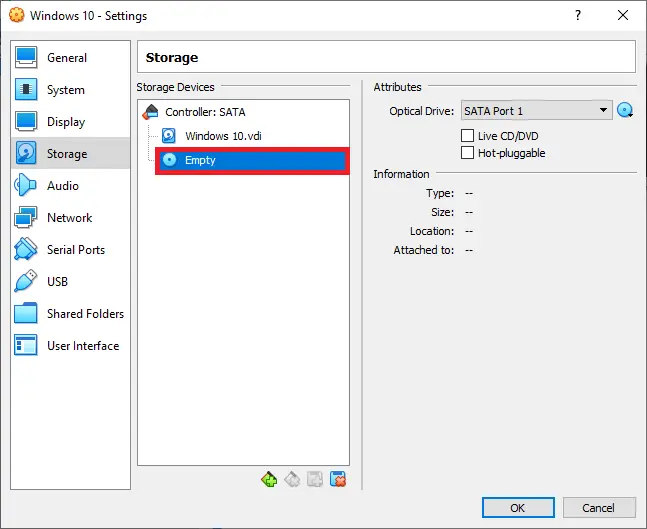
Step 18. Under Storage, click on Empty.
Step 19. Click the CD icon next to Optical Drive.
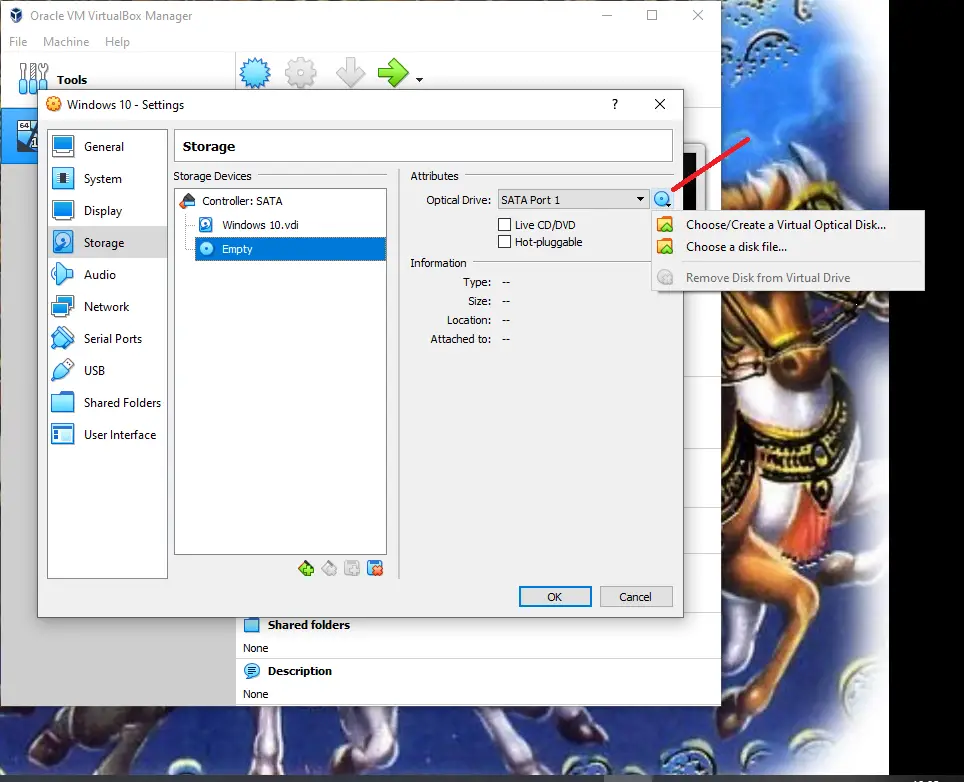
Step 20. From the menu, select “Choose/Create a Virtual Optical Disk.”
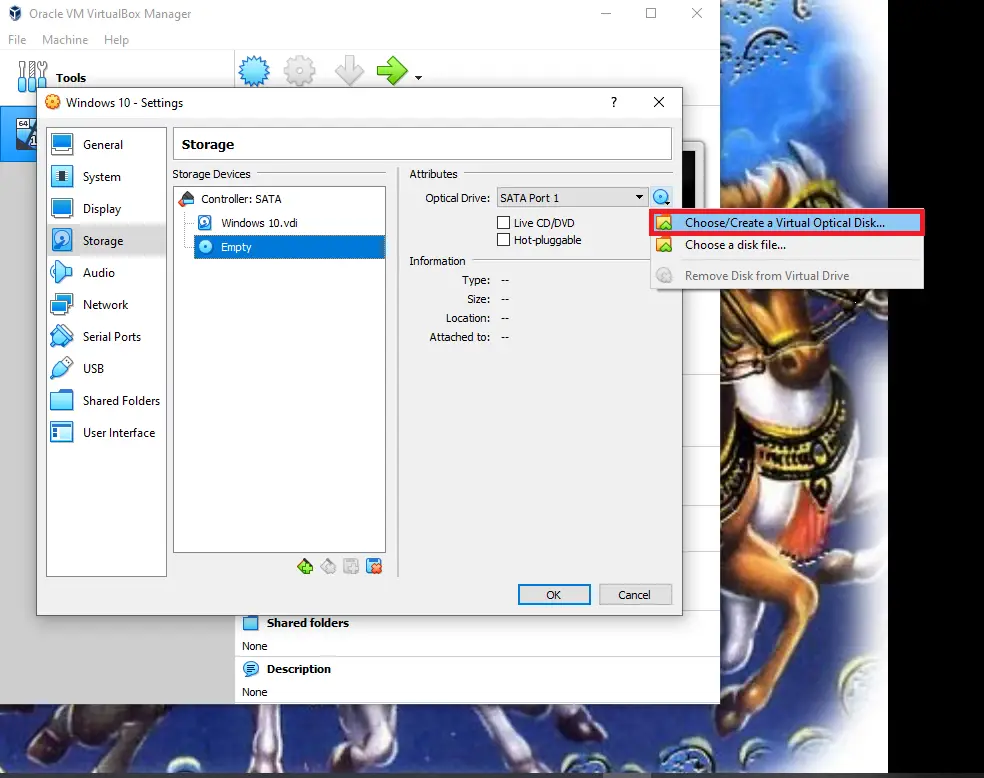
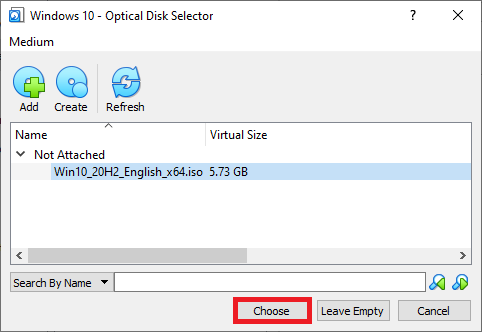
Step 21. In the Optical Disk Selector, click Add.
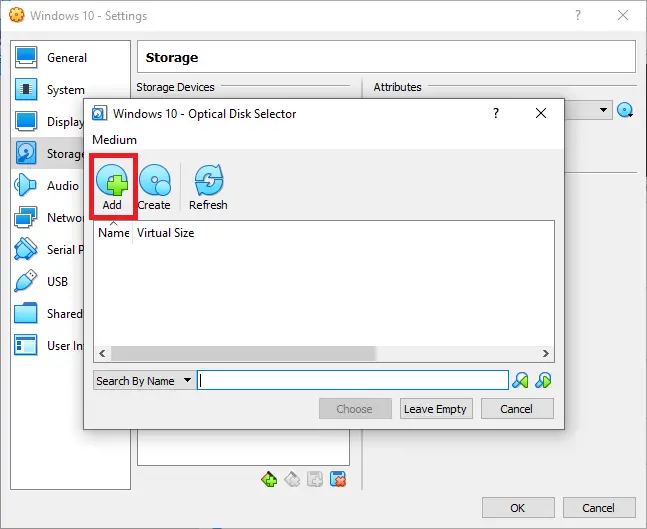
Step 22. Select the Windows 10 ISO file from your PC.
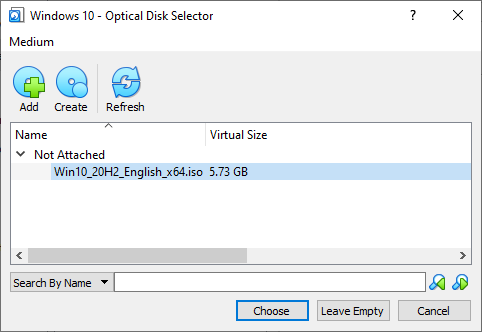
Step 23. Click Choose to attach the ISO to the virtual machine.
Step 24. You should now see the ISO file in place of Empty.
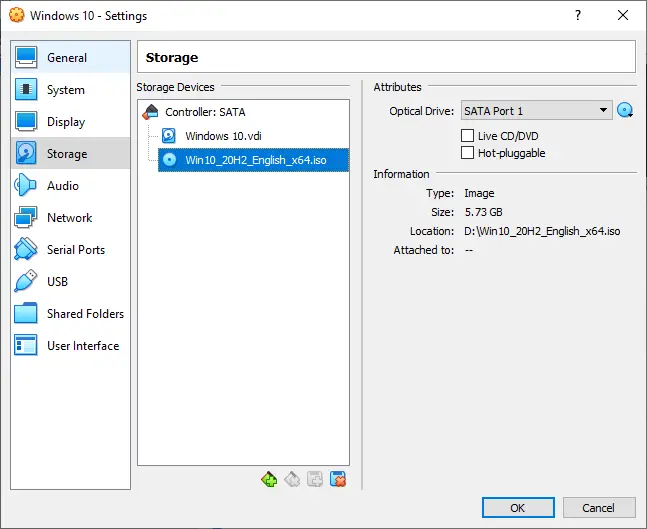
Step 25. Click OK.
Step 26. Click Start to begin the installation.
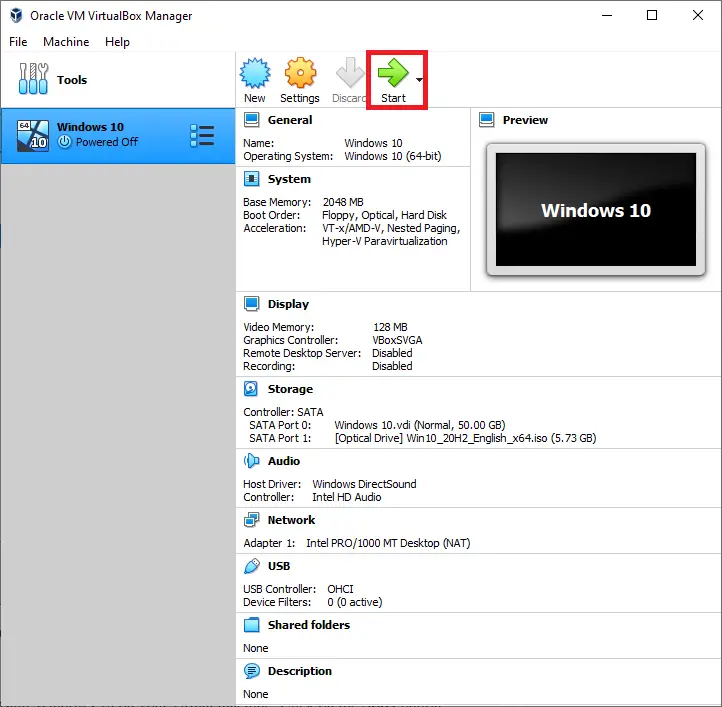
Step 27. Click Start again.
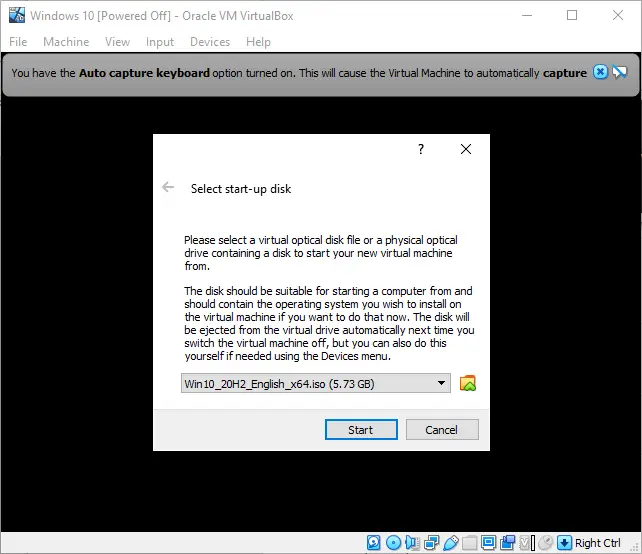
Step 28. The virtual machine will now boot from the ISO, starting the Windows 10 installation.
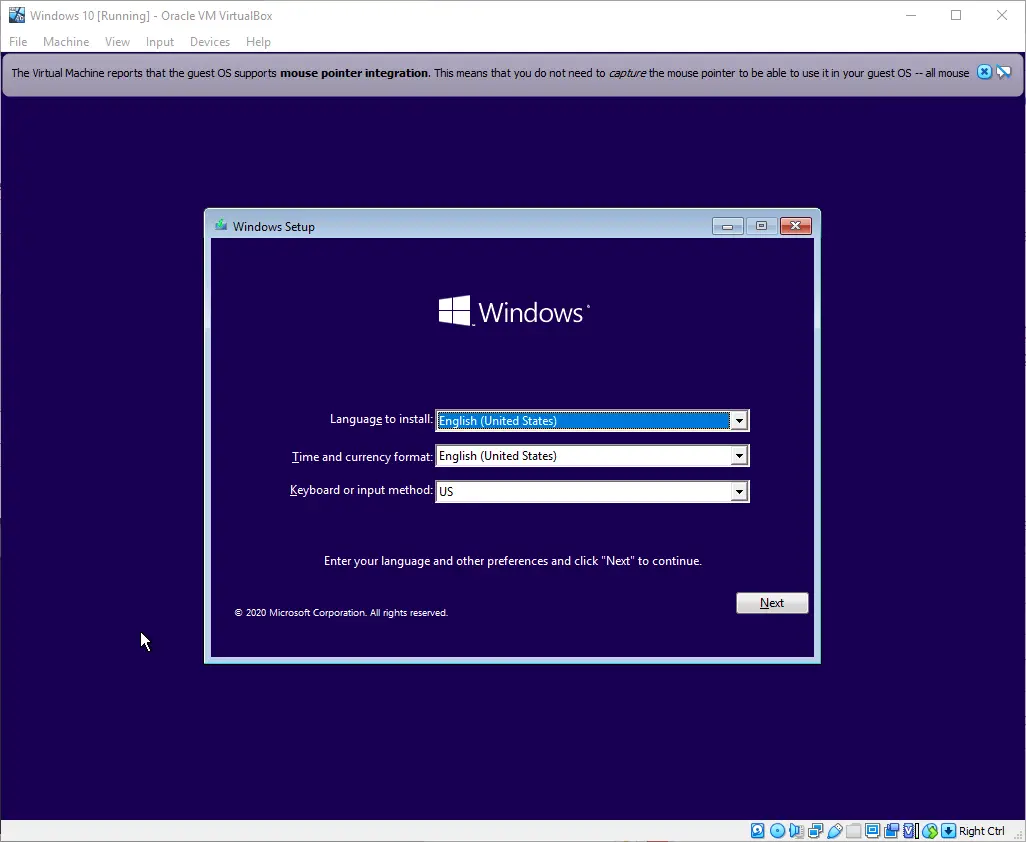
Step 29. Select language and other preferences, then click the Next button.
Step 30. Click Install now to begin installing Windows 10.
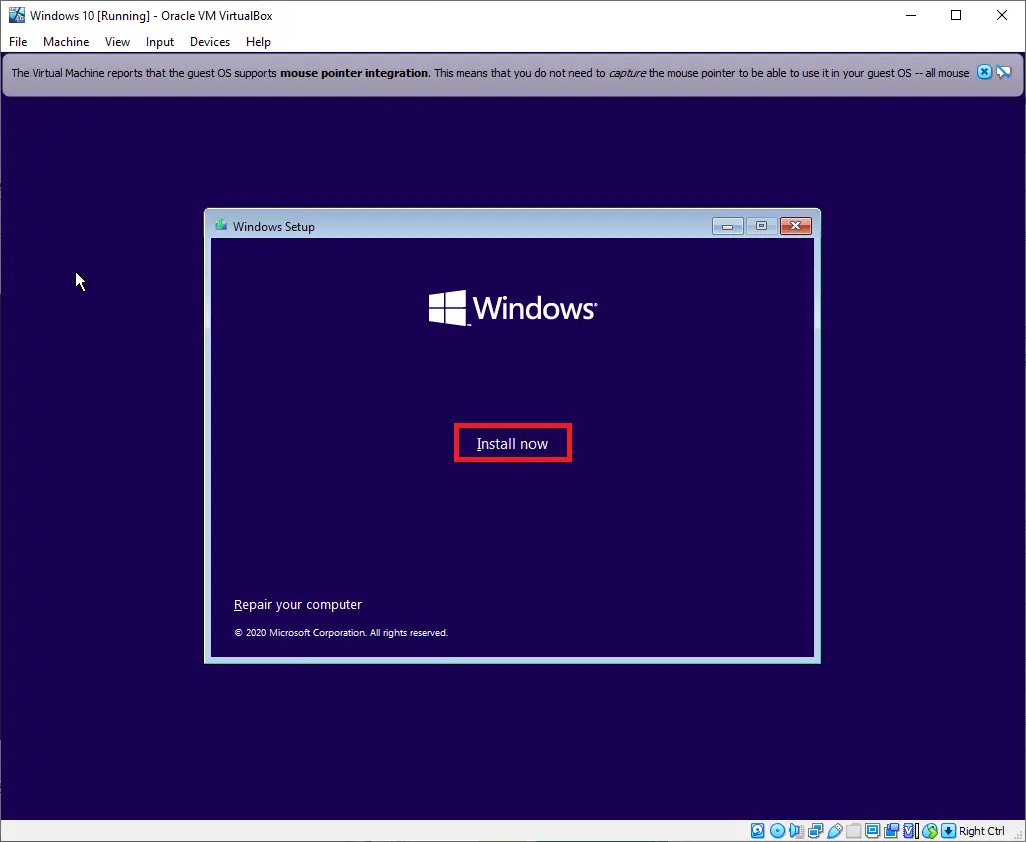
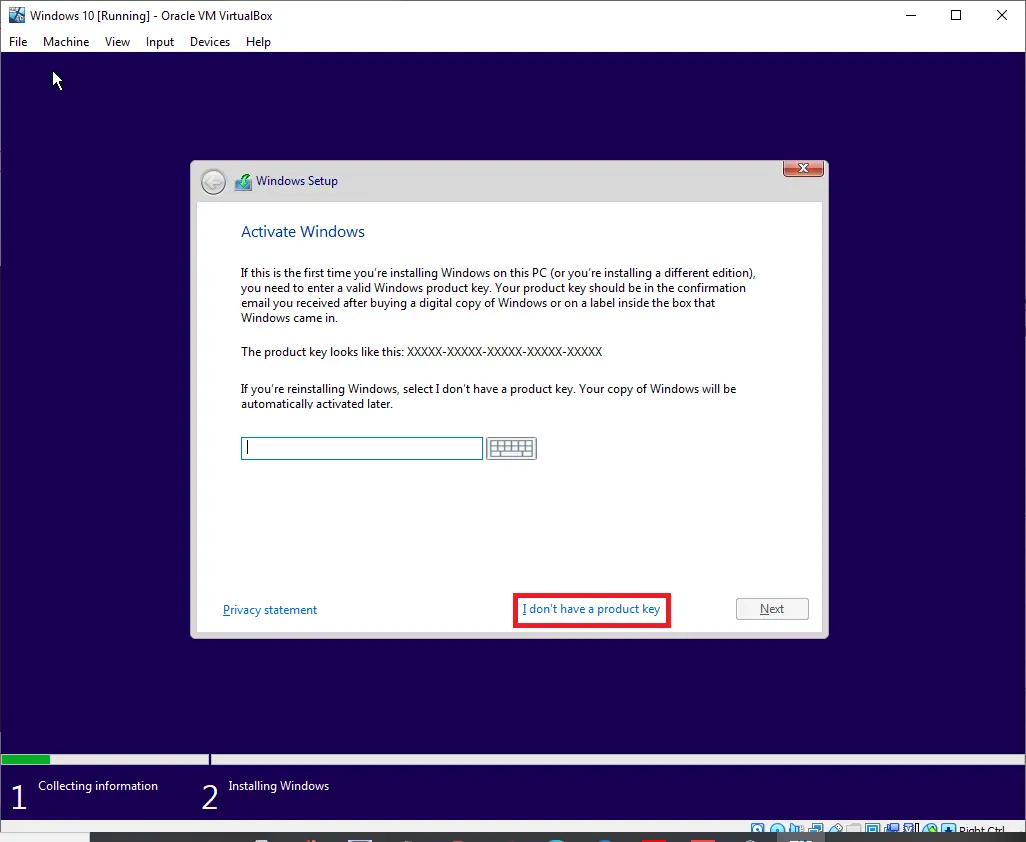
Step 31. If prompted for a key, enter your genuine Windows 10 product key. If you don’t have one, click “I don’t have a product key.”
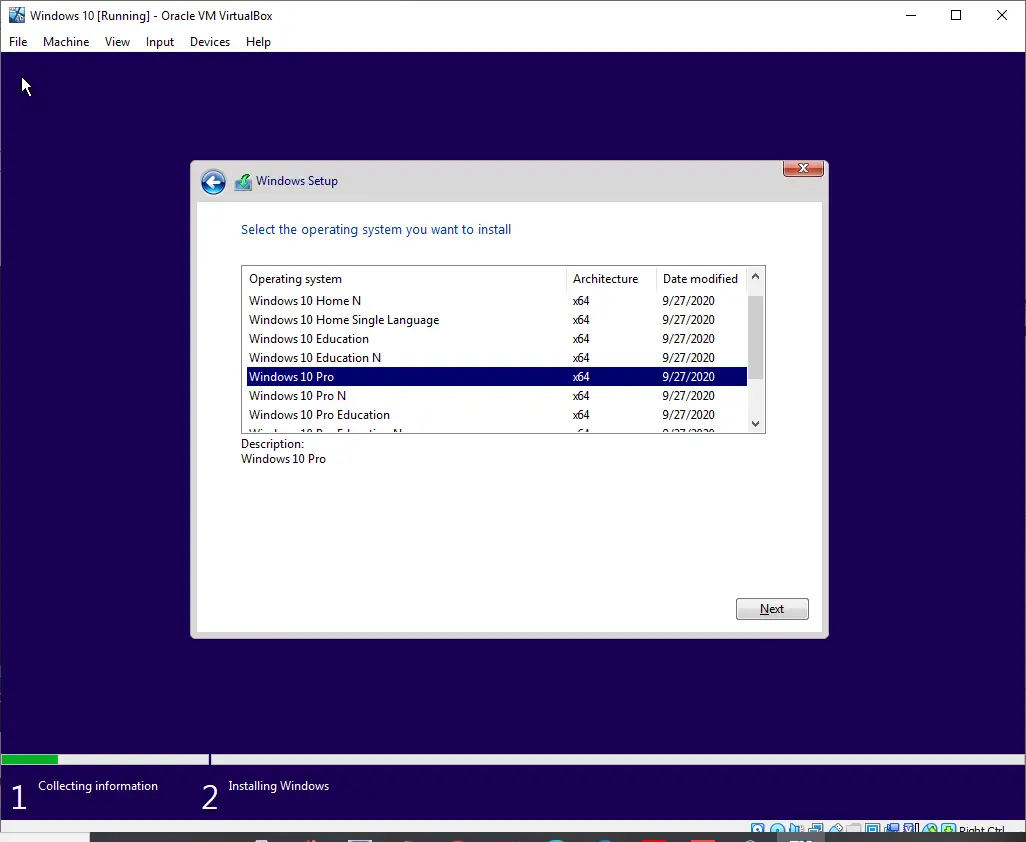
Step 32. Choose the edition of Windows 10 you want to install and click Next.
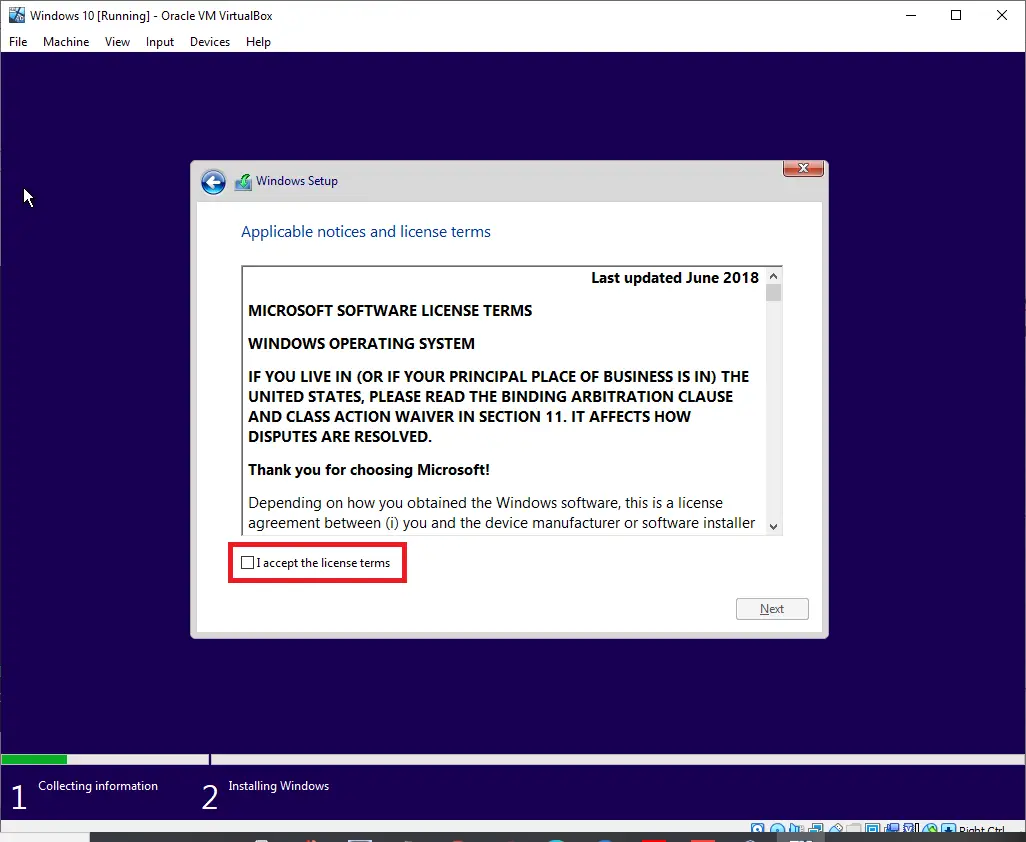
Step 33. Accept the license agreement by selecting “I accept the license terms” and click Next.
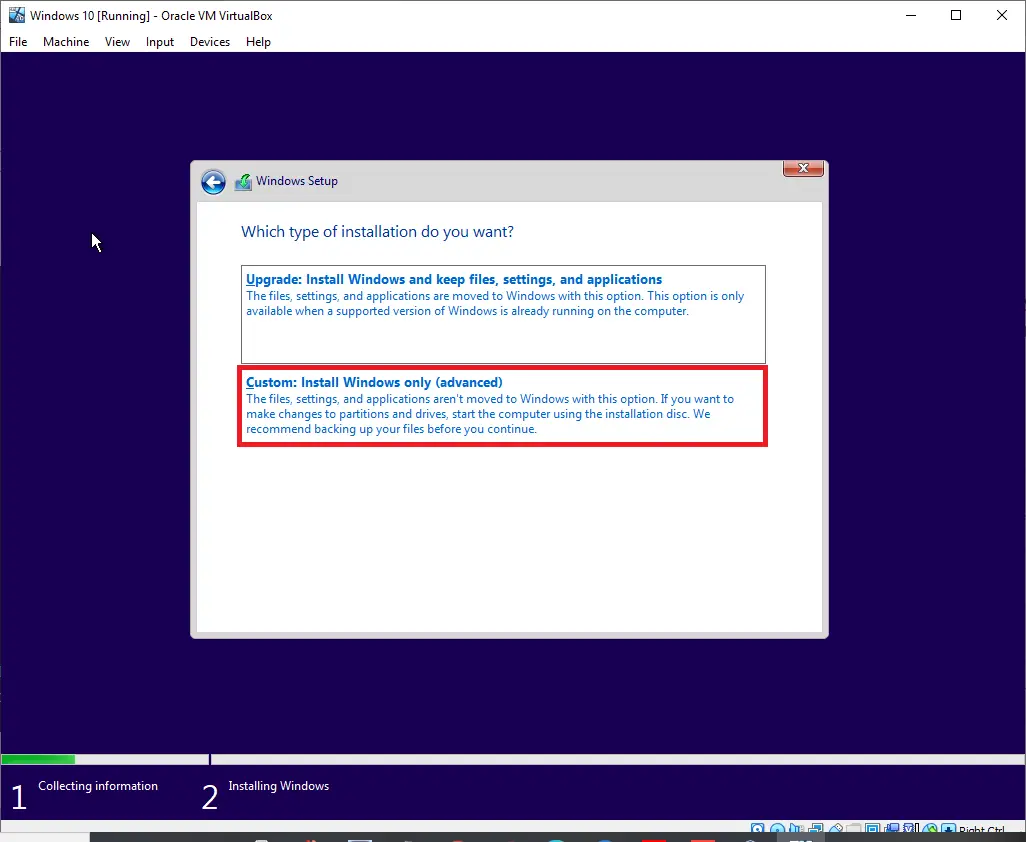
Step 34. Since you’re performing a fresh installation, choose “Custom: Install Windows only (advanced).”
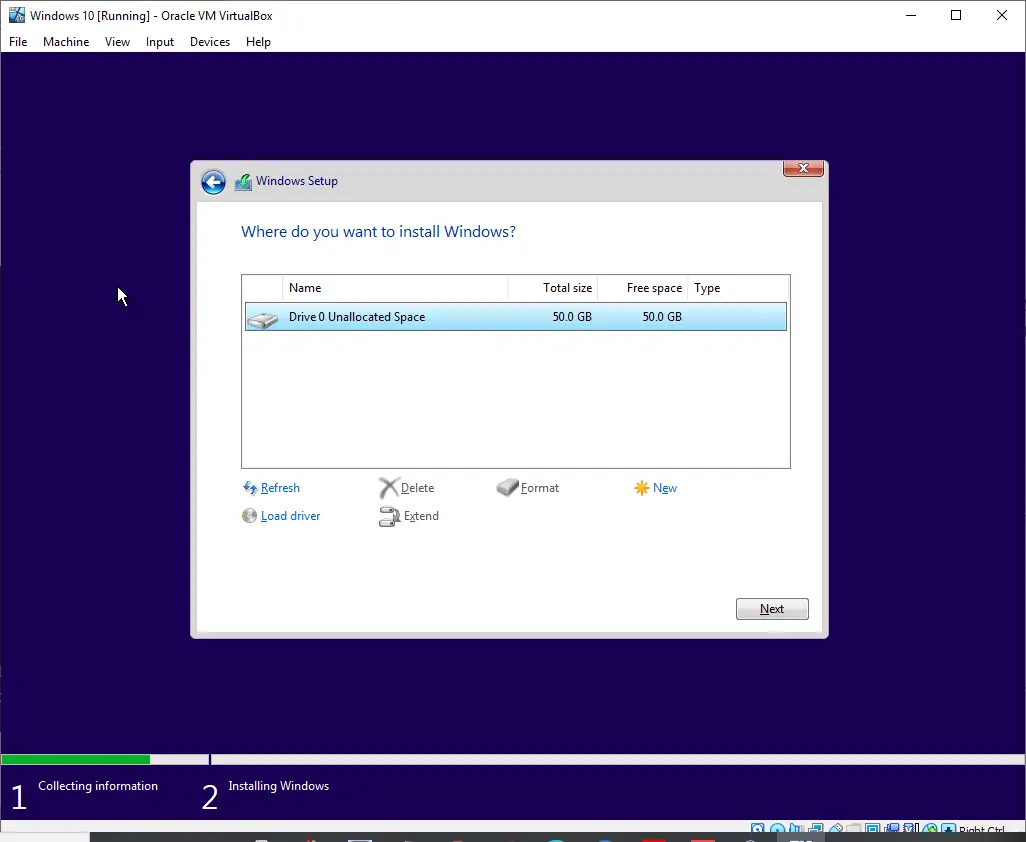
Step 35. Select the virtual hard drive and click Next.
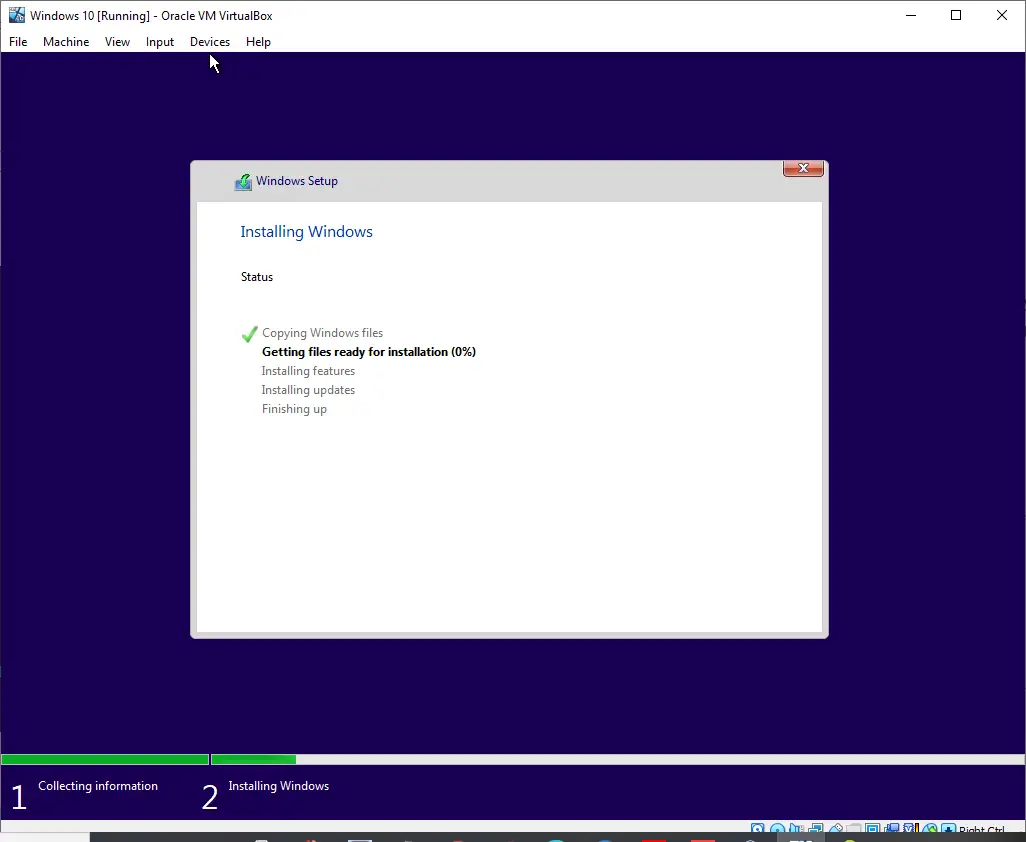
Step 36. You will now see the installation progress.
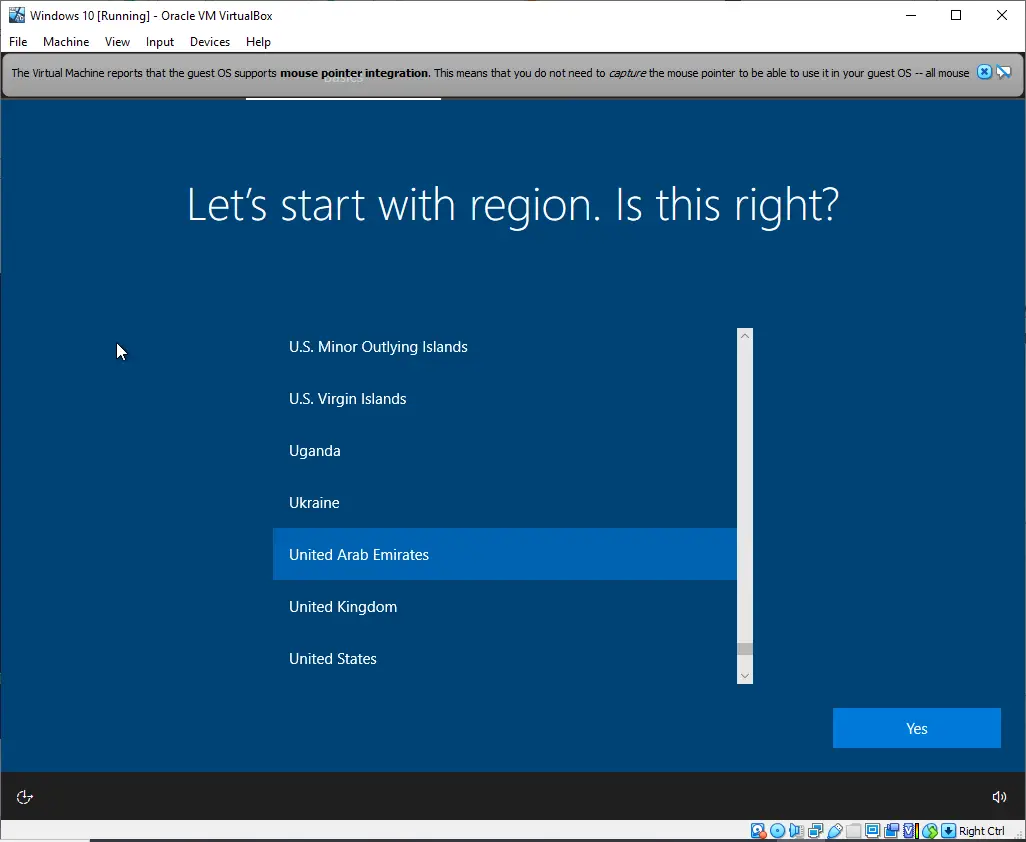
Step 37. Choose your country from the list and click the Yes button.
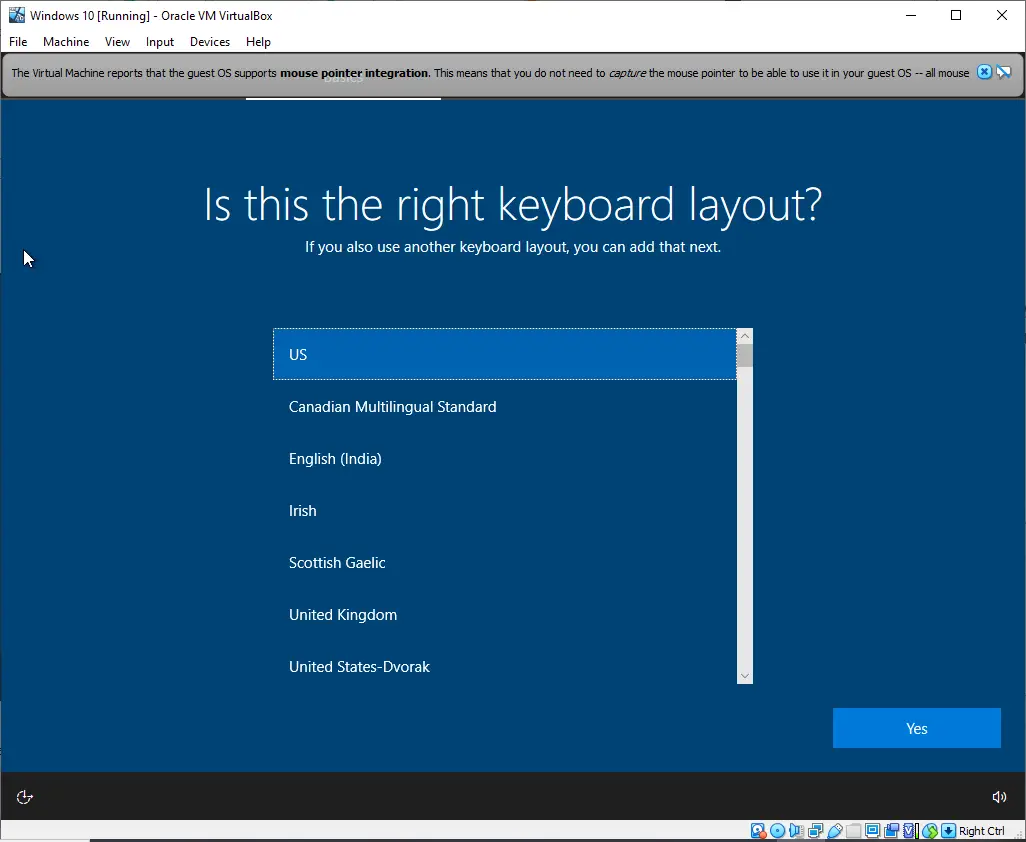
Step 38. Select your keyboard layout and click Yes.
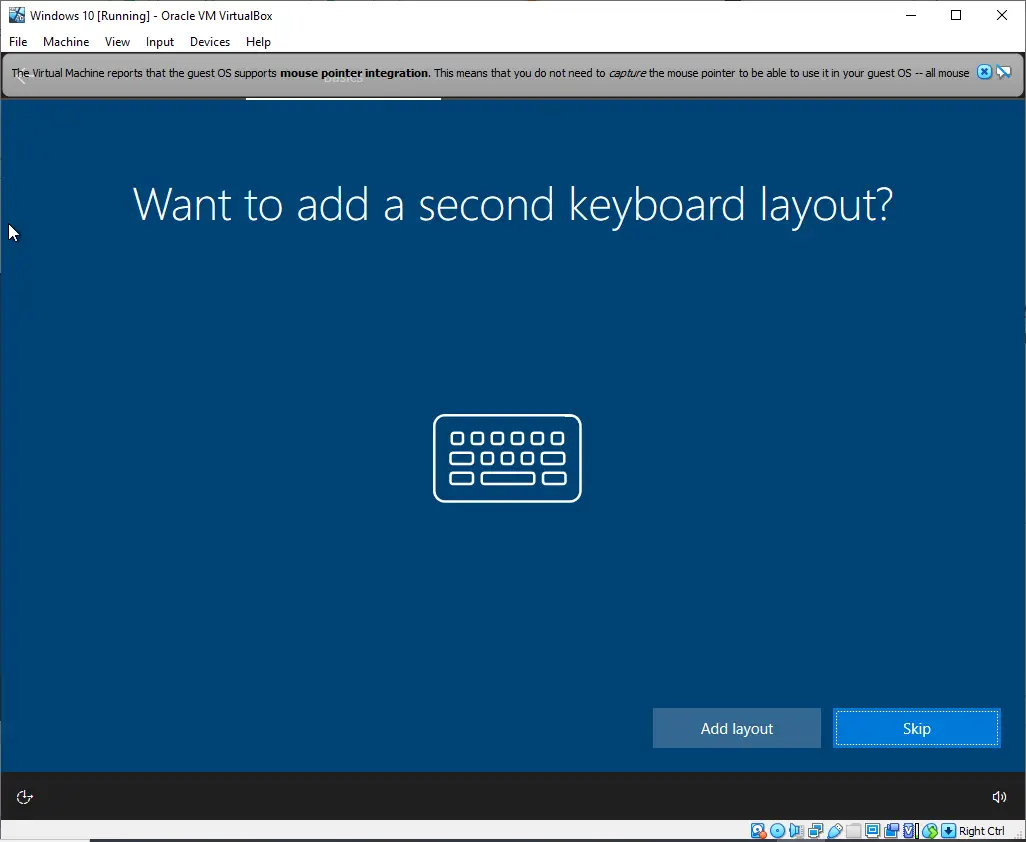
Step 39. If prompted to add a second keyboard layout, click Skip.
Step 40. Select “Set up for personal use.”
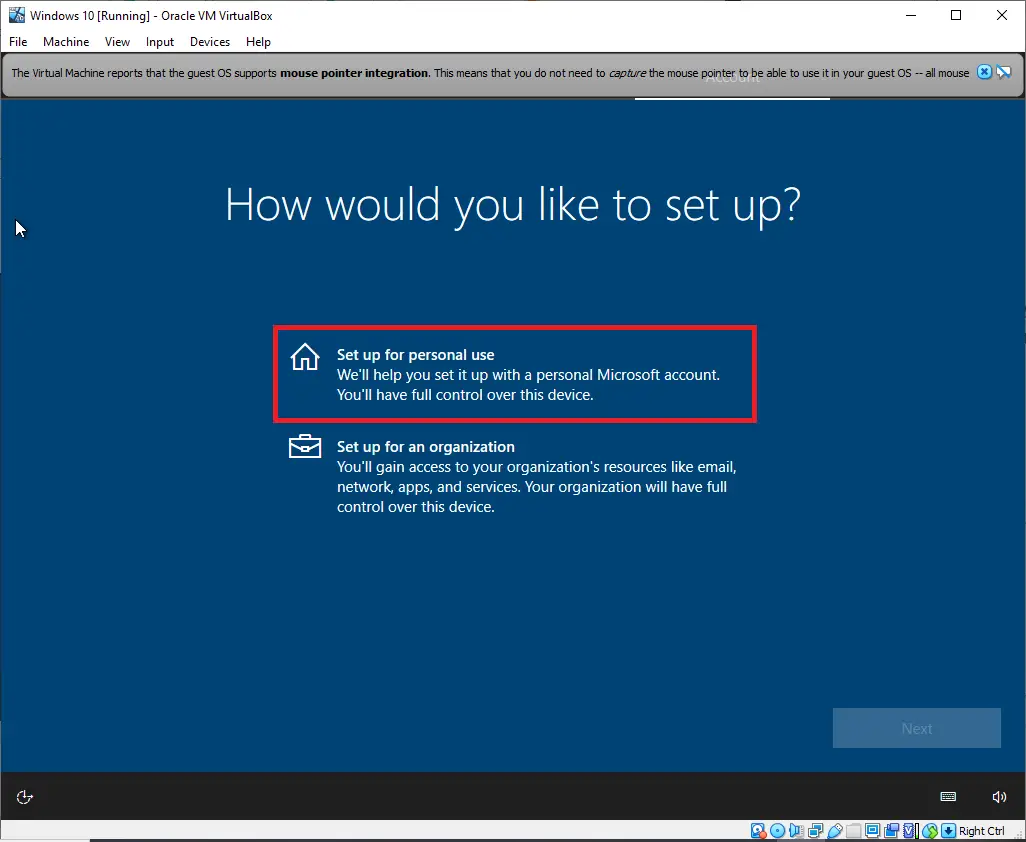
Step 41. Click Next.
Step 42. When asked to sign in, choose “Offline account” to create a local user.
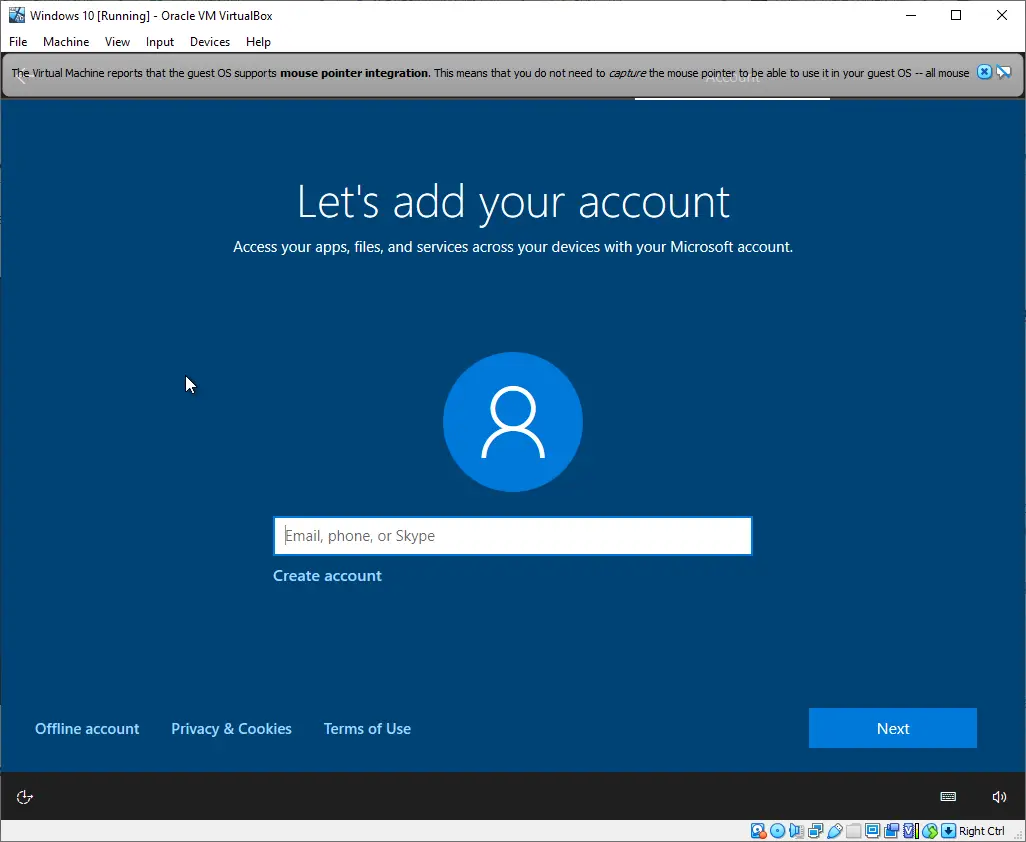
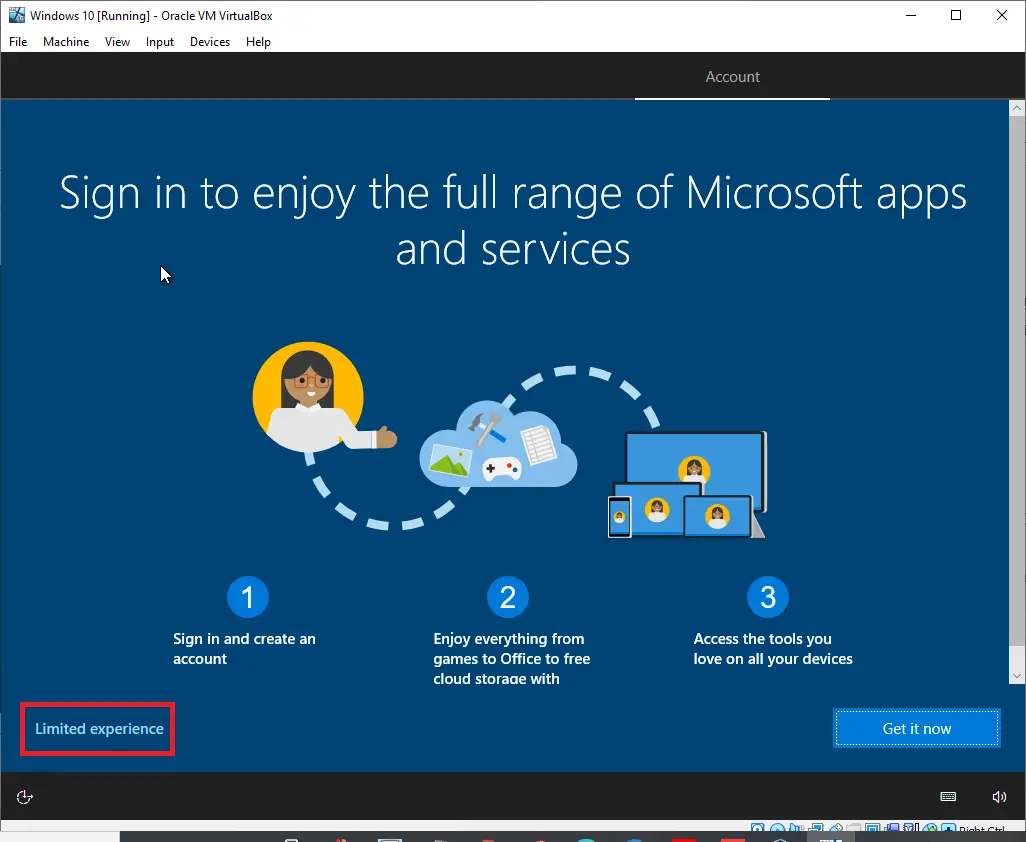
Step 43. Click Limited experience.
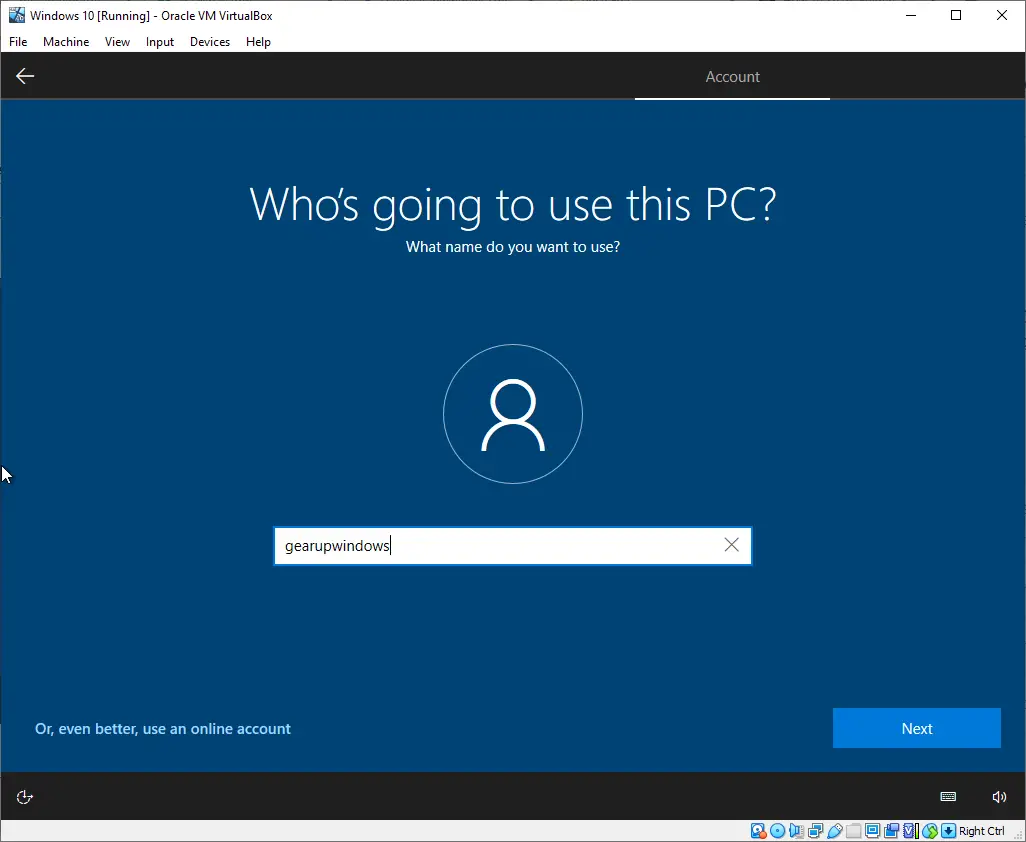
Step 44. Enter a user name and click Next.
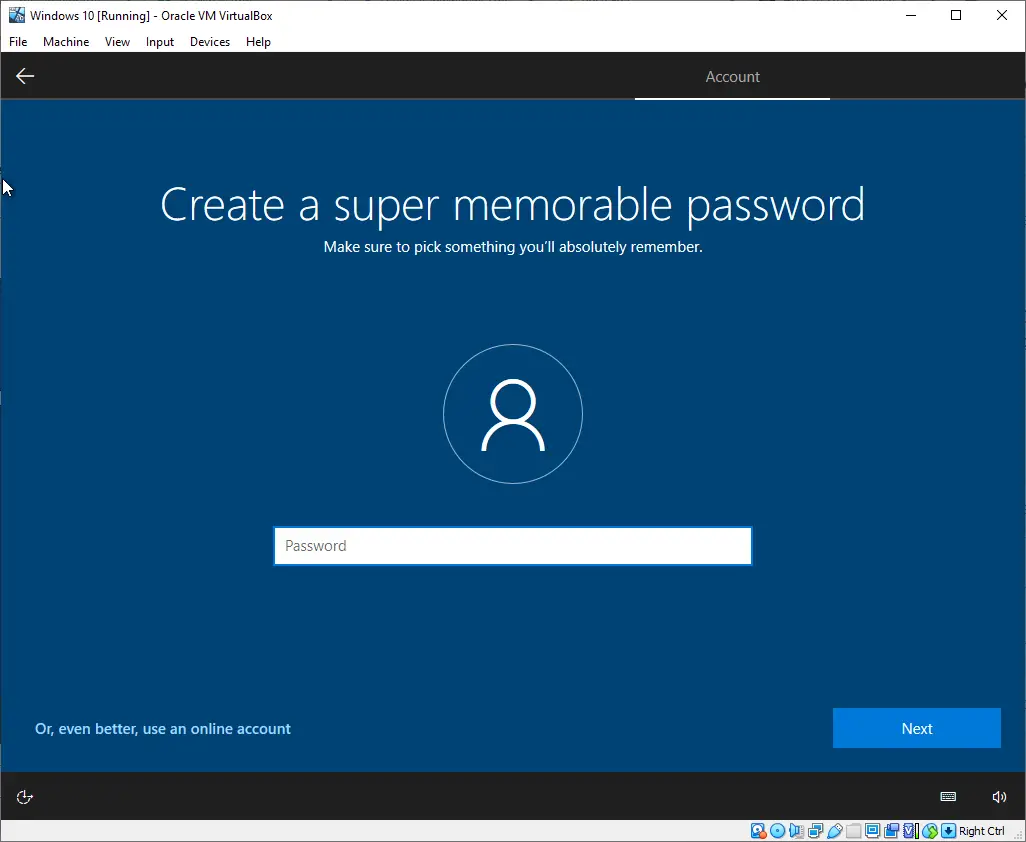
Step 45. Create a password and click Next.
Step 46. Confirm the password by typing it again, then click Next.
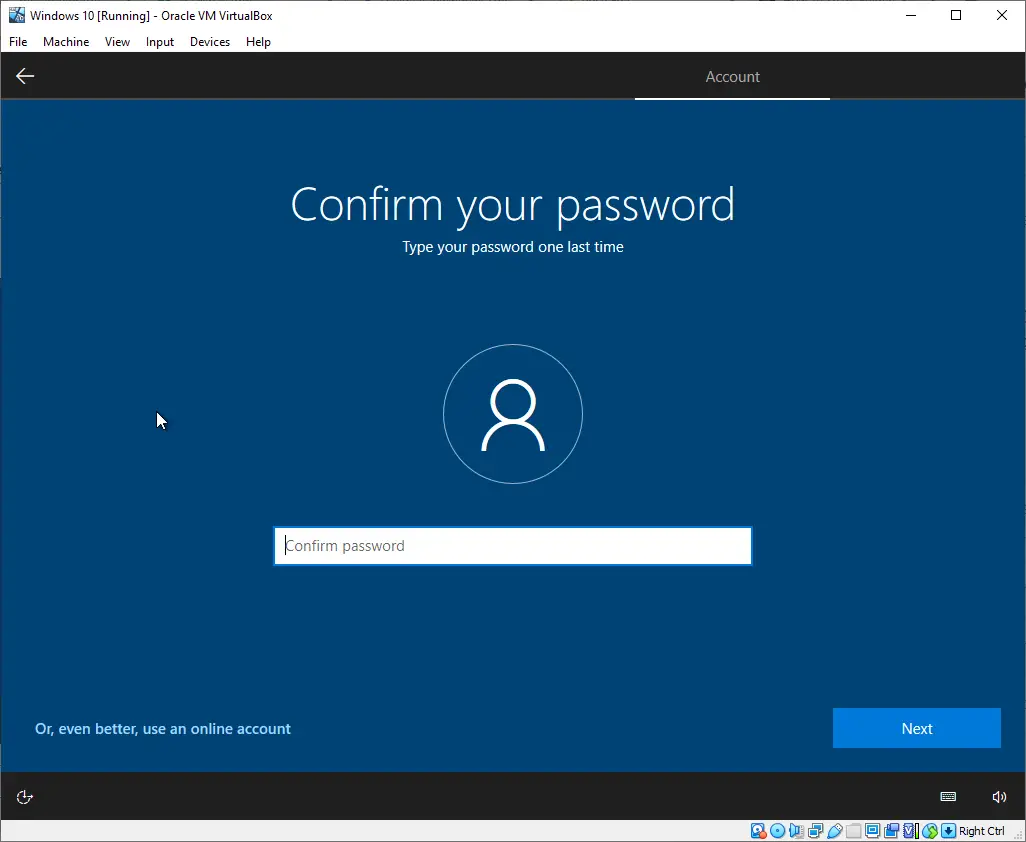
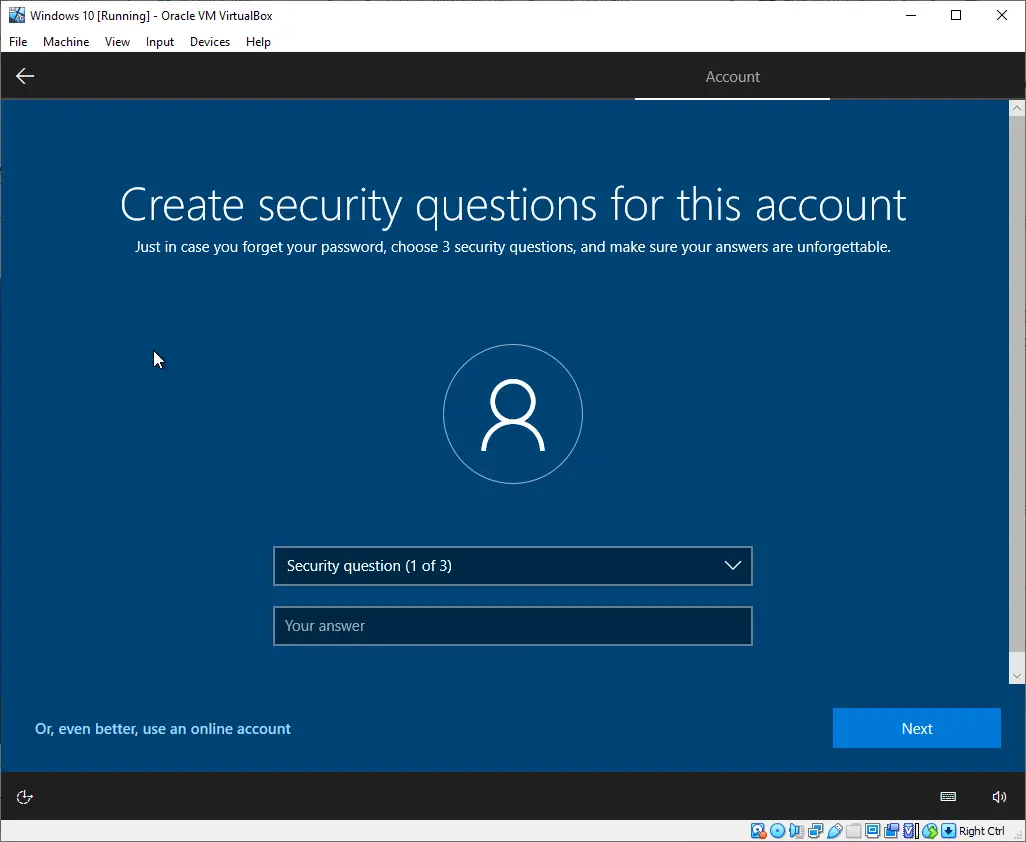
Step 47. Choose and answer three security questions, then click Next.
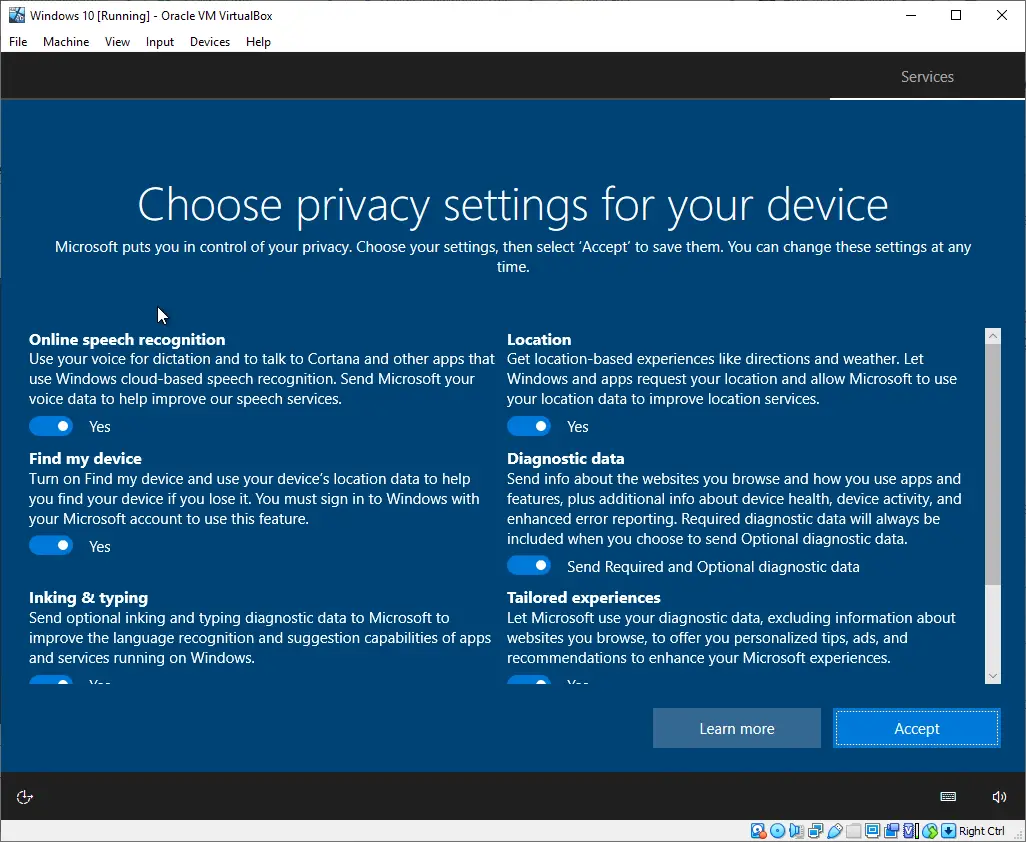
Step 48. On the privacy settings screen, click Accept.
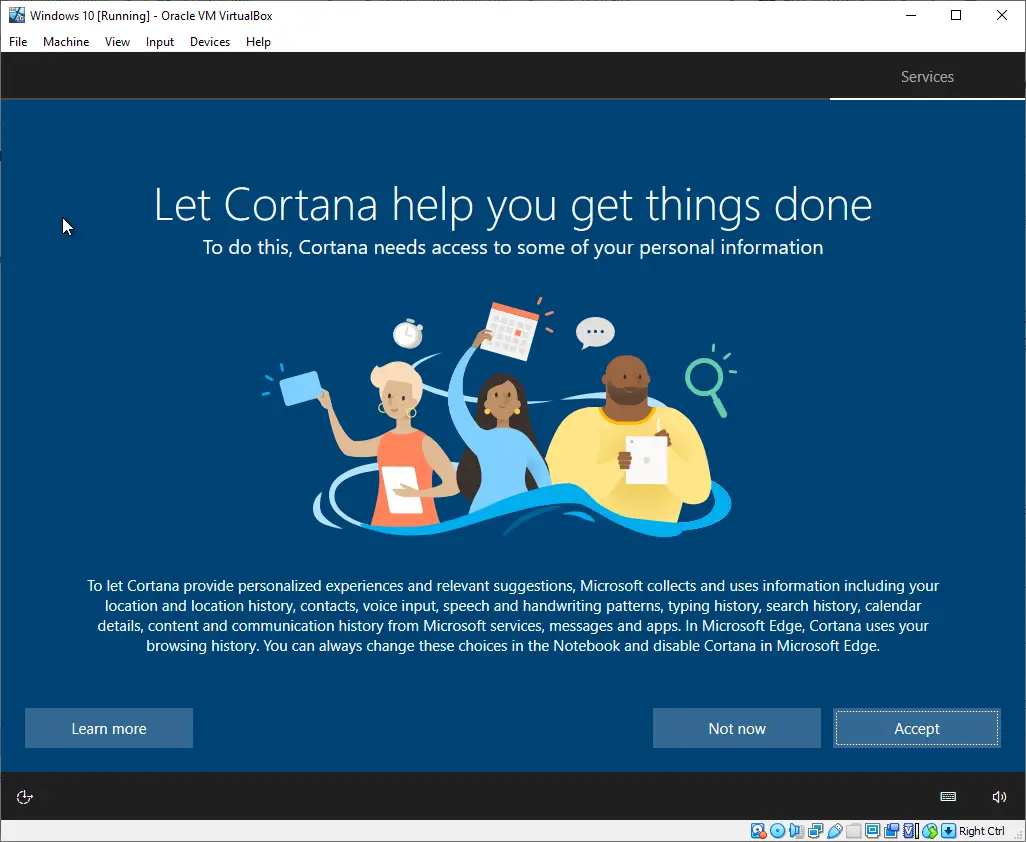
Step 49. Click Accept again on the Cortana setup screen.
Step 50. Windows 10 is now successfully installed and running on your virtual machine.
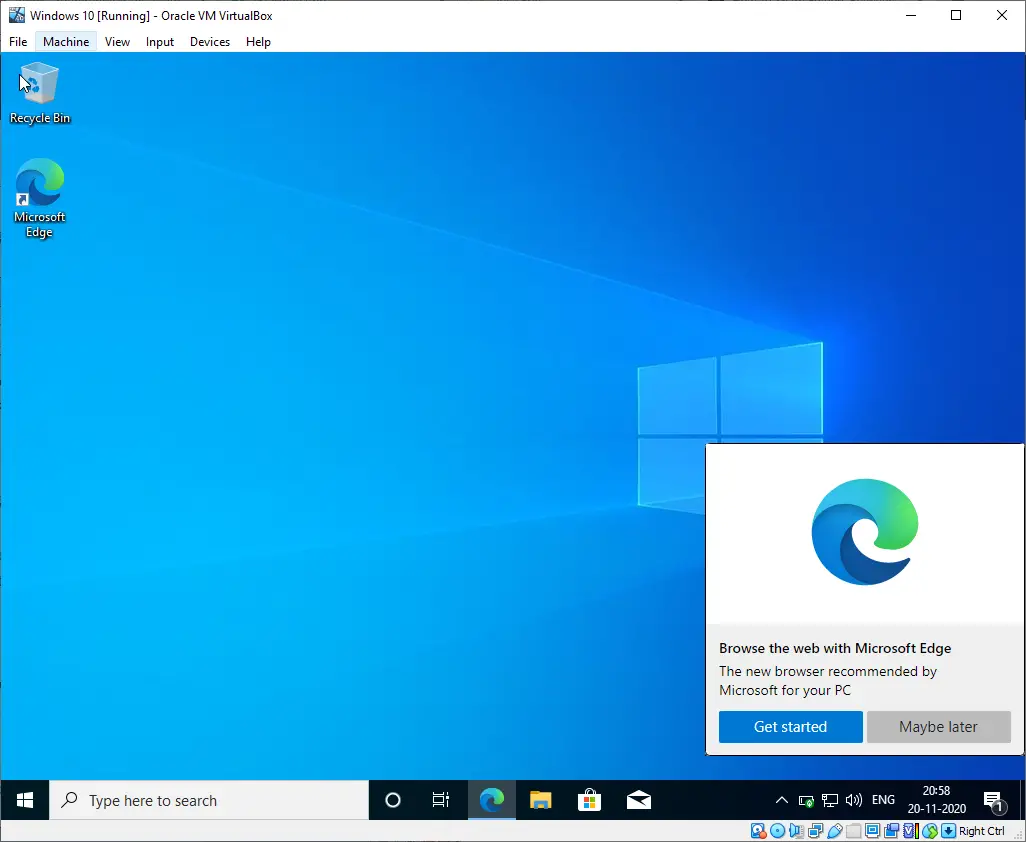
You can now use your virtual Windows 10 like a regular operating system. It will operate independently and will not affect your host OS.
FAQs
Is VirtualBox free to use?
Yes, Oracle VM VirtualBox is completely free for personal and educational use. It also supports a wide range of operating systems.
How much RAM should I assign to the Windows 10 virtual machine?
For smooth performance, allocate at least 2 GB of RAM for the 64-bit version of Windows 10. If your host PC allows, assigning 4 GB or more offers better results.
Do I need a product key to install Windows 10 in VirtualBox?
You can proceed without a key by selecting the “I don’t have a product key” option. However, activation is necessary if you want full personalization and feature access.
Can VirtualBox slow down my main computer?
Only if you allocate too many resources (RAM/CPU) to the virtual machine. Always leave sufficient resources for your host OS.
Can I install software inside the virtual machine?
Yes, you can install apps just like on a physical PC. Everything runs inside the VM and does not affect your host system.
Is it safe to test unknown software in VirtualBox?
Yes. VirtualBox isolates the virtual machine from your host, making it safer for testing apps or files you don’t fully trust.
Can I delete the virtual machine later?
Yes, you can remove the VM and its virtual hard disk anytime from the VirtualBox interface to reclaim storage.
Conclusion
Installing Windows 10 on Oracle VM VirtualBox is a straightforward process, even for beginners. With VirtualBox being a free and feature-rich virtualization tool, it provides a safe environment to test apps, explore new features, or experiment with different operating systems without touching your host PC. Once your virtual machine is set up and Windows 10 is installed, you can use it just like a physical computer — ideal for software testing, learning, or troubleshooting tasks.
This setup runs independently from your main system, which ensures stability and security. Whether you are exploring Windows features or simply need an isolated workspace, VirtualBox offers a reliable and flexible solution.