

With the default settings in Windows 11, you don’t need to worry about updates—once connected to the internet, Windows automatically checks for and installs them. However, if you want to stop receiving updates temporarily, Microsoft provides an option to pause automatic updates.
Since Microsoft occasionally releases unstable updates, it’s often wise to wait for a more stable build before installing them. Windows 11 lets you pause updates for up to one week at a time, giving you more control over when updates are installed.
In this gearupwindows guide, we’ll show you how to pause and resume Windows 11 updates.
How to Pause Windows 11 Updates?
Follow these steps to pause updates in Windows 11:
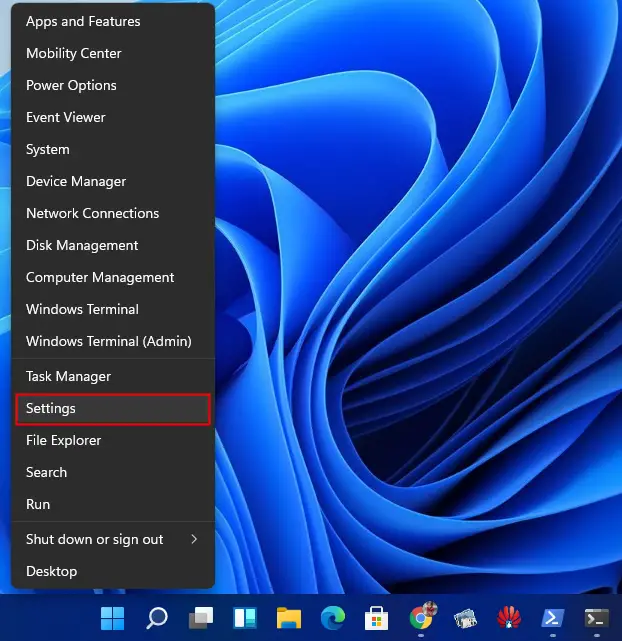
Step 1. Press Windows + I to open Settings. You can also right-click the Start button and select Settings.
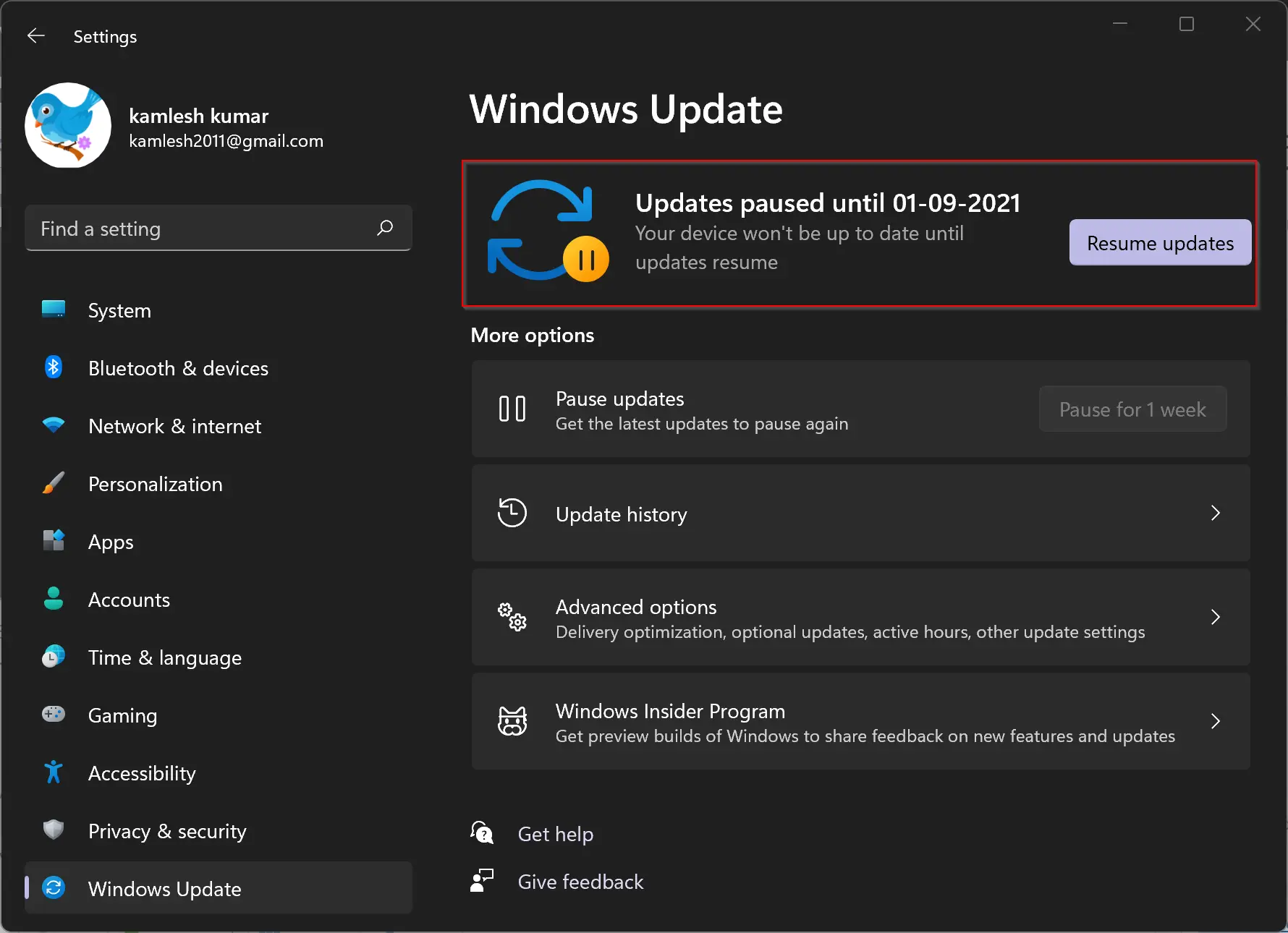
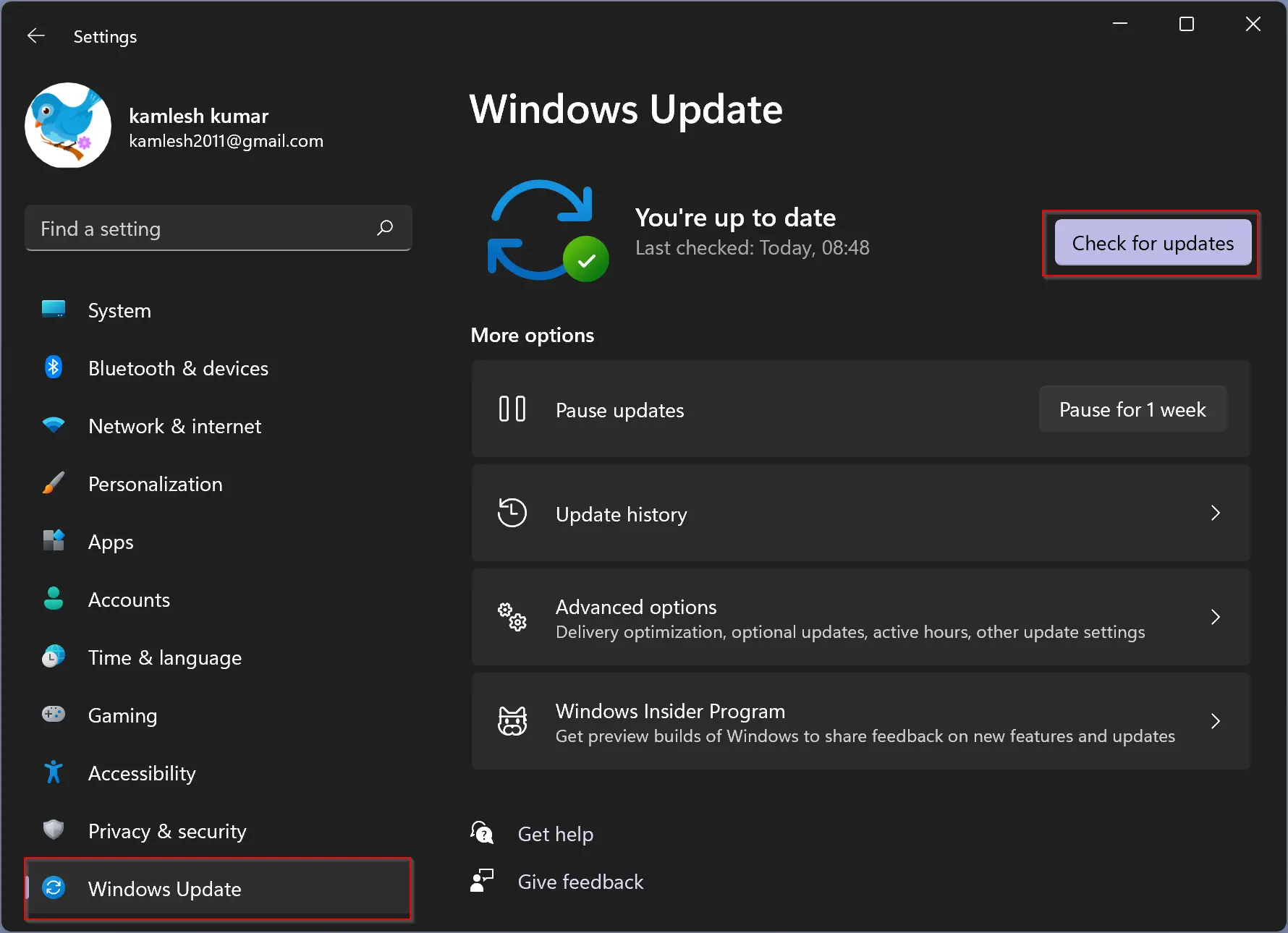
Step 2. In the left pane, click Windows Update.
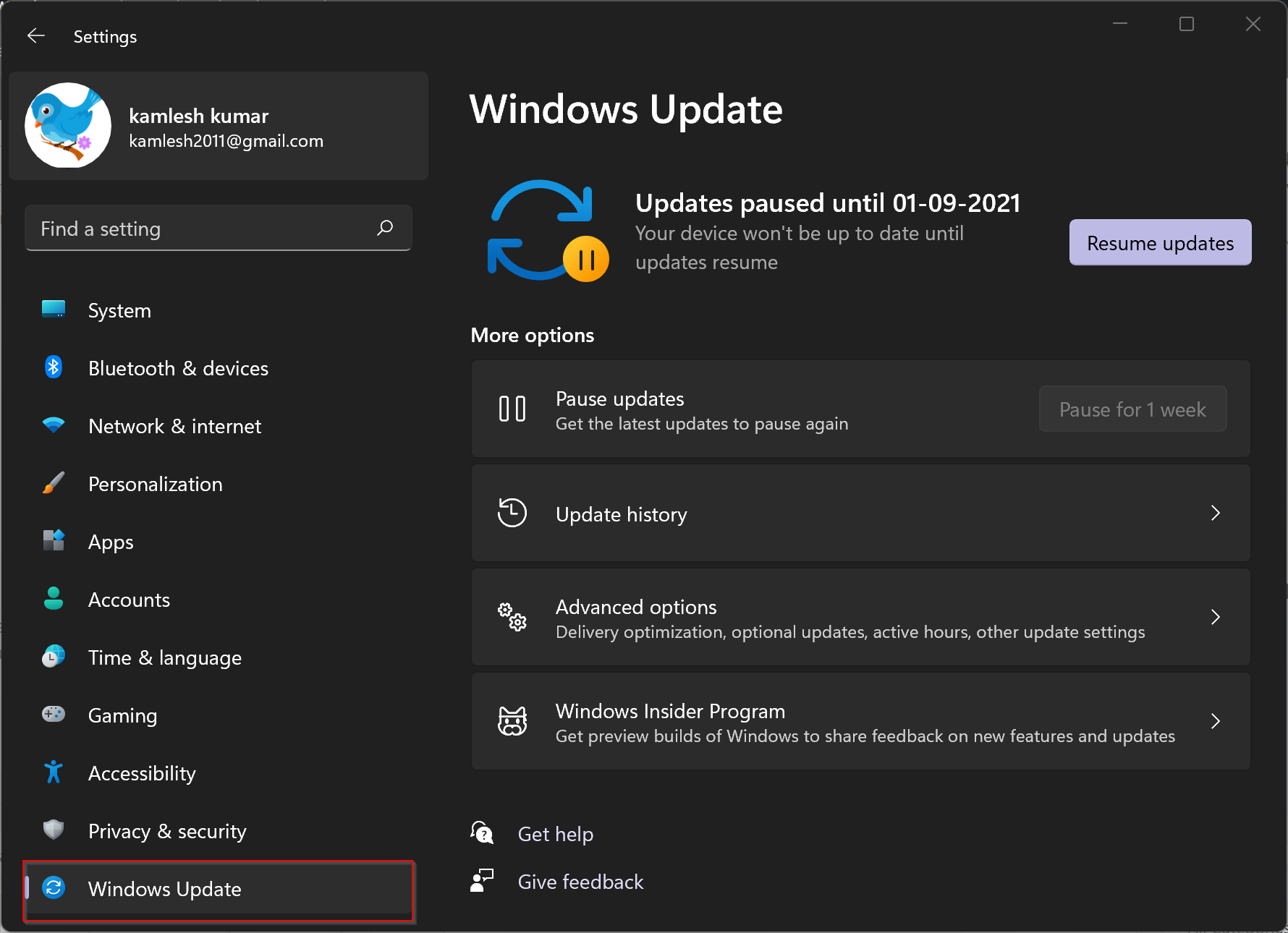
Step 3. Under the More options section on the right, click Pause for 1 week.
That’s it! You’ll now see “Updates paused until [date],” where the date is one week from today. Windows updates will resume automatically after that.
How to Resume Automatic Updates in Windows 11?
If you’re ready to resume updates, here’s how:
Step 1. Open Settings (use Windows + I or right-click Start).
Step 2. Click Windows Update in the left pane.
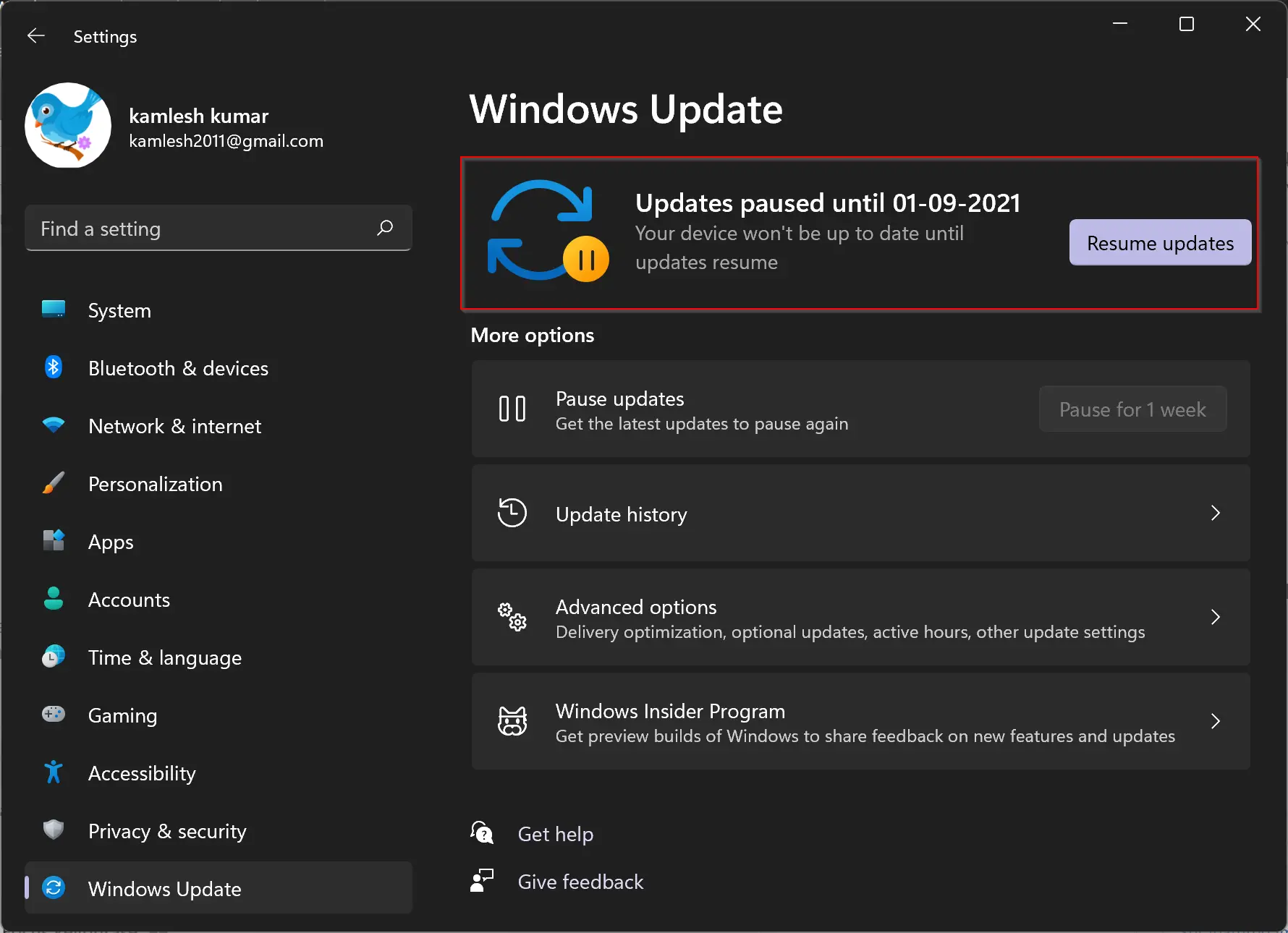
Step 3. Click the Resume updates button on the right.
Windows will then resume checking for updates. If new updates are available, they will download and install automatically.
How to Check for Updates Manually?
If you’d rather check for updates on your own schedule, use these steps:
Step 1. Open Settings (Windows + I or via Start menu).
Step 2. Click Windows Update in the left pane.
Step 3. Click Check for updates on the right pane.
Why This Option Matters
- Control over installation: Avoid buggy updates until they’re confirmed stable.
- Manage work timing: Delay updates during important tasks or presentations.
- Flexibility: Pause, resume, or manually update based on your schedule.
Need Troubleshooting Tips?
If you encounter issues with pausing updates—for example, the option is disabled—see our guide on what to do when the Pause updates option is grayed out. It helps restore the function using Group Policy or Registry edits.
Final Thoughts
While automatic updates ensure your system stays secure, having control over when they install can prevent disruptions. Windows 11 lets you pause updates for a week, resume when ready, or manually check for new updates. This flexibility lets you balance stability and productivity effortlessly.