

In a digital world where storage space is precious, managing files efficiently is essential. Windows 11 provides a convenient way to search for large files, allowing users to identify and manage space-consuming files easily. In this gearupwindows guide, we’ll walk you through the steps to search for large files in Windows 11 using File Explorer.
How to Search for Large Files in Windows 11?
Follow these steps to search for large files on Windows 11:-
Step 1. To begin, open File Explorer on your Windows 11 system. You can do this by clicking on the File Explorer icon in the taskbar or by pressing the Windows key + E on your keyboard.
Step 2. Once File Explorer is open, navigate to the folder you wish to search, or select “This PC” from the left sidebar if you want to search the entire hard disk.
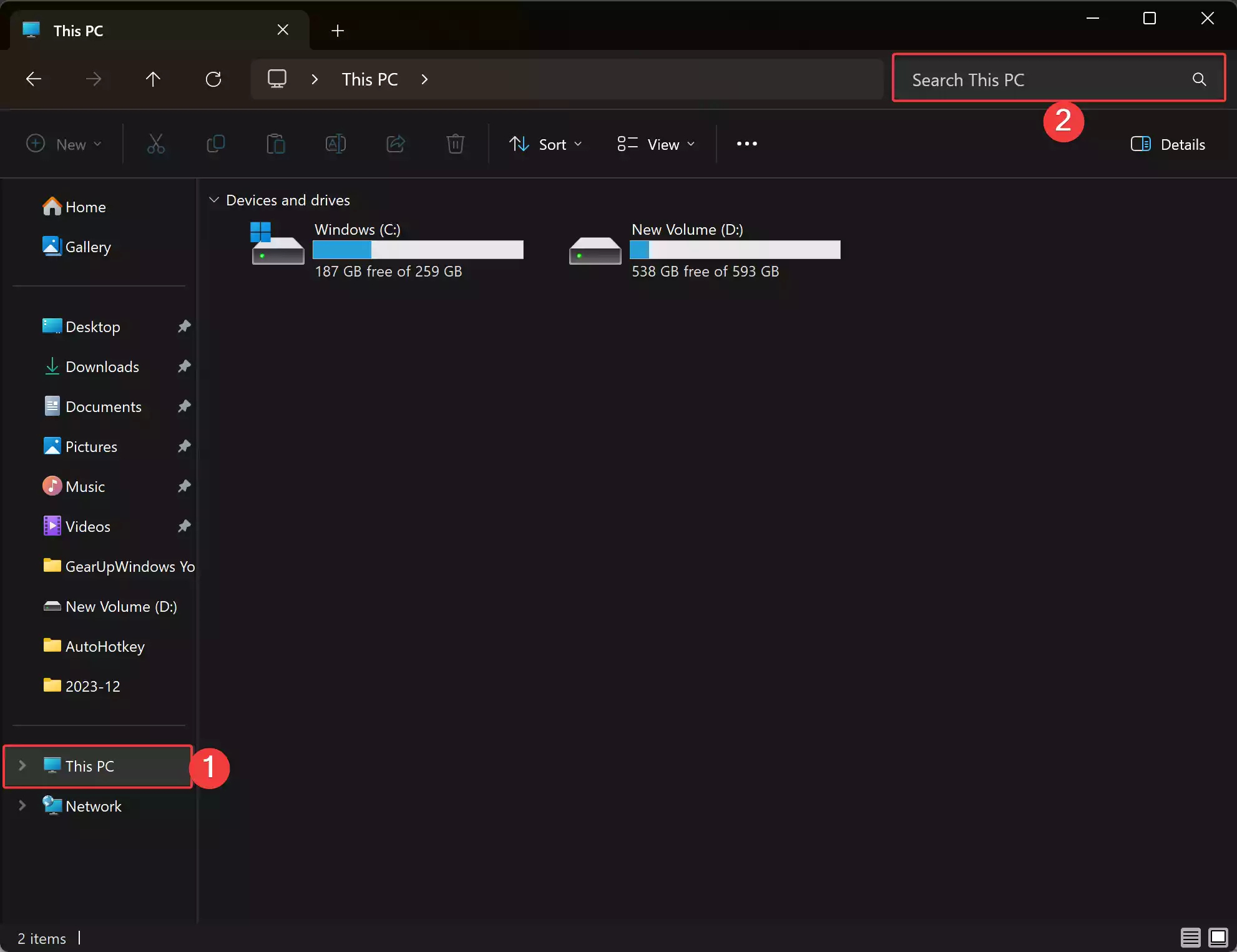
Step 3. In the top right corner of the window, you’ll find a search box where you can enter your search query. In the search box, type the asterisk symbol (*). This symbol acts as a wildcard and will display all files and folders in the current directory.
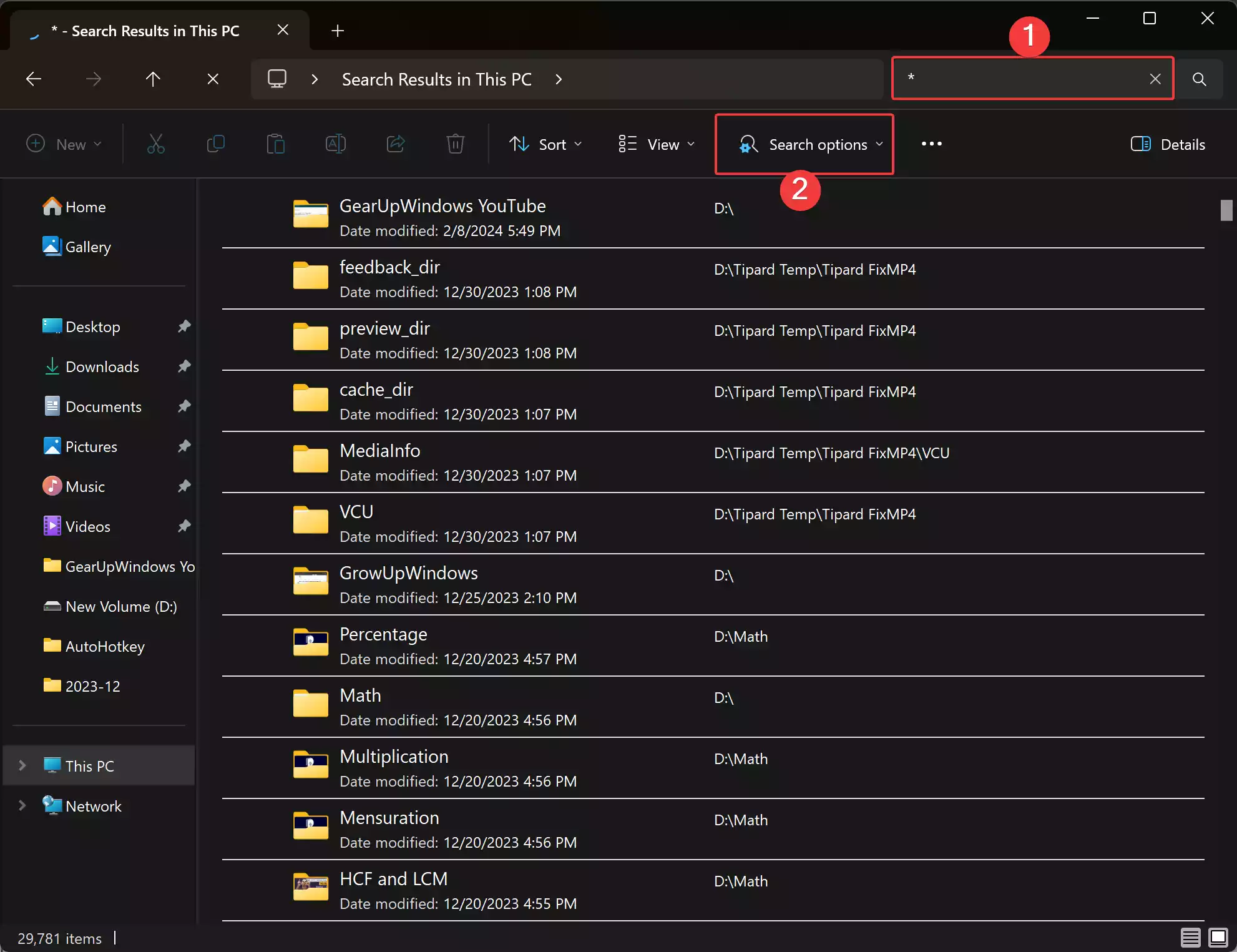
Step 4. After typing the asterisk symbol, you’ll notice a “Search options” button that appears in the toolbar. Click on this button to access additional search options.
Step 5. A dropdown menu will appear with various options, including Size. Select the “Size” option to view size ranges, such as Empty, Small, Medium, Large, and Gigantic. Select the size range that best suits your needs. For example, if you’re looking for very large files, choose the “Gigantic” option.

Step 6. If the predefined size ranges don’t meet your requirements, you can manually specify the minimum size of large files to filter. To do this, click on the search box and type the following syntax: `size:>[size]`. Replace `[size]` with the desired file size in megabytes (MB) or gigabytes (GB). For example, to search for files larger than 1GB, you would type `size:>1GB`.
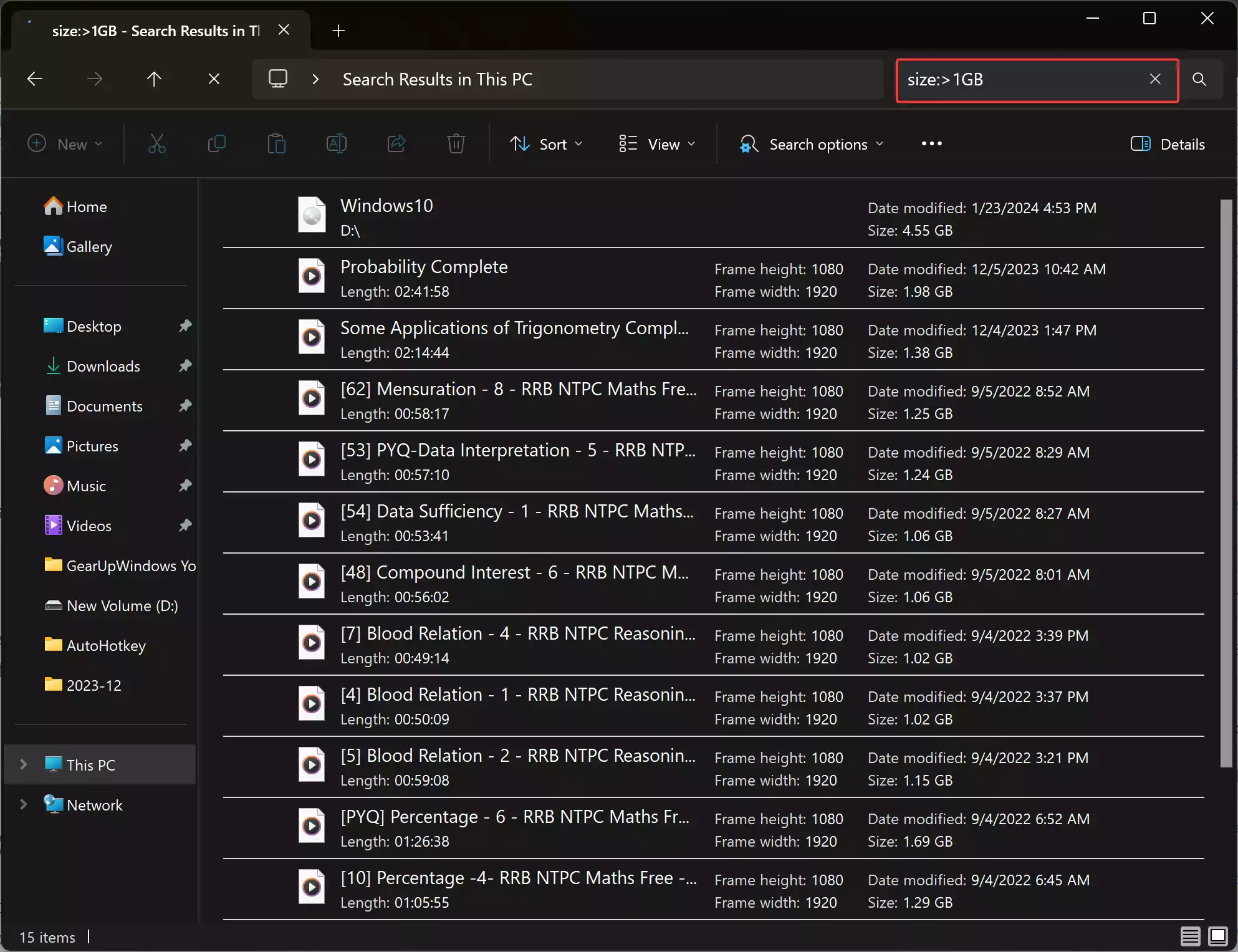
Once you’ve selected your preferred size range or specified a custom size, File Explorer will display the search results containing files that match your criteria. You can browse through the list to identify large files on your system.
After identifying large files, you can take various actions to manage them effectively. This may include deleting unnecessary files, moving them to an external storage device, or compressing them to save space.
Conclusion
Searching for large files in Windows 11 is a simple process that can help you optimize storage space and improve system performance. By following the steps outlined in this guide, you can easily locate and manage space-consuming files on your computer. Whether you’re a casual user or a power user, mastering file management techniques like this can contribute to a smoother computing experience.