

Website notifications can be useful when you want to stay updated with news or alerts, but often they turn into distractions. If you are using Microsoft Edge on Windows 11 or 10, you might have noticed sites constantly asking to send notifications. Thankfully, Edge makes it simple to stop these pop-ups or completely block unwanted notifications. Let’s walk you through the process in a beginner-friendly way.
Why Would You Want to Block Notifications?
Sometimes websites send constant alerts for promotions, updates, or news that you may not really need. Over time, this can clutter your desktop and even slow you down. Blocking or managing these notifications ensures you only see what’s important.
How to Stop Edge from Asking to Show Notifications
By default, Edge asks for your permission whenever a site tries to send notifications. If you don’t want to see this pop-up anymore:
Step 1. Open Microsoft Edge.
Step 2. Click on the three-dot menu (Settings and more) at the top-right corner.
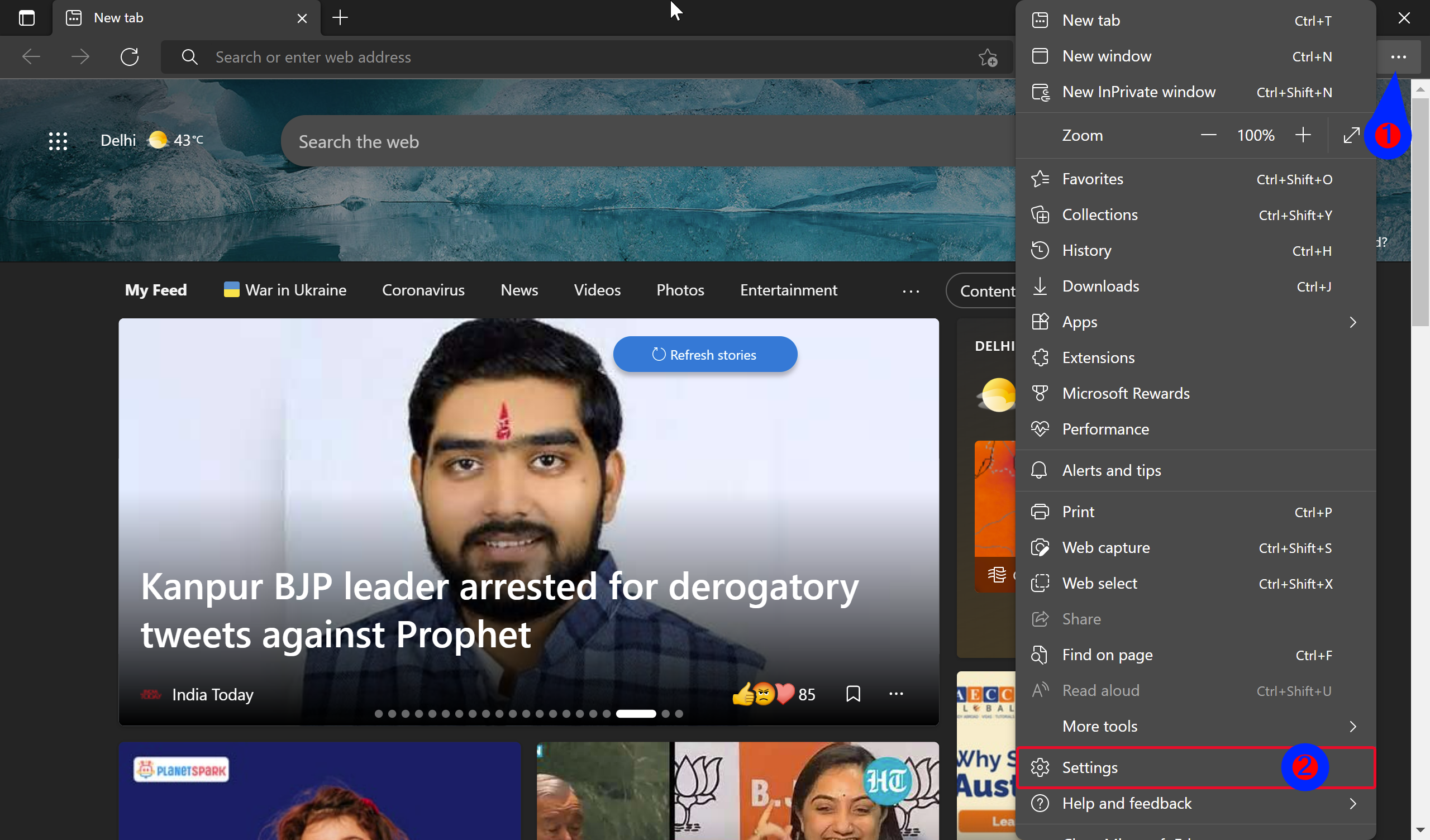
Step 3. Select Settings in the drop-down menu.
Step 4. Click Privacy, search, and services in the left sidebar.
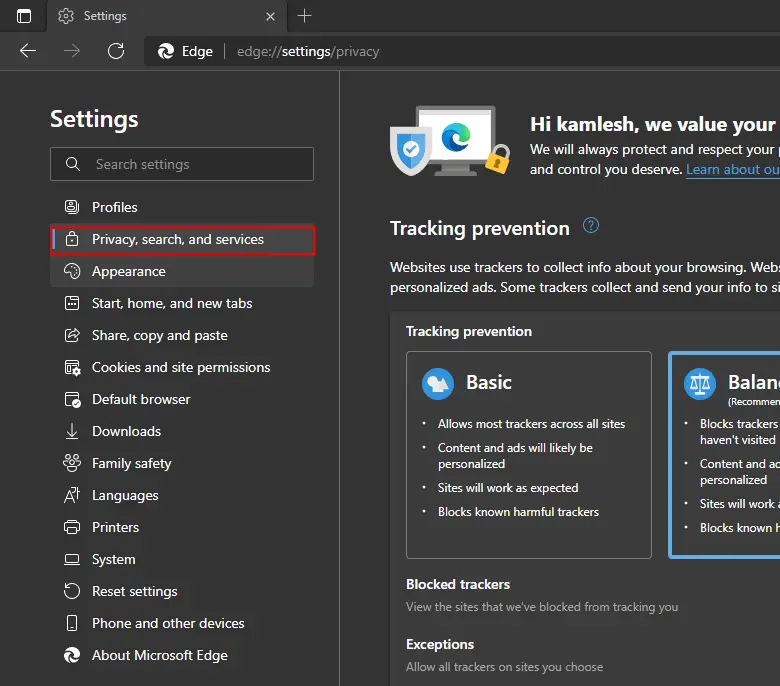
Step 5. On the right, navigate to Site permissions > All permissions > Notifications.
Step 6. Toggle off the option that says Ask before sending (recommended). This prevents websites from even asking.
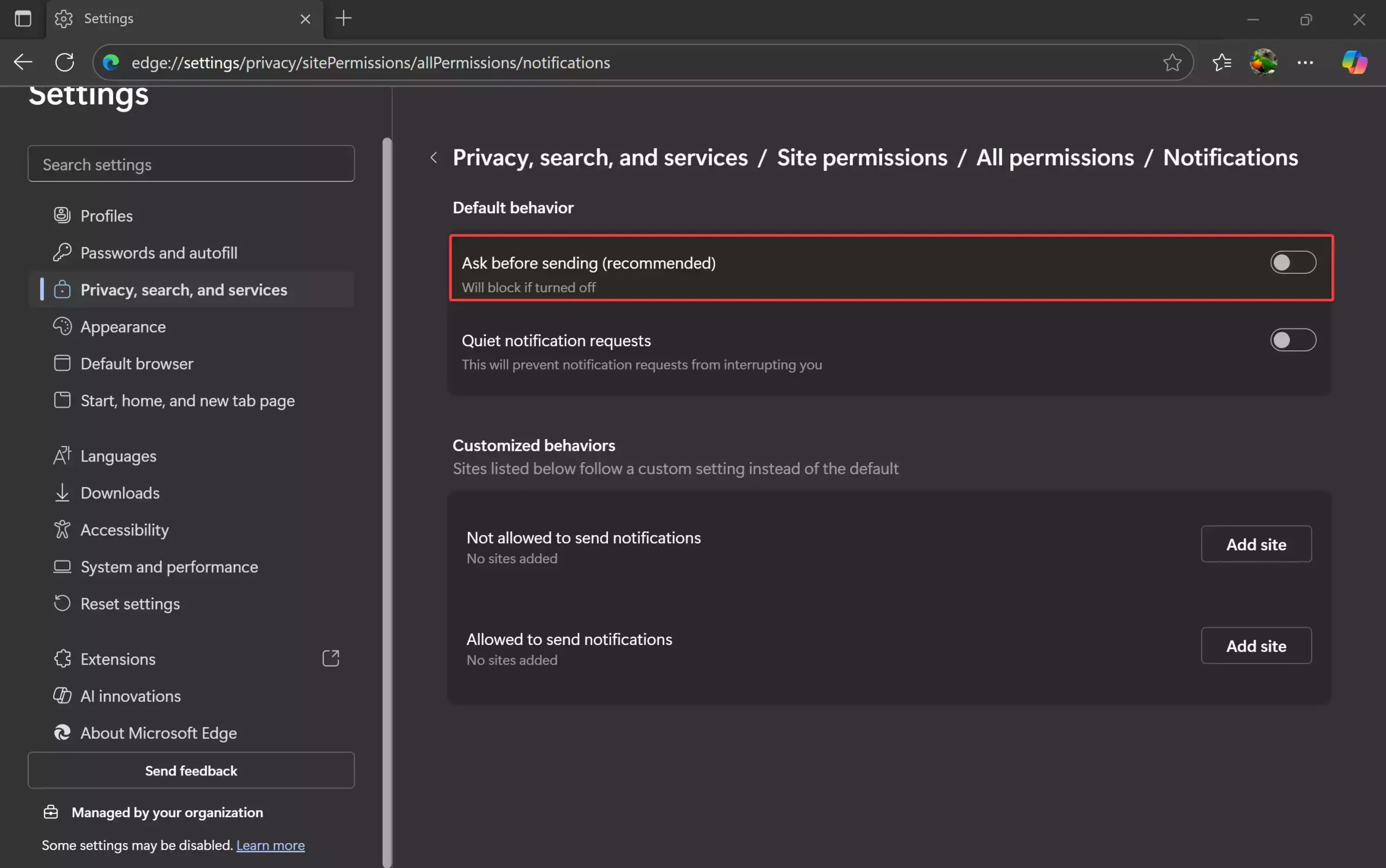
Once you complete the above steps, Edge will completely disable Notifications on your Windows 11 or 10 PC.
How to Block Notifications from Specific Websites
If you only want to block some sites but allow others:
Step 1. Go to Settings in Edge by clicking on the three-dot menu (Settings and more) at the top-right corner.
Step 2. Navigate to Privacy, search, and services > Site permissions > All permissions > Notifications.
Step 3. Under “Not allowed to send notification,” click the “Add site” button, type the website address you want to block, and click the Add button.
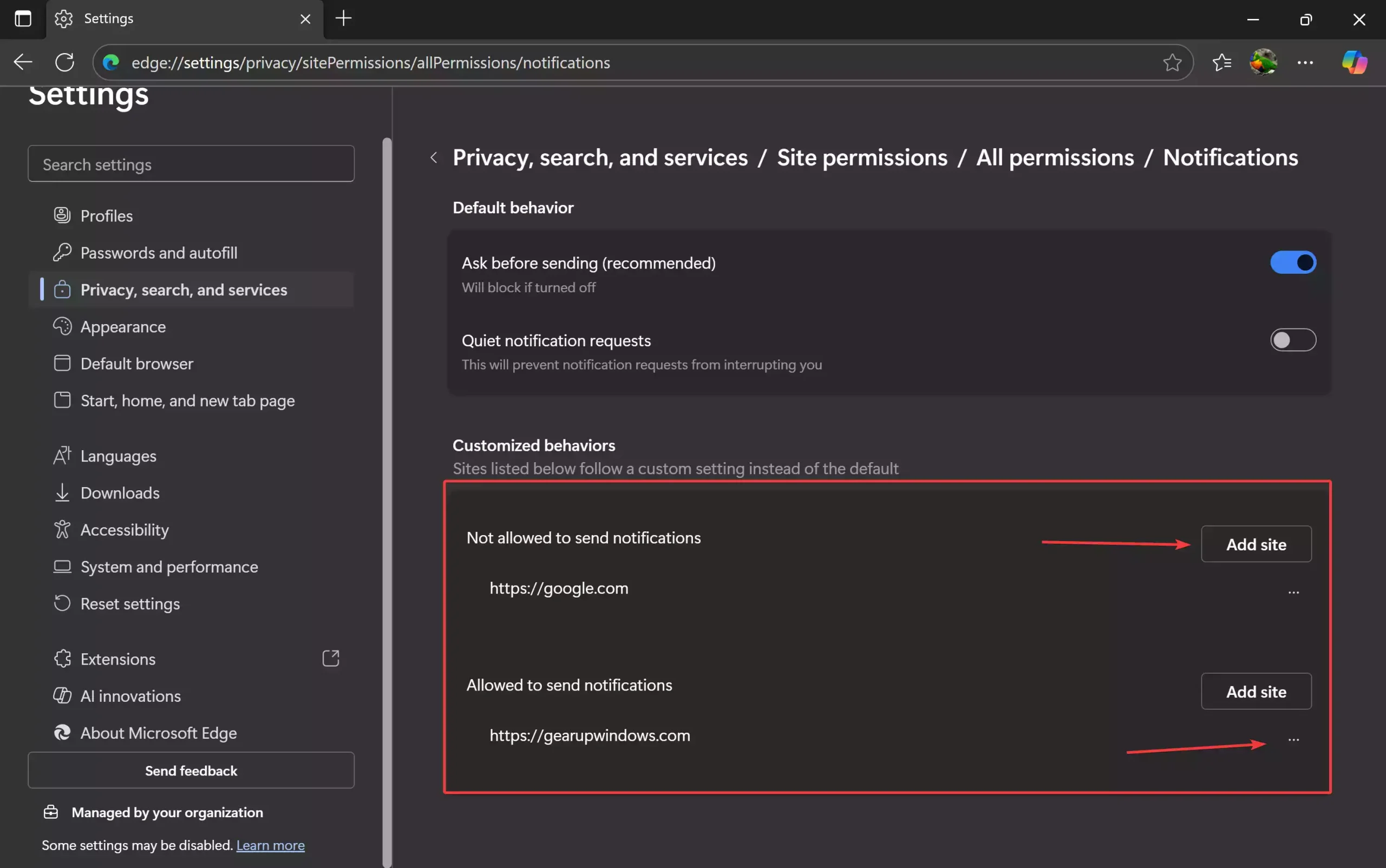
Step 4. If you’ve already allowed a website and want to block it, go to “Allowed to send notifications,” find the website address, click the three dots next to it, and select Block.
Extra Privacy Tip for Beginners
While managing notifications is a great first step, you can also utilize simple privacy tools to enhance the safety of your browsing experience. For example, DNS Angel is a lightweight freeware that helps block unsafe websites with one click. Alternatively, you can try DNS Switcher, which allows you to change between fast and secure public DNS servers in just a single click.
Frequently Asked Questions About Edge Notifications
Will blocking notifications affect my browsing?
No. Websites will still load normally; only the pop-up notification requests will be blocked.
Can I allow only some sites to send notifications?
Yes, you can manually add websites to the Allow list under Edge’s notification settings.
Is it possible to block ads and pop-ups along with notifications?
Yes. Edge has a built-in setting to block pop-ups, and you can further enhance it with tools like Ashampoo Windows 11 AdBlock.
Conclusion
Website notifications on Microsoft Edge don’t have to be a constant annoyance. Whether you want to block them completely or just manage specific sites, Edge gives you full control over your browsing experience. With the steps above, you can finally browse in peace without unnecessary interruptions.