

Microsoft Excel is a versatile and powerful spreadsheet program that is widely used for data analysis, calculations, and reporting. Excel offers a plethora of functions and formulas to help users manipulate and analyze data. One category of functions that is particularly useful in Excel is the “IS” function. These functions are designed to evaluate and return logical values based on specific criteria. In this gearupwindows article, we will explore the different IS functions in Excel and learn how to use them effectively.
Introduction to IS Functions
The IS functions in Excel are a group of functions that allow you to test the contents of a cell, formula, or expression and determine if it meets specific criteria. These functions return a logical value, either `TRUE` or `FALSE,` which can be used in conjunction with other functions and formulas to make decisions and perform calculations.
There are several IS functions available in Excel, including:-
- ISBLANK: Checks if a cell is empty and returns `TRUE` if it is, or `FALSE` if it contains any data, including spaces.
- ISNUMBER: Determines whether a cell contains a numeric value, returning `TRUE` if it does, or `FALSE` if it contains text or other characters.
- ISTEXT: Checks if a cell contains text and returns `TRUE` if it does, or `FALSE` if it contains numbers or is empty.
- ISNONTEXT: Opposite to ISTEXT, it checks if a cell does not contain text, returning `TRUE` if it doesn’t, or `FALSE` if it does contain text.
- ISERROR: Tests if a cell contains an error value, such as #N/A, #VALUE!, #REF!, or #DIV/0!, returning `TRUE` if an error is present, or `FALSE` if it is not.
- ISERR: Similar to ISERROR but excludes the `#N/A` error. It returns `TRUE` for any other error types and `FALSE` if no error is present.
- ISNA: Specifically checks for the `#N/A` error and returns `TRUE` if it is found, or `FALSE` if it is not.
These functions are incredibly useful in data validation, conditional formatting, and building more complex Excel formulas.
Using IS Functions in Excel
Let’s explore some practical examples of how to use IS functions in Excel:-
ISBLANK Function
The ISBLANK function is useful for checking if a cell is empty. Suppose you want to highlight all the empty cells in a column with a specific color. You can use the following formula in a conditional formatting rule:-
=ISBLANK(A1)
Here, “A1” is the cell reference. If the cell is blank, the formula returns `TRUE,` and you can apply a formatting style.
Suppose you have a list of products in column A, and you want to identify which products don’t have a price in column B. You can use the ISBLANK function to do this.
In cell C2, enter the formula:-
=ISBLANK(B2)
This formula checks if the cell in column B (corresponding to the product in column A) is blank and returns TRUE if it is and FALSE if it’s not.

Copy this formula down for the entire column C to evaluate all the products.
You’ll see TRUE in column C for the products without prices, helping you easily identify them.
ISNUMBER Function
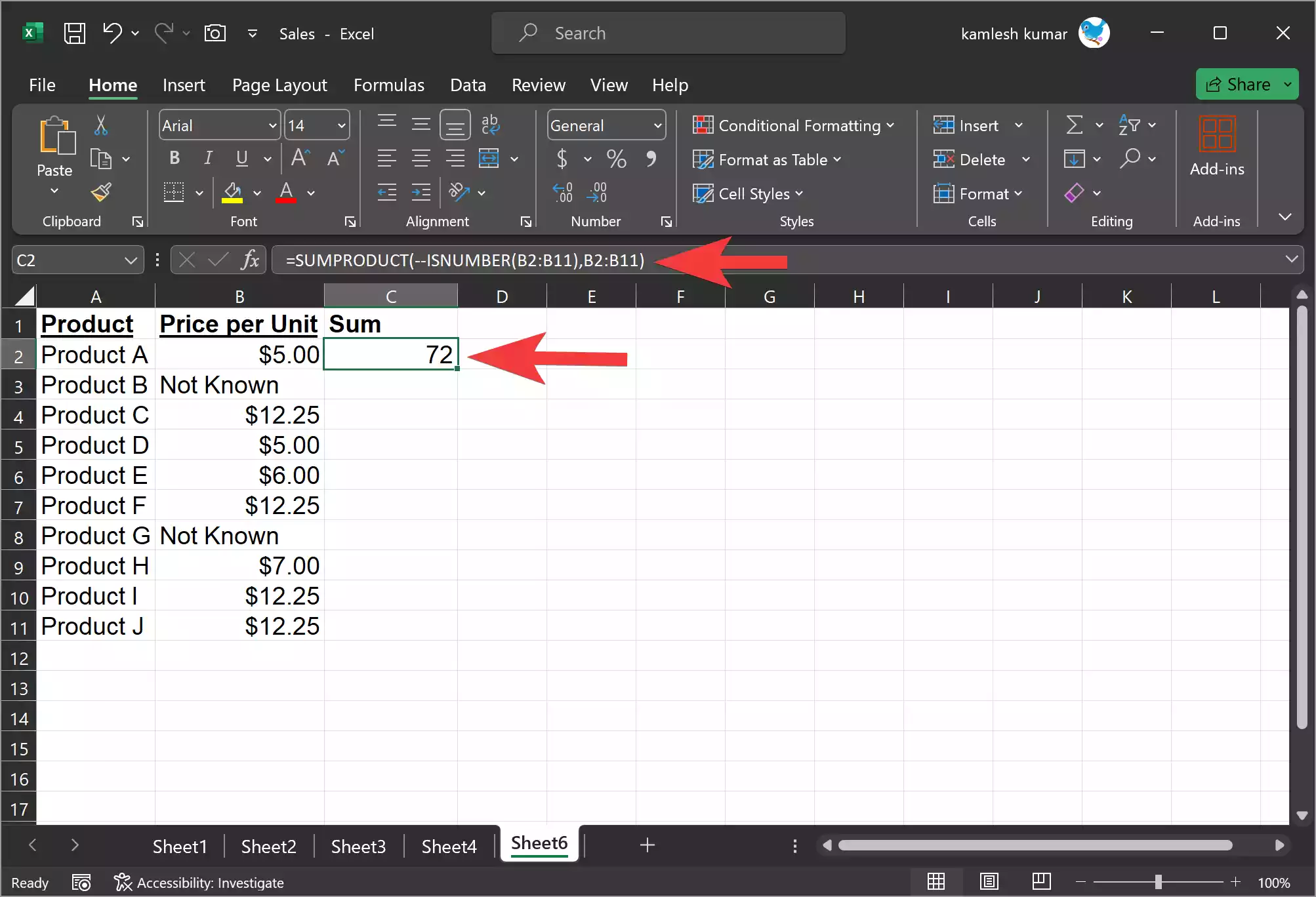
The ISNUMBER function helps determine if a cell contains a numeric value. For instance, you might want to sum all the numbers in a range. You can use the SUMPRODUCT function with ISNUMBER like this:-
=SUMPRODUCT(--ISNUMBER(A1:A10), A1:A10)
This formula will sum only the numeric values in the range A1:A10.
ISTEXT Function
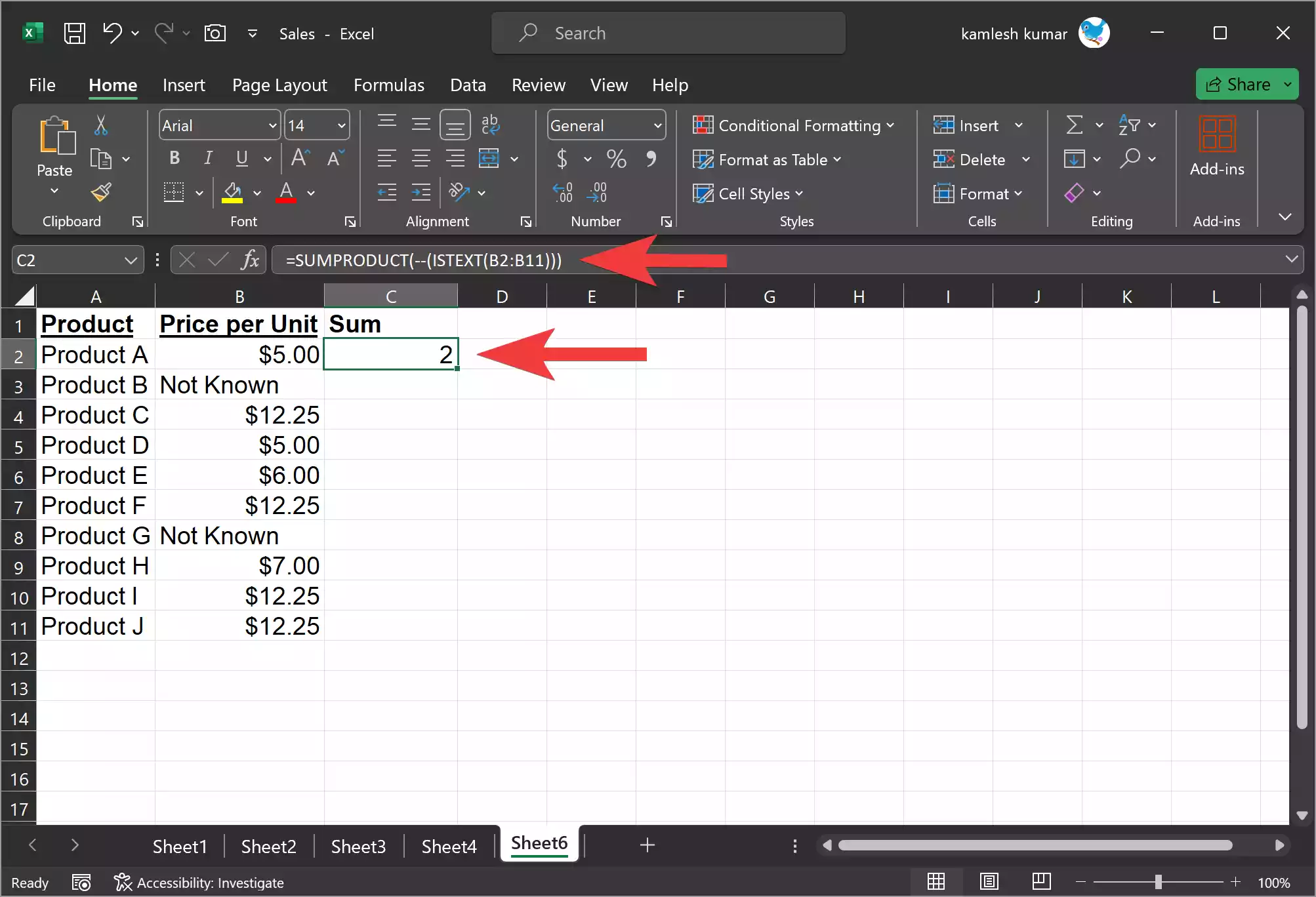
If you need to count the number of cells containing text in a range, you can use the ISTEXT function with SUMPRODUCT:-
=SUMPRODUCT(--(ISTEXT(A1:A10)))
This formula counts the number of cells in the range A1:A10 that contain text.
ISERROR Function
Suppose you’re working with data from different sources, and you want to identify cells with errors. You can use the ISERROR function:-
=ISERROR(A1)
This formula will return ‘TRUE’ if an error or ‘FALSE’ if no error in cell A1.

ISNA Function
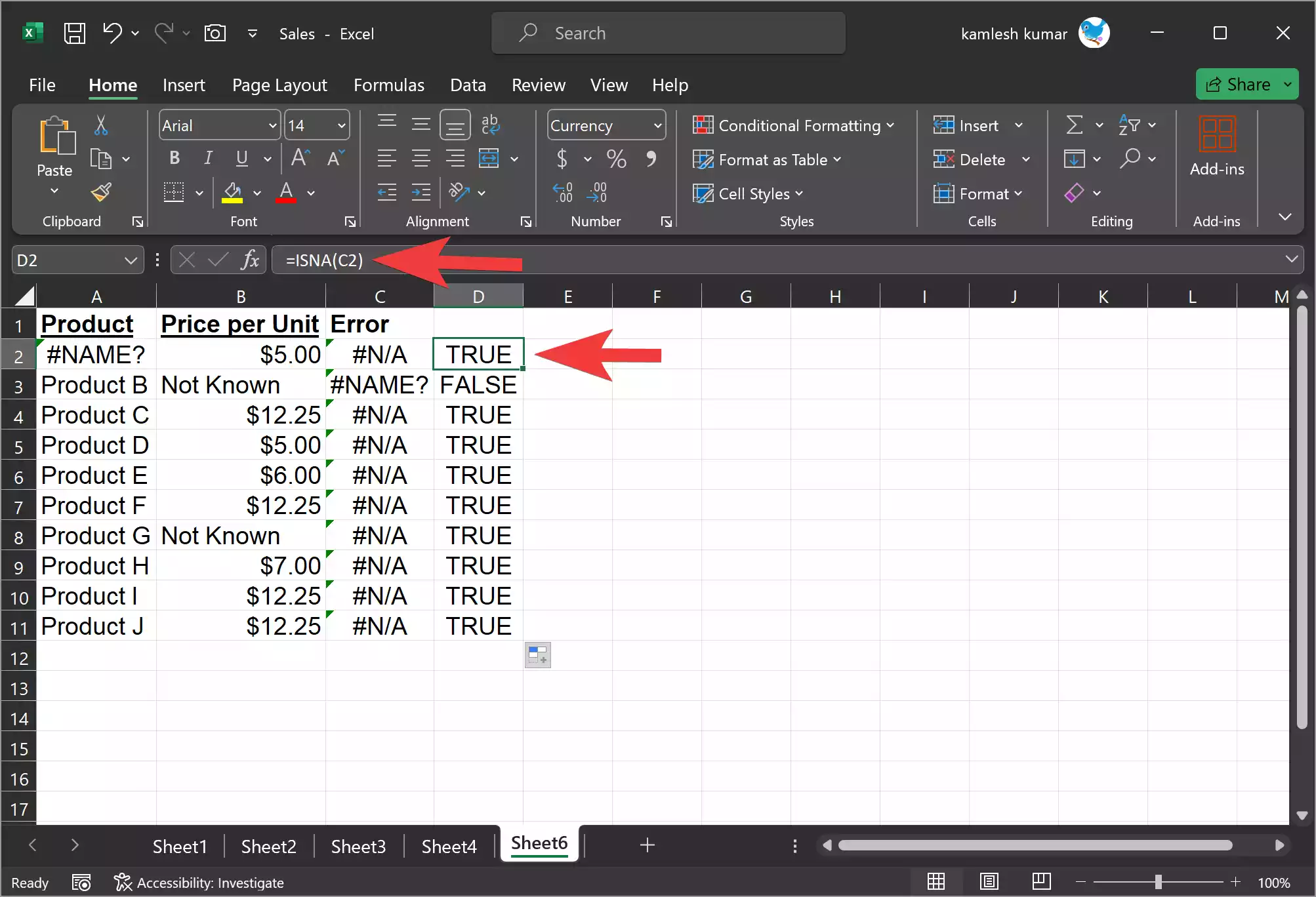
If you specifically want to check for the #N/A error, you can use the ISNA function:-
=ISNA(A1)
This formula will return `TRUE` if the cell contains the #N/A error.
Combining IS Functions
One of the strengths of IS functions in Excel is the ability to combine them with other functions and operators. For example, you can use the `AND` or `OR` function to create more complex logical tests. Here’s an example:-
Suppose you want to identify cells that contain either text or an error. You can use the following formula:
=OR(ISTEXT(A1), ISERROR(A1))
This formula will return `TRUE` if the cell in A1 contains text or an error.

Conclusion
Excel’s IS functions provide a simple yet powerful way to evaluate and test data in your spreadsheets. By using these functions, you can make your worksheets more robust and dynamic, allowing you to automate tasks, apply conditional formatting, and make data-driven decisions more effectively.
Remember that IS functions can be combined with other Excel functions, allowing you to create complex logical tests to suit your specific needs. Whether you are a beginner or an experienced Excel user, mastering the IS functions will undoubtedly enhance your ability to work with data in Excel.