

In this gearupwindows guide, we’ll show you how to use Seagate SeaTools to diagnose and repair storage drives on your Windows PC. SeaTools is a free utility from Seagate that helps you test the health and performance of both internal and external hard drives, including SSDs and HDDs from all major brands.
Whether your PC is running slow, freezing randomly, or you’re hearing strange noises from your hard drive, SeaTools can help detect problems before they cause data loss.
Key Features of Seagate SeaTools
- Test both Seagate and non-Seagate drives
- Run basic and advanced diagnostics
- Check S.M.A.R.T. status and drive health
- Update firmware (for Seagate drives only)
- Erase or sanitize drives securely
How to Download and Install SeaTools for Windows?
You can download the latest version of SeaTools directly from Seagate’s official website. It supports Windows 11, 10, and earlier versions. Additionally, it is also available for Linux.
Once downloaded, double-click the installer and follow the on-screen instructions to complete the installation.
How to Use SeaTools for Basic Drive Testing?
Follow these steps for basic drive testing:
Step 1. Open the program after installation. It will automatically list all connected storage drives, including internal and external ones. You can see the remaining life and status of your drive.
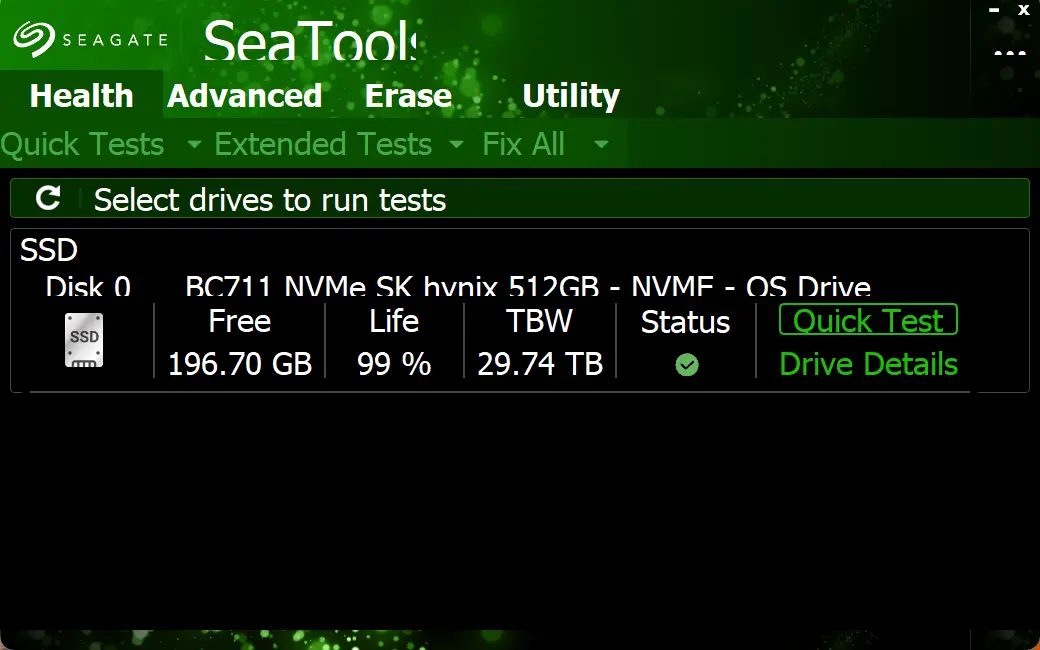
Step 2. If more than one drive is listed, select the one you want to test by clicking the checkbox next to it.
Step 3. Click on the Quick Tests > Short Drive Self Test or Short Generic Test to quickly check your drive for errors. For deeper analysis, you can run the Extended Tests > Long Generic Test, which may take longer but offers a thorough scan.
Step 4. After the test finishes, SeaTools will display a result such as Passed, Failed, or Aborted. If the drive fails, back up your data immediately and consider replacing the drive.
How to Use Advanced Features in SeaTools?
Erase Data Securely
SeaTools offers Erase Drive and Full Erase tools to securely wipe all data. This is useful before selling or disposing of a drive.
Firmware Update
If you’re using a Seagate drive, SeaTools may prompt you to update the firmware. Follow the instructions carefully to avoid damaging the drive.
What Is the “Fix All” Option in SeaTools?
The Fix All option in SeaTools is designed to attempt automated repair of drive issues during diagnostics. It is available in two forms:
- Short: Runs a short self-test and attempts to fix minor errors like reassigning bad sectors.
- Long: Performs a thorough surface scan and tries to repair damaged areas on the drive. This can take a long time, depending on drive size.
These options are mostly useful for Seagate drives. If you’re testing a non-Seagate drive, the fix functionality may be limited or unavailable. Always back up your data before using these tools, as they may attempt low-level changes to the disk.
How Does SeaTools Compare to Other Tools?
While Windows 11 has built-in options, such as the Settings app and CHKDSK, SeaTools is more user-friendly and accurate for physical diagnostics. It also works well alongside tools like CrystalDiskInfo for continuous monitoring.
What to Do If SeaTools Finds Errors?
While SeaTools is excellent for diagnosing hardware issues, it does not fix file system errors. If a test result shows Failed or Aborted, you should first back up your data immediately.
To attempt repairs on logical file system errors, use built-in tools like CHKDSK. This Windows utility can scan and fix bad sectors and corrupted files.
If SeaTools confirms a hardware-level failure, replacing the drive is the safest solution.
Conclusion
Seagate SeaTools is a reliable and easy-to-use tool for checking the health of your storage devices. Whether you suspect hardware issues or want to perform routine checks, SeaTools makes it simple to test your drive’s performance and detect errors before they cause trouble. It supports all drive types and brands, making it a must-have for both beginners and advanced users.
If you’re troubleshooting hard drive problems or preparing to replace a failing disk, SeaTools is a smart first step.