

Update:
Microsoft has removed the “Backspace to go back” feature from all current versions of Microsoft Edge.
Earlier builds briefly included a setting or flag to enable it, but it has now been discontinued.
To navigate backward, users can use the standard shortcut:
Alt + Left Arrow.
The Backspace key is a well-known and frequently used keyboard key that offers a quick and convenient way to delete text in word processors and navigate to the previous location in File Explorer. However, its functionality goes beyond those applications. In fact, the Microsoft Edge browser on Windows 10 also allows users to go back to the previous page using the Backspace key.
Enabling this feature is simple and doesn’t require any additional software installation or modifications to the Windows Registry. This can be particularly helpful for users who prefer keyboard navigation over using a mouse, offering a fast and efficient way to move back through webpages in the Edge browser.
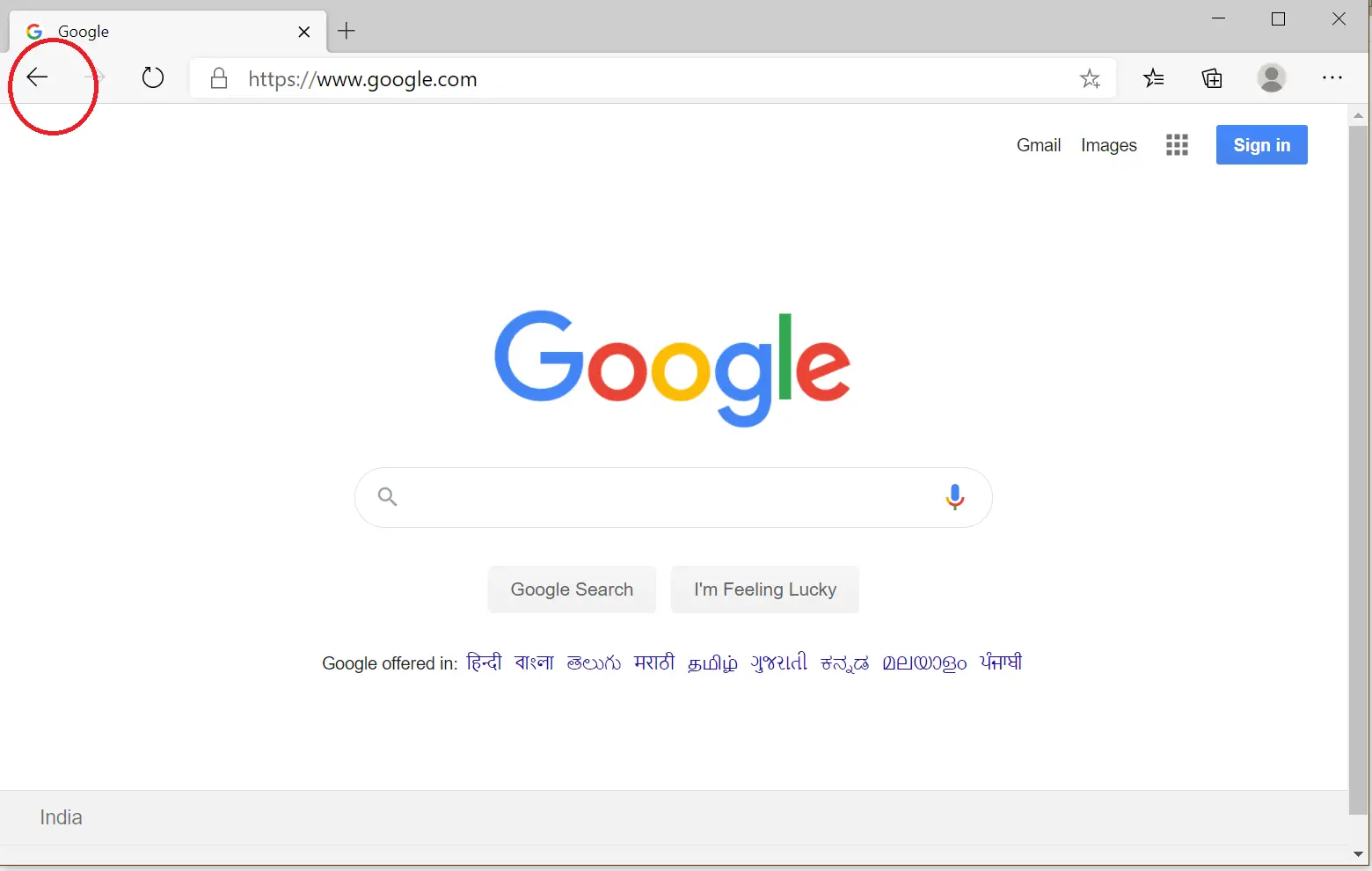
Keyboard shortcuts are often favored by users who want to speed up their browsing sessions without relying on the mouse. While modern browsers include forward and backward navigation buttons, Microsoft Edge allows you to configure the Backspace key as a shortcut to go back. Similarly, the Shift + Backspace shortcut enables users to move a page forward. This setting can be enabled easily, enhancing browsing convenience for keyboard enthusiasts.
Note: To enable the Backspace button as a navigation shortcut, you must have Microsoft Edge version 86 or higher.
How to assign the Backspace key to go back to the previous page in Microsoft Edge?
Follow these steps to assign the Backspace key to go back to the previous page in Microsoft Edge:-
Step 1. Launch the Edge browser.
Step 2. In a new tab, type edge://flags/ in the address bar and press Enter to open the experiments window.
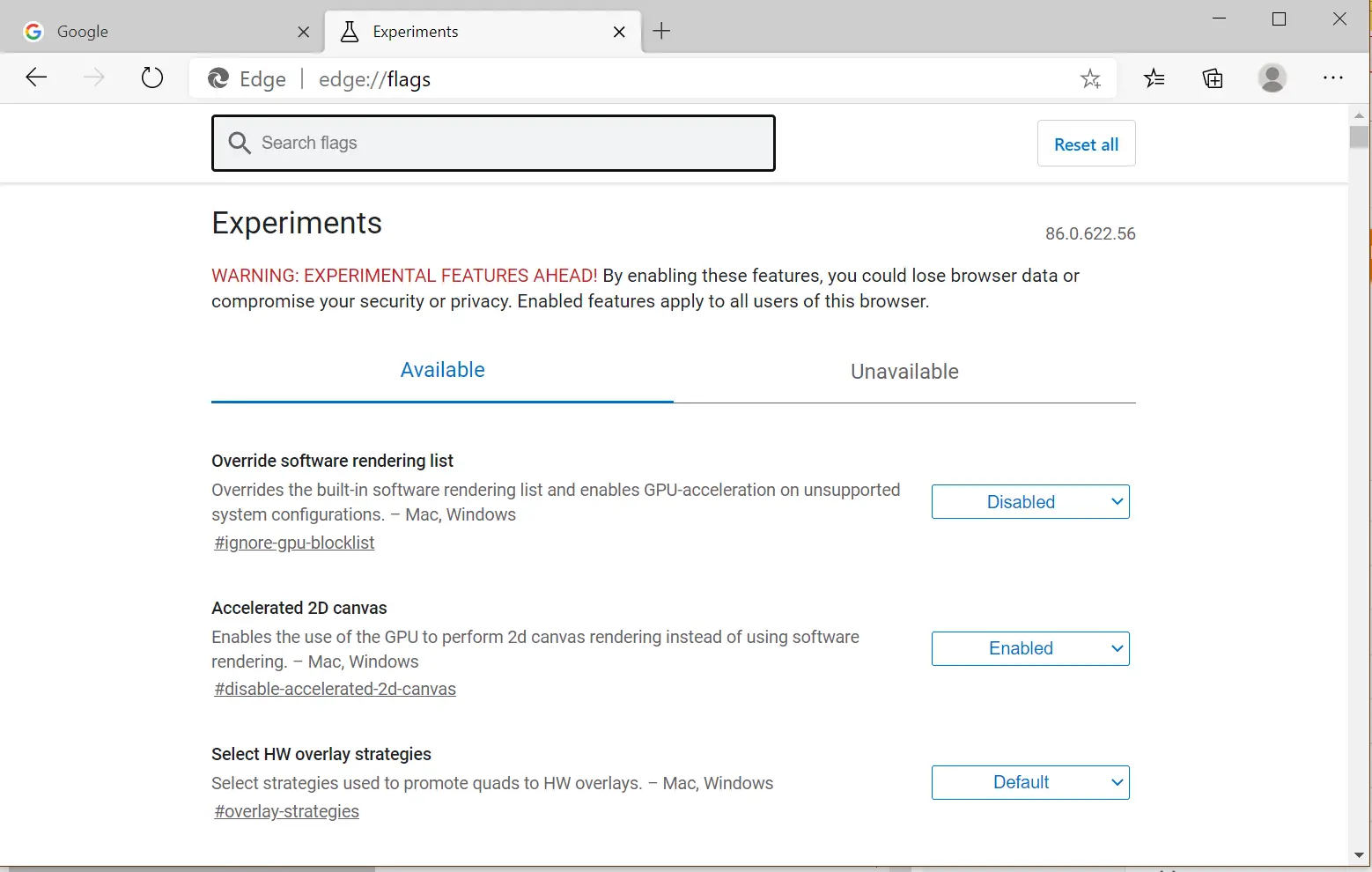
Step 3. In the search bar, type backspace.
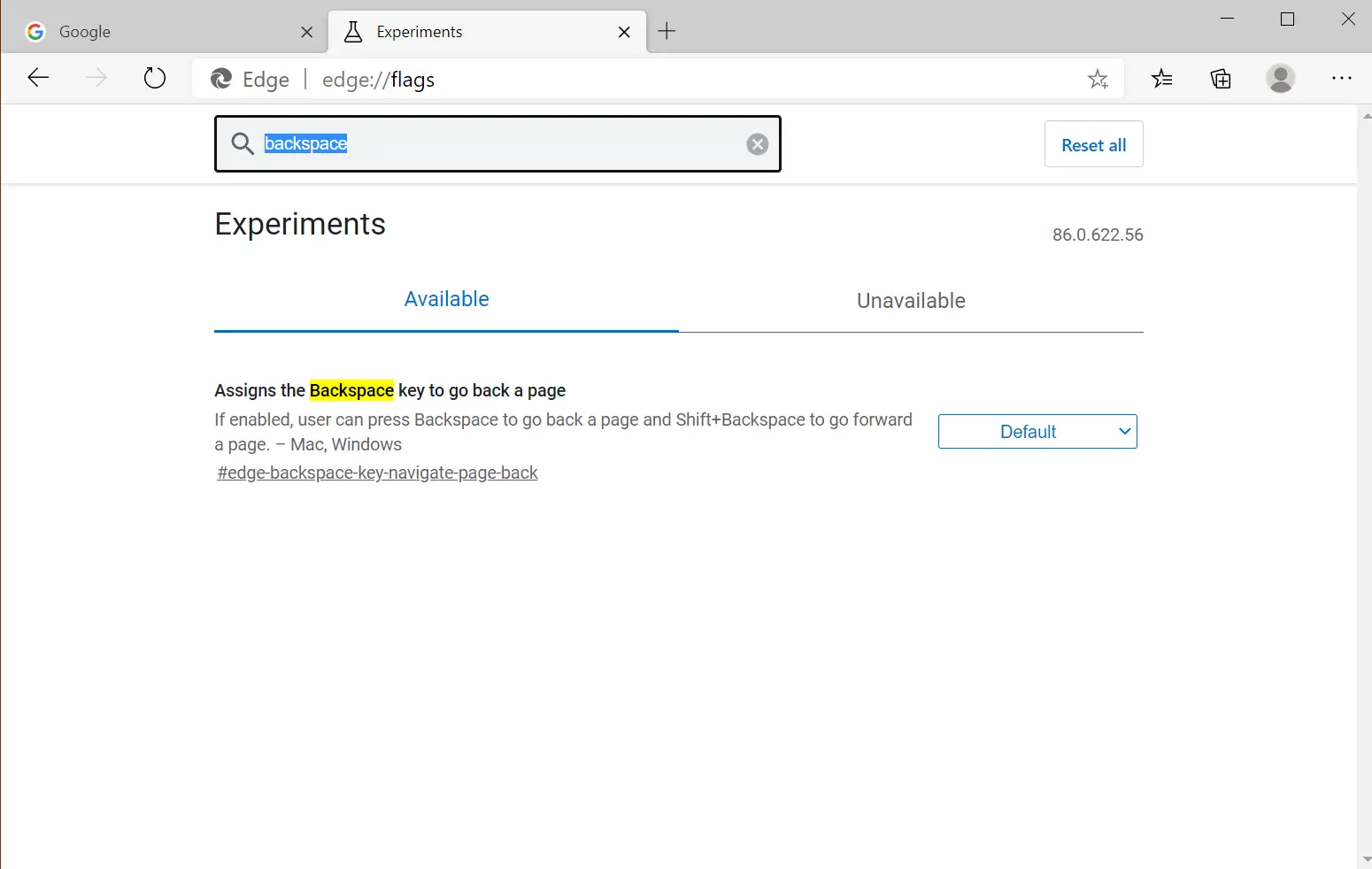
Step 4. Click the drop-down next to “Assigns the Backspace key to go back a page.”
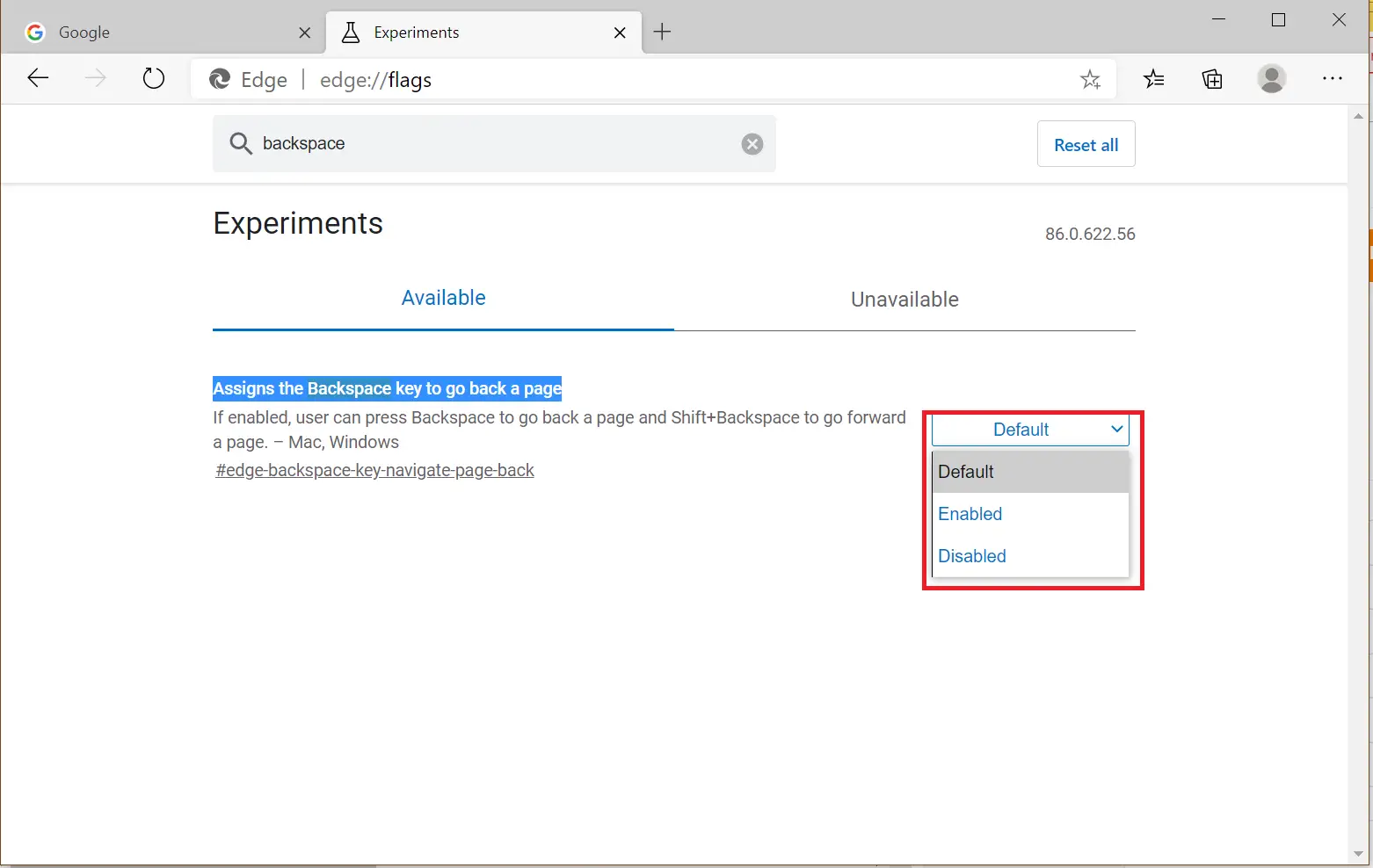
Step 5. Select the Enabled option from the drop-down menu.
Step 6. Microsoft Edge will prompt you to restart. Click the Restart button to complete the process.
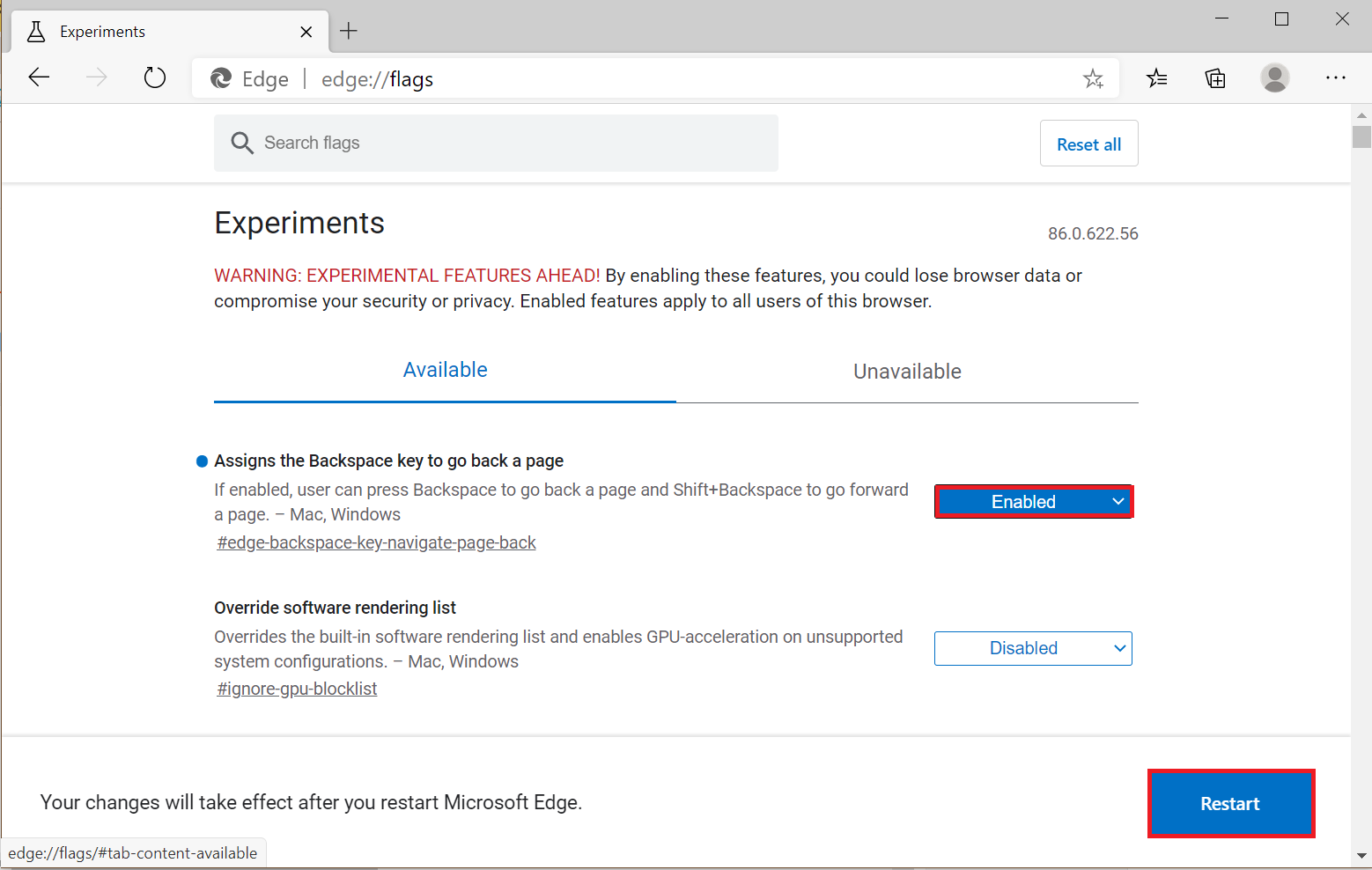
Once you’ve completed these steps, both shortcuts will be active. You can now use the Backspace key to go back to the previous page and use the Shift + Backspace combination to move a page forward.
Conclusion
In conclusion, the Backspace key is a versatile and powerful keyboard shortcut that enhances user productivity. While it’s primarily used to delete text and navigate in File Explorer, it can also function as a browser shortcut in Microsoft Edge. Enabling this feature is a straightforward process done directly within the browser settings. With this setting enabled, keyboard users can enjoy smoother and more efficient web browsing.