

Want a quick way to turn your travel photos, product shots, or event pictures into a shareable video—without installing software or uploading media anywhere? This in-browser slideshow maker keeps everything on your device. Drop in images, (optionally) add a music track, set timing, preview the result, and export as a standard video file that your favorite players and social apps can open.
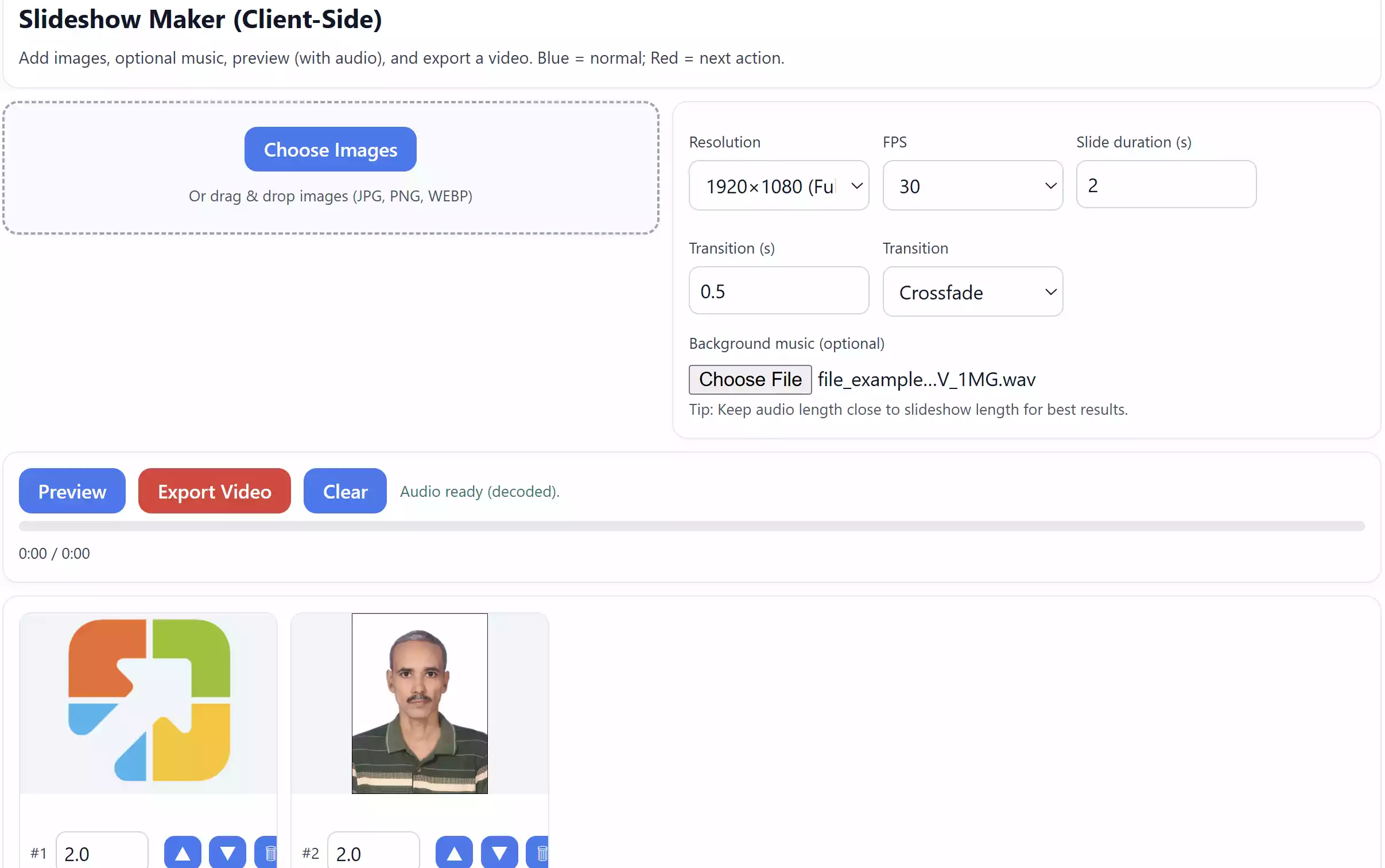
What you can do with this free slideshow maker
- Private by design: No uploads. Your images and audio never leave your device.
- Smooth transitions: Crossfade between slides for a clean, professional look.
- Per-slide control: Adjust the duration of each slide individually.
- Smart audio handling: If your track is shorter than the video, it auto-repeats; if it’s longer, it auto-trims at the exact end.
- High-quality export: Choose 720p, 1080p, or 4K. The tool caps FPS when needed to stay smooth and stable.
- Accessible UI: Keyboard-friendly, clear focus outlines, and simple color cues (blue buttons for normal actions, red for the primary next step).
How to create a slideshow video (step-by-step)
Step 1. Open the Slideshow Maker tool.
Step 2. Scroll to the tool below and click Choose Images (or drag & drop JPG/PNG/WebP). Thumbnails will appear in a grid.
Step 3. (Optional) Add a music file. The tool will automatically repeat it if it’s shorter or trim it if it’s longer than your video.
Step 4. Pick a Resolution (720p/1080p/4K) and FPS (30/60). For longer videos, 1080p/30 FPS is a great balance.
Step 5. Set your global Slide duration and Transition. Adjust per-slide duration in each thumbnail if needed. Reorder with ▲/▼ or remove any slide.
Step 6. Click Preview to check pacing and the soundtrack. The progress bar shows current and total time.
Step 7. Click the red Export Video button. Keep the tab active during rendering; your browser will save the finished file.
Tips for better results
- Use high-resolution images for 1080p or 4K export. Landscape photos fit 16:9 perfectly; portrait images are letterboxed (no stretching).
- Match overall slide timing to your soundtrack for a natural rhythm (the tool still loops/trims as needed).
- For very long slideshows, choose 1080p/30 FPS to keep exports smooth and your browser responsive.
- Close heavy tabs/apps during export for faster processing.
Supported formats & playback
- Images: JPG, PNG, WebP
- Audio: Common browser formats (e.g., MP3, M4A, WAV, OGG)
- Video output: WebM (VP8/VP9 + Opus) or MP4/H.264, depending on your browser’s encoder
- Players: VLC, modern browsers, and most social platforms can play the exported files
Troubleshooting
- Silent video? Make sure your audio file plays normally in the browser. Try MP3 or WAV and preview before exporting.
- Export feels slow? Try 1080p instead of 4K, or shorten the total duration. Keep the tab visible while exporting.
- First click seems to do nothing? Large images may still be decoding. The tool will show “Preparing…” and continue automatically.
- On iPhone/iPad or Safari: The finished video may open in a new tab rather than auto-download—this is expected behavior.
Pros and considerations
- Pros: Fully private (no uploads), quick workflow, clear interface, smooth crossfades, per-slide control, smart audio loop/trim, exports up to 4K.
- Considerations: Extremely long videos (over 15 minutes) are intentionally limited for browser stability.
FAQ
Does this tool upload my media?
No. Everything runs locally in your browser; your files never leave your device.
Can I edit the timing of individual slides?
Yes. Each thumbnail has its own duration field; set different times for specific images.
Will my pictures be stretched?
No. Images are fit using “contain,” preserving aspect ratio. Empty space is letterboxed if needed.
Which format will I get, WebM or MP4?
The tool picks the best encoder your browser supports. Many browsers prefer WebM; some export MP4/H.264.
Can I use the video in common editors or players?
Yes. For the widest compatibility, VLC plays almost everything. Most editors accept WebM/MP4 from modern browsers.
Privacy note: The slideshow maker is entirely client-side. Closing or refreshing the page clears your session; nothing is stored on our servers.