

In this gearupwindows guide, we’ll show you how to use UniGetUI (formerly WingetUI), a powerful and user-friendly open-source tool that simplifies the process of installing, updating, and managing software on Windows 11 and 10. If you’re tired of manually checking for updates or searching for downloads, this all-in-one package manager frontend makes it easy by combining the best features of WinGet, Chocolatey, Scoop, and more into a single interface.
What is UniGetUI?
UniGetUI is a graphical user interface (GUI) for Windows package managers. Initially released as WingetUI, it only supported Microsoft’s WinGet. Over time, it added support for other popular package managers like Chocolatey and Scoop, leading to its rebranding as UniGetUI—short for Universal Get User Interface.
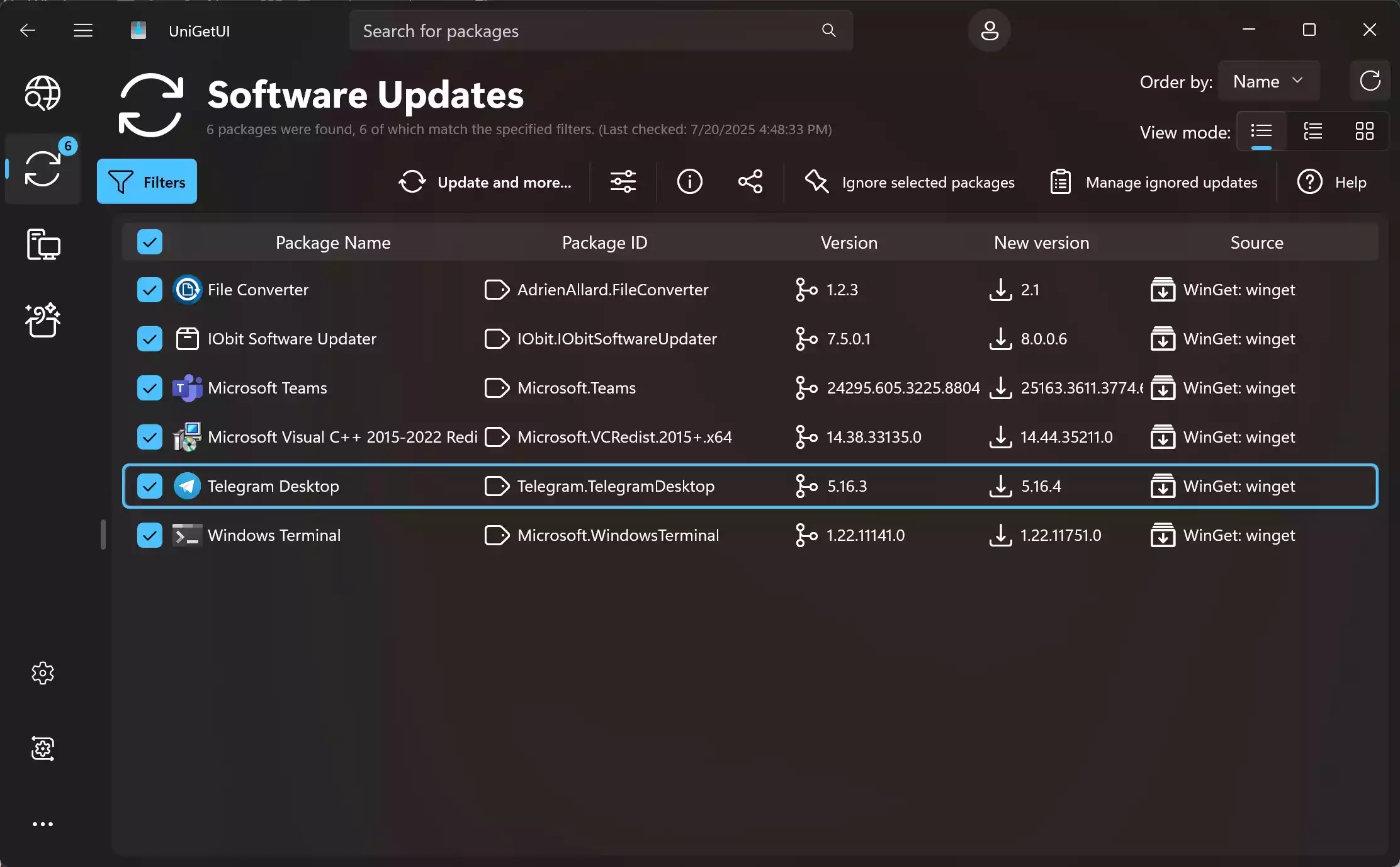
With this freeware, you can easily search, install, uninstall, and update applications—all from a single window. It also helps you manage existing packages and view detailed information about installed software. This makes it a great alternative to tools like Patch My PC Home Updater.
Key Features of UniGetUI
- Supports Multiple Package Managers: WinGet, Chocolatey, Scoop, Pip, and PortableApps.
- Bulk Install & Update: Install or update multiple applications with just a few clicks.
- Easy Installation: Comes with a straightforward installer; no complicated setup required.
- Dark Mode: User-friendly UI with light and dark themes.
- Advanced Filters: Search by name, category, publisher, or source.
- View Software Info: Access version history, changelogs, and dependencies.
How to Use UniGetUI on Windows 11/10?
Follow these steps to download and use UniGetUI on your PC:
Step 1. Visit the official GitHub page to download the software.
Step 2. After downloading, run the setup file and follow the installation prompts to install UniGetUI on your system.
Step 3. On the main interface, you’ll see tabs for available packages, installed apps, and updates. Use the Search bar to find any software.
Step 4. Click the Install or Update button after right-clicking on the app you want to manage. You can also bulk install or update multiple apps by selecting checkboxes and clicking the appropriate option in the toolbar. Similarly, you can uninstall an app from your PC as well.
Step 5. For advanced users, the settings panel allows you to enable or disable package sources like Chocolatey, Scoop, and Pip.
Why Use UniGetUI Instead of Manual Updates?
Updating apps manually is time-consuming and risky if you accidentally download outdated or malicious installers. UniGetUI eliminates this hassle by pulling packages directly from trusted sources. It also ensures you’re always running the latest version of each tool with minimal effort.
Is UniGetUI Safe?
Yes, UniGetUI is open-source and hosted on GitHub, so you can verify its code and source. It pulls software only from verified and reputable package managers. This makes it safer than downloading apps from unknown websites.
Conclusion
Whether you’re a casual user or a system administrator, UniGetUI is a powerful tool for managing software efficiently on Windows 11 and 10. With support for multiple package managers, a clean user interface, and batch installation features, it’s an excellent alternative to manual updating or other updaters like Patch My PC. If you’re looking to automate and simplify app management, UniGetUI is worth trying.
Download it today and take control of your Windows software updates with ease.