

VLC media player is a free and open-source multimedia player developed by VideoLAN and available for multiple operating systems, including Windows, macOS, Linux, Android, and iOS. It is one of the most popular media players worldwide, with over three billion downloads. If you’ve ever struggled with a video or audio file that refused to play, VLC is the all-in-one solution that can handle almost any format without needing extra codecs.
In this gearupwindows article, you’ll learn what VLC media player offers, why it’s beginner-friendly, and how to make the most of its powerful features.
Why Would a Beginner Use VLC Media Player?
Even if you’re not tech-savvy, VLC makes it incredibly easy to play videos, listen to music, stream online media, and even convert file formats. Unlike many other media players, VLC works straight after installation without needing to install extra plugins. Its clean interface is simple to navigate, and it runs smoothly on almost any device.
Main Features of VLC Media Player
- Plays almost any audio or video format, including MPEG-1, MPEG-2, MPEG-4, DivX, MP3, OGG, AAC, DVDs, Blu-ray discs, and VCDs.
- Customizable interface with support for different skins and layout adjustments.
- Subtitle support for SRT, SSA, and ASS formats, with options to change font, size, and color.
- Built-in audio and video effects such as equalizers, filters, and spatializers.
- Network streaming for online content, including YouTube videos and live streams.
- Recording and conversion tools to capture videos or change media file formats.
How to Use VLC Media Player?
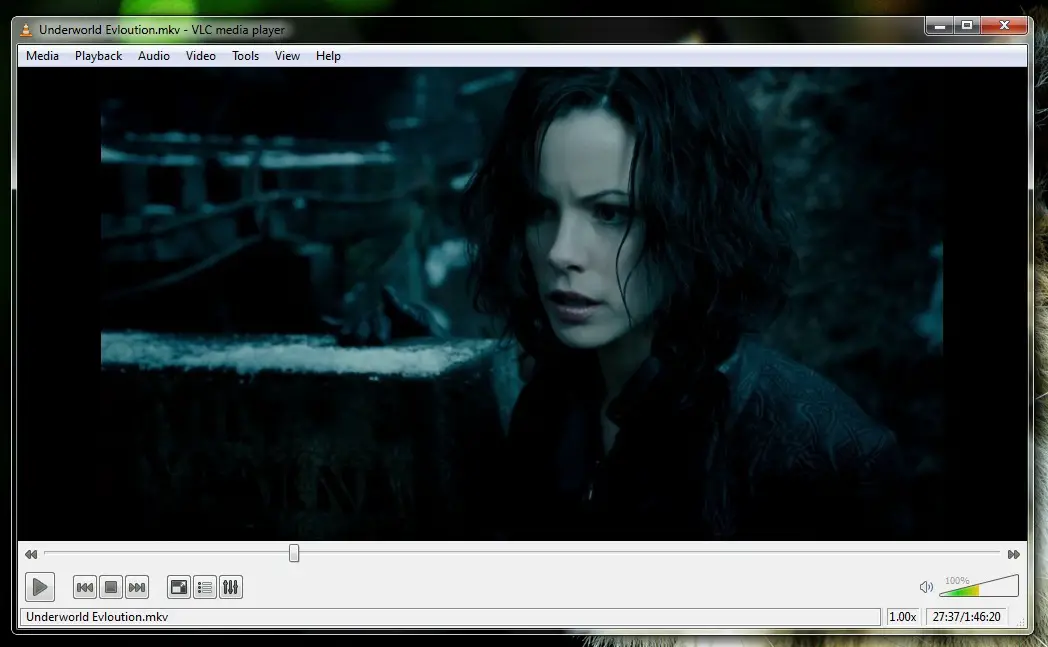
First, download VLC media player from its official website. Choose the correct version for your operating system and install it following the on-screen instructions. Once installed, launch VLC, and you’ll see its simple, uncluttered interface.
To play a file, click on “Media” in the top-left menu, then choose “Open File” and select your video or audio. You can also drag and drop files directly into the VLC window. If you want to stream content from the internet, go to “Media” > “Open Network Stream,” paste the video link, and click “Play.”
For subtitles, simply drag the subtitle file into the VLC window, or go to “Subtitle” > “Add Subtitle File” and choose your file. You can adjust subtitle appearance in “Tools” > “Preferences” > “Subtitles/OSD.”
If you want to convert media files, click “Media” > “Convert/Save,” add your file, choose an output format, and start the process. To record a video playing in VLC, use the “Record” button on the playback controls (you may need to enable it via “View” > “Advanced Controls”).
Safe Use Tips for Beginners
- Always download VLC from the official VideoLAN website to avoid modified or unsafe versions.
- When streaming online, ensure you use trusted sources to avoid harmful content.
- If adjusting advanced audio/video settings, make small changes and test playback to avoid performance issues.
When VLC Media Player Can Help You
- Playing any media file format without needing extra codecs.
- Watching movies with subtitles in different languages.
- Streaming online videos or radio stations directly in the player.
- Recording and converting videos for compatibility with other devices.
Download VLC Media Player
You can download VLC from its official website. It is available for Windows, macOS, Linux, Android, and iOS. The installation file is lightweight, and the setup process is quick and simple. Once installed, VLC is ready to use without additional configuration.
Conclusion
VLC media player is a versatile, beginner-friendly multimedia tool that can handle almost any audio or video format you throw at it. With its wide range of features—from playing local files to streaming online content, customizing subtitles, and converting formats—it’s an essential program for every computer or mobile device. Whether you’re watching movies, listening to music, or streaming live broadcasts, VLC media player delivers a smooth, reliable experience for free.
Frequently Asked Questions About VLC Media Player
Is VLC media player free?
Yes, VLC is completely free and open-source. You can use it without paying any fees.
Does VLC play DVDs and Blu-ray discs?
Yes, VLC can play DVDs, Blu-ray discs, and VCDs without needing additional software.
Can VLC convert video and audio formats?
Yes, VLC includes a built-in conversion tool that allows you to change media files into different formats.
Is VLC safe to download?
VLC is safe to download if you get it from the official VideoLAN website.
Does VLC work on mobile devices?
Yes, VLC has versions for Android and iOS, offering the same powerful features as the desktop version.
Also read: How to Make VLC the Default Media Player in Windows 11?