

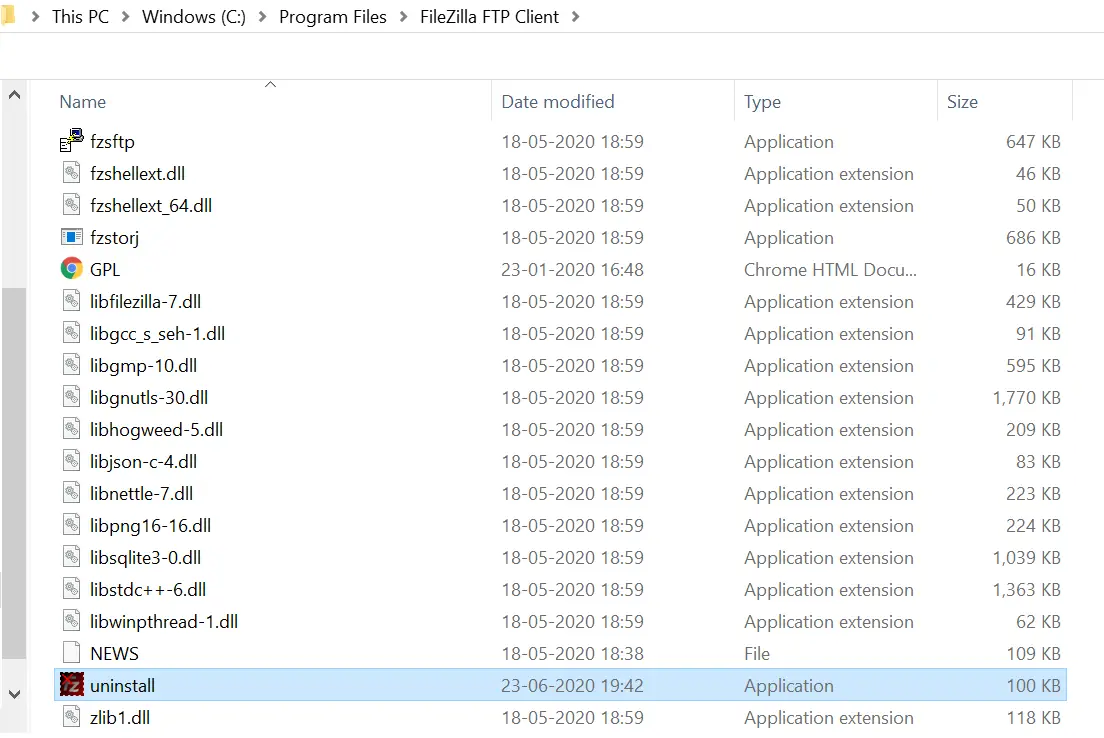
Windows 10 comes with a multitude of apps in addition to the classic programs and tools. Users often install various apps or programs according to their needs. While some apps prove to be useful and continue to be used, others may end up being unused. Some developers include an uninstall option within the installation folder of their app. To uninstall such apps, you can simply double-click on the “Uninstall” option under the respective installation folder within the Program Files directory.
 If you are unable to find the uninstall options within the app’s installation folder, there are still other methods you can use to uninstall apps. There is no need to install third-party tools to uninstall either built-in or installed apps on your Windows 10 PC.
Microsoft provides three ways to uninstall apps from a Windows 10 PC. You can uninstall both native apps that come with Windows 10 and the manually installed apps. Beginning with Windows 10 build 14936, Microsoft offers the ability to uninstall almost all native apps by navigating to the “Apps & features” section within the Settings app.
How to uninstall or remove native apps and manually uninstall programs in Windows 10 using the Start menu?
With this method, you can uninstall native apps of Windows 10 as well as manually uninstall apps.
Step 1. Click on the Start button and type the app name you want to remove or uninstall from your Windows 10 PC.
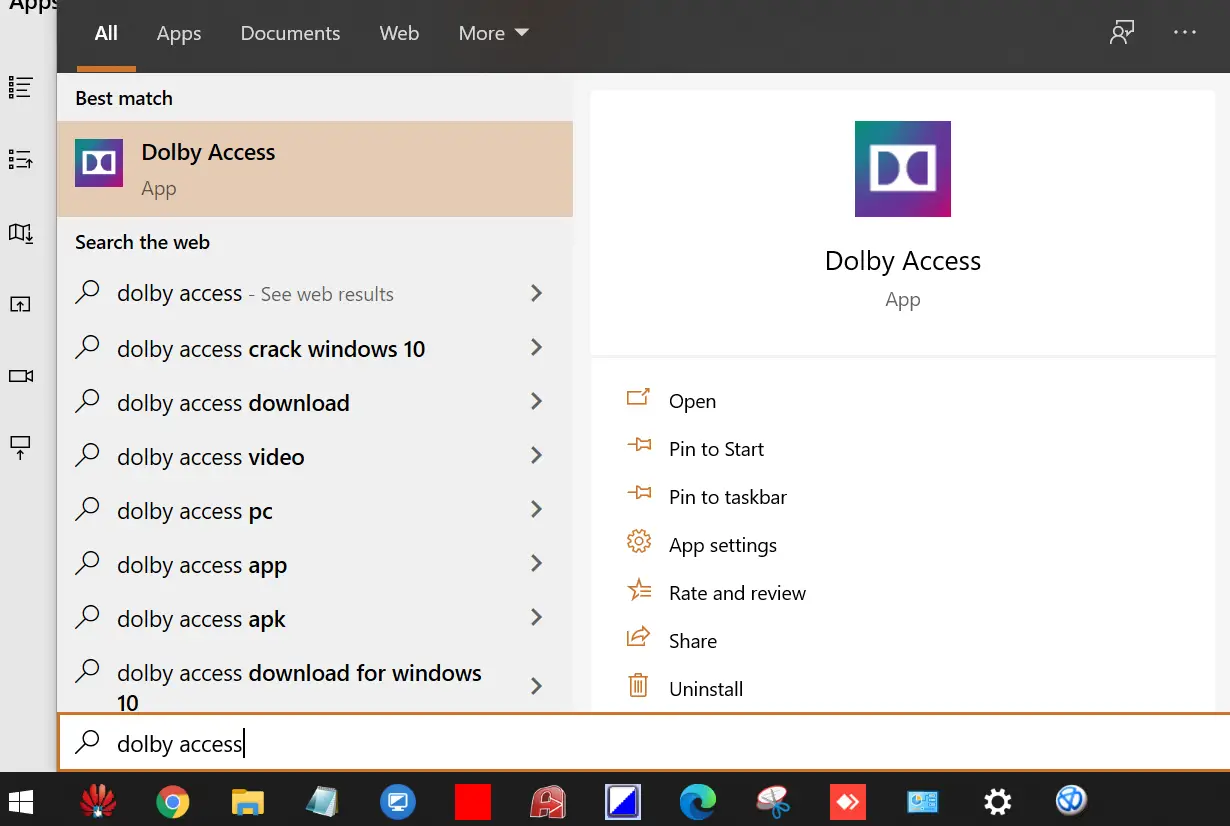 Step 2. Click on the Uninstall link in the right pane to uninstall the selected app. Or, right-click on the program that you want to uninstall and select uninstall.
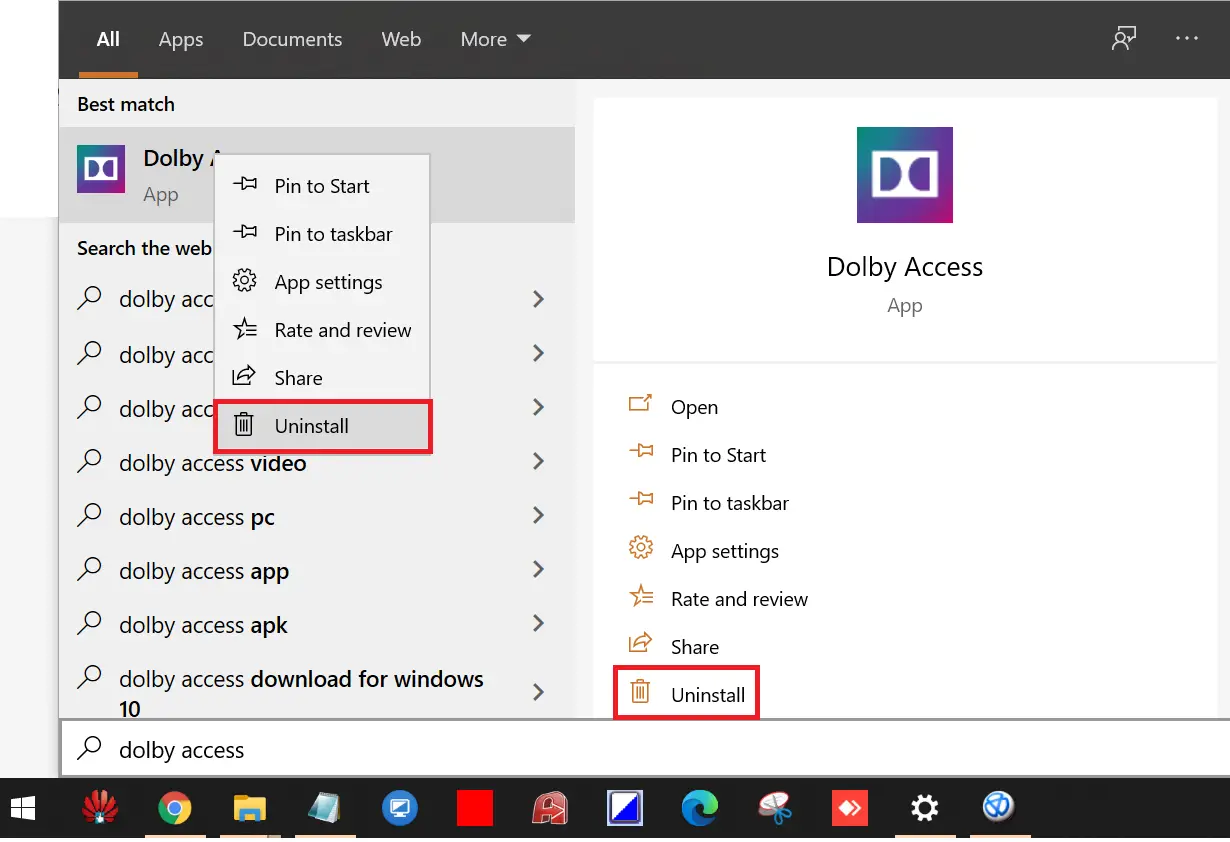
How to uninstall or remove installed programs in Windows 10 using the Start menu?
With this method, you can uninstall only third-party apps in Windows 10 that you have installed manually. This means you will not be able to uninstall native Windows 10 apps, e.g., Dolby Access.
Step 1. Click on the Start button and type appwiz.cpl.
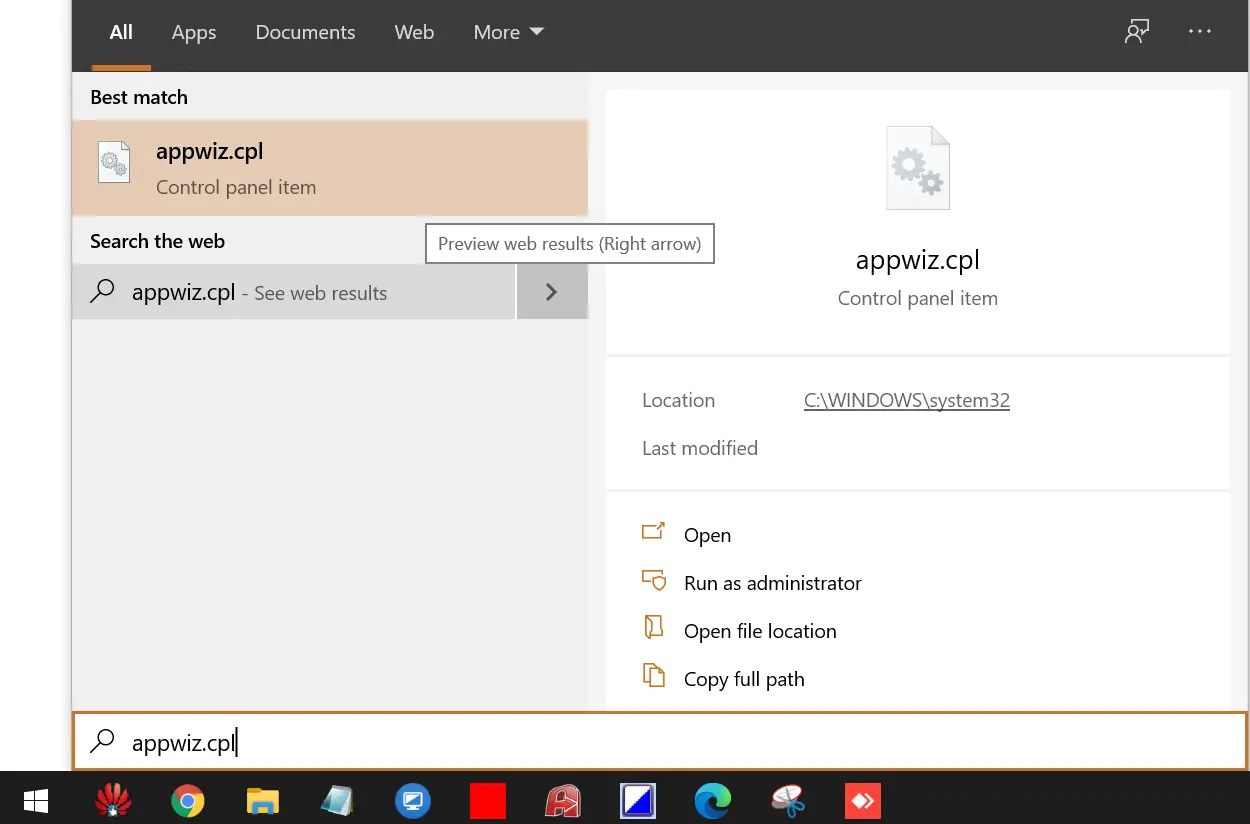 Step 2. From the search results, click on appwiz.cpl to launch “Programs and Features.”
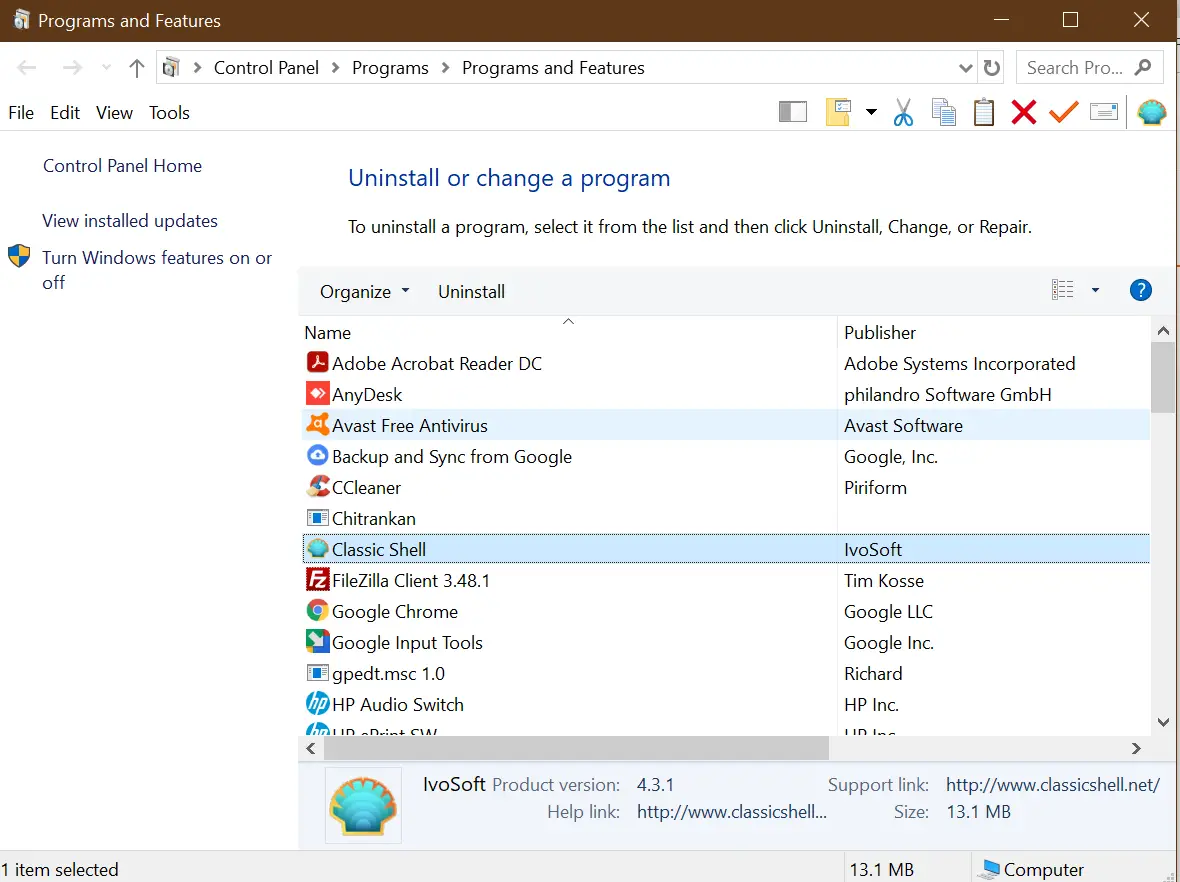 Step 3. Double-click on the app that you want to uninstall.
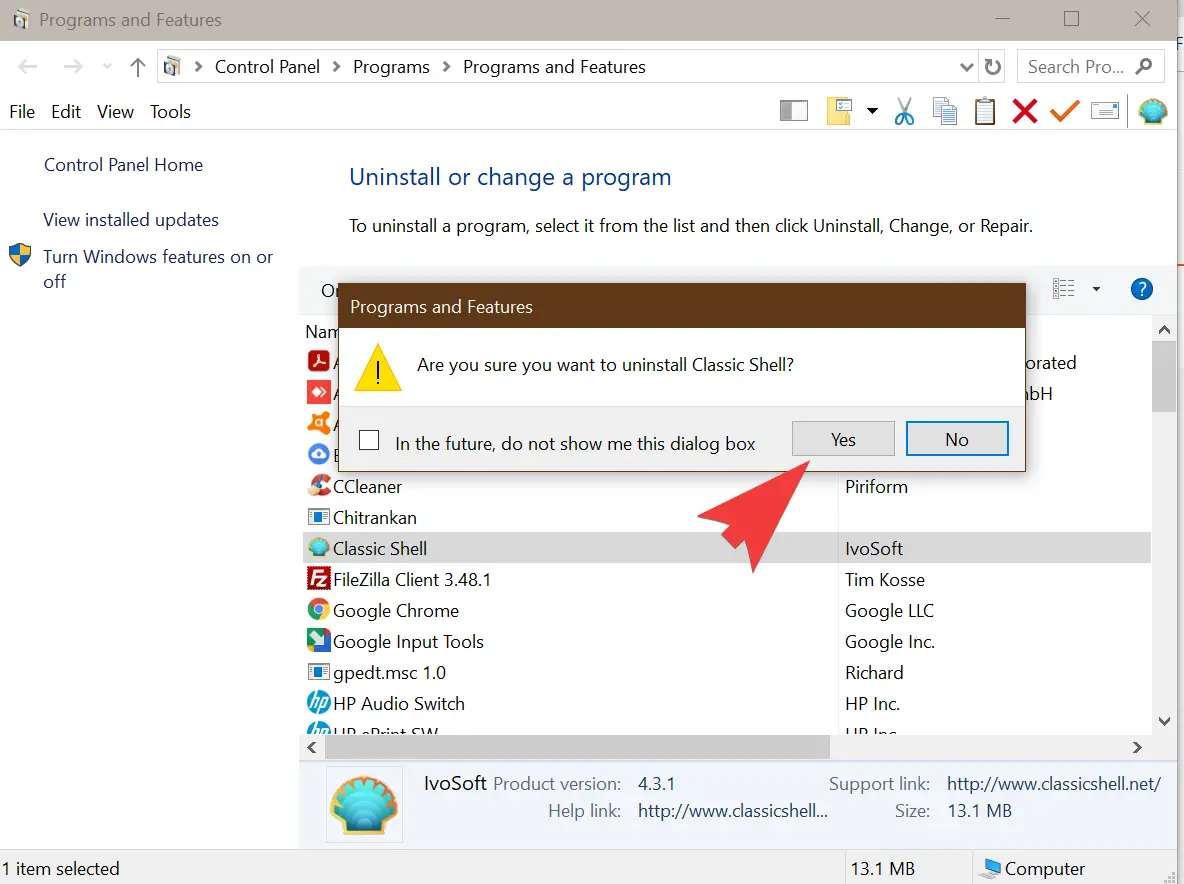 Step 4. Click on the Yes button to complete the uninstall.
How to uninstall default Windows 10 apps as well as third-party apps using Settings?
Follow these steps to uninstall default Windows 10 apps as well as third-party apps using Settings:-
Step 1. Click on the Start button and type Settings.
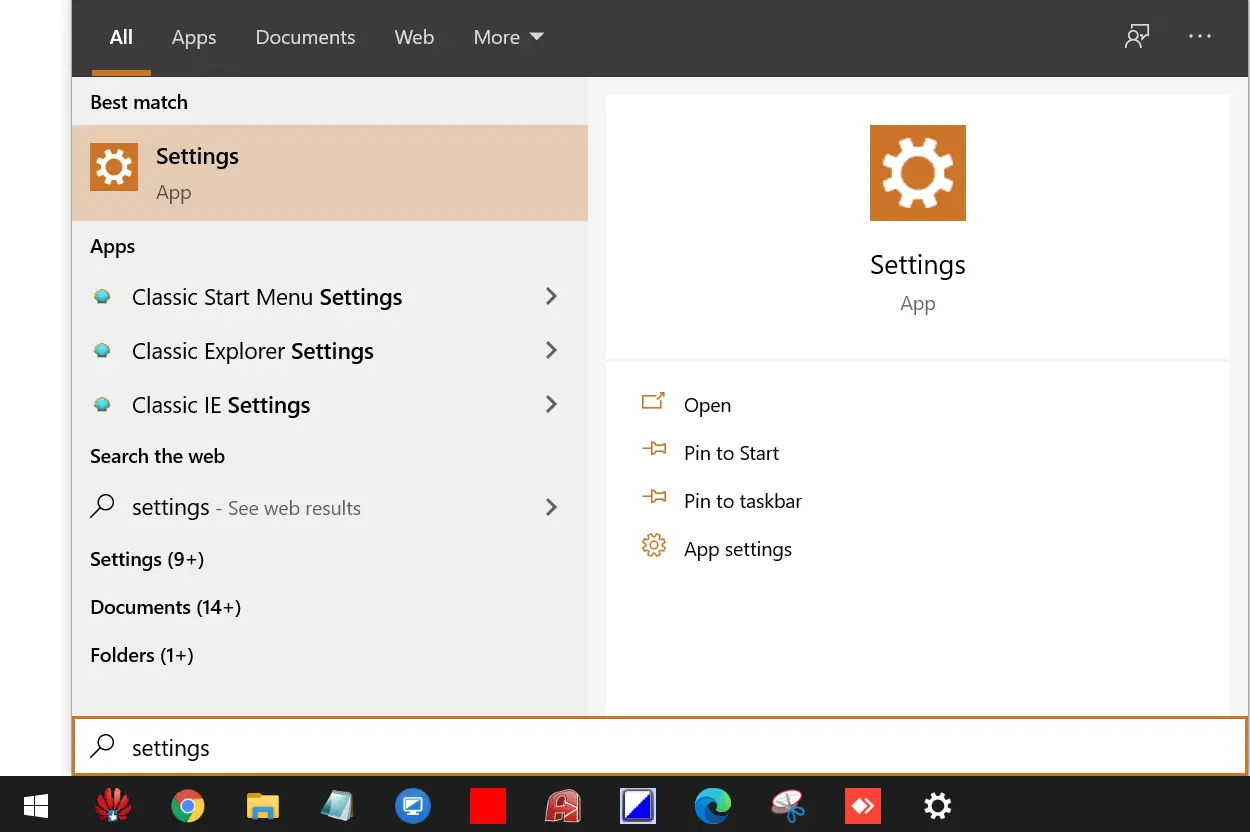 Step 2. From the available search results, click on the Settings app to launch the same.
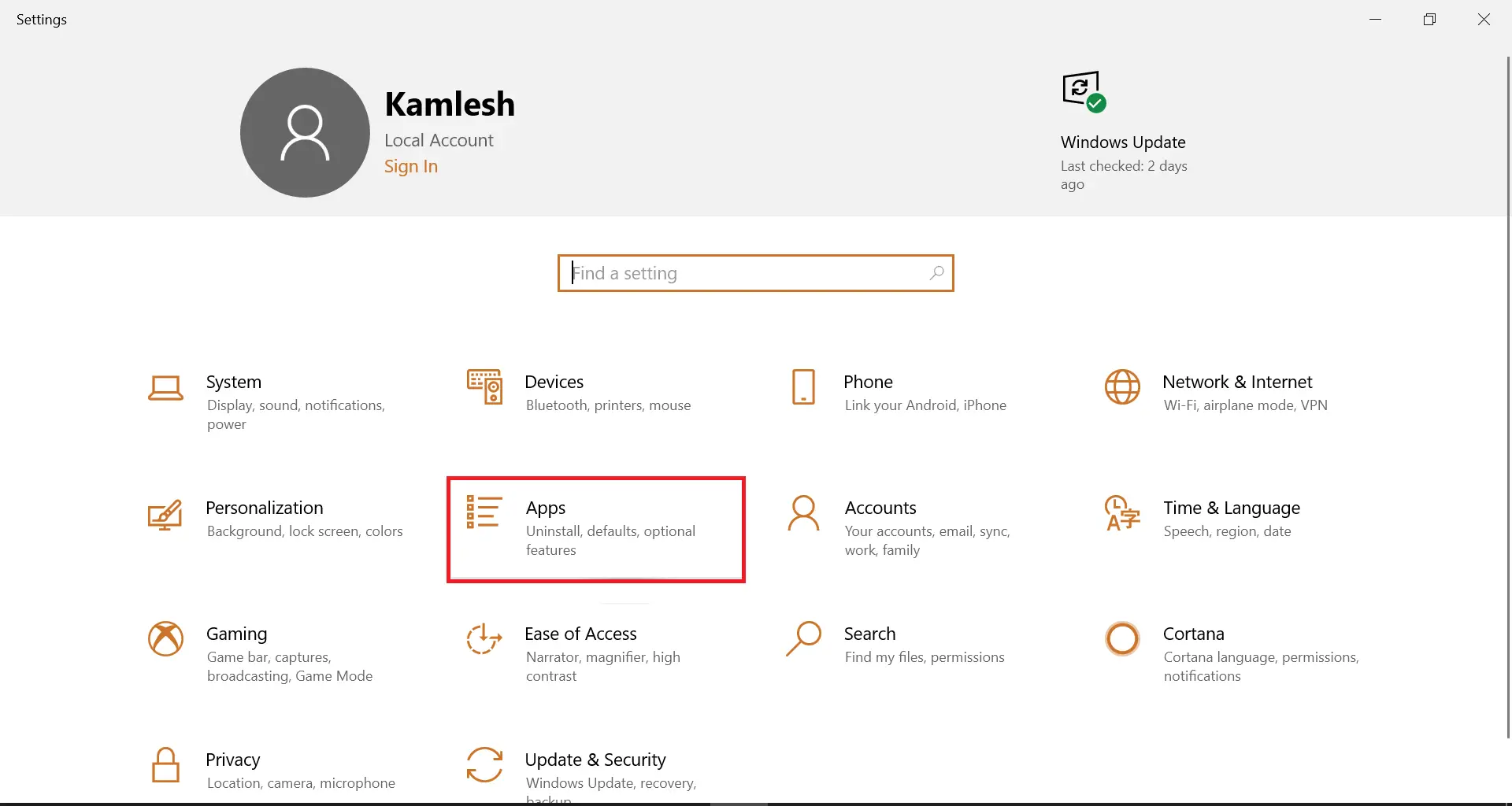 Step 3. Under the Settings window, click on Apps.
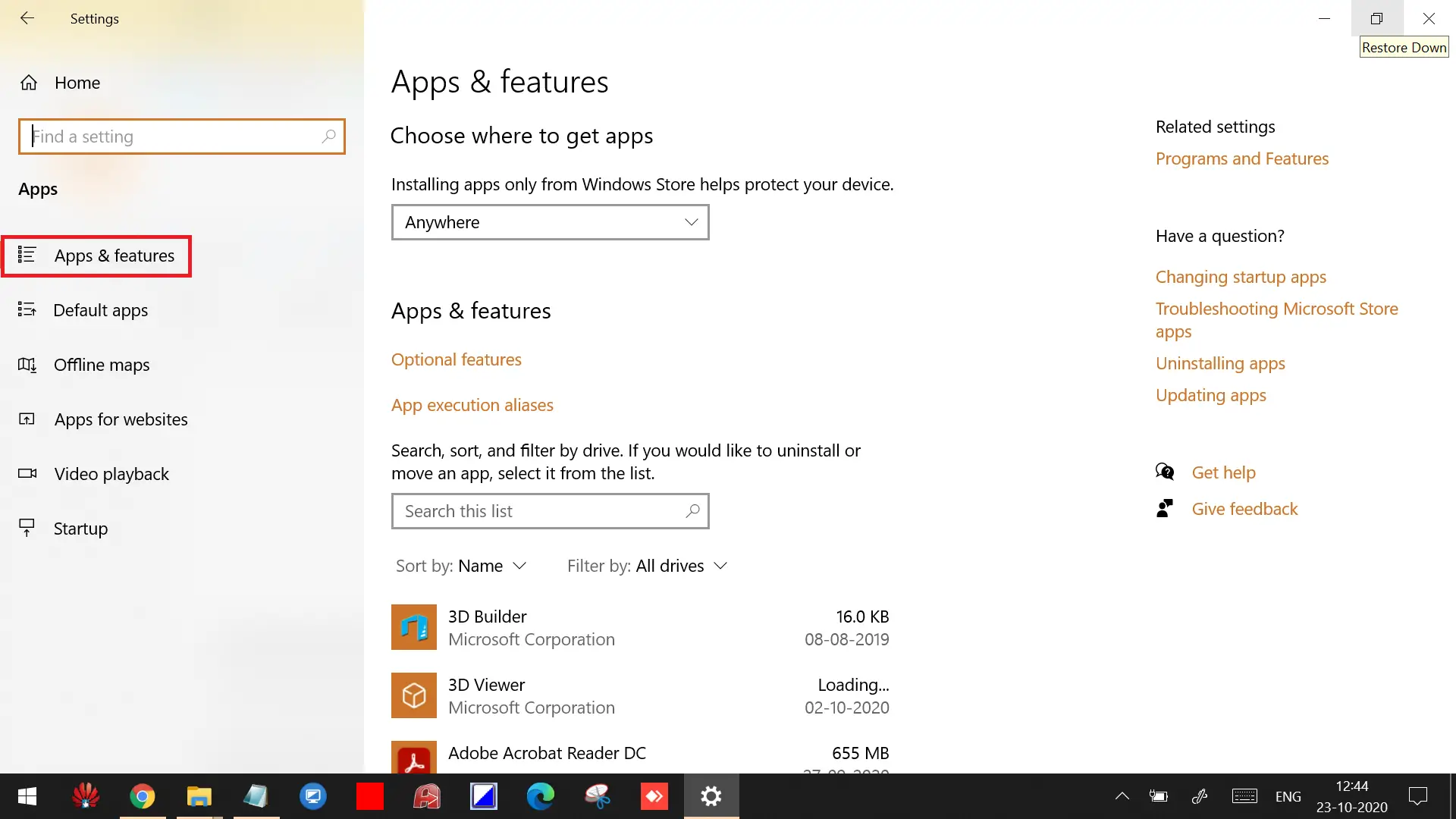 Step 4. Click Apps & features from the left side menu.
Step 5. Scroll down to see the lists of apps and programs currently installed on your Windows 10 PC.
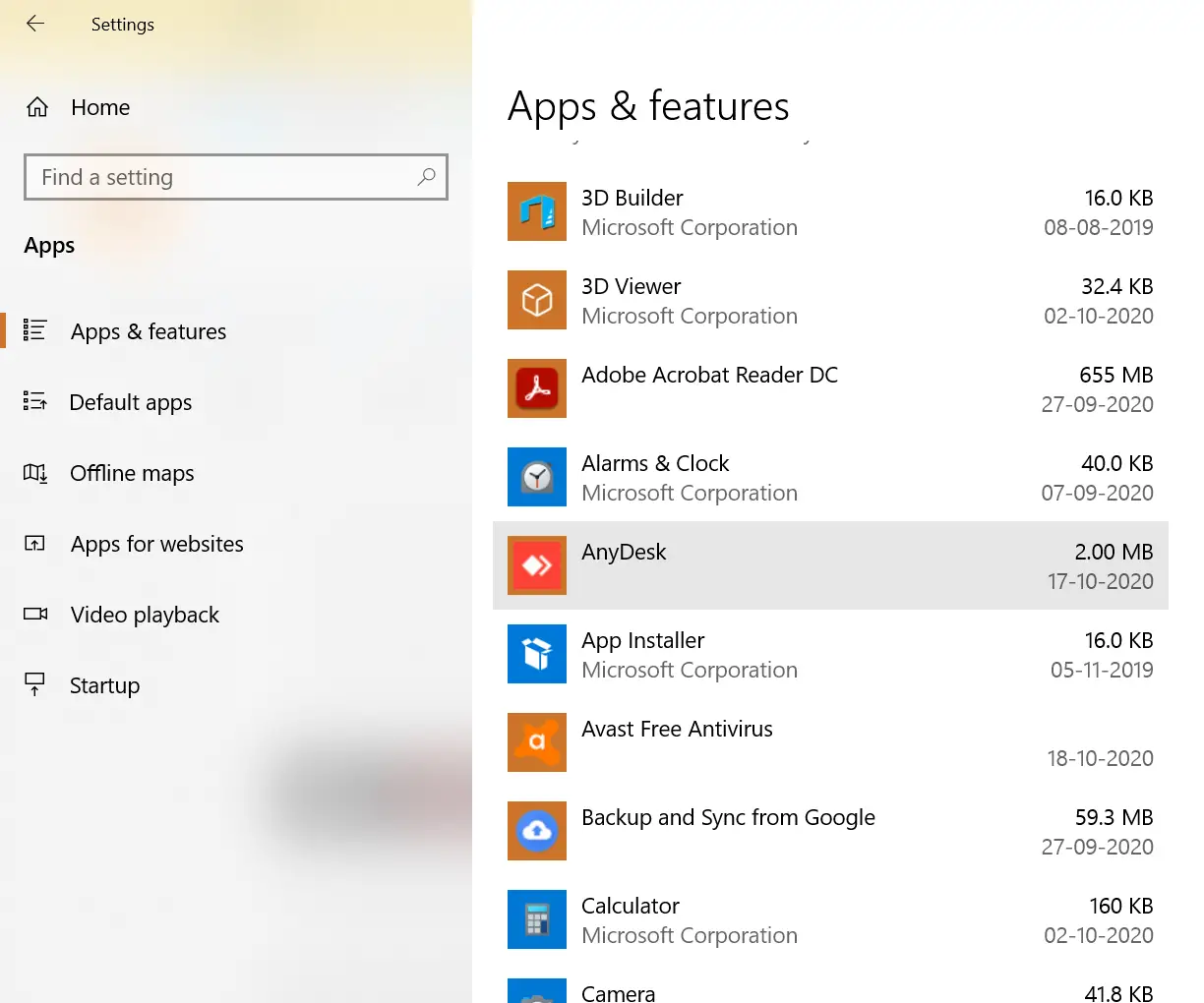 Step 6. Click on the App that you want to uninstall from your PC.
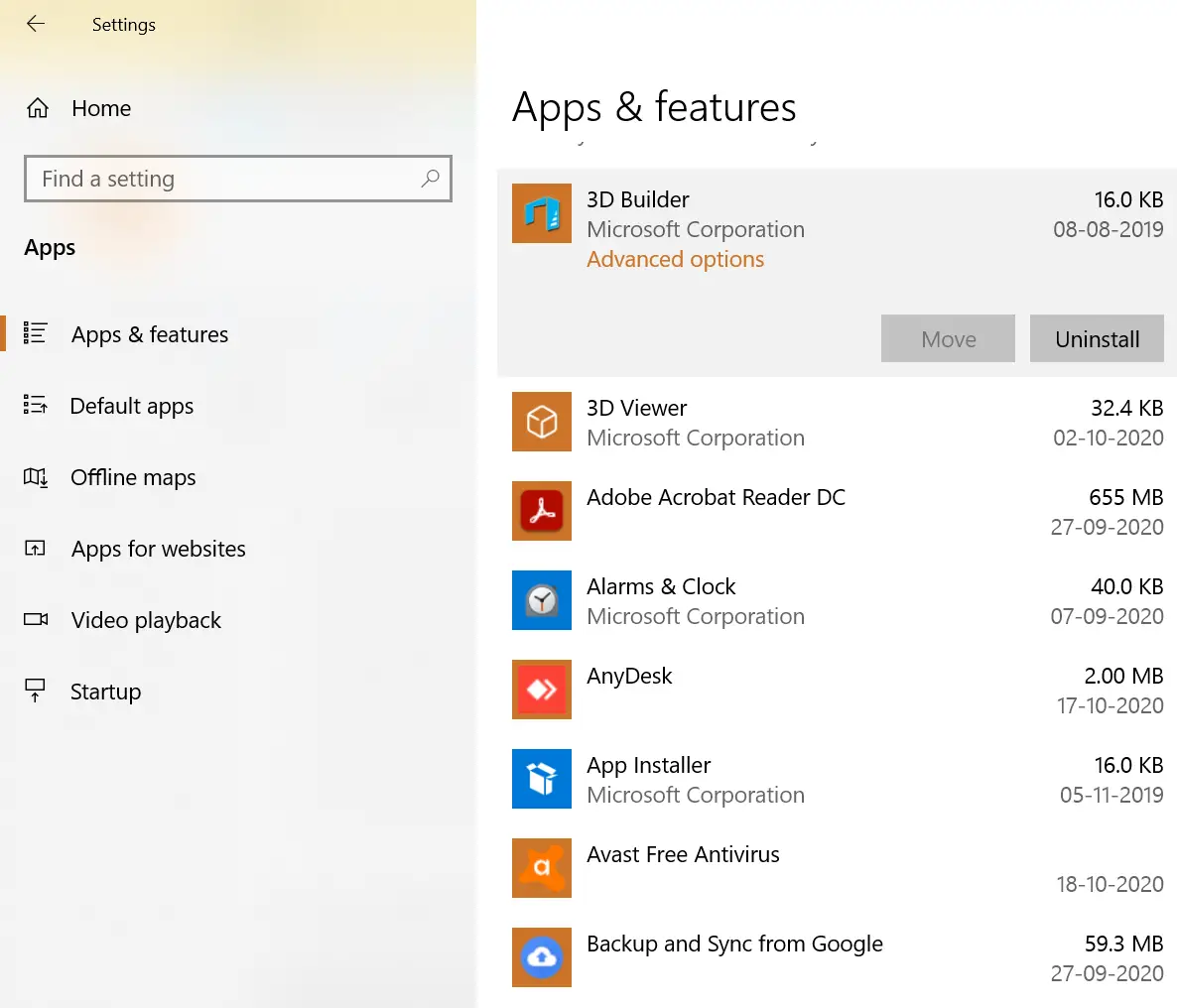 Step 7. Click the Uninstall button.
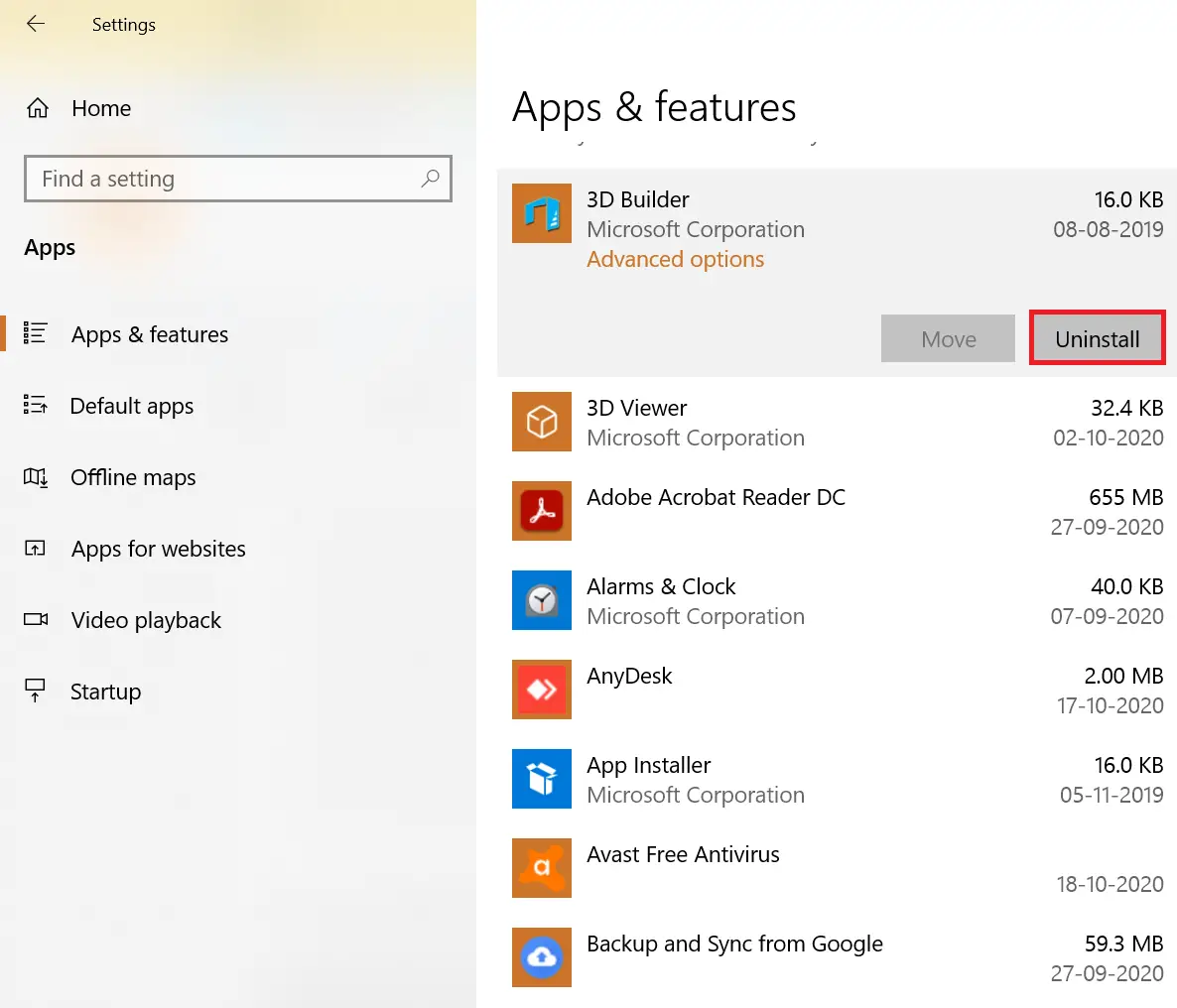 Step 8. Click on the Uninstall button when the message prompts that “This app and its related info will be uninstalled.”
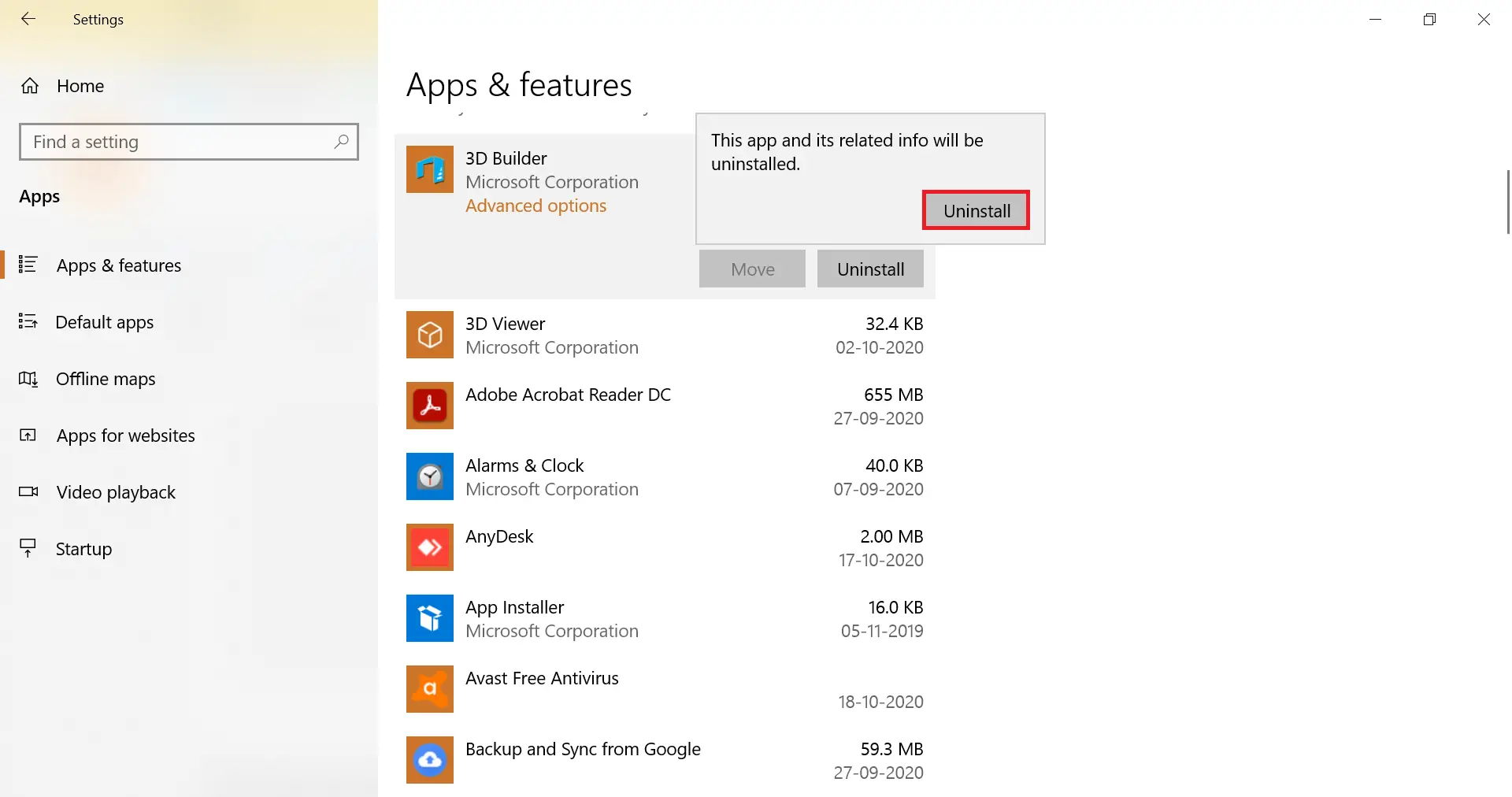 Step 9. Now, the selected app will start uninstalling.
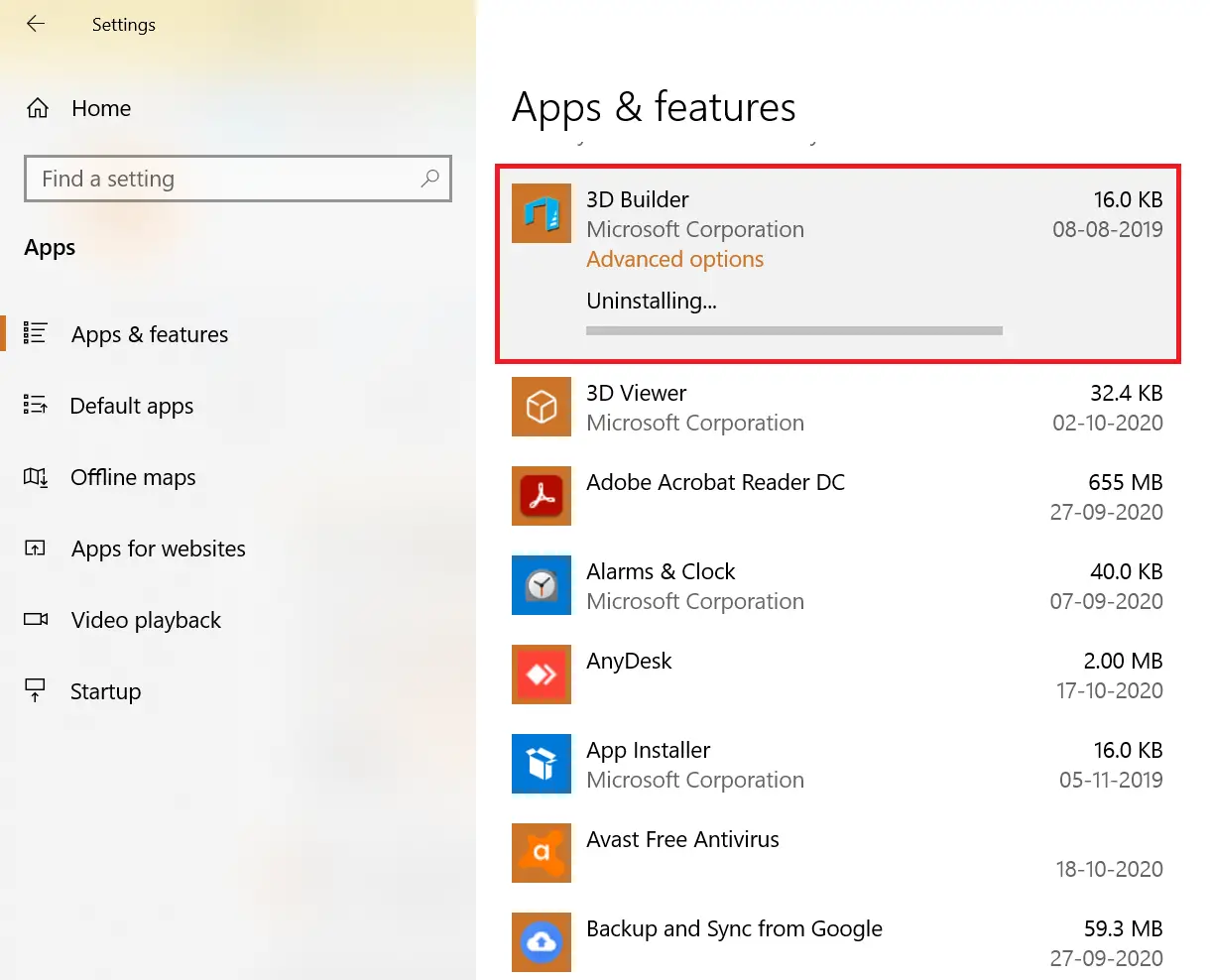 That’s all! Above are three easy ways through which you can uninstall native apps and third-party apps from your Windows 10 PC.
FAQs
Can I uninstall built-in Windows 10 apps?
Yes. Windows 10 allows most native apps to be removed through the Apps & features section in Settings, especially in newer builds.
What is the quickest way to uninstall an app?
Using the Start menu search is the fastest. Type the app name, click Uninstall, and follow the prompts.
Why do some apps not show an uninstall option?
Certain system apps are protected by Windows and cannot be uninstalled through normal methods.
Is there a difference between uninstalling via Start menu and Programs and Features?
Yes. The Start menu removes both native and third-party apps, while Programs and Features handles only classic desktop programs.
Does uninstalling an app delete my data?
Most apps remove only program files. User data or settings may remain unless the app prompts you to remove them.
Do I need third-party tools to uninstall apps?
No. Windows 10 provides everything necessary to remove both native and installed apps without additional software.
Why does an app still appear after uninstalling?
Sometimes a corrupted entry remains. Restart the PC, recheck Apps & features, or uninstall the program again if needed.
Can I reinstall a default Windows app after removing it?
Yes. Most built-in apps can be reinstalled from the Microsoft Store.
Conclusion
In conclusion, uninstalling apps from a Windows 10 PC is a simple process and can be accomplished using multiple methods. Windows 10 offers built-in options to uninstall both native and manually installed apps. The Start menu provides a quick and easy way to uninstall apps by simply searching for the app name and clicking the uninstall link or using the “Programs and Features” option. Additionally, the “Apps & features” section within the Settings app offers the ability to uninstall almost all native apps in Windows 10. With these simple steps, you can easily manage and remove any unwanted apps from your PC, freeing up space and keeping your system running smoothly.
If you have stubborn apps or programs that refuse to uninstall, you can use these free power tools to remove them.