

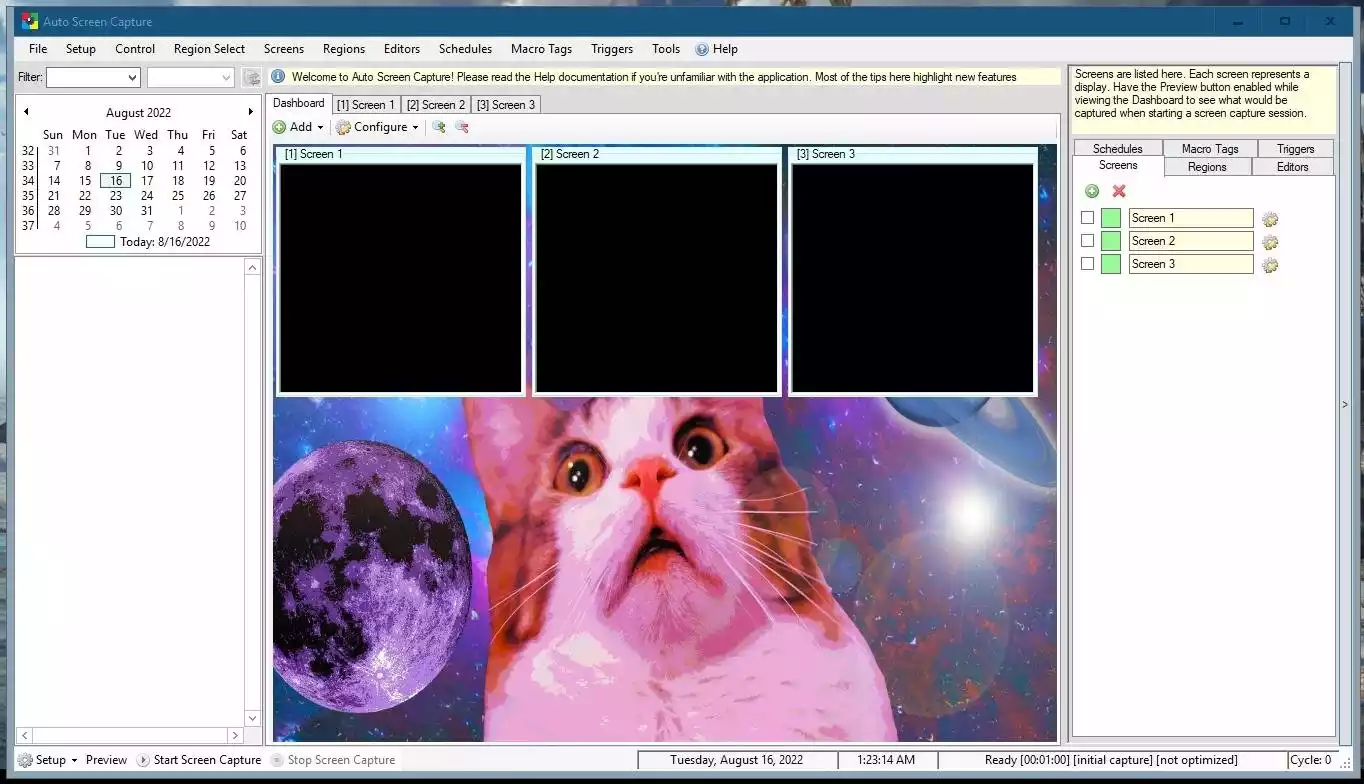
Auto Screen Capture is a free and open-source tool for Windows that lets you capture screenshots automatically on a schedule. Unlike pressing Print Screen manually, this utility runs quietly in the background and saves snapshots of your desktop, applications, or selected regions at the intervals you set. It even supports multiple monitors and can export screenshots with customized rules.
Why Would a Beginner Use Auto Screen Capture?
If you are new to screen recording or documenting tasks, Auto Screen Capture makes things simple. Beginners don’t have to worry about remembering hotkeys—screenshots are taken automatically at regular intervals. Whether you are a student taking lecture notes, a teacher creating tutorials, or a gamer recording progress, this tool saves time and effort.
Main Features of Auto Screen Capture
- Scheduled Captures – Take screenshots at fixed intervals (seconds, minutes, or hours).
- Multi-Monitor Support – Capture all screens or select a specific monitor.
- Flexible Capture Modes – Record the entire screen, active window, or a custom region.
- File Naming Rules – Save images with timestamps or custom formats.
- Export Options – Supports saving as PNG, JPG, BMP, and automatic export via email (SMTP) or FTP/SFTP.
- Lightweight & Portable – Runs in the background without slowing down your PC.
How to Use Auto Screen Capture
Using Auto Screen Capture is straightforward, even for beginners:
- Download and extract or install the software.
- Choose your capture interval (e.g., every 30 seconds, every minute).
- Select the capture type – full screen, active window, or a custom region.
- Pick the output folder and format (PNG, JPG, BMP).
- Press Start and let the tool run in the background.
All screenshots are automatically saved in the folder you selected for easy access.
Safe Use Tips for Beginners
- Use a dedicated folder to store screenshots to stay organized.
- Clear out old screenshots regularly to free up disk space.
- Be mindful if sensitive information is on your screen while capturing.
When Auto Screen Capture Can Help You
This free tool comes in handy in many real-life situations:
- Students – Capture lecture slides and research steps automatically.
- Teachers – Build tutorials and presentations without manual effort.
- Gamers – Record gameplay progress with no interruptions.
- Software Testers – Track bugs and application behavior over time.
If you want a manual screenshot tool with editing features, you can also try Sniptool, another freeware available on GearUpWindows.
Frequently Asked Questions About Auto Screen Capture
Does Auto Screen Capture support multiple monitors?
Yes, it can capture all monitors at once or just the one you choose.
Where are the screenshots saved?
You can configure the save folder in settings. By default, they are stored in the program’s directory or your chosen folder.
Can I customize the capture interval?
Yes, you can set the interval in seconds, minutes, or hours depending on your needs.
Is Auto Screen Capture free?
Absolutely. It is open-source and completely free under the GPLv3 license.
Download Auto Screen Capture
You can download the latest version of Auto Screen Capture for Windows from trusted sources:
Conclusion
Auto Screen Capture is one of the most reliable and flexible screenshot automation tools for Windows. From documenting your studies to testing software or recording gameplay, it gives you a hands-free way to capture everything happening on your PC. Best of all, it’s lightweight, portable, and 100% free.
Once you’ve collected your screenshots, you may also want to optimize them with our Image Compressor & Resizer tool to save storage space.