

In this gearupwindows guide, we’ll show you how to use BATExpert to monitor your laptop battery status in real-time with detailed insights. For example, if your battery drains quickly or your laptop shuts down unexpectedly, BATExpert can help you check battery health, wear level, and charge cycles.
What Is BATExpert?
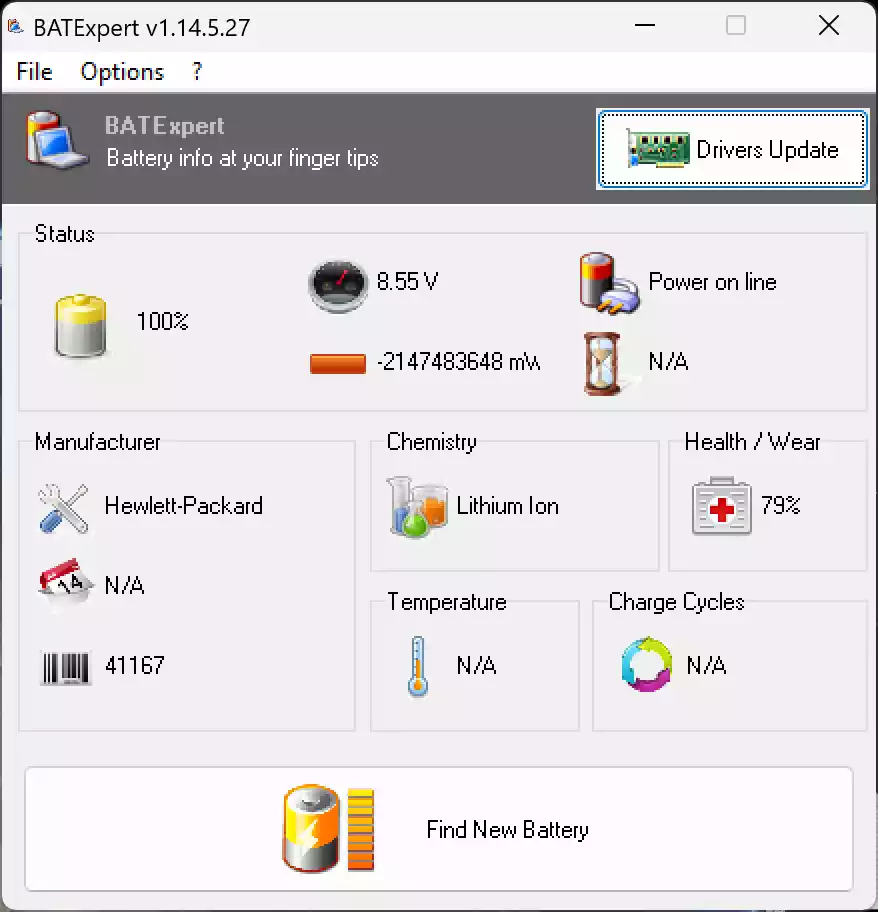
BATExpert is a free battery diagnostics tool for Windows. It offers clear insights into your laptop battery’s condition. This tool displays charge level, temperature, voltage, manufacturer details, and more.
Unlike Windows’ default battery meter, BATExpert provides a detailed view in a single window. It supports all modern Windows versions, including Windows 11, 10, 8, and 7.
How to Download and Use BATExpert?
You can download BATExpert as either an installer or a portable version. The portable version does not require installation and can run from a USB stick.
After launching BATExpert, the main screen will immediately show all battery-related information. No complex configuration is needed.
How to Use BATExpert?
- Download BATExpert from the SoftPedia website.
- Run the installer or extract the portable version.
- Launch the tool to see the detailed battery status.
Within seconds, you can view the charge rate, battery health, temperature, and even battery manufacturer details.
Main Features of BATExpert
- Battery status: See real-time charge level and estimated runtime.
- Health monitoring: Detects wear level and aging signs.
- Manufacturer info: Shows model, serial number, and chemistry (e.g., Lithium-Ion).
- Temperature display: Lets you monitor overheating risks.
- Clean interface: Simple and beginner-friendly design.
Does BATExpert Have a GUI?
Yes, BATExpert has a full graphical user interface. It opens in a window and displays all information clearly. You don’t need to open any command prompt or system logs.
The layout is easy to read, with battery indicators and system-friendly icons. Beginners will find it accessible without needing technical knowledge.
Is BATExpert Safe to Use?
BATExpert is safe and digitally signed by KC Softwares. It doesn’t modify your system or attempt to fix battery issues. It only reports battery data based on internal Windows APIs.
To stay safe, always download BATExpert from its official website or trusted software platforms. Scan the file with an antivirus before use.
Limitations of BATExpert
While BATExpert is excellent for monitoring, it does not improve or calibrate your battery. It has no repair or optimization features. Additionally, on some laptops, a few details like temperature or serial number may not be available.
If you’re looking to generate a system-based report instead, learn how to generate a battery health report on Windows 11 or 10 using built-in tools.
For users who want extra features like power plans and performance tweaks, third-party tools like BatteryCare and Battery Optimizer offer advanced capabilities to manage and extend battery life.
If you prefer another diagnostics app, BatteryInfoView is a lightweight alternative to BATExpert with detailed status tracking and history logging.
Also, to keep track of your charge easily, you can display battery percentage on the Windows 11 taskbar for better real-time awareness.
Conclusion
If you need a reliable, easy-to-use battery monitoring tool for your laptop, BATExpert is a solid choice. It provides accurate battery information in a user-friendly interface. Whether you’re troubleshooting poor battery life or simply monitoring wear level, this utility gives you all the essential data in one place.
Use BATExpert alongside Windows’ built-in battery report or other tools to better understand your battery’s health and performance over time.