

In this gearupwindows guide, we’ll show you some of the best free battery utilities and tricks to monitor, optimize, and extend your laptop’s battery life. If your device drains quickly, charges slowly, or shows incorrect battery levels, these tools can help. From advanced battery monitoring to smart performance modes and built-in system reports, this guide covers everything you need to take full control of your laptop’s battery health and usage.
Best Free Battery Tools for Windows 11/10
Battery Mode – A Powerful Battery Profile Switcher
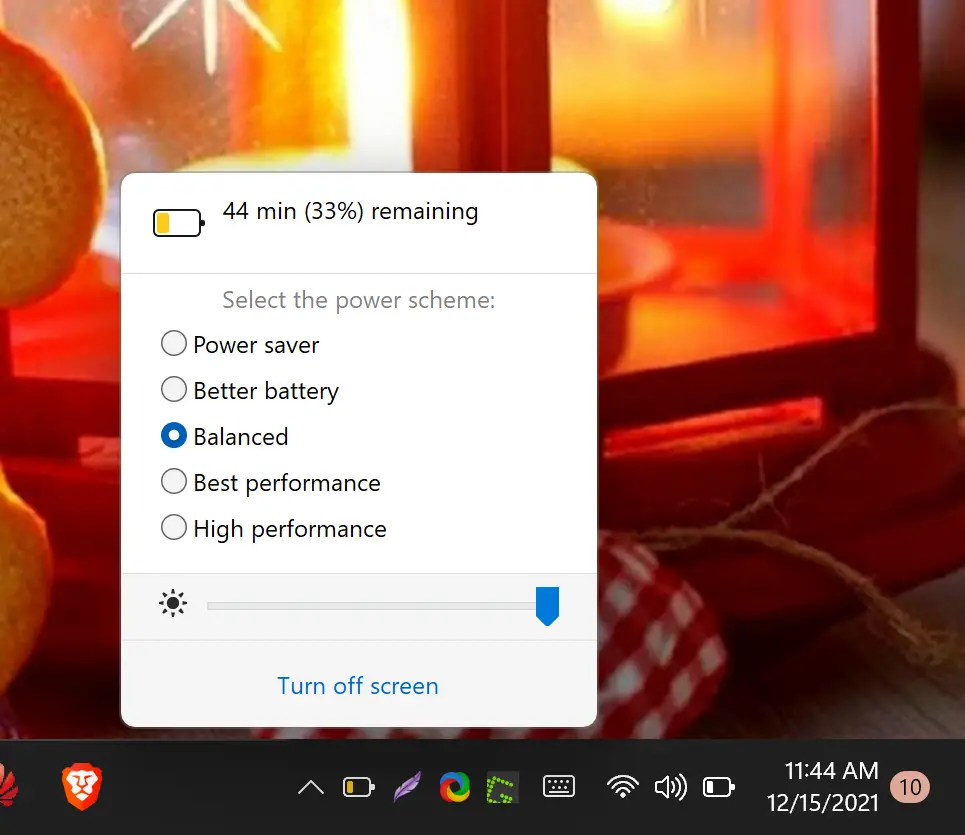
Battery Mode is a free tool designed for users who want more control over their power plans on Windows 11 or 10. Unlike the standard Windows battery settings, it offers a quicker and more flexible way to switch between power profiles directly from the system tray.
Once installed, it adds a customizable battery icon to the taskbar, allowing you to switch between High Performance, Balanced, and Power Saver modes with just one click. You can also create your own custom profiles to match your needs—whether you’re gaming, working, or watching movies.
Battery Mode is especially useful if you frequently switch between performance and energy-saving modes. It helps extend battery life without diving deep into Windows settings each time. This tool is fully compatible with Windows 11 and 10.
If you want to go even further and display the battery percentage in your Windows 11 taskbar, check out our step-by-step guide.
BATExpert – Get Detailed Battery Information Instantly
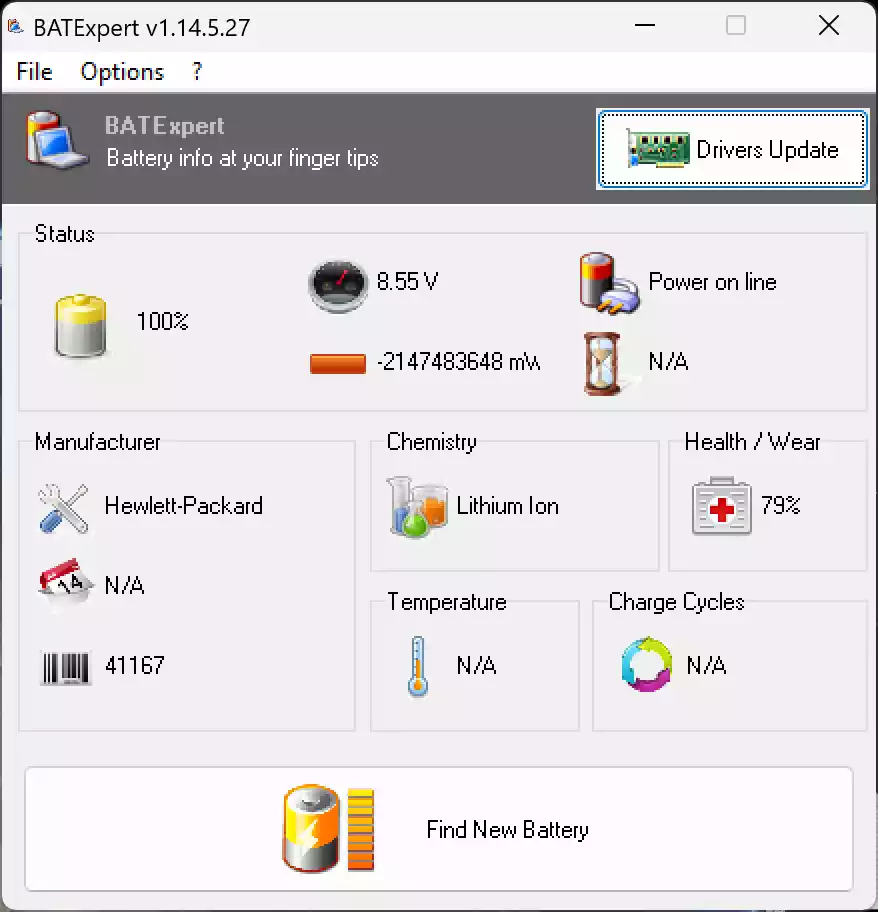
BATExpert is a lightweight and free utility that gives you a clear and detailed overview of your laptop’s battery status. Unlike the default Windows battery display, this tool shows real-time data, including manufacturer details, current charge level, battery temperature, and wear level.
It’s perfect for users who want to monitor their battery’s health and capacity over time. BATExpert displays battery manufacturer, voltage, charge cycles, and expected life, making it easy to detect potential battery issues early.
The interface is user-friendly and ideal for beginners. With a quick glance, you can see whether your battery is aging or still performing well. This makes it a great tool to use alongside the built-in battery health report in Windows 11 or 10.
Battery Optimizer – Analyze and Extend Laptop Battery Life
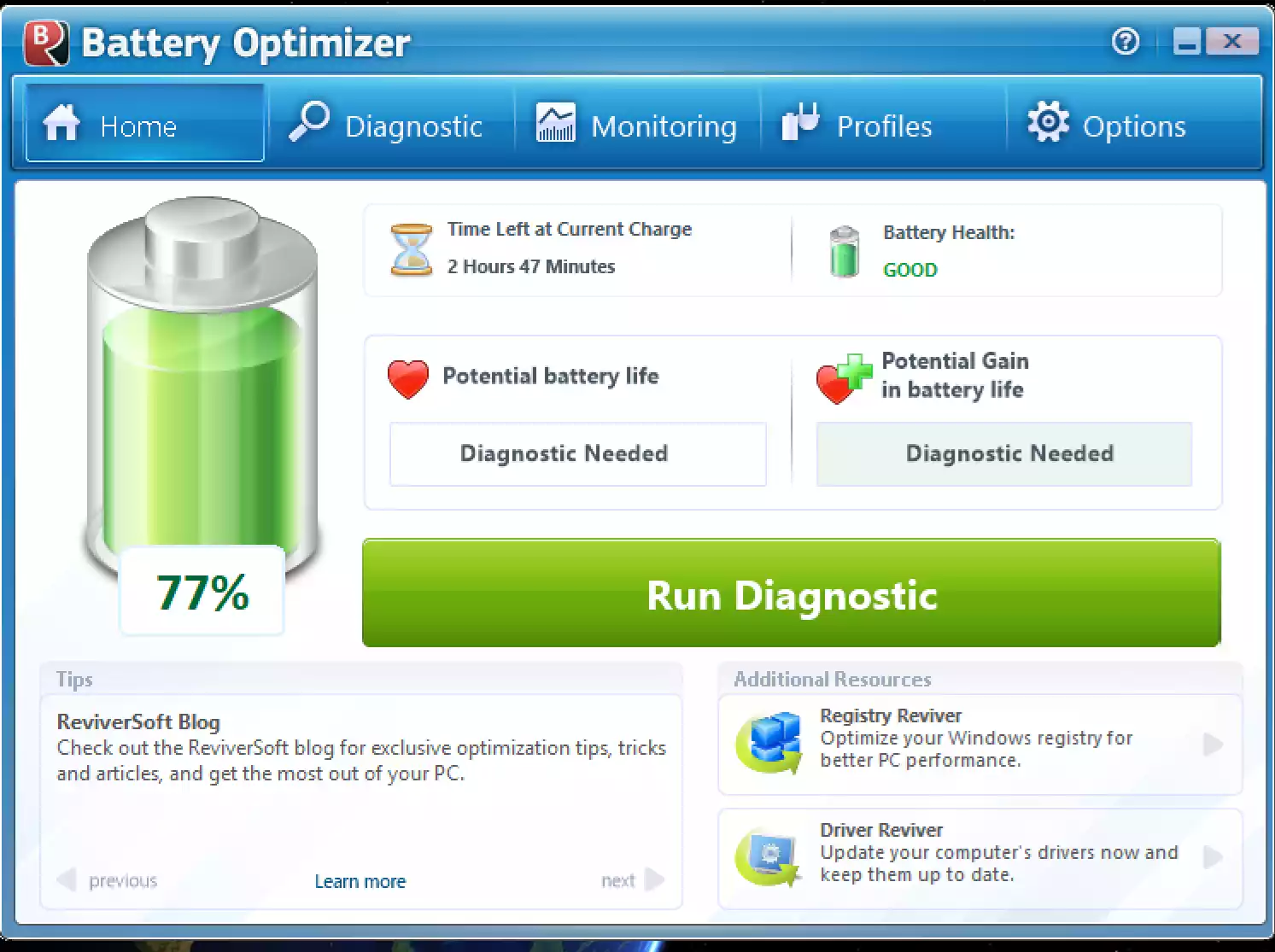
Battery Optimizer is a free Windows application that helps users improve battery performance through smart diagnostics and recommendations. It analyzes your laptop’s usage patterns and offers personalized suggestions to extend battery life.
With just one scan, Battery Optimizer detects resource-heavy applications and background processes that consume excess power. You can then apply the tool’s optimization suggestions to reduce battery drain without sacrificing performance.
This software is especially helpful for older laptops or users who frequently work unplugged. When used regularly, it can help extend your battery’s lifespan by minimizing unnecessary power consumption. Pair it with BATExpert for real-time battery stats and smarter battery management.
BatteryCare – Monitor Battery Cycles and Optimize Charging
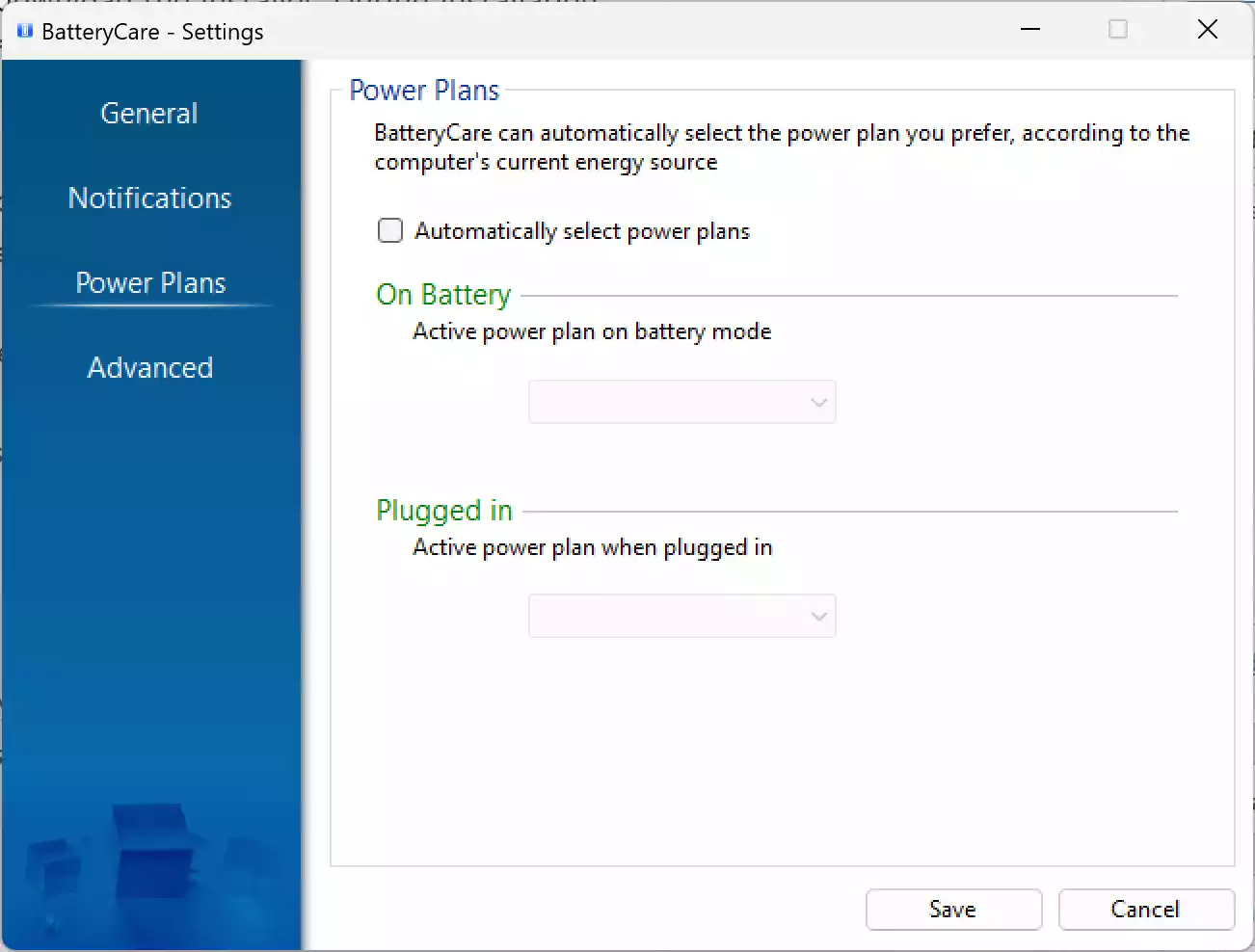
BatteryCare is a free battery utility designed to monitor your laptop’s battery discharge cycles and optimize usage for a longer lifespan. It’s a great tool for users who rely heavily on their laptops and want to preserve battery health over time.
This software tracks battery wear, temperature, and full charge/discharge cycles. Based on the data, it notifies you when a full discharge is recommended—helping calibrate the battery for more accurate readings.
BatteryCare also automatically disables power-hungry services and adjusts Windows power plans when running on battery. It works silently in the background and supports both Windows 11 and 10.
BatteryInfoView – View Advanced Battery Details in One Window
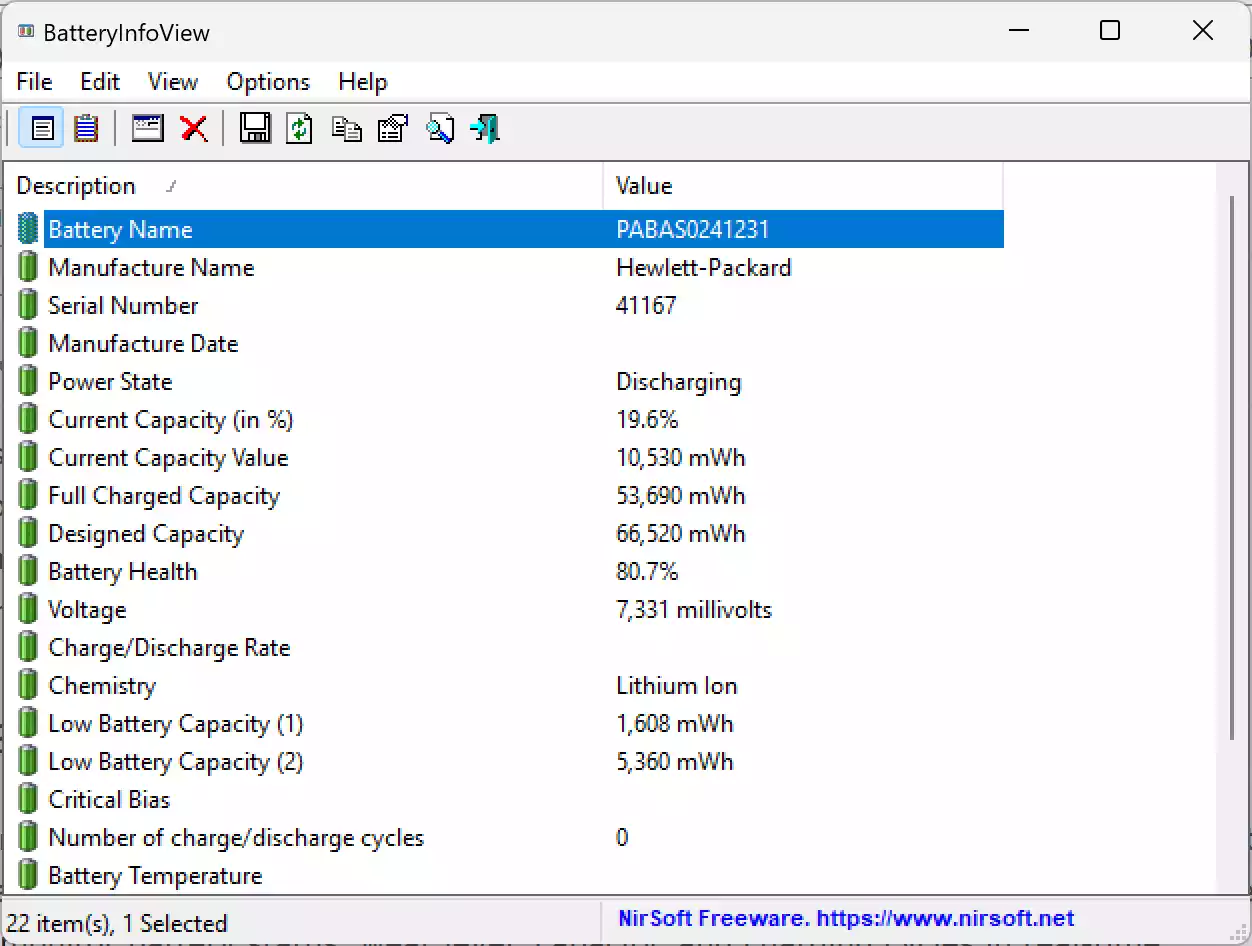
BatteryInfoView is a compact and portable utility from NirSoft that provides deep insights into your laptop’s battery. It shows over 20 types of data, including current capacity, designed capacity, full charge capacity, battery status, voltage, and power state.
This tool is perfect for advanced users who want technical details without clutter. You can even log battery status at regular intervals to analyze performance trends over time.
BatteryInfoView is lightweight, runs without installation, and works flawlessly on both Windows 11 and 10. It complements tools like BatteryCare by offering raw battery data in a clean, readable format.
Conclusion
Managing your laptop’s battery effectively is key to getting the most out of your device, especially when you’re on the go. With these free tools—like Battery Mode for quick power switching, BATExpert for health insights, and Battery Optimizer for performance tips—you can take full control of your battery’s performance and lifespan.
Whether you want detailed stats, automatic optimization, or just a better way to view your battery percentage, there’s something here for every Windows 11 and 10 user. Don’t forget to also use the built-in tools to generate a full battery report for a system-level overview of your battery’s condition.
Try a few of these free utilities today and give your laptop battery the care and performance boost it deserves.