

Have you ever wished you could separate your work apps from your personal browsing without opening another PC? That’s exactly what virtual desktops can do for you. They let you run multiple “desktops” on the same computer, so you can keep projects, apps, and windows organized. Even better, several free portable tools don’t require installation — just run them from a USB stick and enjoy extra desktops instantly.
What is a Portable Virtual Desktop Tool?
A portable virtual desktop manager is lightweight software that adds extra desktops to Windows without requiring a full install. You can carry it on a USB drive and launch it anywhere. These tools often come with customization features such as hotkeys, desktop names, icons, and even visual pagers.
Why Would a Beginner Use Virtual Desktop Tools?
If you multitask, portable desktops are a lifesaver. Imagine having one desktop for your office documents, another for social media, and a third for entertainment. Beginners love them because they’re easy to use and don’t modify system files. You simply run the program, switch desktops with a shortcut, and enjoy a clutter-free workspace.
Main Features to Look For
- Support for multiple desktops (some offer up to 20!)
- Customizable hotkeys for quick switching
- Portable or no-install use
- Low resource consumption
- Compatibility with Windows 11 and 10
Top Free Portable Virtual Desktop Tools
1. VirtuaWin (Portable)

VirtuaWin is a classic and still one of the best virtual desktop managers. It supports up to 20 desktops, works with dual monitors, and comes with plugin modules for added functionality. The portable version is available from SourceForge, so you can run it without installation. Its hotkeys and tray icons make desktop switching smooth, though the interface looks old-school.
If you often work with documents, pairing VirtuaWin with a tool like the Free PDF to Word Converter makes multitasking even easier.
2. Sysinternals Desktops

Developed by Microsoft’s Sysinternals team, Sysinternals Desktops is extremely lightweight and stable. It lets you create up to 4 desktops and switch using hotkeys or a tray menu. Each desktop is isolated, which helps keep work and personal apps separate. It’s not as customizable as VirtuaWin, but it’s perfect if you want something official and simple.
3. Windows Virtual Desktop Helper (Open Source)
Windows Virtual Desktop Helper is another free tool that doesn’t create desktops by itself but enhances the built-in Windows desktops. It shows the desktop number, allows renaming, adds tray icons, and offers easier navigation. If you like Windows 11’s native virtual desktops but want extra control, this is a great lightweight helper.
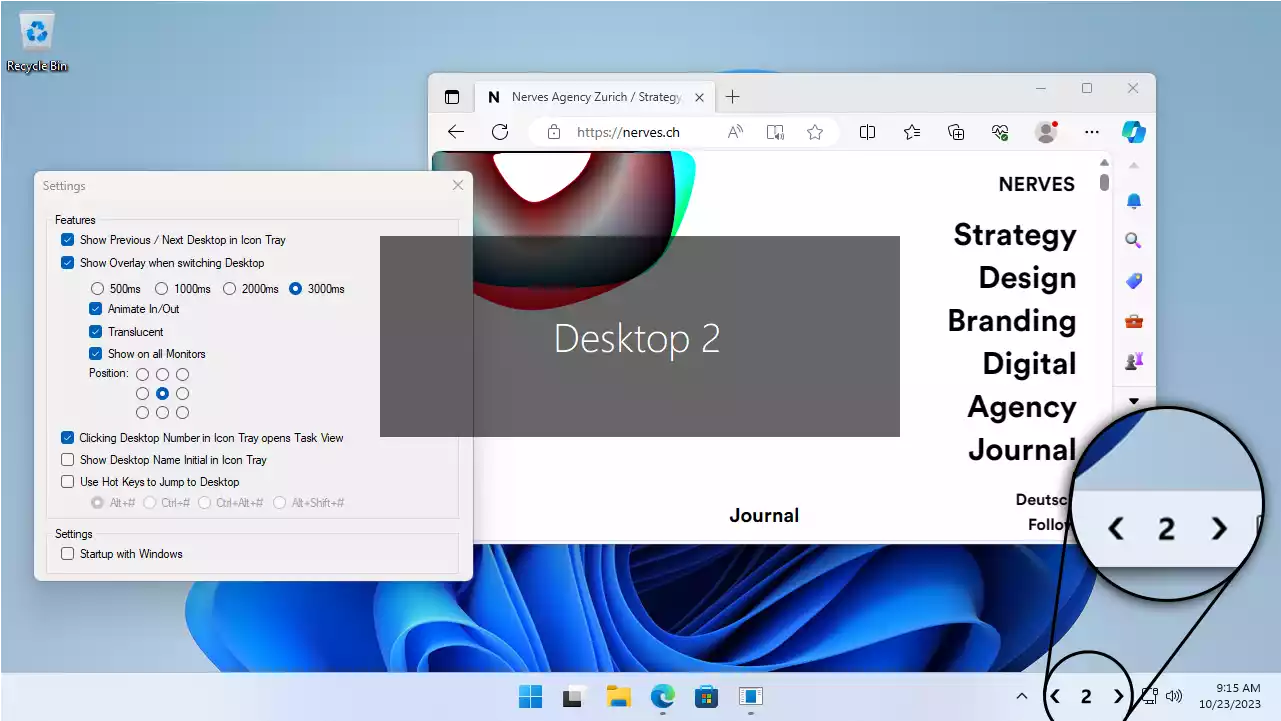
For file organization alongside desktops, you can try Text Cleaner & Formatter to quickly tidy copied content while switching desktops.
4. Dexpot
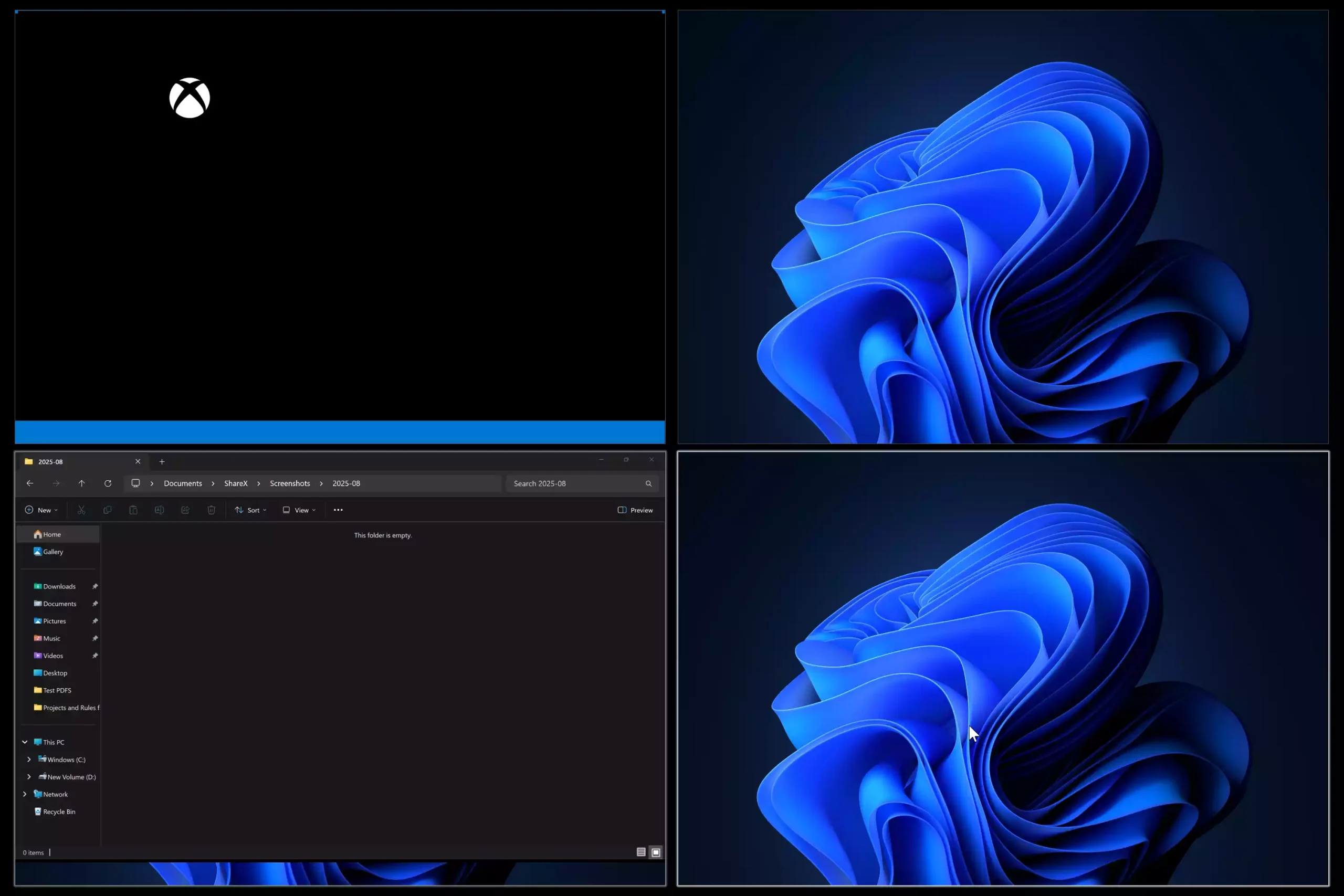
Dexpot is another feature-rich virtual desktop manager. It supports up to 20 desktops, offers thumbnail previews, and even lets you move or copy windows between desktops. It’s free for private use and has plugin support. Although heavier than others, it’s a powerhouse for customization.
5. nSpaces

nSpaces is a lighter alternative that allows creating multiple desktops with different wallpapers, hotkeys, and even password protection. It may not be actively updated, but it still works well on Windows 10 and some Windows 11 builds. Beginners appreciate its simple interface and ability to separate workspaces visually.
6. zVirtualDesktop
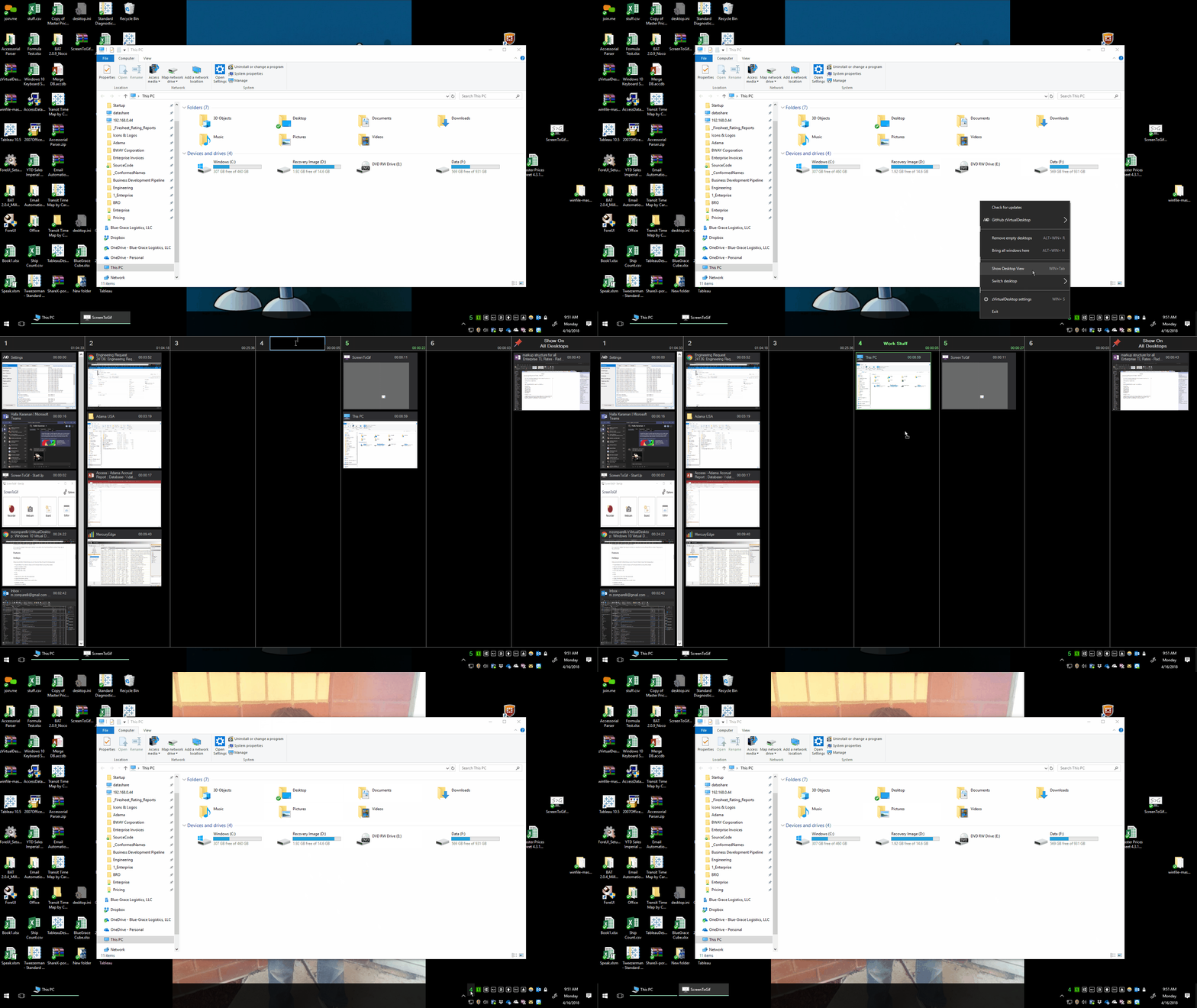
zVirtualDesktop is a modern and lightweight virtual desktop manager built specifically for Windows 10 and Windows 11. Unlike older tools, it integrates directly with Windows’ native virtual desktop feature but adds powerful extras such as custom hotkeys, per-desktop wallpapers, startup rules, and even desktop-specific taskbars. This makes switching between work, gaming, and personal desktops far smoother.
Beginners appreciate that zVirtualDesktop runs quietly in the background and provides visual notifications when changing desktops. Power users can go further and assign custom apps to always open on a specific desktop. It’s free to use and frequently updated by its developer community.
Safe Use Tips for Beginners
- Always download from official sources like SourceForge or GitHub.
- Stick to portable versions to avoid registry clutter.
- Start with 2–4 desktops; too many may confuse you.
- Use memorable hotkeys (like Ctrl+Alt+1/2/3).
- Check compatibility with your Windows version before using.
When Portable Virtual Desktops Can Help You
These tools are handy when you:
- Work on different projects and want a clean separation.
- Share a computer and want your own organized workspace.
- Test software on isolated desktops without mixing apps.
- Want a distraction-free environment for writing or coding.
Frequently Asked Questions About Virtual Desktop Tools
Do virtual desktops slow down my PC?
No, most tools here are lightweight and only consume minimal RAM. However, the more apps you run on each desktop, the more system resources will be used.
Can I move windows between desktops?
Yes, tools like Dexpot and VirtuaWin allow dragging or hotkey-based window transfers between desktops.
Are these tools safe?
Yes, when downloaded from official sources. Avoid random third-party sites to stay safe.
Do I need admin rights to run portable versions?
No, most portable builds run without admin access, making them great for office or shared PCs.
Can I use these tools on Windows 7 or 8.1?
Some tools like VirtuaWin and Dexpot still support older versions, but this guide focuses on Windows 11 and 10, where they work best.
Conclusion
Whether you want something minimal like Sysinternals Desktops, highly customizable like VirtuaWin, or feature-rich like Dexpot, there’s a free portable virtual desktop tool for everyone. Beginners can start small, while power users can dive into plugins and modules. With these tools, you’ll enjoy a cleaner, more productive Windows workspace.